
Store Wallet
Manage your MediFlux wallet balance, add credits for paid services, and track wallet transactions, deductions, and rewards.
The Store Wallet allows you to manage credits used for MediFlux services that carry additional charges.
Some features, such as sending WhatsApp sale invoices, payment reminders, and other chargeable services, require wallet credits. If you are using MediFlux Mini, wallet credits can also be used for scanning features.
MediFlux notifies you when a feature involves an additional charge, so you can decide whether to use it.
To use these services, you must have sufficient balance in your Store Wallet. You can add credits whenever needed and review how they are used through the transaction statement.
The Wallet also keeps a record of credits, deductions, subscription-related transactions, and referral rewards.
Accessing the Store Wallet
You can open your Store Wallet from the profile menu.
Open the profile menu
Click the Profile icon at the top-right corner of MediFlux.
Select Wallet
From the dropdown menu, click Wallet.
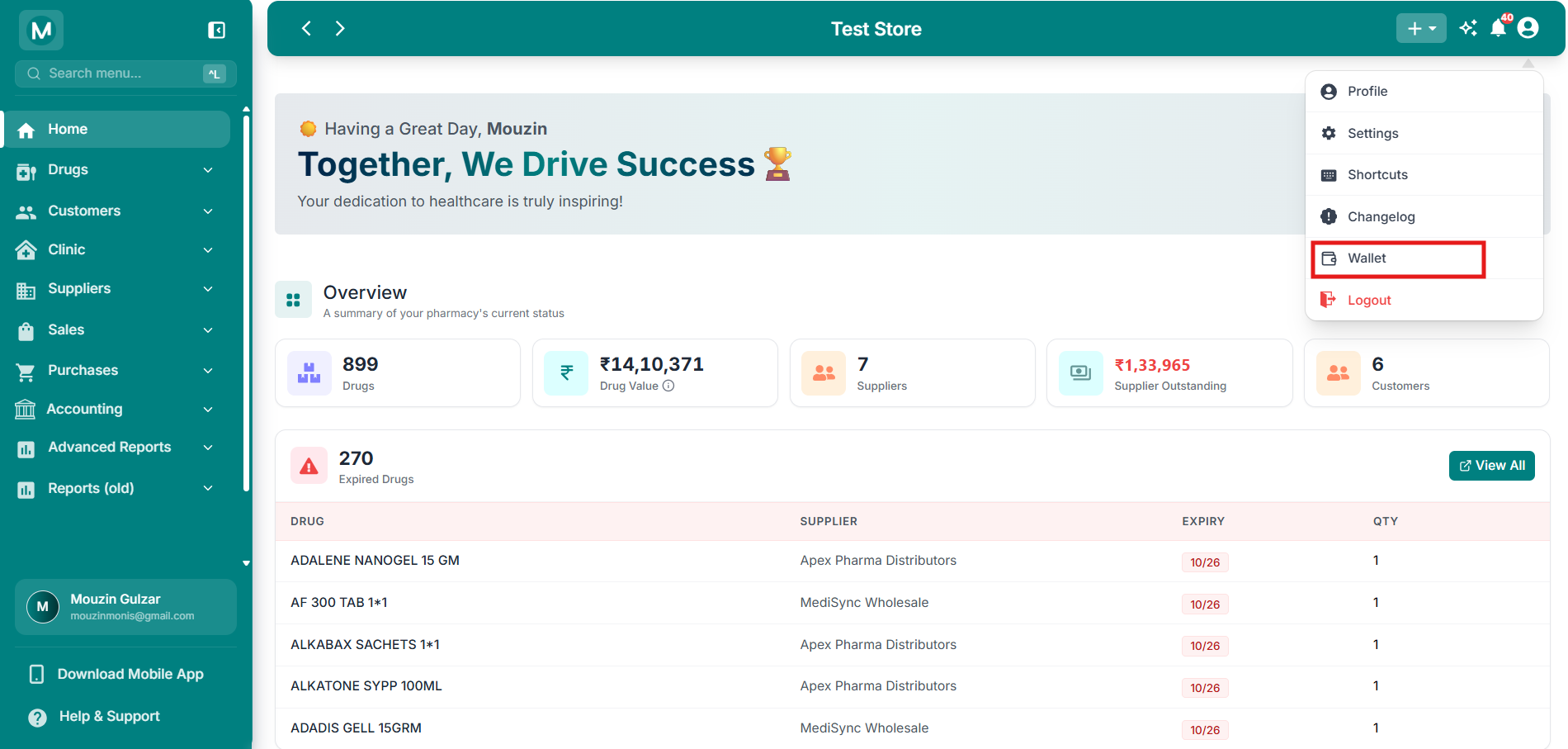
Accessing Store Wallet
Open the profile menu at the top-right corner and select Wallet.
View your wallet
The Store Wallet page opens, showing your current balance, a quick guide, and your transaction history.
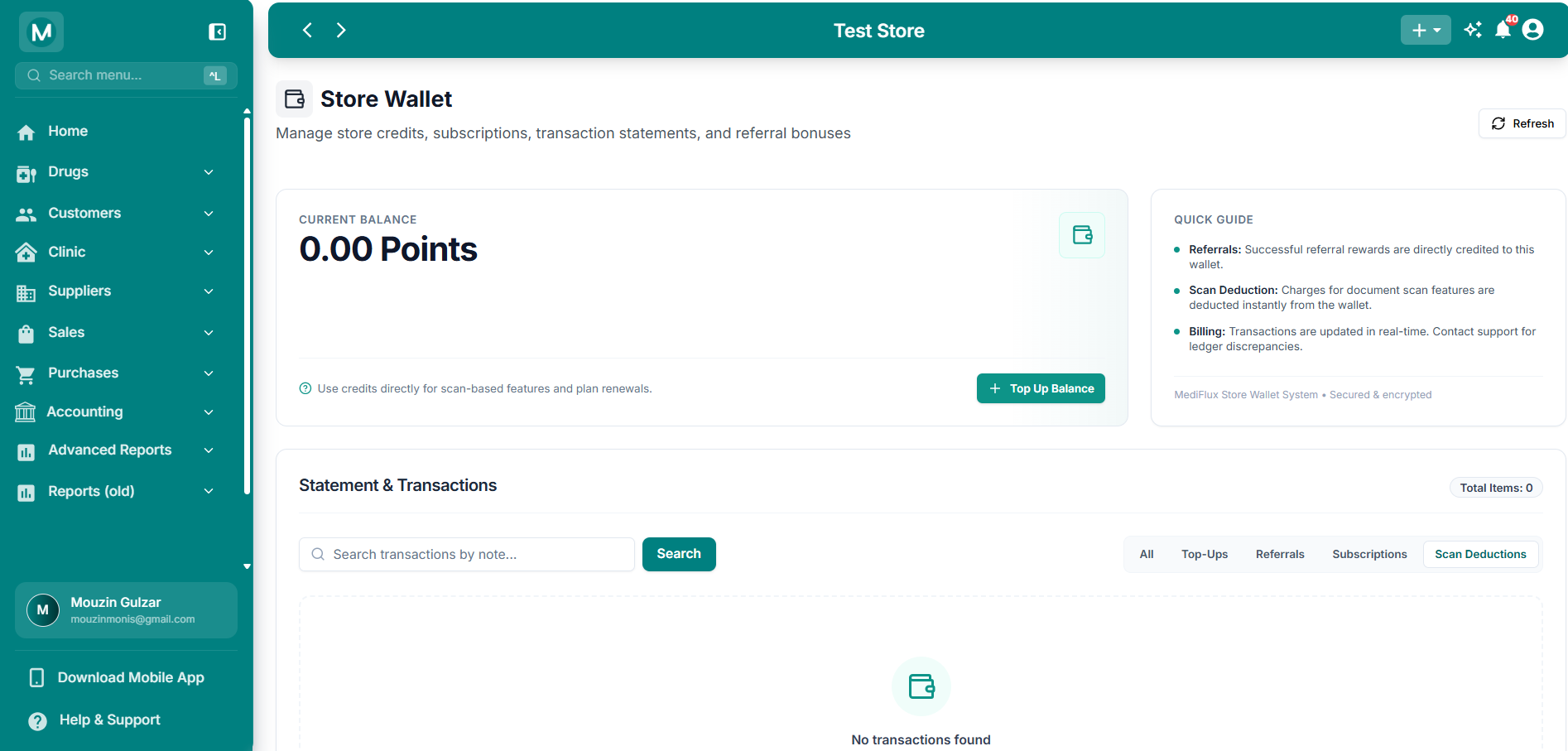
Store Wallet overview
View your current wallet balance, add credits, and access wallet statements and transactions.
Understanding the Store Wallet
The Store Wallet page contains three main sections:
A Refresh button is available at the top-right of the page to reload the latest wallet information.
Current Wallet Balance
The Current Balance section displays the credits available in your wallet.
For example:
Current Balance: 0.00 Points
This means there are currently no wallet credits available.
Wallet credits can be used for eligible chargeable services within MediFlux.
The balance changes when:
- You add credits through a wallet top-up.
- A chargeable service deducts credits.
- A referral reward is credited.
- An eligible subscription-related transaction is recorded.
Wallet credits are separate from customer payments, pharmacy sales, and the cash or bank balances recorded in Accounting.
Wallet Points and Conversion Rate
MediFlux displays wallet credits as Points.
The top-up dialog shows the following conversion rate:
1 Point = ₹1.00
For example:
The amount payable is calculated based on the number of points you choose to purchase.
Adding Balance to Your Wallet
You can add credits using the Top Up Balance option.
How to Top Up Your Wallet
Open Store Wallet
Go to the Profile menu and select Wallet.
Click Top Up Balance
In the Current Balance section, click + Top Up Balance.
The Top Up Wallet dialog opens.
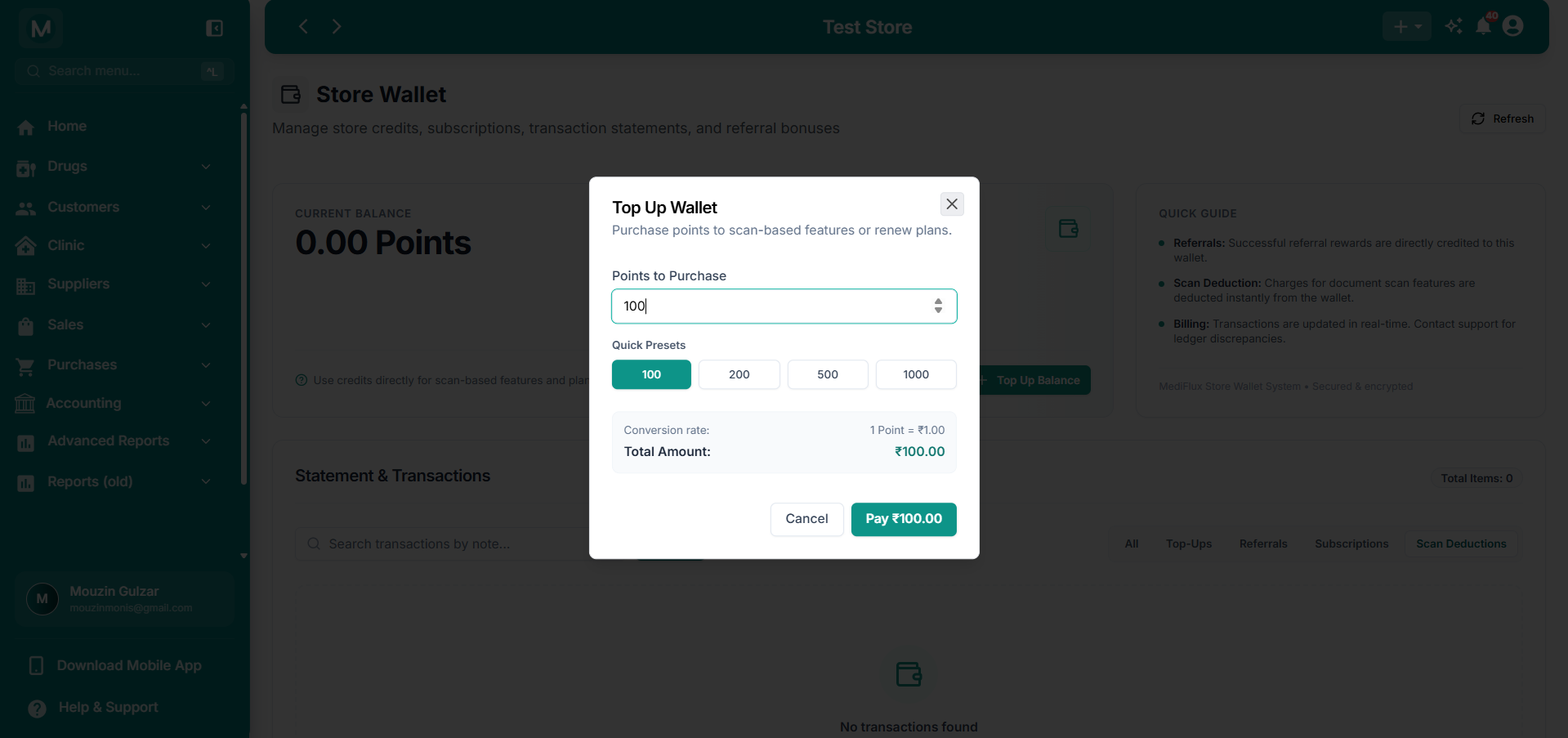
Top Up Wallet
Enter the number of points to purchase or select a preset amount. The dialog displays the conversion rate and total payable.
Choose the number of points
In Points to Purchase, enter the number of wallet points you want to buy.
You can also select one of the available Quick Presets:
Selecting a preset fills the points field automatically.
You can also enter a custom number of points.
Review the total amount
The dialog displays:
- Conversion rate: 1 Point = ₹1.00
- Total Amount: The amount payable for your selected points
For example, purchasing 100 points gives a total of ₹100.00.
Proceed to payment
Click Pay ₹100.00, or the corresponding amount shown for your selection.
MediFlux opens the payment gateway to complete your purchase.
Choose a payment method
The payment gateway provides several payment options, including:
- UPI: Pay using a QR code or supported UPI app.
- Card: Pay using a supported debit or credit card.
- Wallets: Use a supported payment wallet.
- Net Banking: Pay through your bank.
- RTGS / NEFT / IMPS: Use the available bank transfer options.
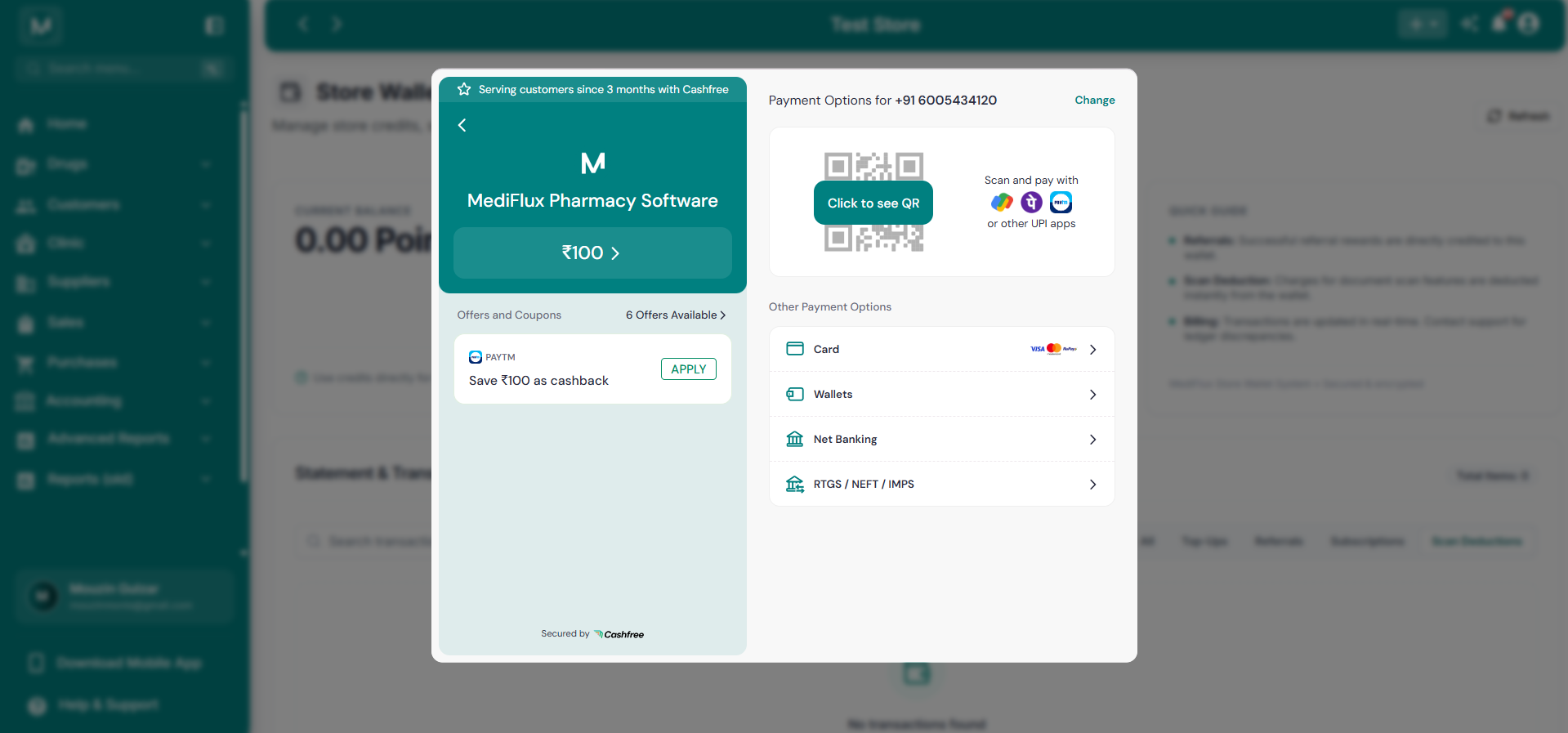
Wallet top-up payment options
Complete the wallet top-up through the Cashfree payment gateway using an available payment method.
Complete the payment
Follow the payment gateway instructions to complete the transaction.
After a successful top-up, return to Store Wallet and check your updated balance.
You can click Refresh to reload the latest wallet information.
If your payment is completed but the wallet balance does not update, refresh the Wallet page. If the issue continues, contact MediFlux support with the relevant payment details.
Using Wallet Credits
Wallet credits are used when you choose to access MediFlux services that involve additional charges.
Examples include:
MediFlux notifies you when a service carries an additional charge.
This allows you to understand the charge before choosing to use the service.
Wallet balance required
To use a service that requires wallet credits, make sure your Store Wallet has sufficient balance. If the balance is insufficient, add credits using Top Up Balance.
Quick Guide
The Quick Guide section provides a brief explanation of how the Wallet works.
This section is intended as a quick reference for understanding wallet activity.
Statement & Transactions
The Statement & Transactions section provides a record of wallet activity.
It helps you track:
- When credits were added to your wallet.
- When credits were deducted.
- Which service or activity caused a deduction.
- Referral rewards credited to the wallet.
- Subscription-related wallet transactions.
- Scan-related deductions.
You can use this section to review how your wallet balance has changed over time.
Searching Wallet Transactions
The transaction section includes a search field labeled Search transactions by note....
To search for a transaction:
Open Statement & Transactions
Scroll to the Statement & Transactions section on the Wallet page.
Enter a search term
Type a keyword or transaction note in the search field.
Click Search
Click Search to view transactions matching your search term.
This is useful when you want to find a transaction related to a particular service or activity.
Filtering Wallet Transactions
You can filter transactions by type using the tabs provided in Statement & Transactions.
Select a tab to view transactions belonging to that category.
For example, to review deductions for scanning services, select Scan Deductions.
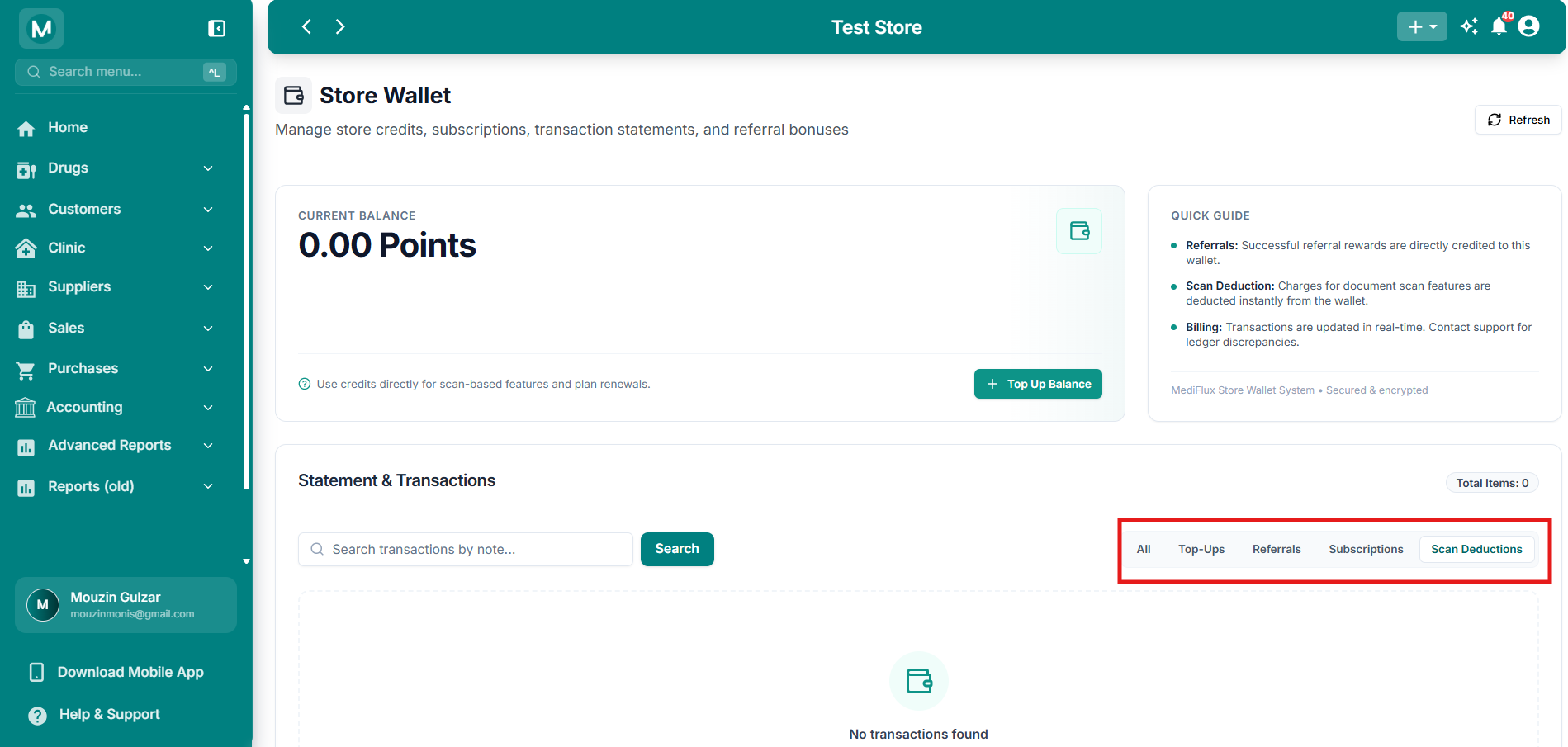
Wallet transaction filters
Filter wallet activity by All, Top-Ups, Referrals, Subscriptions, or Scan Deductions.
When No Transactions Are Found
If there are no transactions matching the selected filter or search term, MediFlux displays:
No transactions found
This may happen when:
- Your wallet has no transaction history yet.
- There are no transactions in the selected category.
- The search keyword does not match any transaction notes.
Click Clear all filters to reset the filters and return to the unfiltered transaction view.
If you have just completed a wallet transaction and it does not appear immediately, click Refresh to reload the latest information.
Understanding Wallet Credits and Deductions
Wallet transactions can be broadly understood as two types of balance changes.
Wallet Credits
A wallet credit increases your available balance.
Examples include:
- Adding points through Top Up Balance.
- Receiving an eligible referral reward.
Wallet Deductions
A wallet deduction reduces your available balance.
Examples include:
- Using a chargeable WhatsApp service.
- Sending a chargeable payment reminder.
- Using an eligible scan-based feature.
- Paying for a supported subscription-related service.
The Statement & Transactions section allows you to review the wallet activity associated with these changes.
Checking Wallet Activity
If you want to understand why your wallet balance has changed, follow these steps:
Open Wallet
Click Profile → Wallet.
Review Current Balance
Check the number of points currently available.
Open Statement & Transactions
Scroll to the transaction section.
Select a transaction category
Choose All, Top-Ups, Referrals, Subscriptions, or Scan Deductions, depending on what you want to review.
Search if necessary
Use the search field to locate a particular transaction by its note.
If a transaction or deduction does not match your records, contact MediFlux support for assistance.
Important Points About Store Wallet
- Store Wallet is used for MediFlux services that carry additional charges.
- You are notified when a feature involves an additional charge.
- Wallet balance is displayed in Points.
- The top-up dialog shows a conversion rate of 1 Point = ₹1.00.
- You can purchase points using preset amounts or a custom amount.
- Payments are processed through the available payment gateway options.
- Successful referral rewards can be credited to your wallet.
- Chargeable services deduct credits from the available balance.
- Statement & Transactions records wallet activity, including credits and deductions.
- You can search and filter transactions to review specific wallet activity.
- Wallet credits are separate from regular pharmacy sales and customer payment records.