
Ledger
Track every purchase, payment, credit note, and adjustment across all your suppliers in one place, or drill into an individual supplier's ledger.
The Ledger page gives you a complete financial record of all your supplier transactions. You can view a consolidated ledger across all suppliers at once, or click into any individual supplier to see their dedicated ledger with a running balance.
Navigate here from the sidebar: Suppliers → Ledger. You can also jump directly using the keyboard shortcut F6 from anywhere in the app.
Page Layout
The Ledger page is split into two panels:
Left panel: Supplier list Shows all your suppliers with their name, address, and individual outstanding balance in red. The total outstanding across all suppliers is shown at the bottom. Use the search bar to find a specific supplier instantly. Click View All Suppliers to go back to the full Supplier List page.
Right panel: Ledger entries Shows the transactions for the selected supplier, or all entries across every supplier if no supplier is selected.
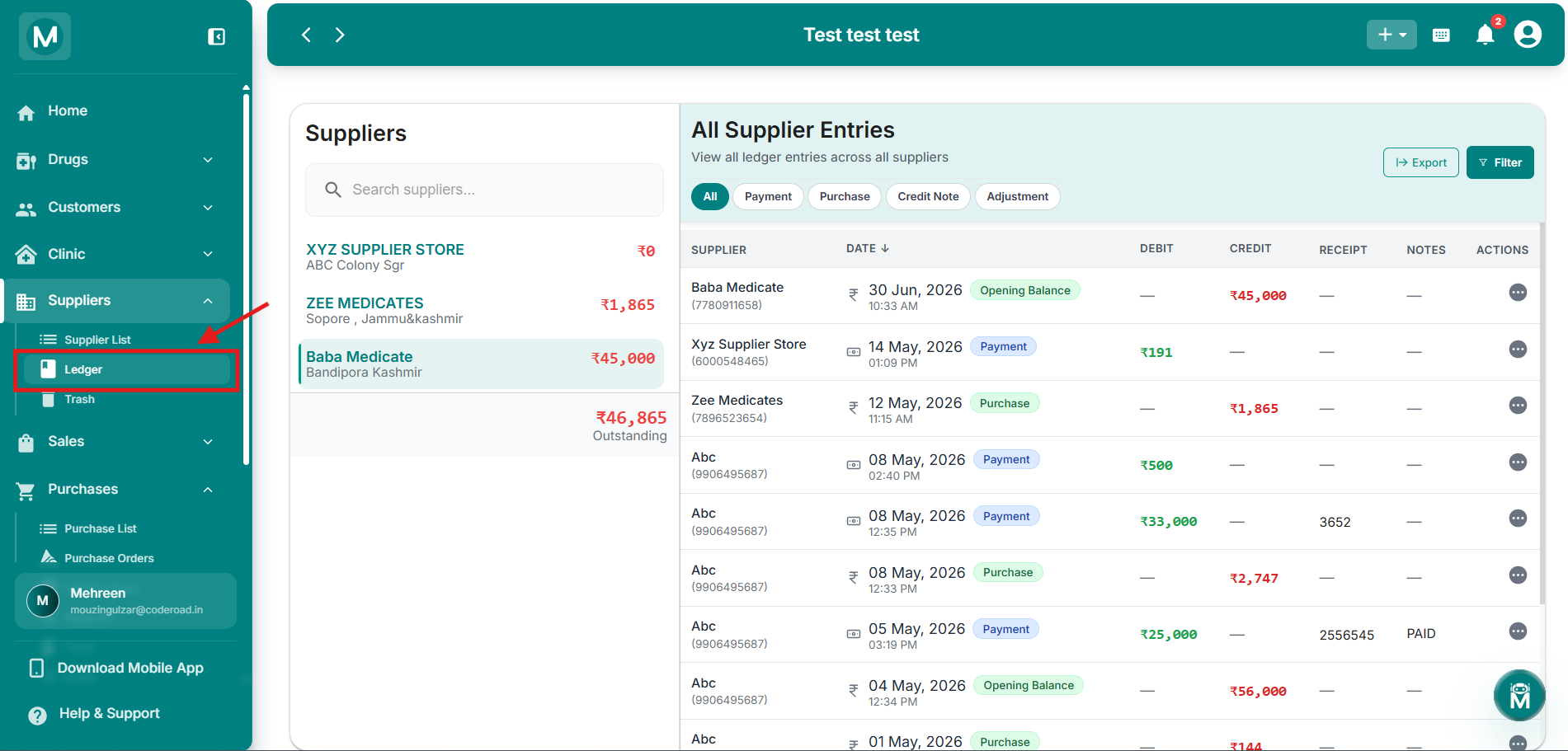
Ledger page layout
Left panel showing supplier list, right panel showing ledger entries.
Consolidated View Vs Individual Supplier View
The two views share the same entry type tabs and almost the same columns. What changes is the action buttons available and whether a Supplier or Balance column is shown.
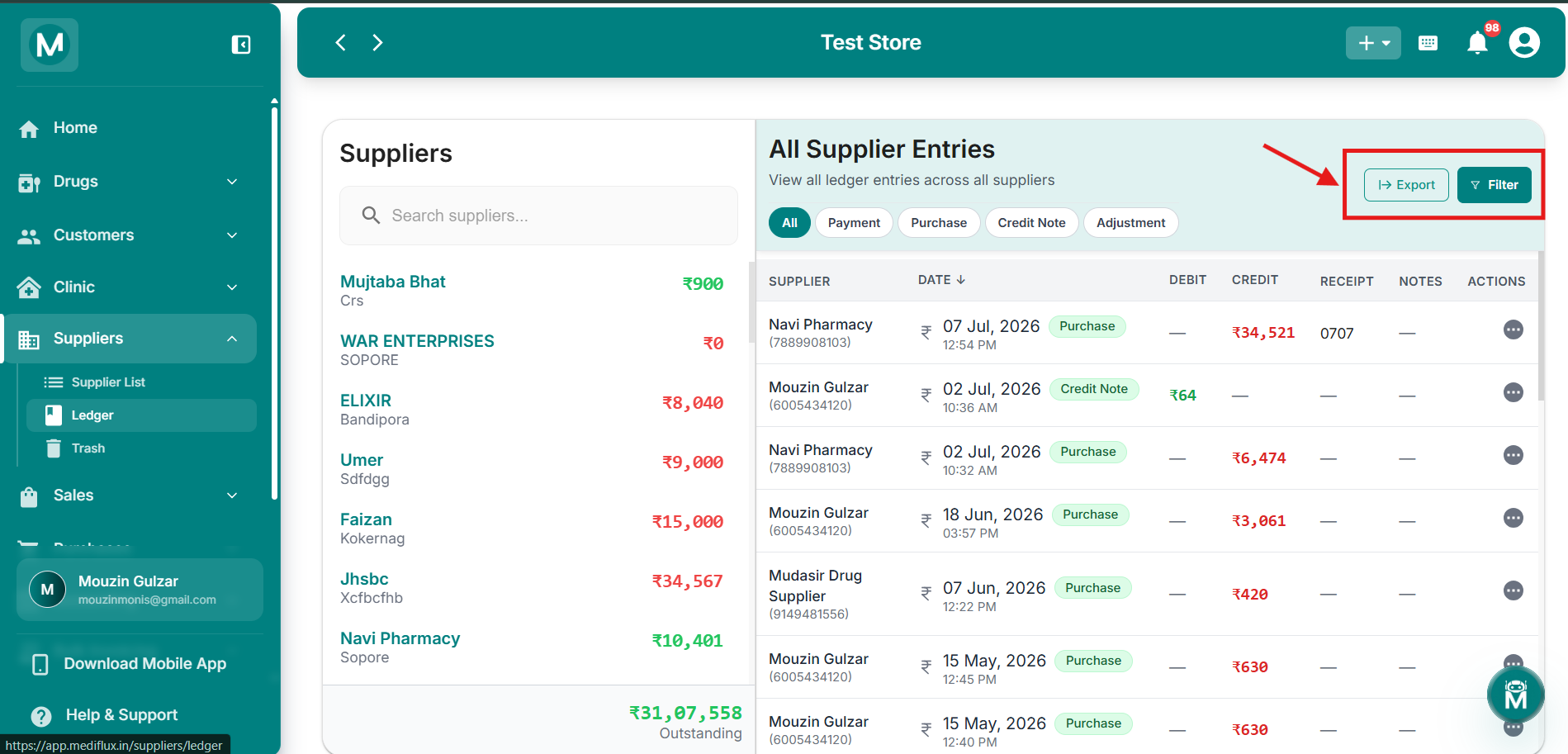
Consolidated view buttons
Export and Filter buttons available in the consolidated view.
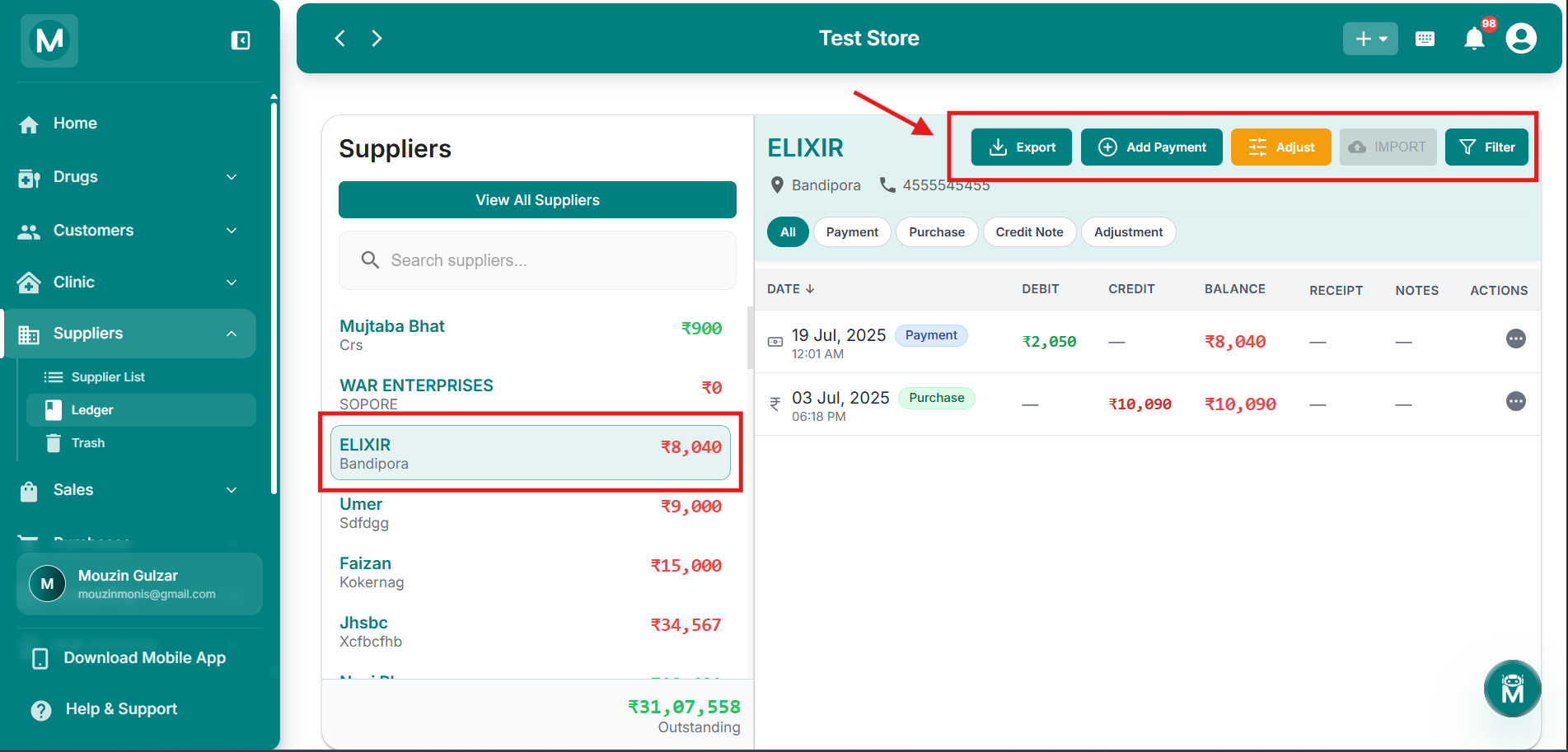
Individual view buttons
Export, Add Payment, Adjust, Import, and Filter buttons available for individual suppliers.
Add Payment and Adjust only appear once you've selected an individual supplier, since payments and adjustments are always tied to a specific supplier. Import is currently unavailable (greyed out).
Entry Type Tabs
Both views use the same tabs to filter what you see:
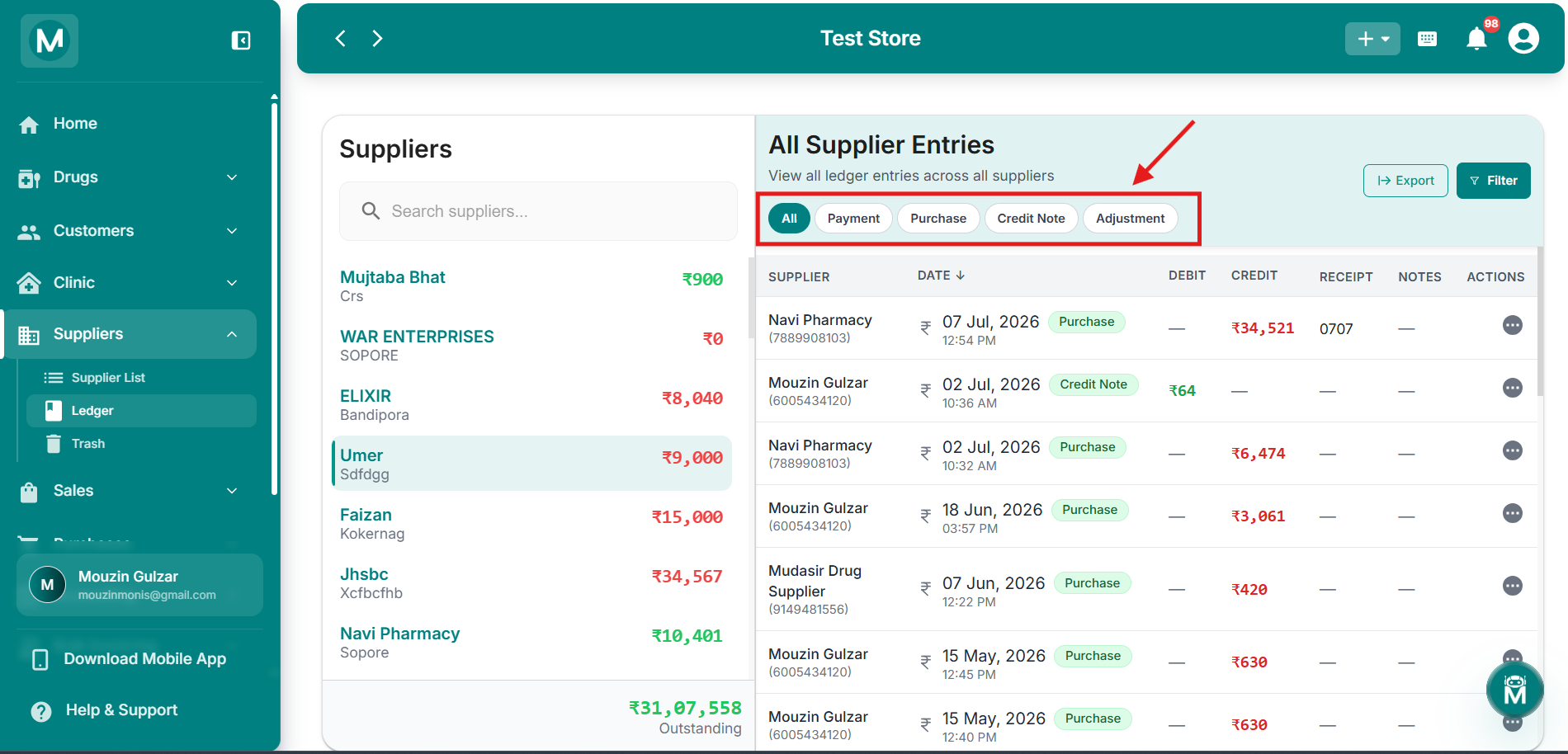
Entry type tabs
Filter transactions by All, Payment, Purchase, Credit Note, or Adjustment.
Ledger Table Columns
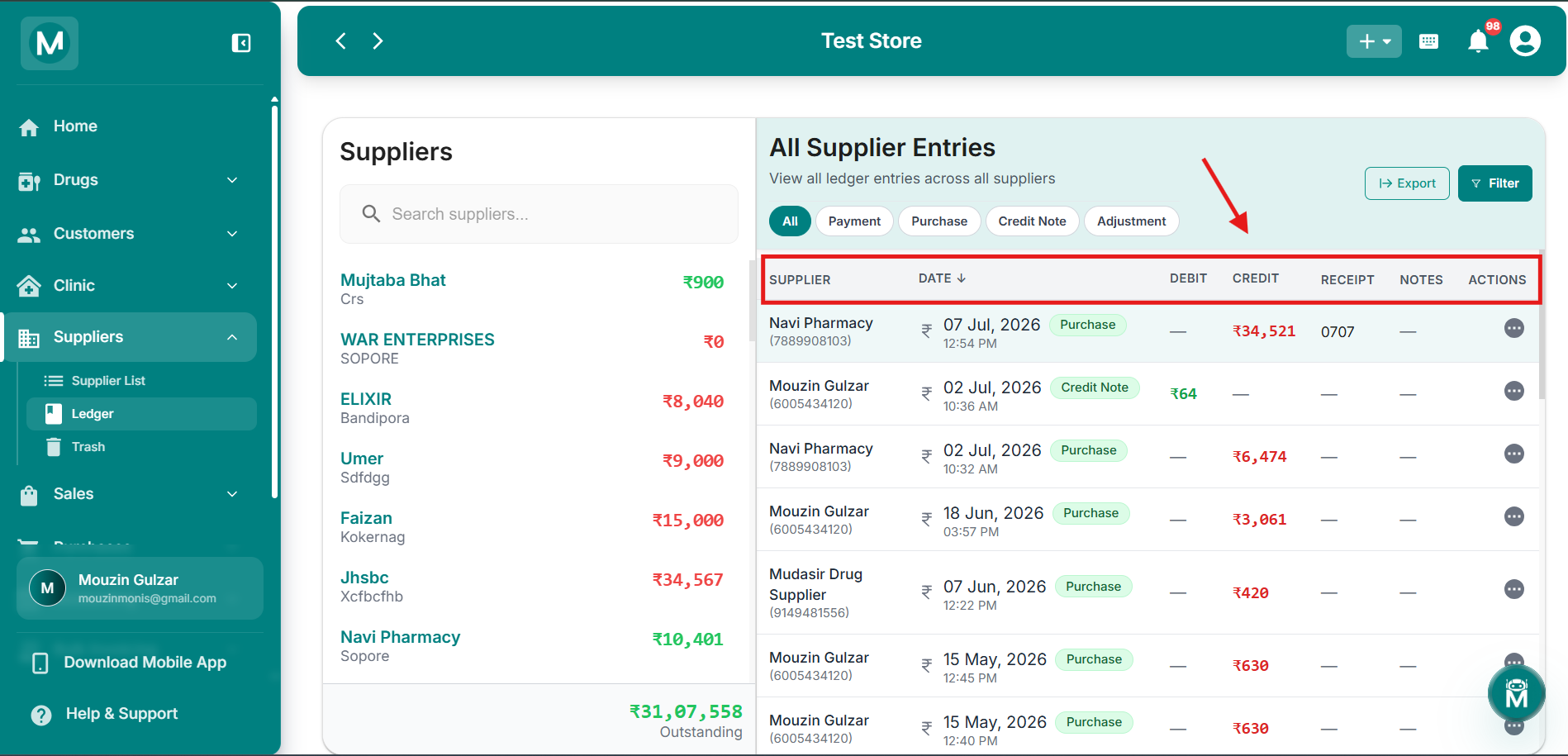
All Supplier Entries, consolidated table
Combined view showing transactions across all suppliers.
Individual Supplier Ledger Table With Balance Column
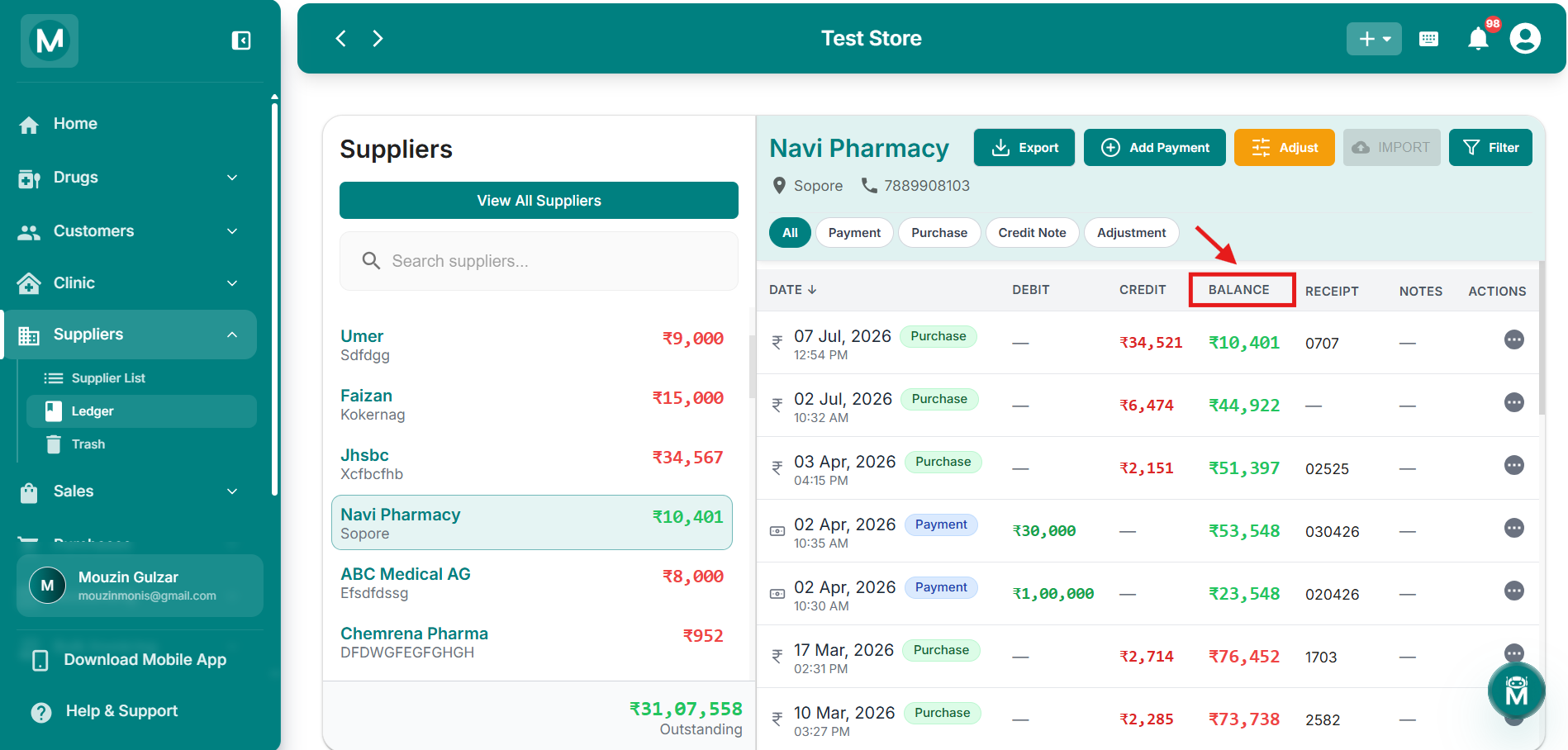
Individual supplier ledger table with Balance column
Dedicated ledger showing running balance for a single supplier.
The Balance column updates after every single entry, so you can trace exactly how the outstanding amount changed step by step from day one. The consolidated view doesn't show this since it mixes entries across multiple suppliers.
How The Outstanding Balance Works
MediFlux calculates your supplier outstanding automatically, you never need to update it manually:
- When you record a Purchase → the amount is added to Credit, increasing what you owe
- When you make a Payment → the amount is added to Debit, reducing what you owe
- When a Credit Note is confirmed → the return amount reduces your outstanding
- Opening Balance → any amount you owed before starting MediFlux is the starting point
Adding An Adjustment Entry
If you need to manually correct a supplier's ledger balance, for example a price correction, rounding adjustment, or write-off, click Adjust on the individual supplier ledger.
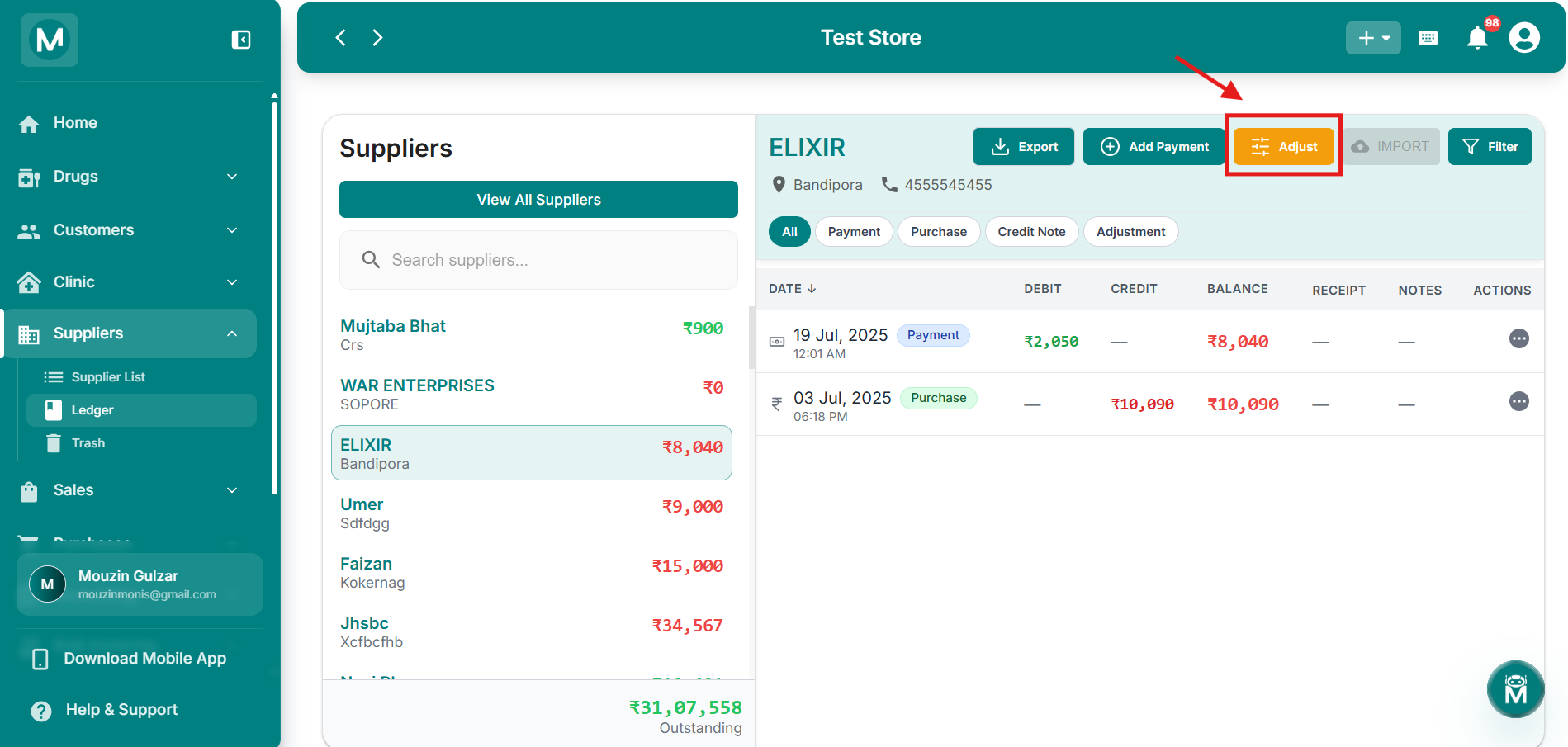
Add Adjustment Entry dialog
Dialog for manually correcting a supplier's ledger balance.
Adjustment Fields
Click Add to save. Click Reset to clear all fields.
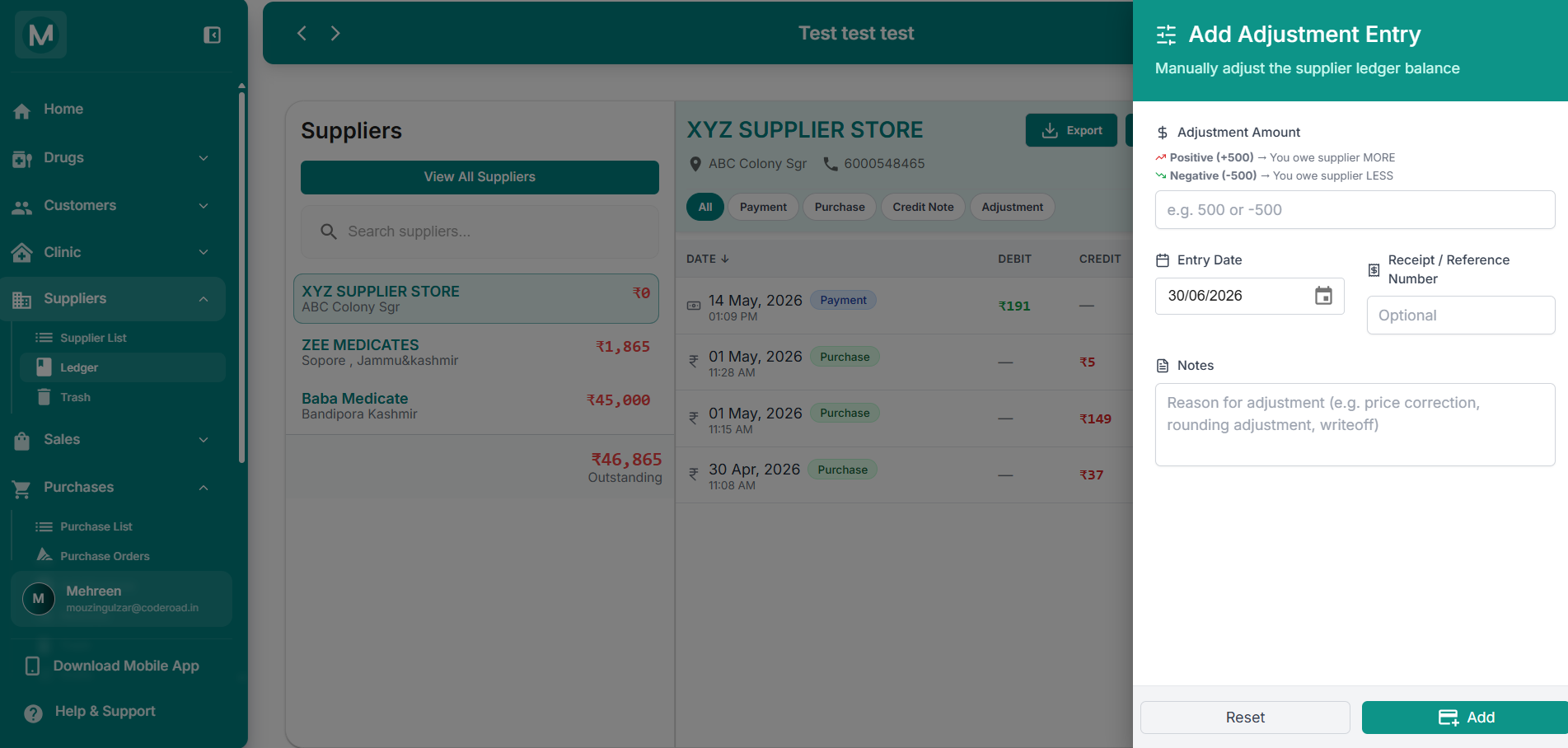
Add Adjustment Entry dialog
Dialog for manually correcting a supplier's ledger balance.
Filtering The Ledger
Click Filter on the individual supplier ledger to open the Ledger Filters panel.
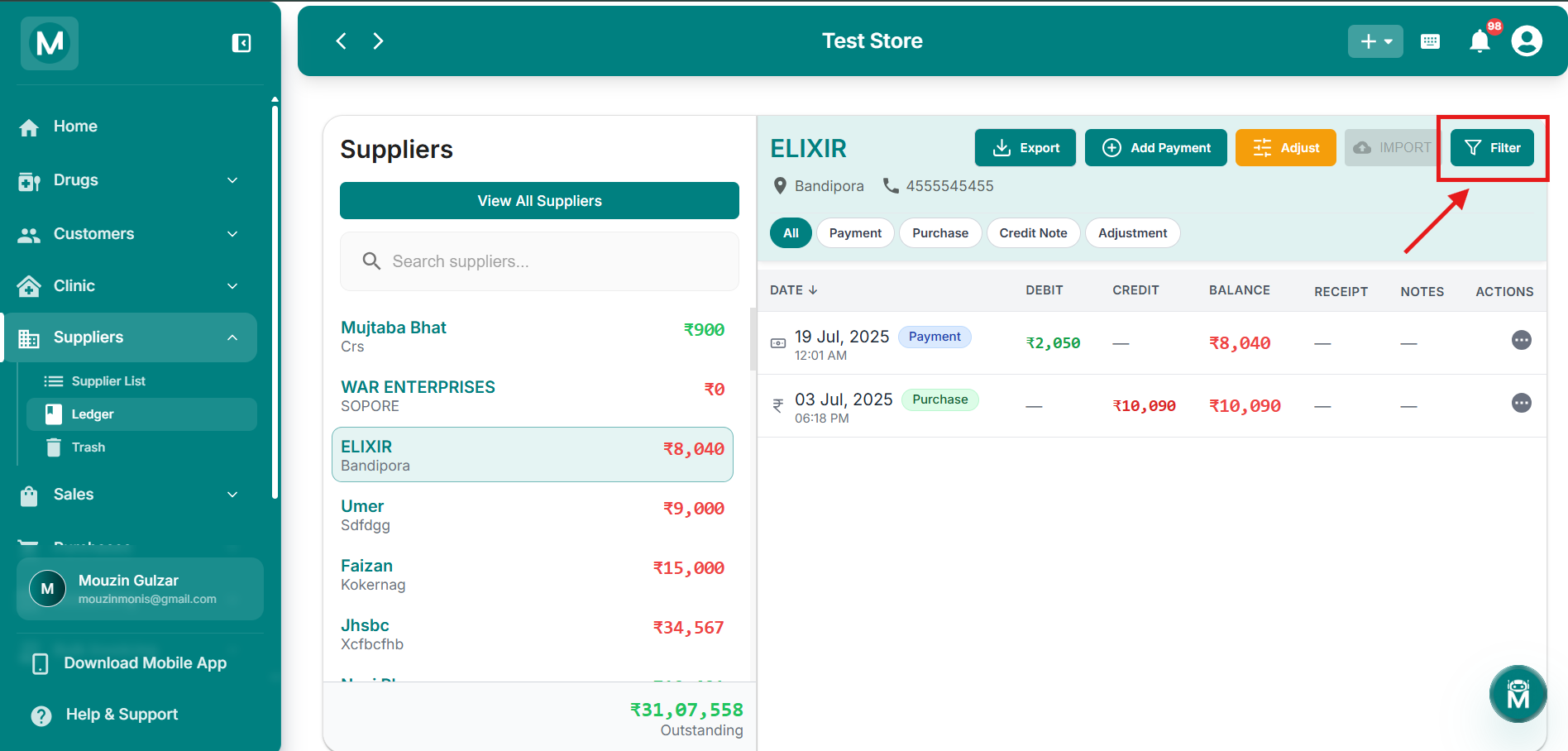
Add Adjustment Entry dialog
Dialog for manually correcting a supplier's ledger balance.
You Can Filter By:
Click Apply to apply the filters. Click Clear to reset them all.
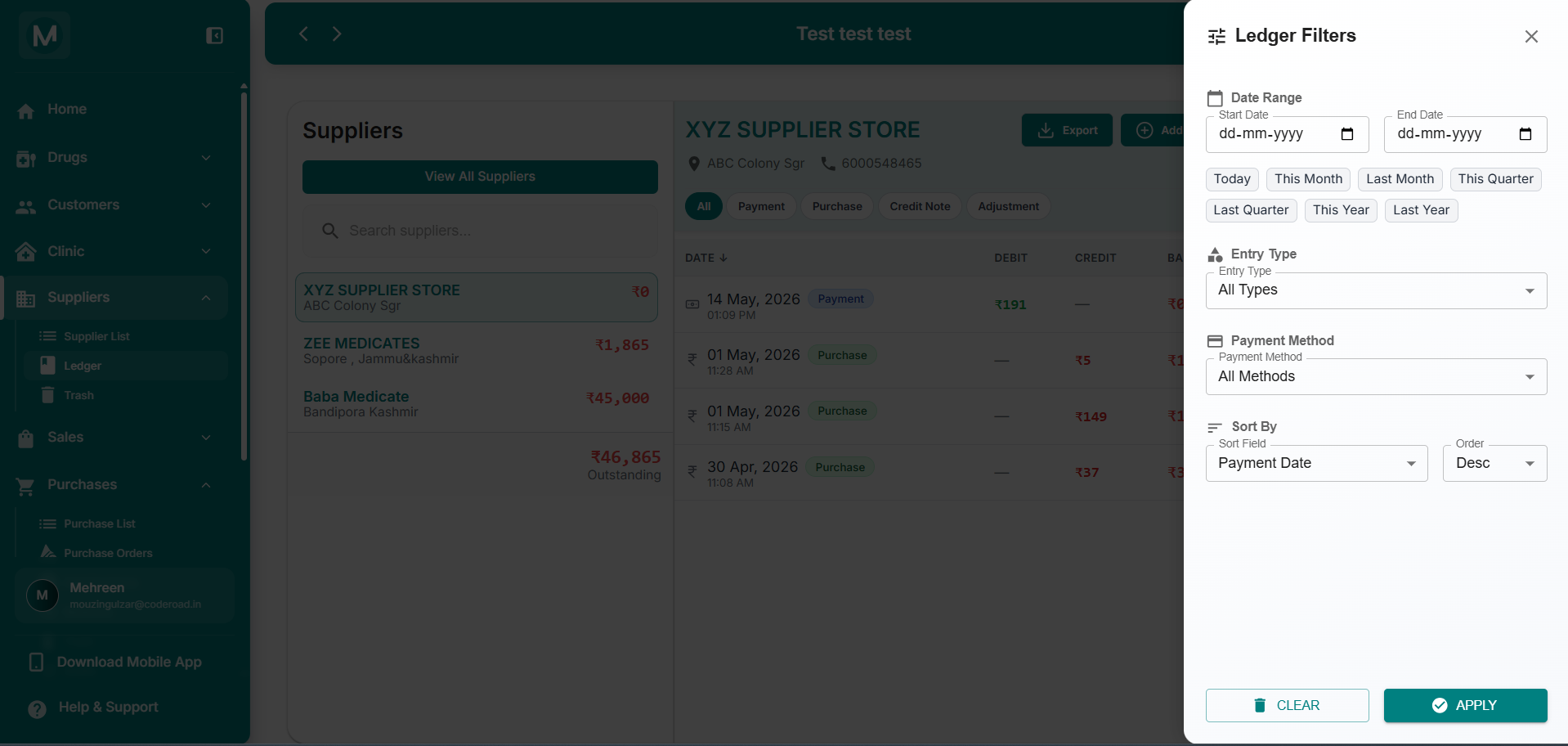
Ledger Filters panel
Filter by date range, entry type, payment method, and sort order.
Exporting Ledger Entries
Click Export on the individual supplier ledger to open the Export Options dialog.
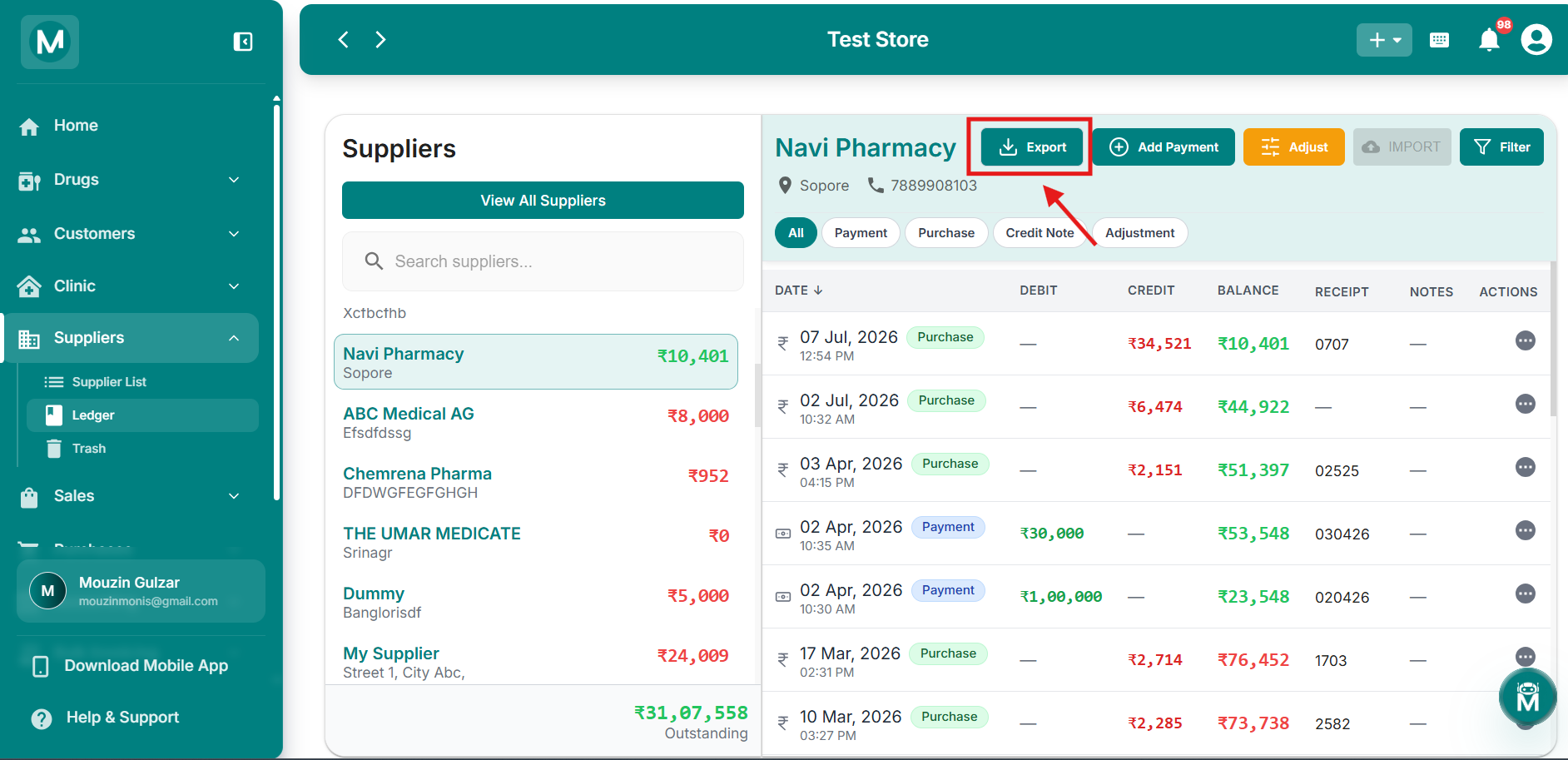
Export Options dialog
Choose date range and export format.
Choose A Date Range And An Export Format:
- PDF Document
- Excel Spreadsheet
Click Export to download.
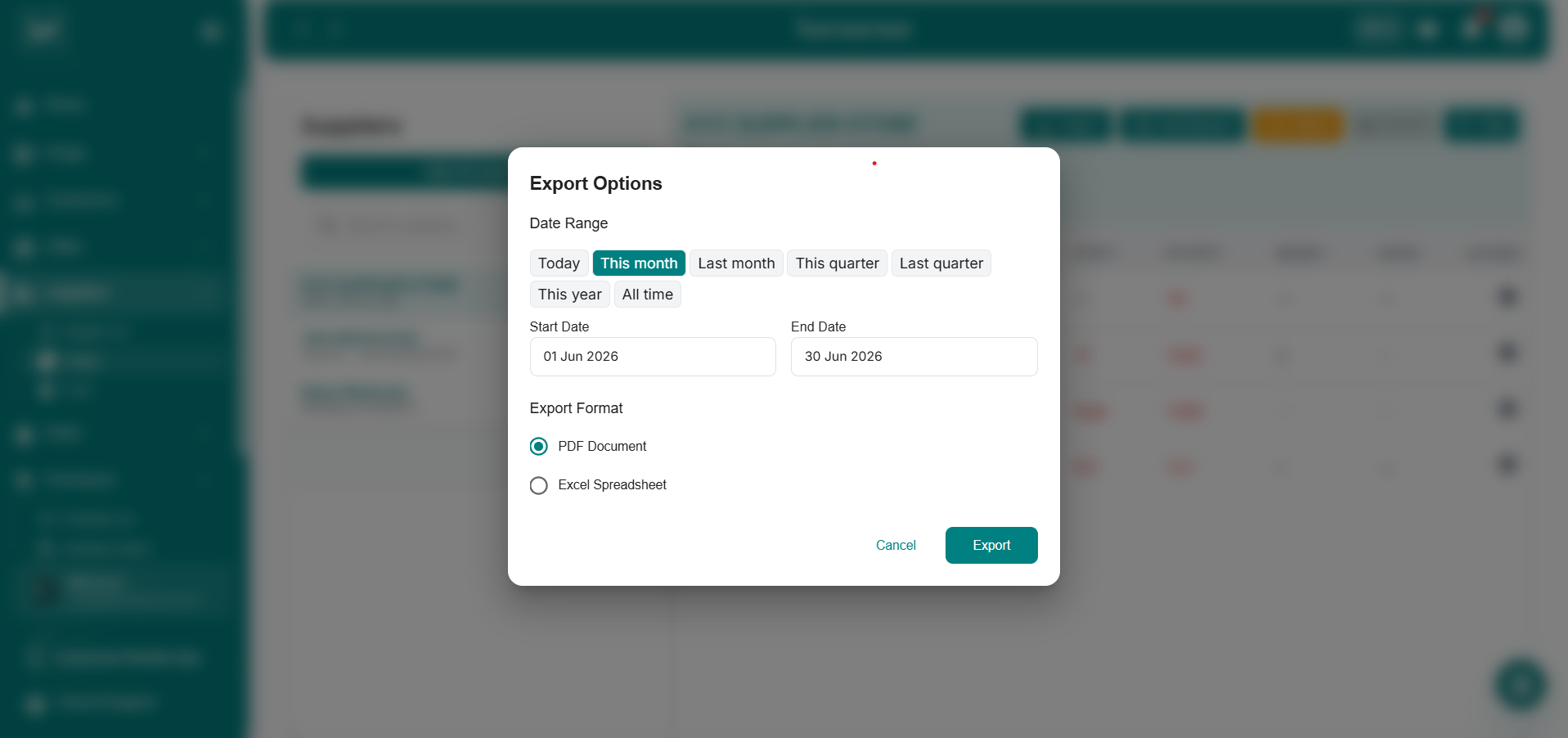
Export Options dialog
Choose date range and export format.
Keyboard Shortcuts
FAQs
Just Finished Reviewing The Ledger? Here'S What Most Users Do:
Supplier List
Select another supplier to review their ledger.
Add Purchase
Record new stock that will appear in this supplier's ledger.
Supplier Profile
View full supplier details, performance stats, and recent purchases.
Purchase List
See all purchases that feed into supplier ledgers.
Press F6 anytime to return to the Ledger from anywhere in the app.