
Accounting Settings
Manage your accounting module's financial year status, including temporary locking.
The Accounting Settings tab lets you control the status of your current financial year, whether it's open for edits or temporarily locked to prevent further changes.
Financial Year Settings
This section shows your Current Status:
Important Precautions
- You can still edit accounting entries while the year is open
- Locking will prevent any further changes
- Closing will permanently finalize the year
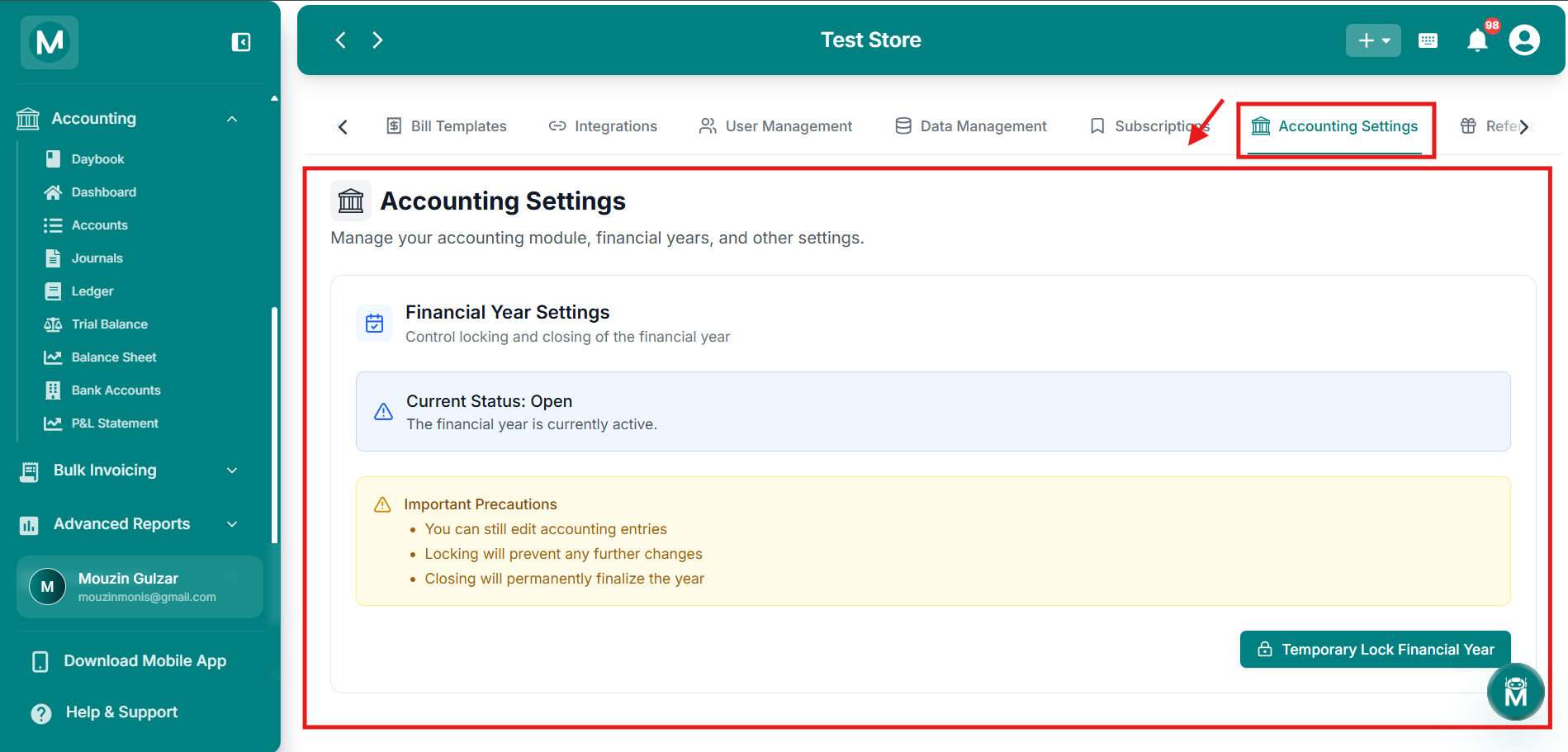
Financial Year Settings
View and manage your current financial year status.
Permanently closing a financial year is managed separately within the Accounting module, not here. This tab only covers temporary locking.
Temporarily Locking The Financial Year
Open the confirmation dialog
Click Temporary Lock Financial Year to open a confirmation dialog.
Review the details
Temporarily Lock Financial Year Temporary locking prevents further edits but allows manual entries. This can be unlocked by an administrator.
Temporary locking will:
- Prevent editing existing entries
- Allow manual entries only
- Still allow permanent locking or closing
Confirm or cancel
Click Temporary Lock Year to confirm, or Cancel to back out.
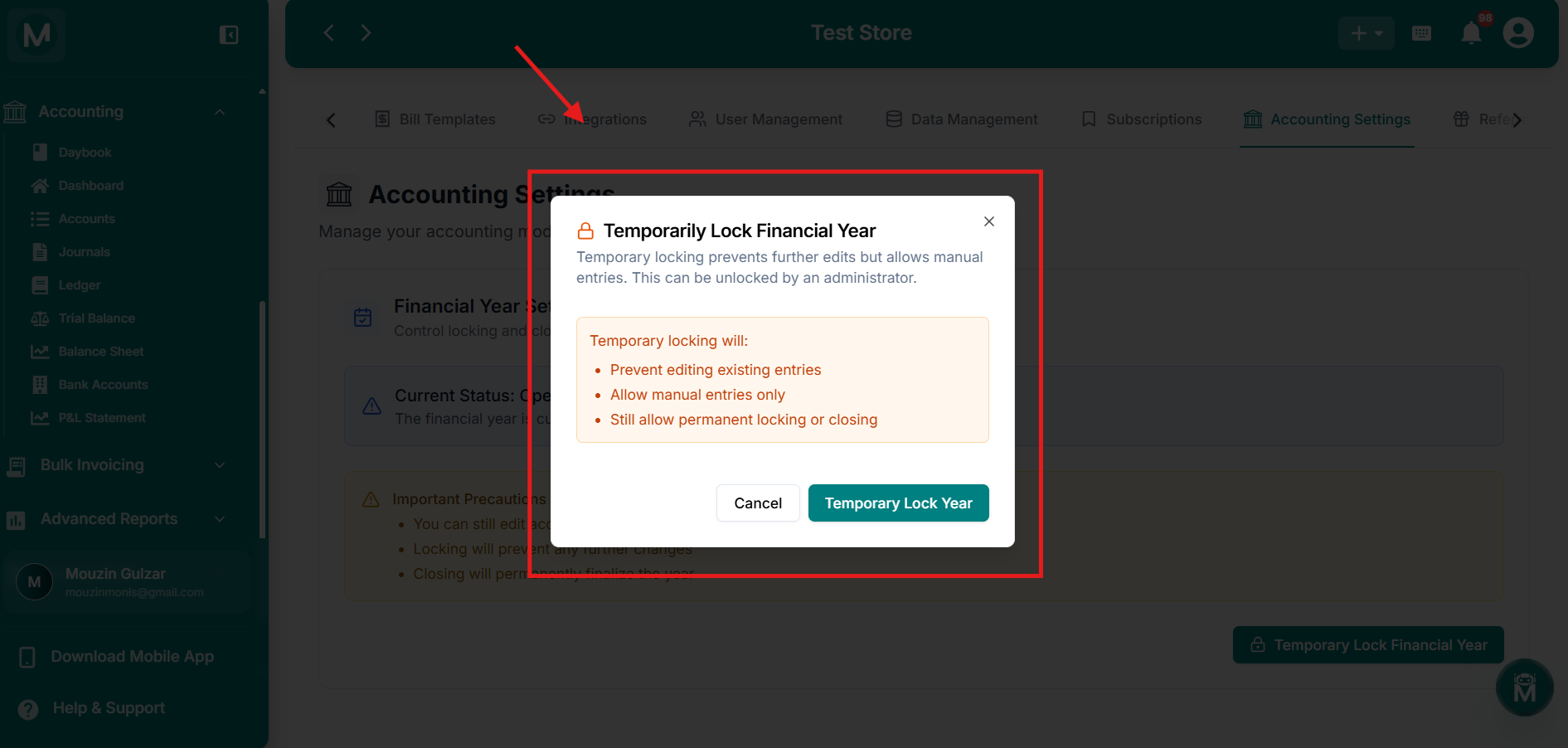
Temporarily Lock Financial Year dialog
Confirm temporary lock to restrict editing on existing entries.
Temporary locking can be reversed by an administrator, unlike permanently closing a financial year, which is final.
FAQs
Manage Your Books
Your financial year is configured. Dive into day-to-day accounting or review your ledgers.
Accounting Module
Access journal entries, ledgers, and financial reports for your store.
Customer Ledger
Track outstanding payments and customer credit history.
Supplier Ledger
Monitor what you owe suppliers and manage payment schedules.
Reports
Generate GST reports, profit summaries, and other financial statements.