
User Management
Manage users, roles, and permissions across your platform, including sessions and activity logs.
The User Management tab is where you manage everyone who has access to your MediFlux store, adding new users, setting their permissions, reviewing active sessions, and tracking activity. It's organized into four sub-tabs: Users, Sessions, Create user, and Activity logs.
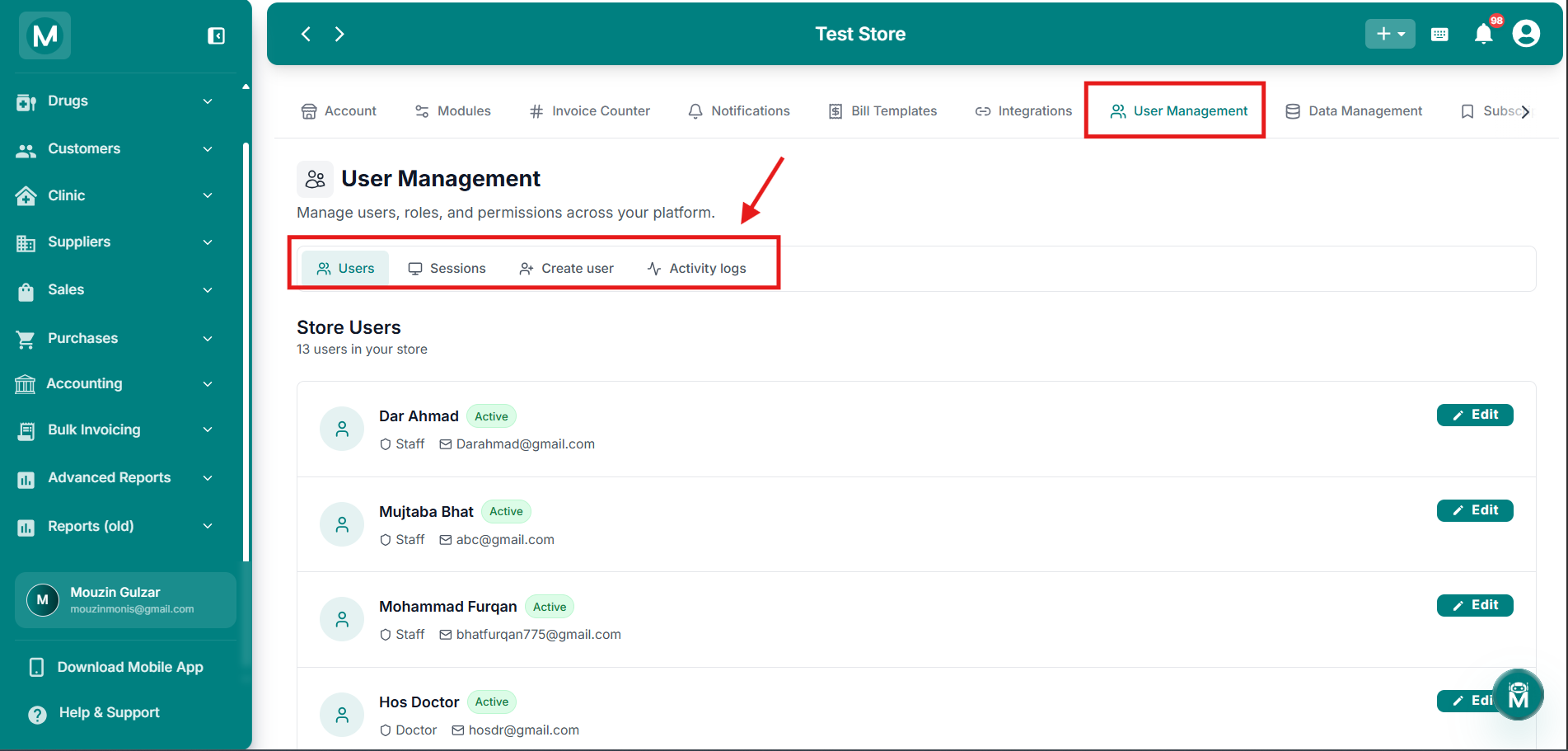
User Management Tabs
Users, Sessions, Create user, and Activity logs sub-tabs.
Users
The Users tab lists everyone with access to your store, showing their name, status (e.g., Active), role (e.g., Staff, Doctor), and email.
Click Edit on any user to open the Edit User form:
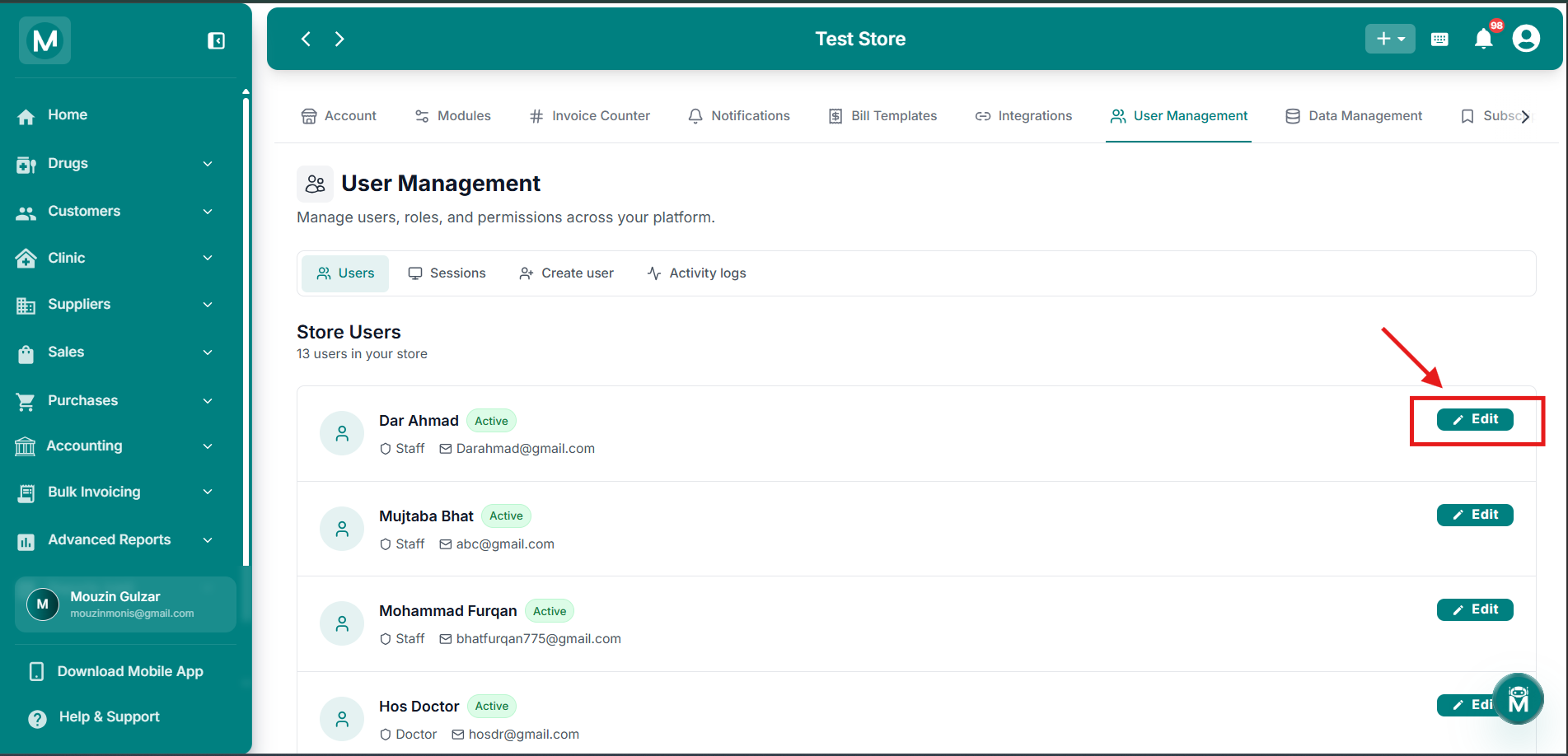
Edit User Form
Update role, name, email, password, and permissions for an existing user.
Permissions
Below this, a permissions grid lets you control what the user can Write, Read, or Delete across: Sale, Purchase, Customer, Supplier, Reports, and Customer Ledger.
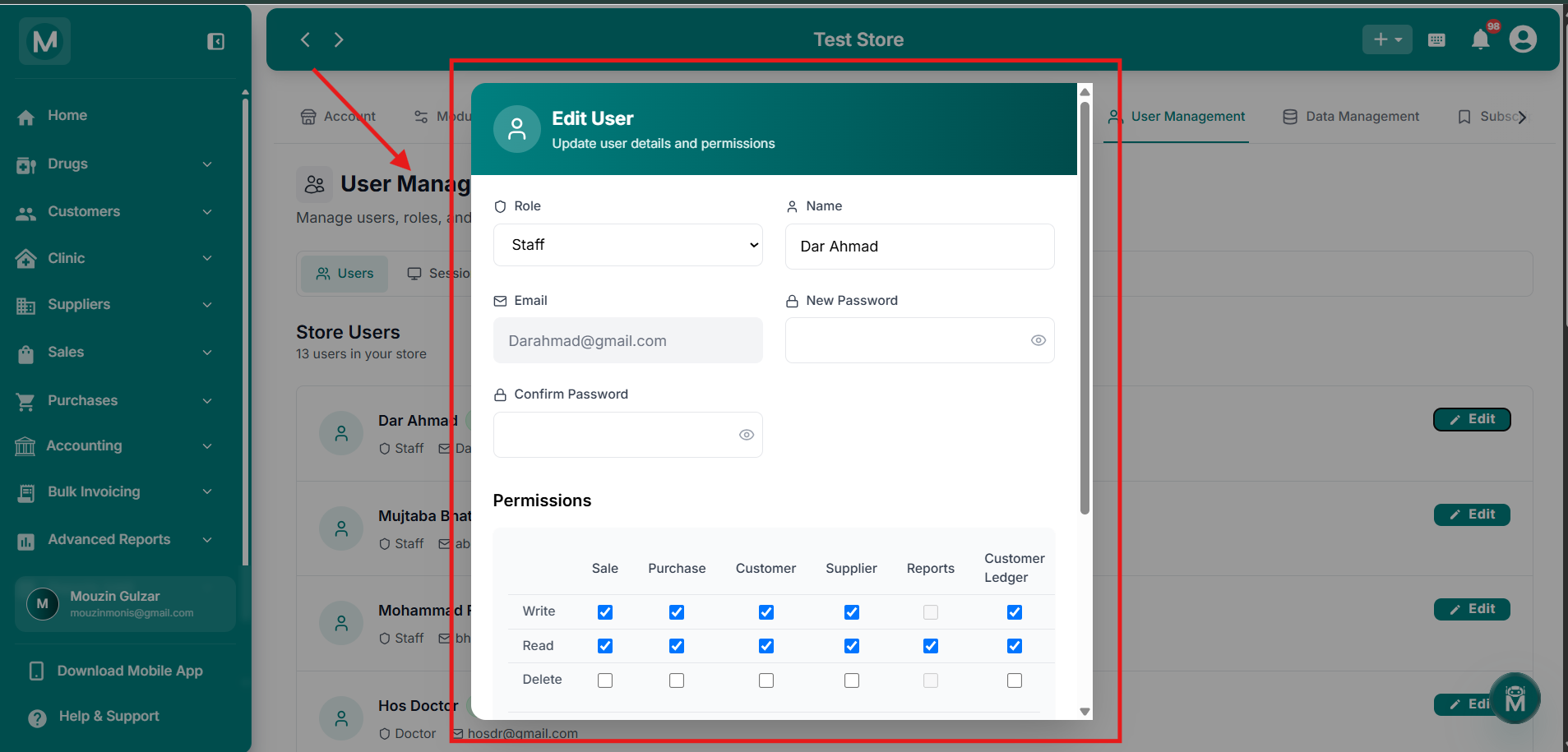
Permissions Grid
Set Write, Read, and Delete access for each module.
Clinic Permissions
An expandable Clinic Permissions section lets you set Write, Read, and Delete access specifically for Doctors, Schedules, and Appointments.
Other Options
Click Save to apply changes, or Cancel to discard.
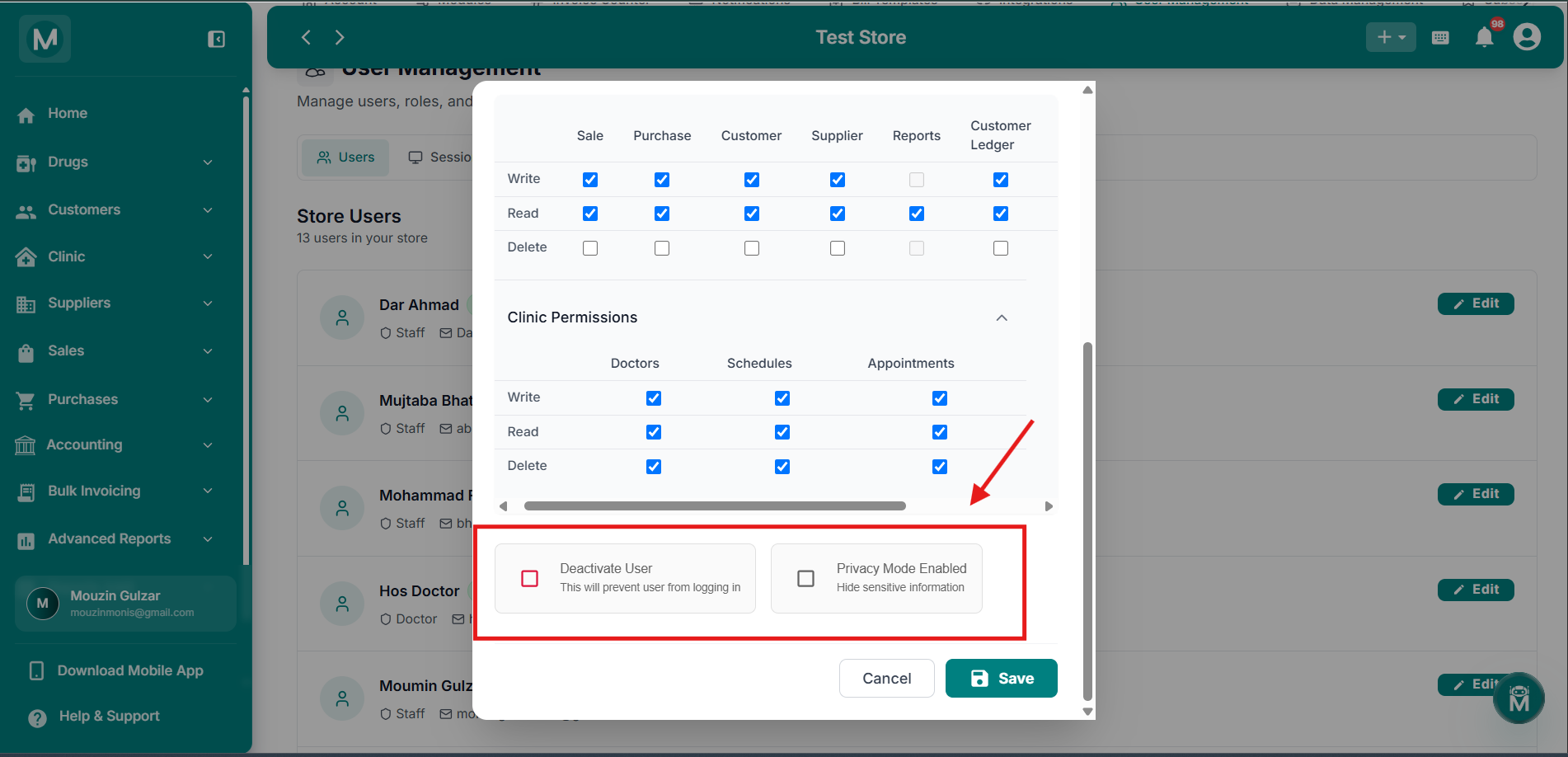
Other options
Deactivate User and Privacy Mode Enabled toggles below Clinic Permissions
Sessions
The Sessions tab shows every active login session across your store's users.
You can filter by a specific user using the All users dropdown, and use Logout All to end every active session at once.
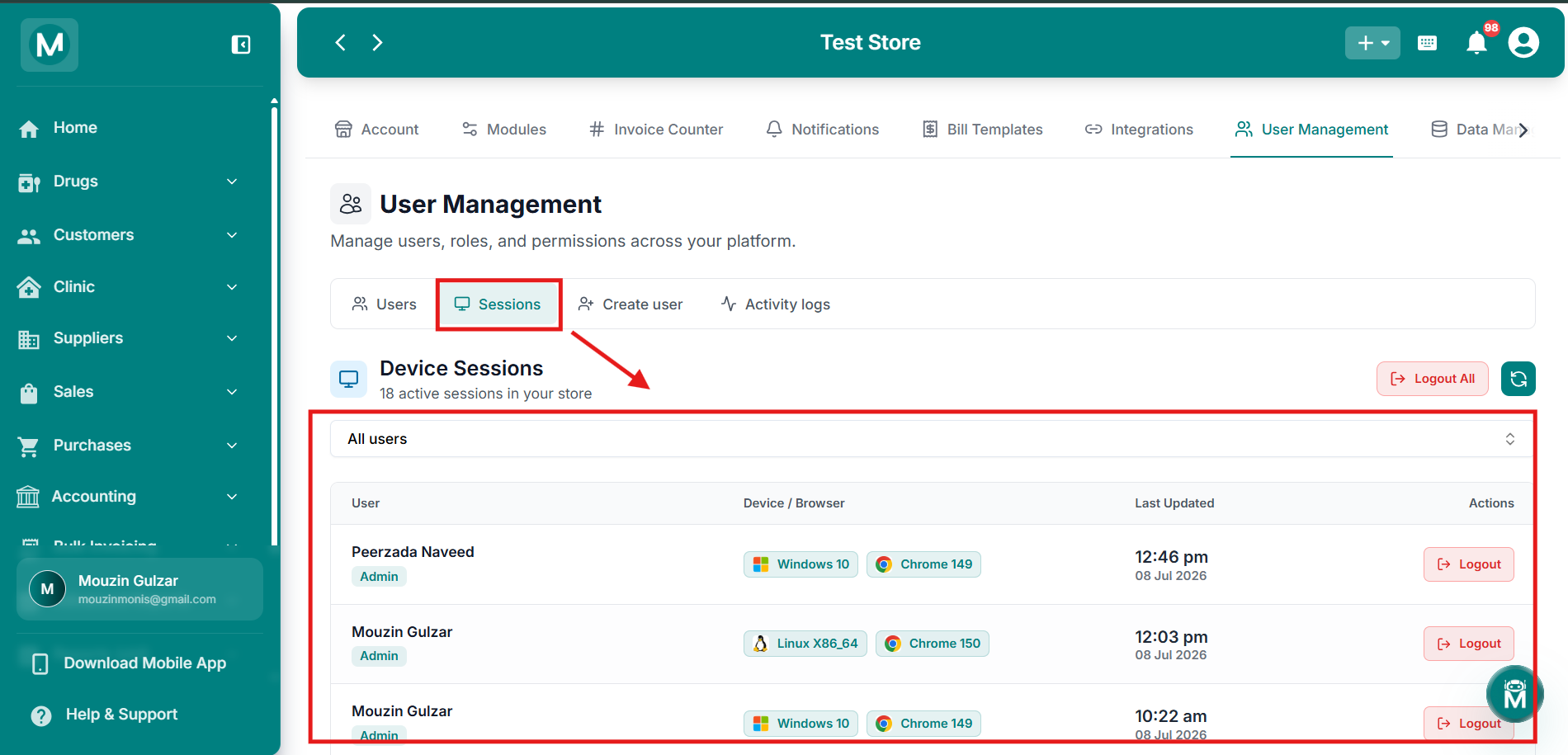
Device Sessions
View and manage active login sessions across all users.
Logging out a session immediately signs that user out on that device, useful if a staff member's device is lost or a session looks unfamiliar.
Create User
Click Create user to add a new user to your store:
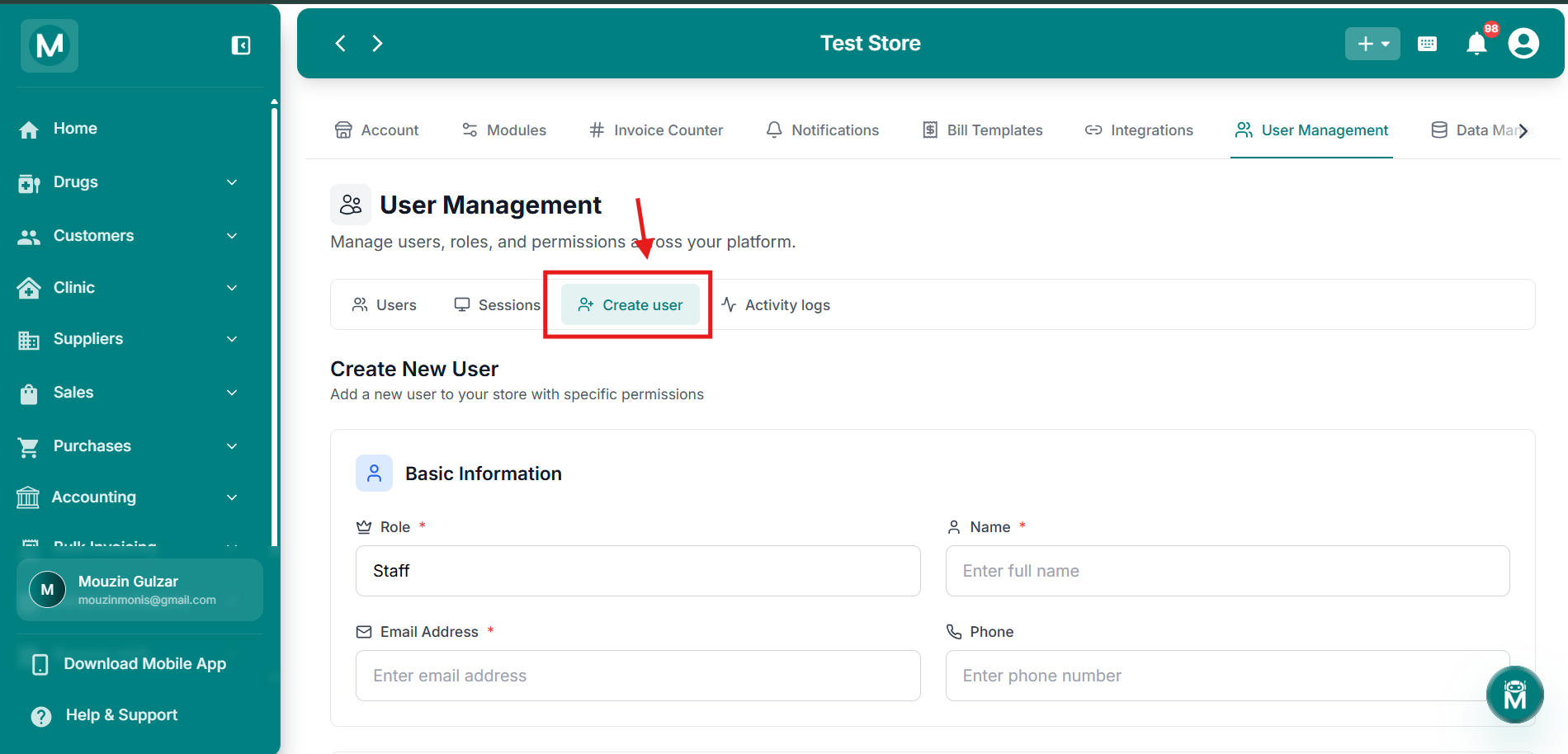
Create New User
Form to add a new user with role, contact details, password, and permissions.
Basic Information
Security
Permissions
Set Write, Read, and Delete access across: Sale, Purchase, Customer, Supplier, Reports, Customer Ledger, Supplier Ledger, and Drug Management. An expandable Clinic Permissions section lets you set the same for Doctors, Schedules, and Appointments.
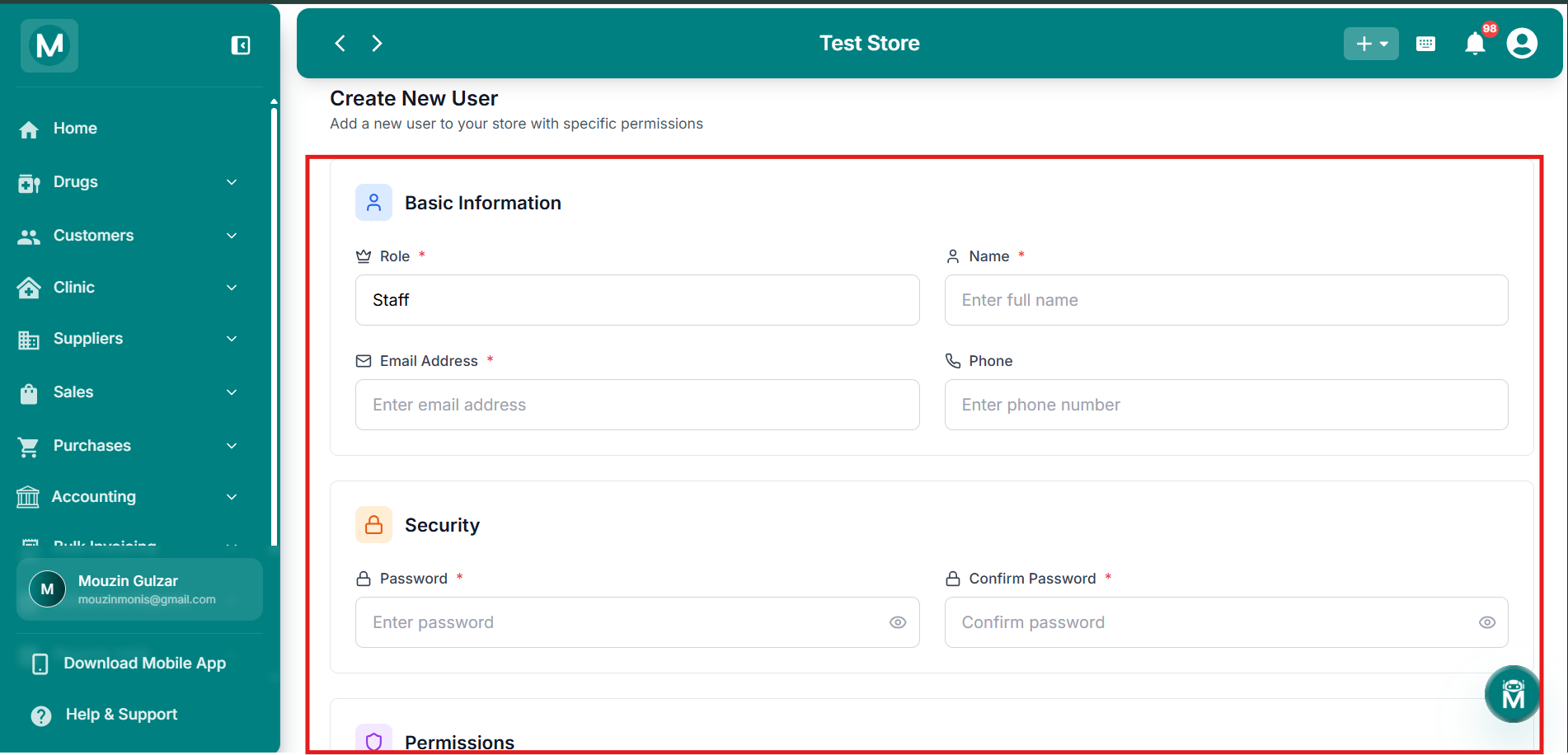
Create User Permissions
Set module and clinic permissions for the new user.
Role Dropdown
Select from Admin, Staff, Sales Person, or Accountant.
Permissions aren't tied to a fixed role, you can customize exactly what each user can access, regardless of the role you assign them.
Activity Logs
The Activity logs tab is locked by default and requires a password to access.
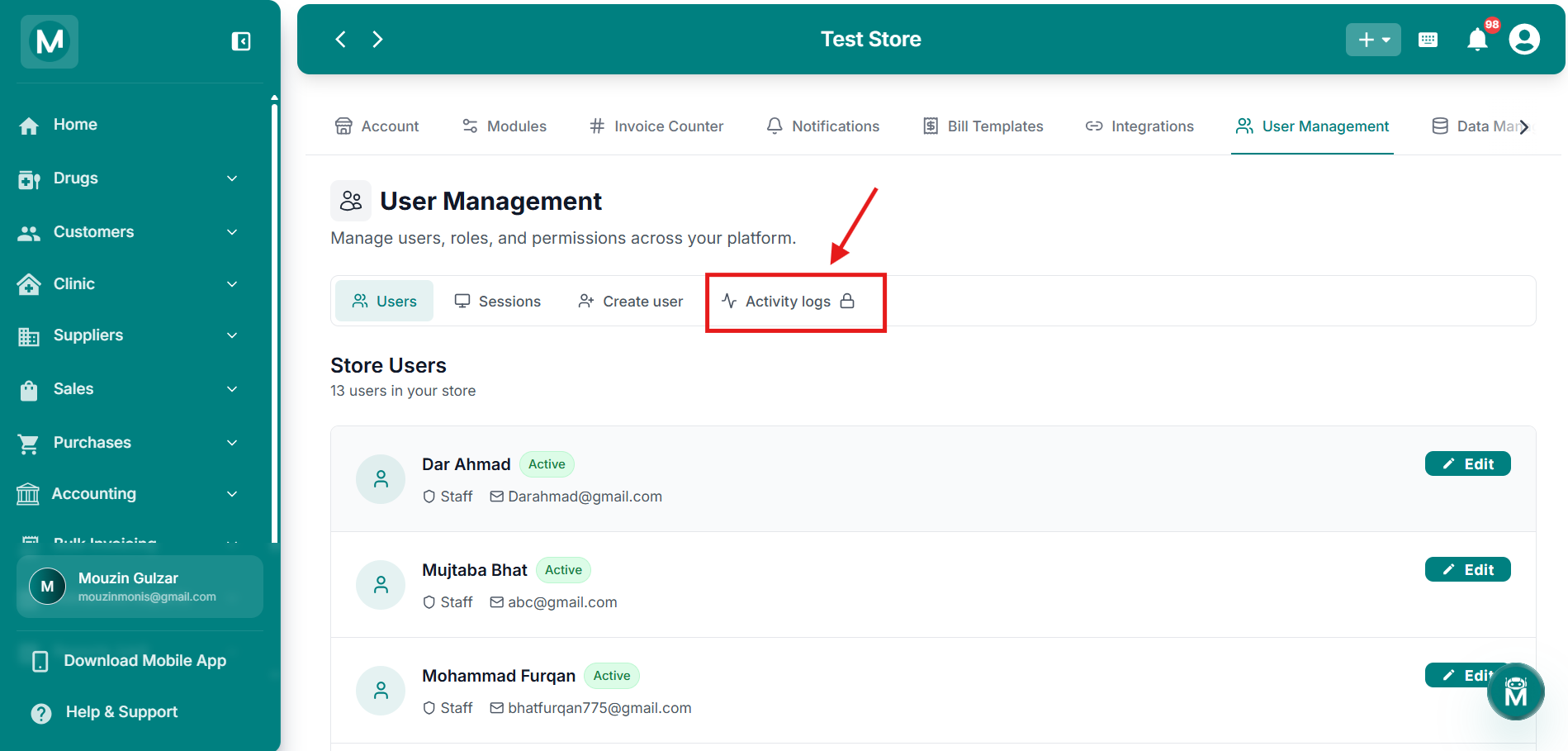
Activity Logs
Locked by default, contact MediFlux support to request access.
If you need to review activity logs, reach out to MediFlux support with your request, and the support team will assist accordingly.
FAQs
Build Your Team
Your users are set up. Now put them to work across your pharmacy.
Add Sale
Let your sales staff start billing with their assigned permissions.
Add Purchase
Have your purchasing team record stock inward with controlled access.
Doctors
Set up clinic doctors if you've assigned Clinic Permissions to any user.
Modules
Enable or disable features so your users only see what they need.