
Creditors / Debtors
View customer and supplier balances, filter outstanding ledgers, and export creditors and debtors reports in MediFlux.
The Creditors / Debtors report provides an overview of outstanding balances across your customers, suppliers, and general ledgers. It helps you identify amounts payable or receivable, review customer advances, and understand your store's overall credit and debit position.
You can search for specific ledgers, filter balances by category, include or exclude general ledgers, and export the report with your preferred columns and sorting options.
To review individual transactions and payments, see Customer Ledger, Supplier Ledger, and General Ledger.
Opening the Creditors / Debtors Report
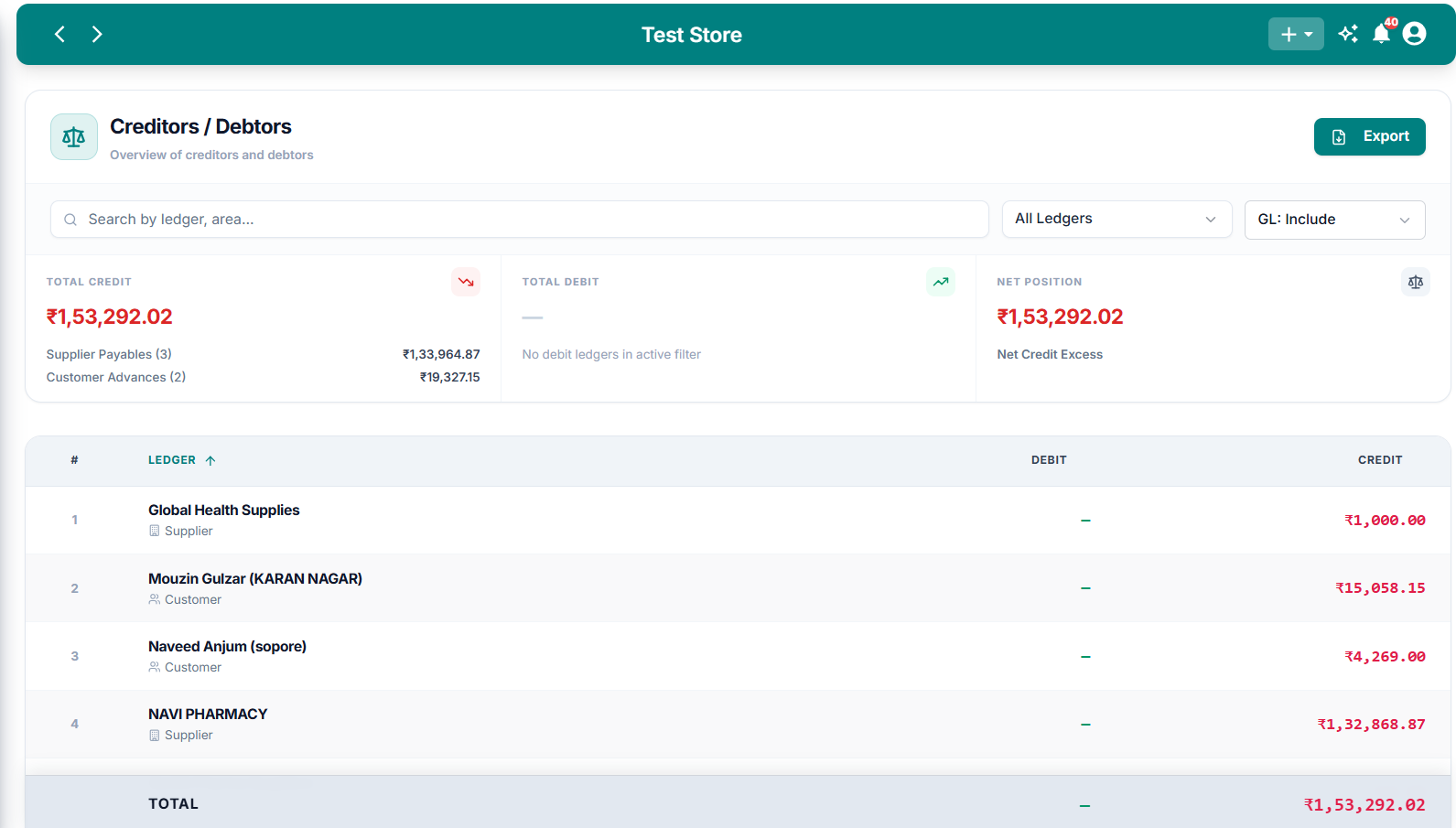
Creditors / Debtors Report
The Creditors / Debtors page displays credit and debit summaries, search and filter controls, and individual ledger balances.
Understanding the Summary Cards
The report displays three summary sections at the top.
The summary also displays applicable balance categories, such as:
- Supplier Payables: Outstanding credit balances associated with suppliers.
- Customer Advances: Credit balances held against customers.
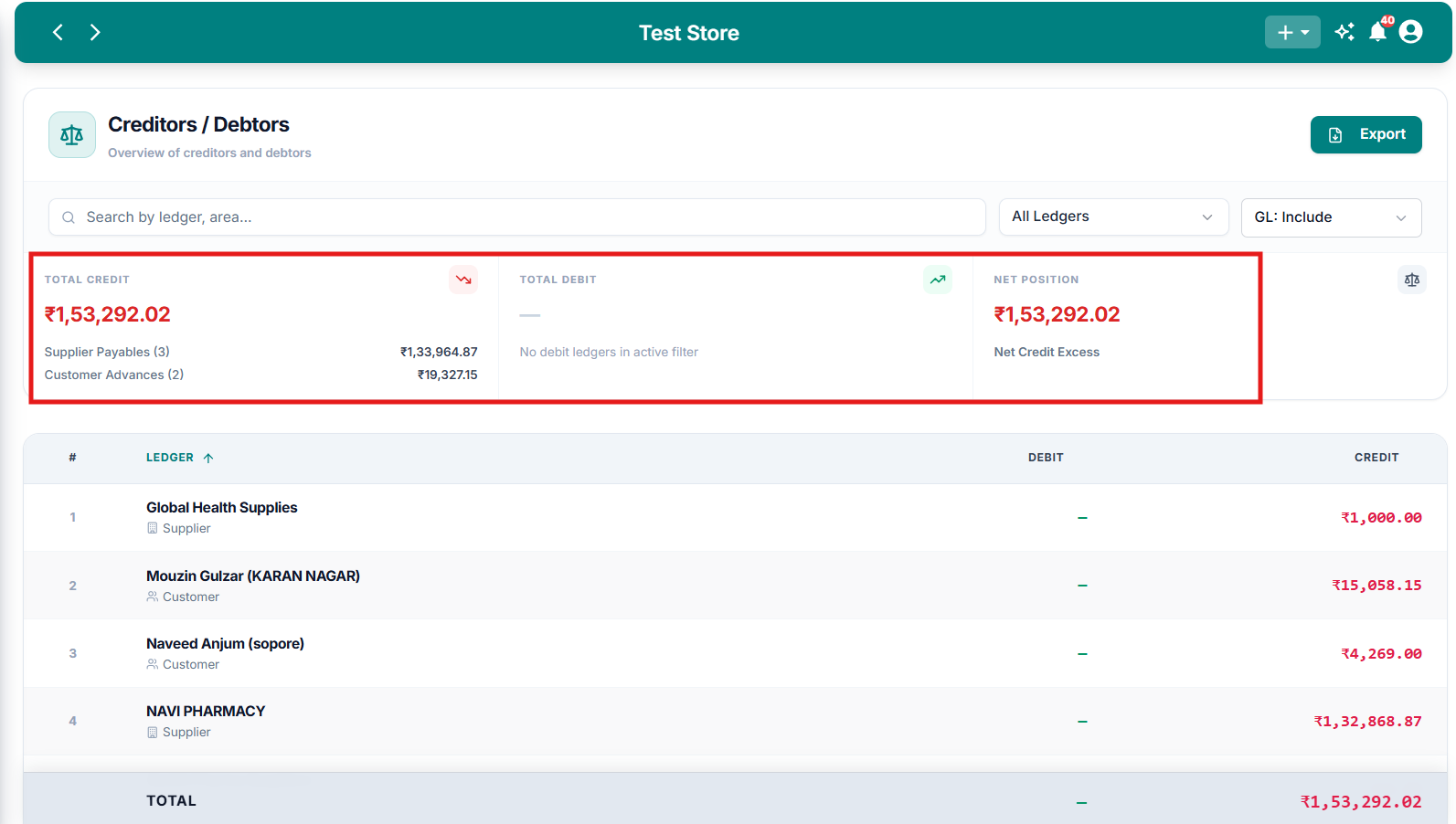
Credit and Debit Summary
The summary cards display Total Credit, Total Debit, and Net Position, with applicable breakdowns such as Supplier Payables and Customer Advances.
The displayed amounts depend on the ledger categories and general ledger settings selected in the report.
Searching and Filtering Ledgers
The controls above the summary allow you to narrow the report to the balances you want to review.
Search for a Ledger
Use the Search by ledger, area... field to find a customer, supplier, ledger, or area.
Filter by Ledger Category
Click All Ledgers to open the Includes Filters (Multi-Select) dropdown.
The available options include:
You can select multiple categories using the checkboxes.
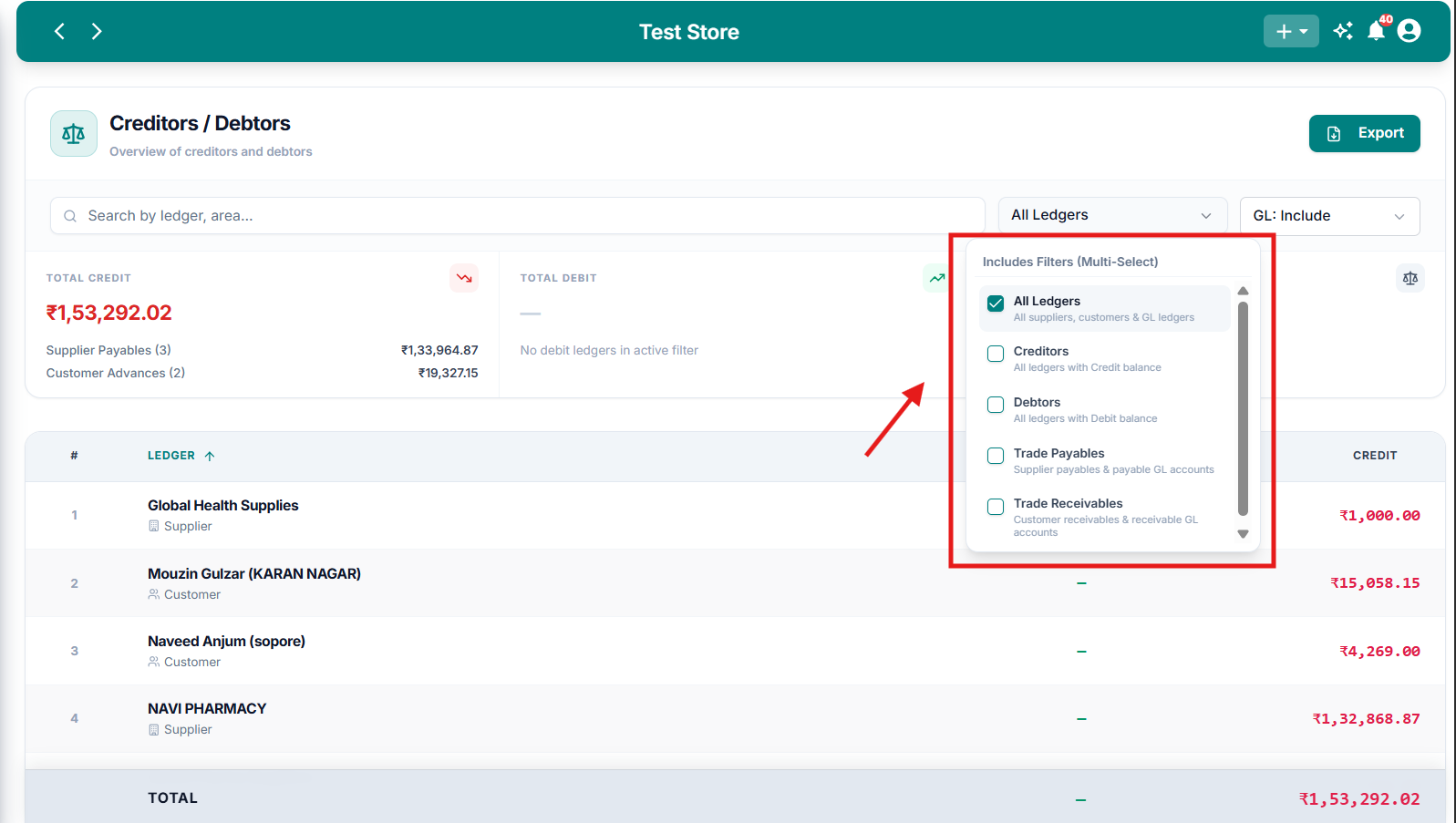
Ledger Category Filters
The multi-select dropdown lets you choose All Ledgers, Creditors, Debtors, Trade Payables, and Trade Receivables.
Include or Exclude General Ledgers
Use the GL: Include dropdown to control whether general ledger accounts are included.
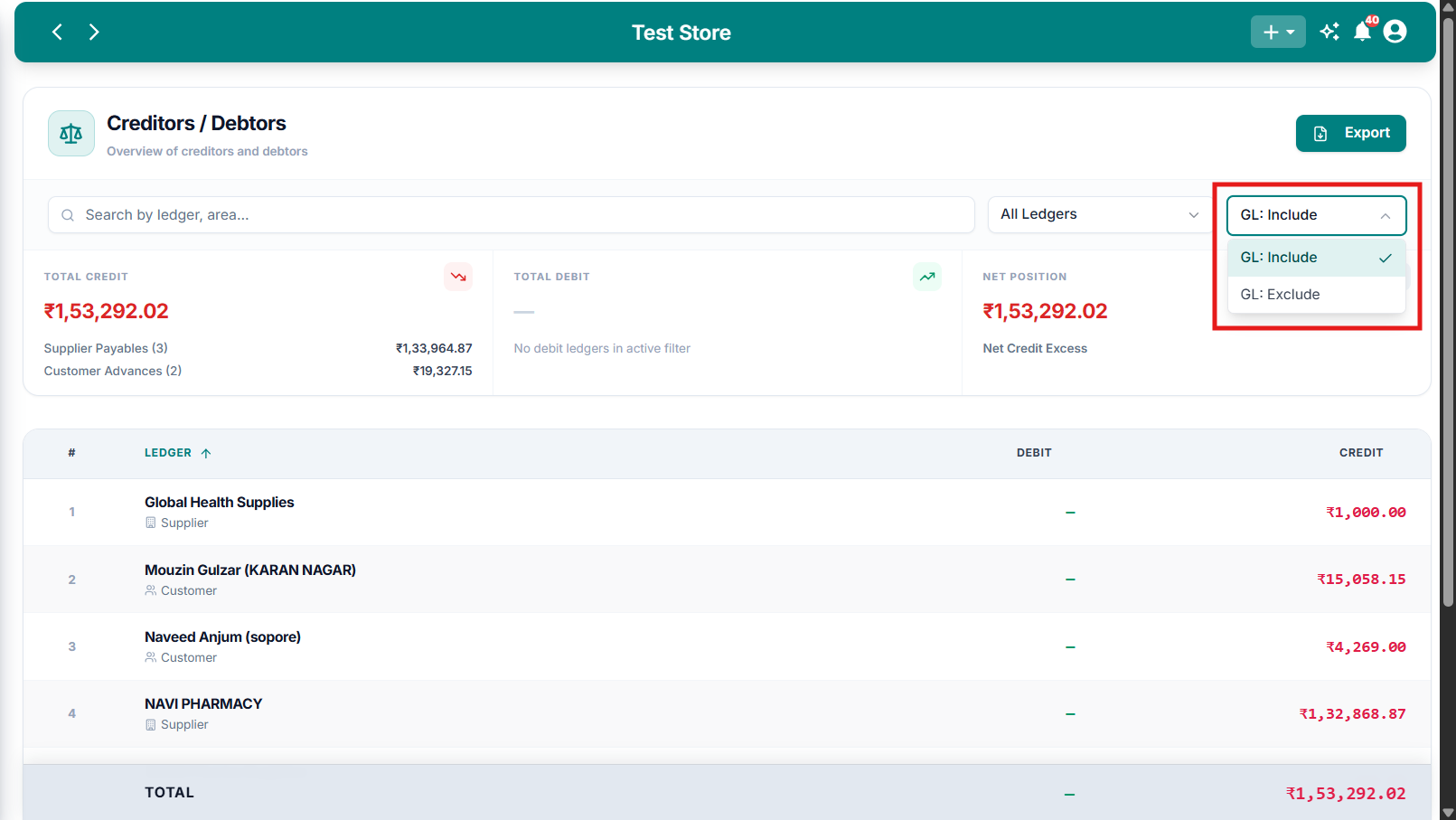
General Ledger Inclusion Filter
Choose GL: Include or GL: Exclude to control whether general ledger accounts appear in the Creditors / Debtors report.
Understanding the Ledger Table
The table below the summary displays the individual balances of the included ledgers.
The TOTAL row at the bottom displays the combined debit and credit amounts.
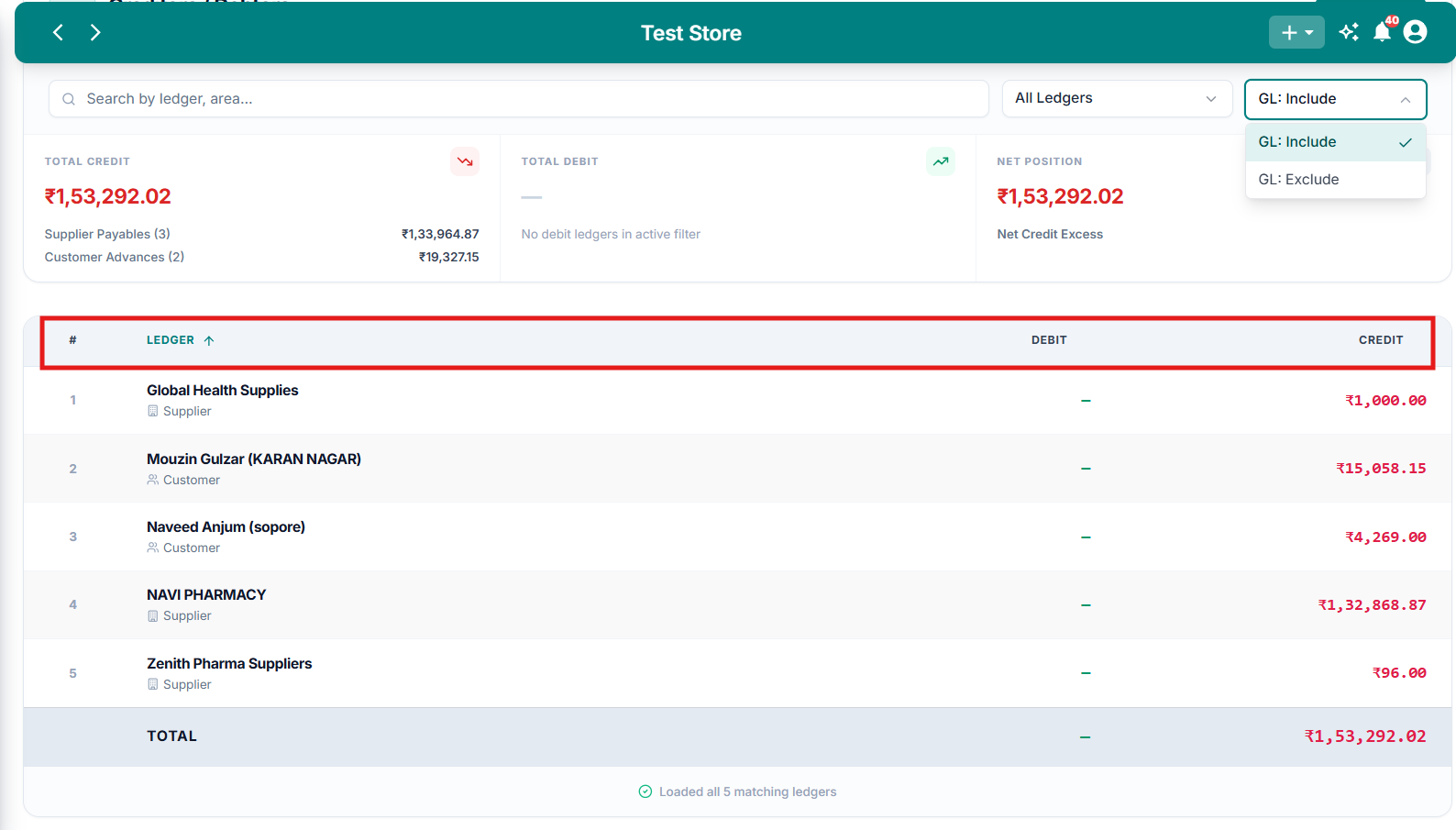
Creditors / Debtors Ledger Table
The table lists individual ledgers with their debit or credit balances and a total row.
A dash (—) indicates that no amount is displayed in that balance column for the corresponding ledger.
Exporting the Creditors / Debtors Report
You can customize the information included in the exported report.
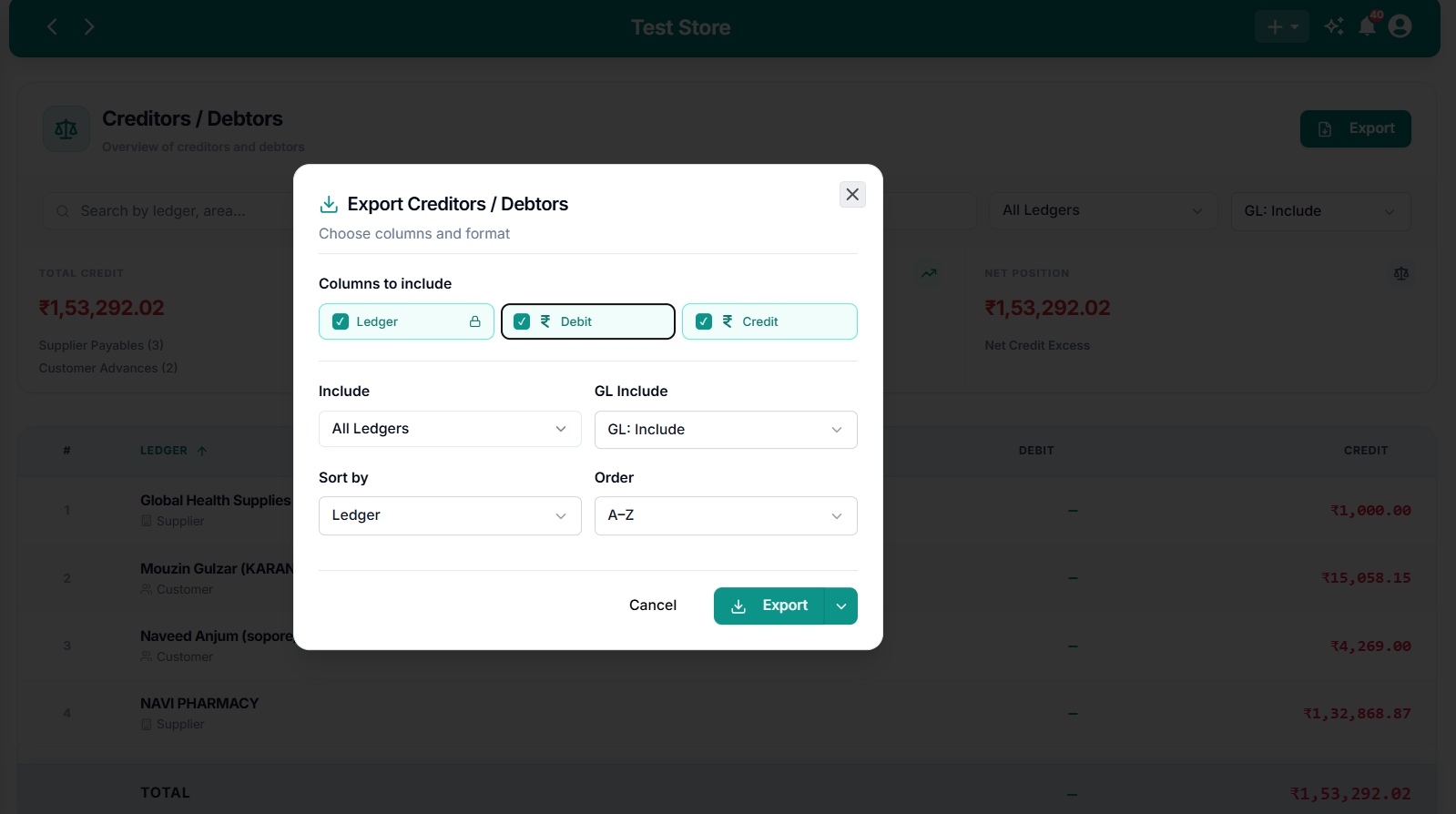
Export Creditors / Debtors
Customize the export by selecting columns, ledger categories, general ledger inclusion, sorting field, and order before exporting.
When to Use This Report
The Creditors / Debtors report is useful when you need to:
- Review outstanding supplier payables.
- Identify customer debit and credit balances.
- Check customer advances.
- View trade payables and receivables separately.
- Compare overall credit and debit positions.
- Export balances for accounting review or reconciliation.
To examine the transactions behind an individual balance, refer to the corresponding customer or supplier ledger.