
Add Retail Sale
Create retail and wholesale sale bills with customer lookup, prescription uploads, barcode scanning, and flexible payment options.
The Add Sale page is where you create bills for individual customers, walk-in patients, prescription-based sales, and wholesale transactions. It is designed for fast, accurate billing with fields tailored to retail and wholesale pharmacy workflows.
Navigate here from the sidebar: Sales → Add Sale. You can also click the + button on any screen and select Add Sale, which opens in Retail mode by default.
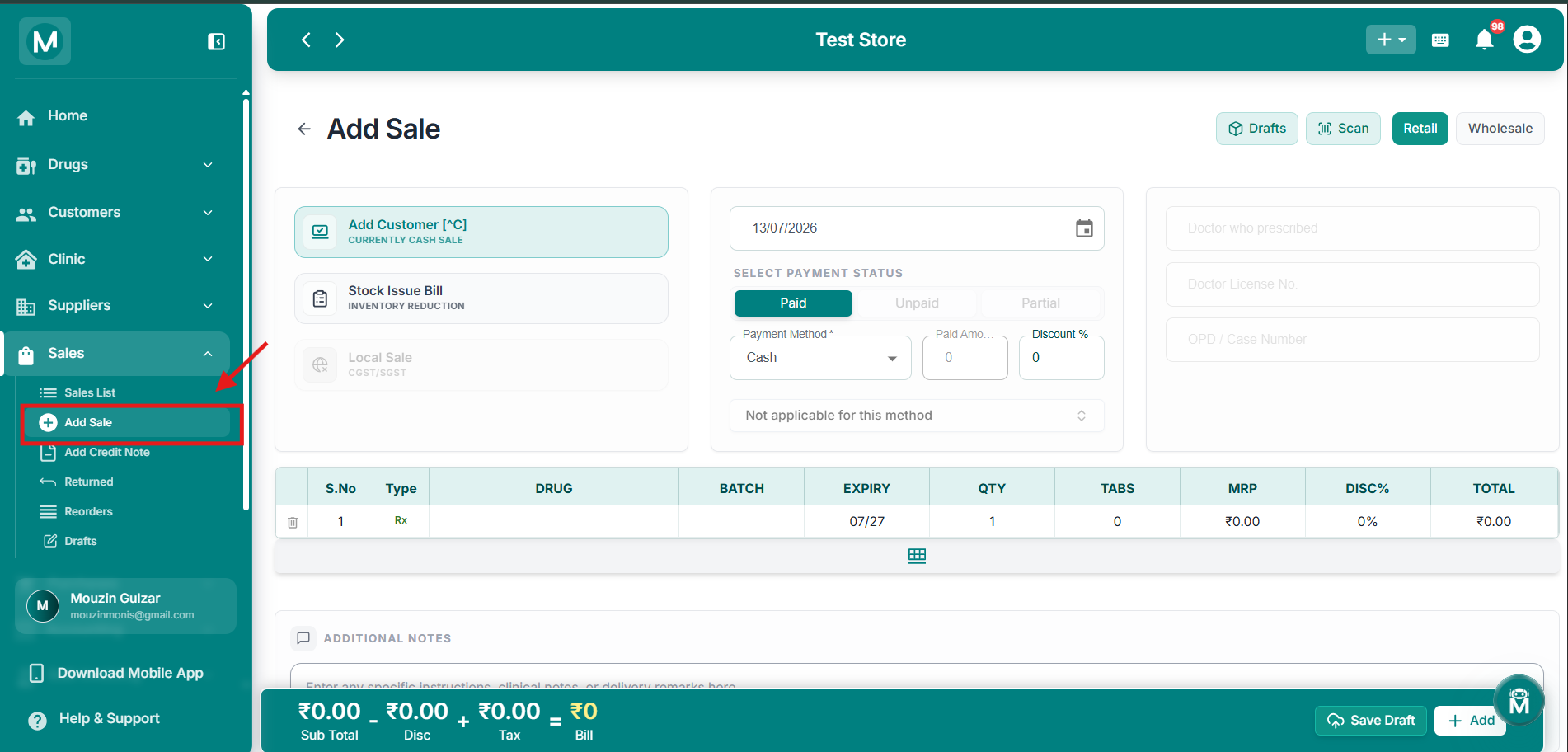
Add Sale page
Retail mode with customer lookup, drug table, and payment options.
Sale Modes
At the top-right of the Add Sale page, you can switch between two modes:
Scan & Add Drugs
Click Scan at the top-right to open the Scan & Add Drugs panel. This is designed for phones and tablets, it opens your device camera for two input methods:
Camera permissions are required for both options on phone and tablet.

Scan & Add Drugs Panel
Switch between Barcode Scanner and Image (OCR) tabs on phone or tablet.
If you have a physical barcode scanner device connected to your computer, you can scan barcodes directly into the bill without opening the Scan panel. The drug is added instantly with auto-populated name, batch, expiry, MRP, and available stock.
For detailed setup instructions, supported devices, OCR best practices, and troubleshooting, see the Scan & OCR guide.
Drafts
Click Drafts at the top-right to access all saved draft bills. Any bill you save mid-way using Save Draft is stored here and can be resumed at any time.
If you are in the middle of adding a sale and need to navigate away, click Save Draft to save your progress. You can return to it anytime from Drafts.
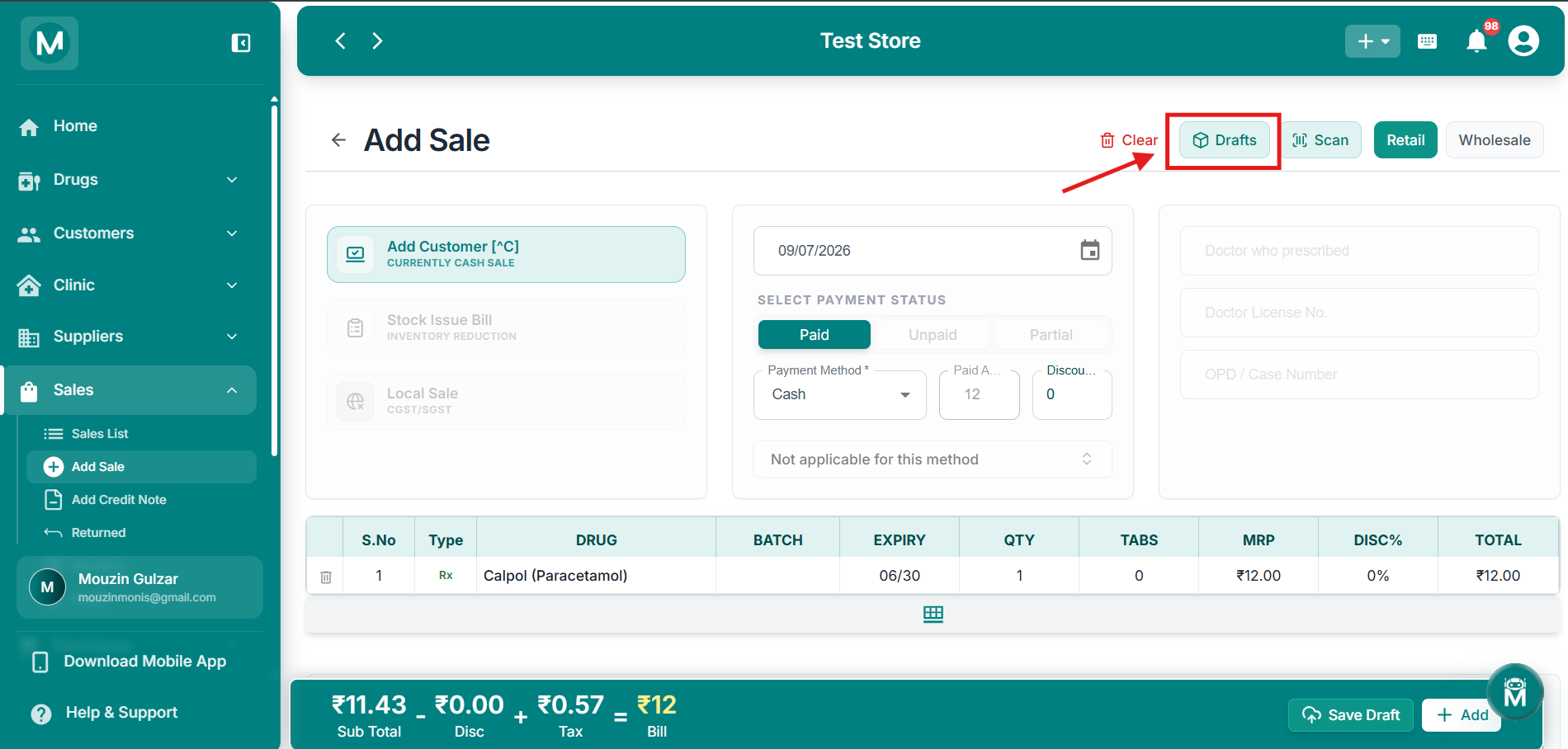
Drafts panel
Access saved draft bills and resume them anytime.
Retail Sale
The Retail mode is designed for fast, accurate billing with fields tailored to retail pharmacy workflows, customer lookup, doctor details, prescription uploads, and MRP-based pricing.
Left Panel
The left panel in Retail mode has three options:
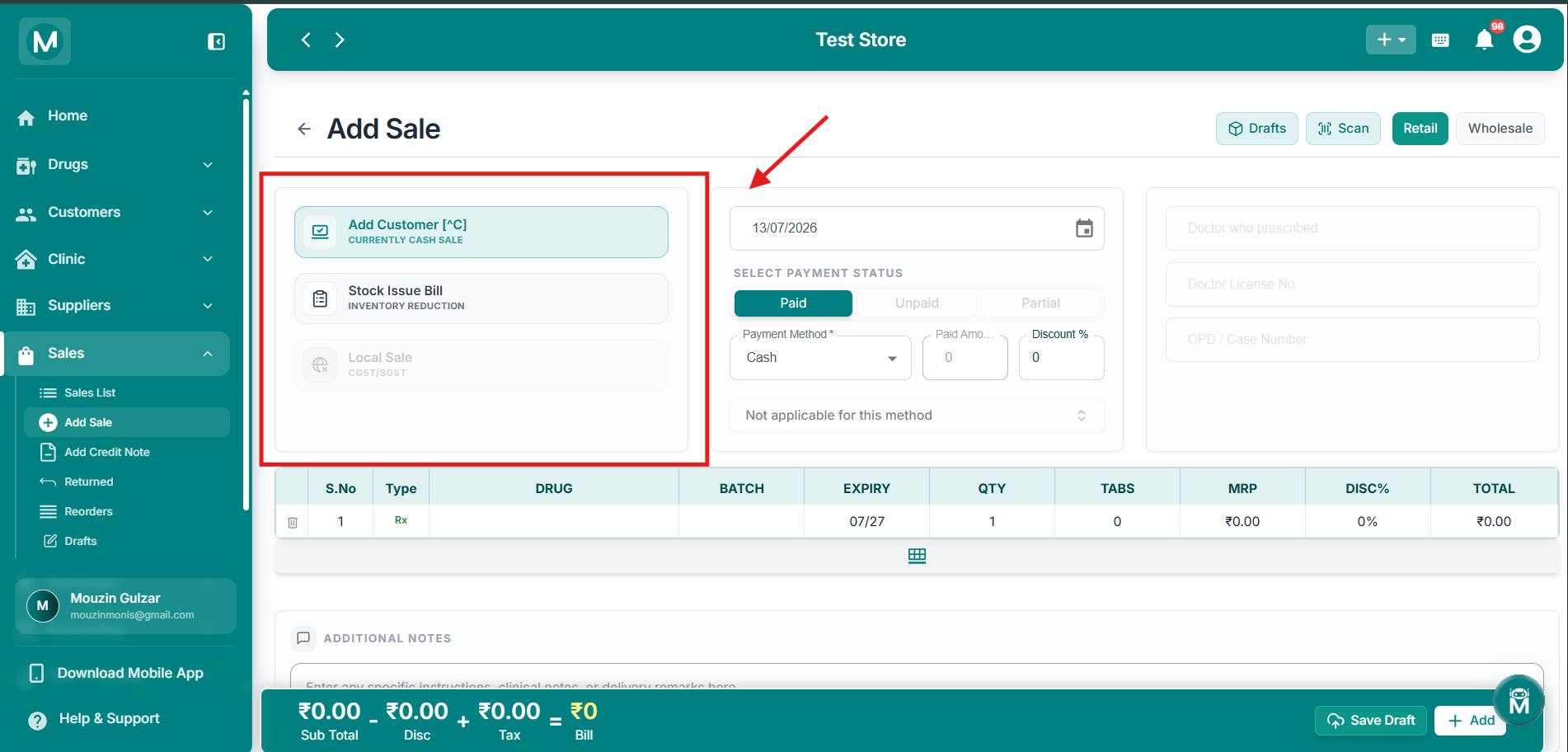
Left panel options
Add Customer, Stock Issue Bill, and Local Sale toggle.
Adding A Customer
Click Add Customer or press Ctrl+C to open the Quick Add Customer dialog. Search for an existing customer by name, phone, or Aadhaar number.
If the customer doesn't exist, press Tab or Enter to open a quick registration form:
Click Save Customer to create the profile and link them to the sale instantly.
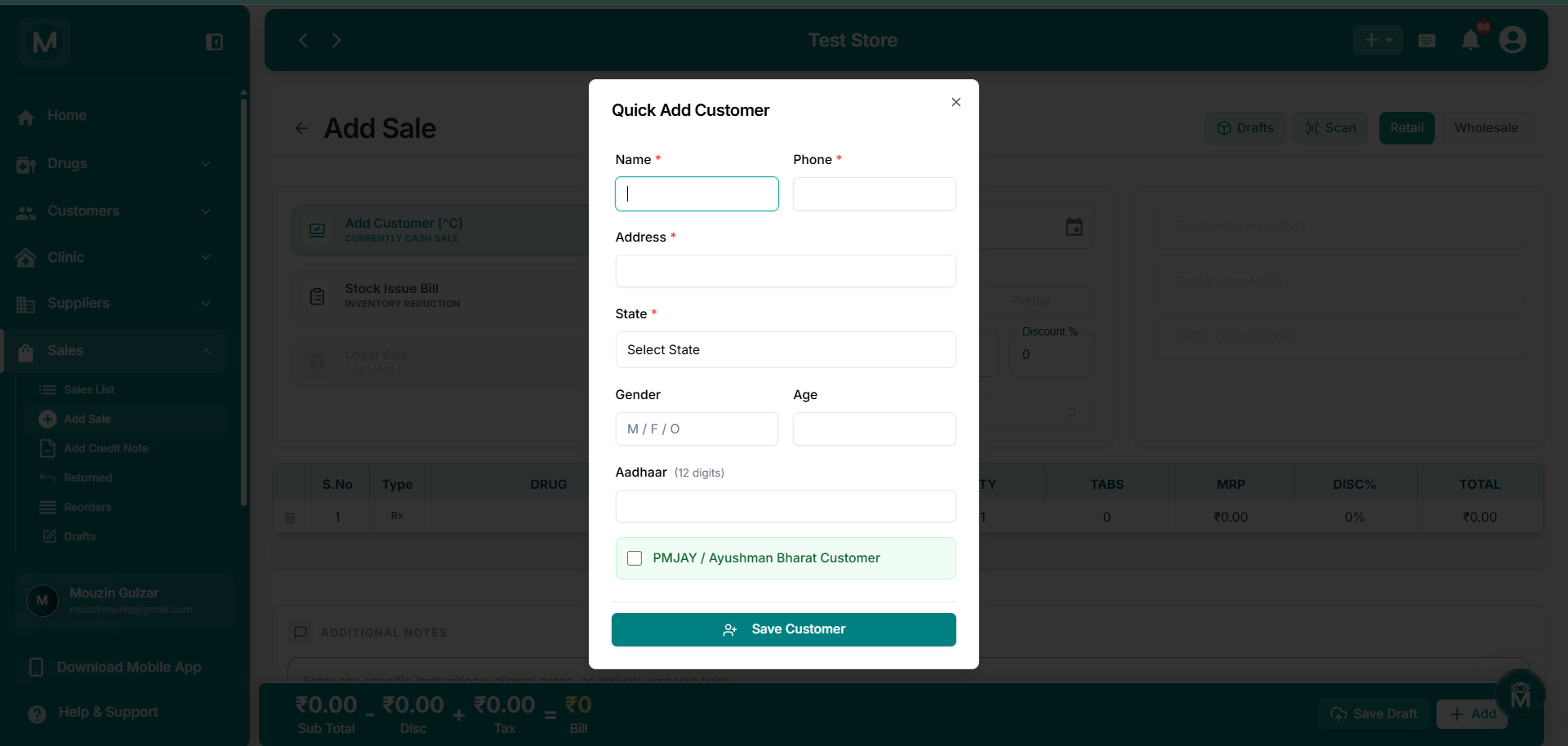
Quick Add Customer dialog
Search existing customers or register a new one on the fly.
For full details on customer management, see Add a Customer.
Doctor Details
The right panel in Retail mode shows fields for recording prescription information:
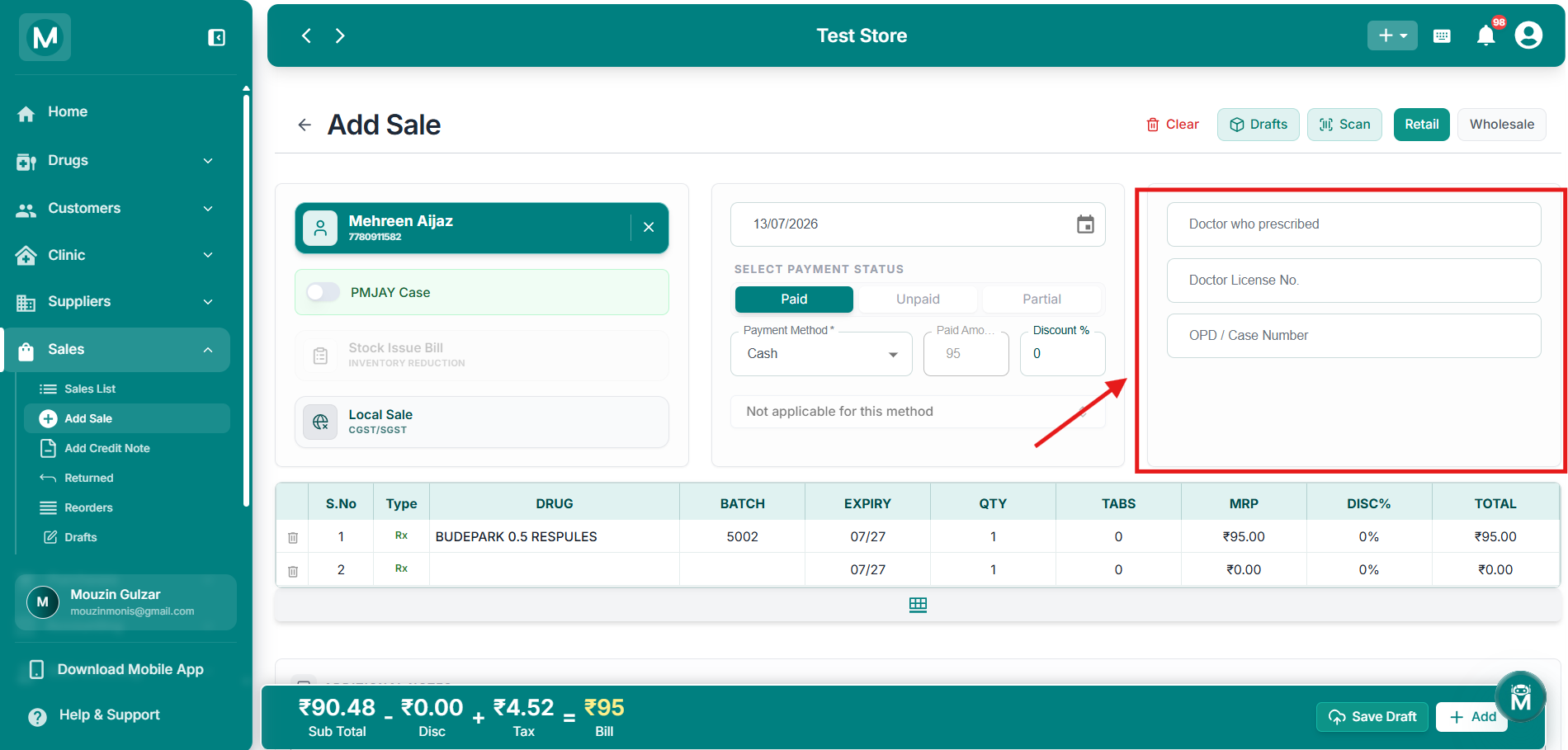
Doctor details panel
Record prescribing doctor, license number, and OPD case number.
These fields are optional but recommended for prescription-based sales and audit trails.
Payment Status
Select the payment status for this sale:
When Paid or Partial is selected, additional fields appear:
When Cash is selected as the payment method, no additional bank details are needed.
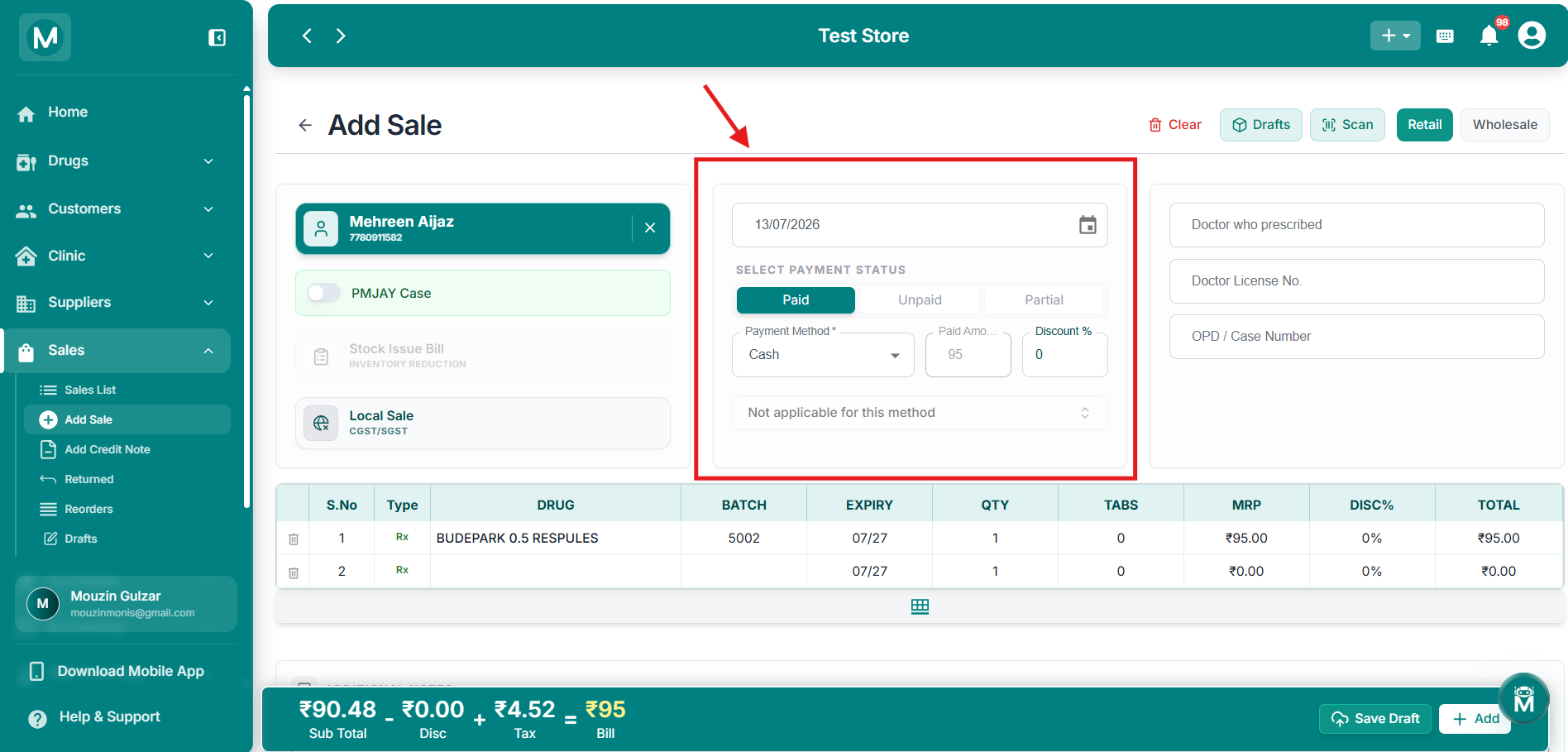
Payment status and method
Select Paid, Unpaid, or Partial with payment method and bank details.
When Card, UPI, or Net Banking is selected, a bank details dropdown appears below showing your linked accounts. Select the appropriate account to record where the payment was received.
When Unpaid is selected, the Payment Method defaults to None, Paid Amount and Discount % remain editable, and the bank details section is hidden.
Drug Table
Click the grid icon (⊞) at the bottom of the table to add more drug rows.
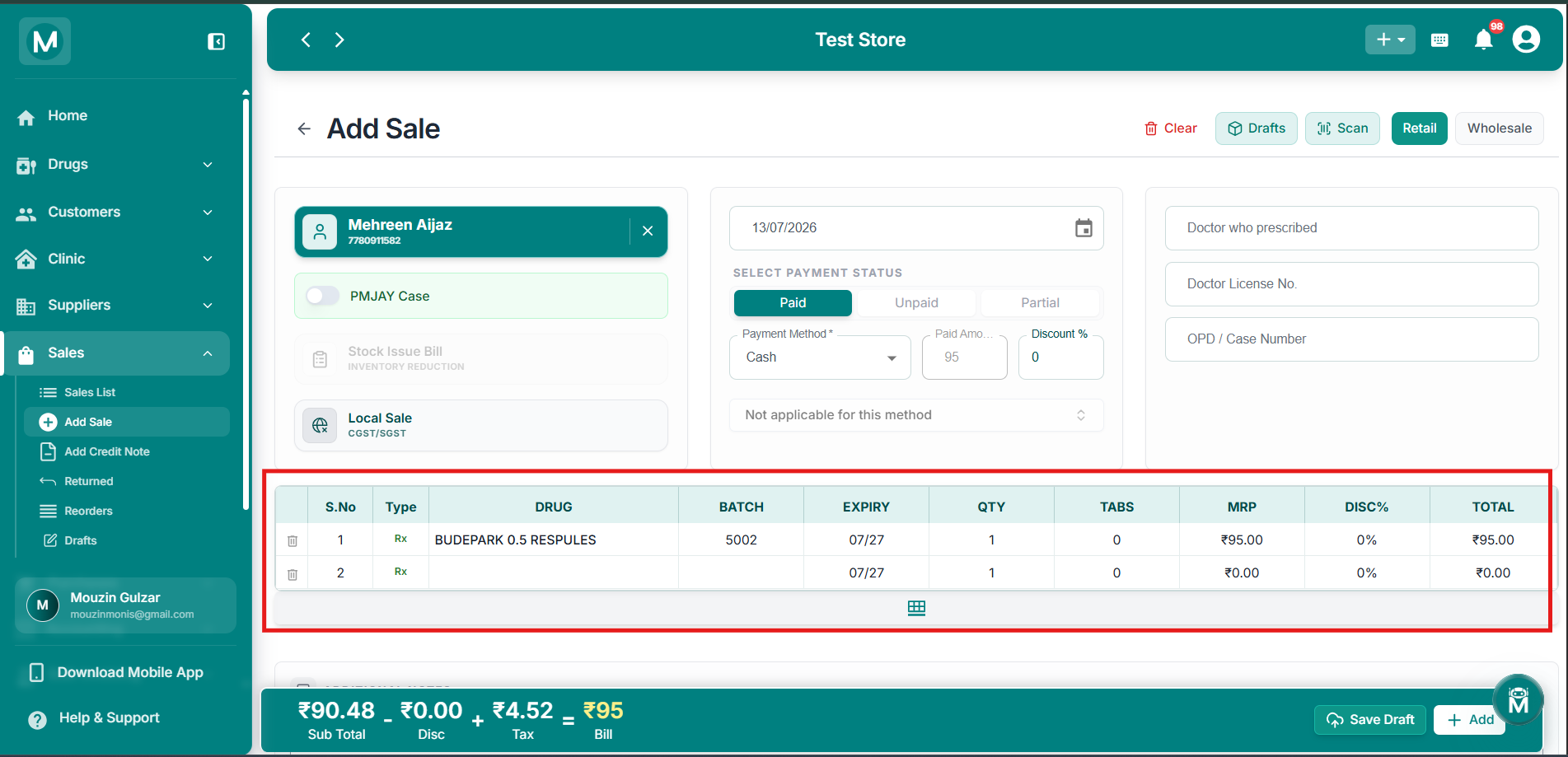
Drug table
Add drugs with batch, expiry, quantity, MRP, and discount.
Additional Notes
Both Retail and Wholesale forms have an Additional Notes field for entering specific instructions, clinical notes, or delivery remarks.
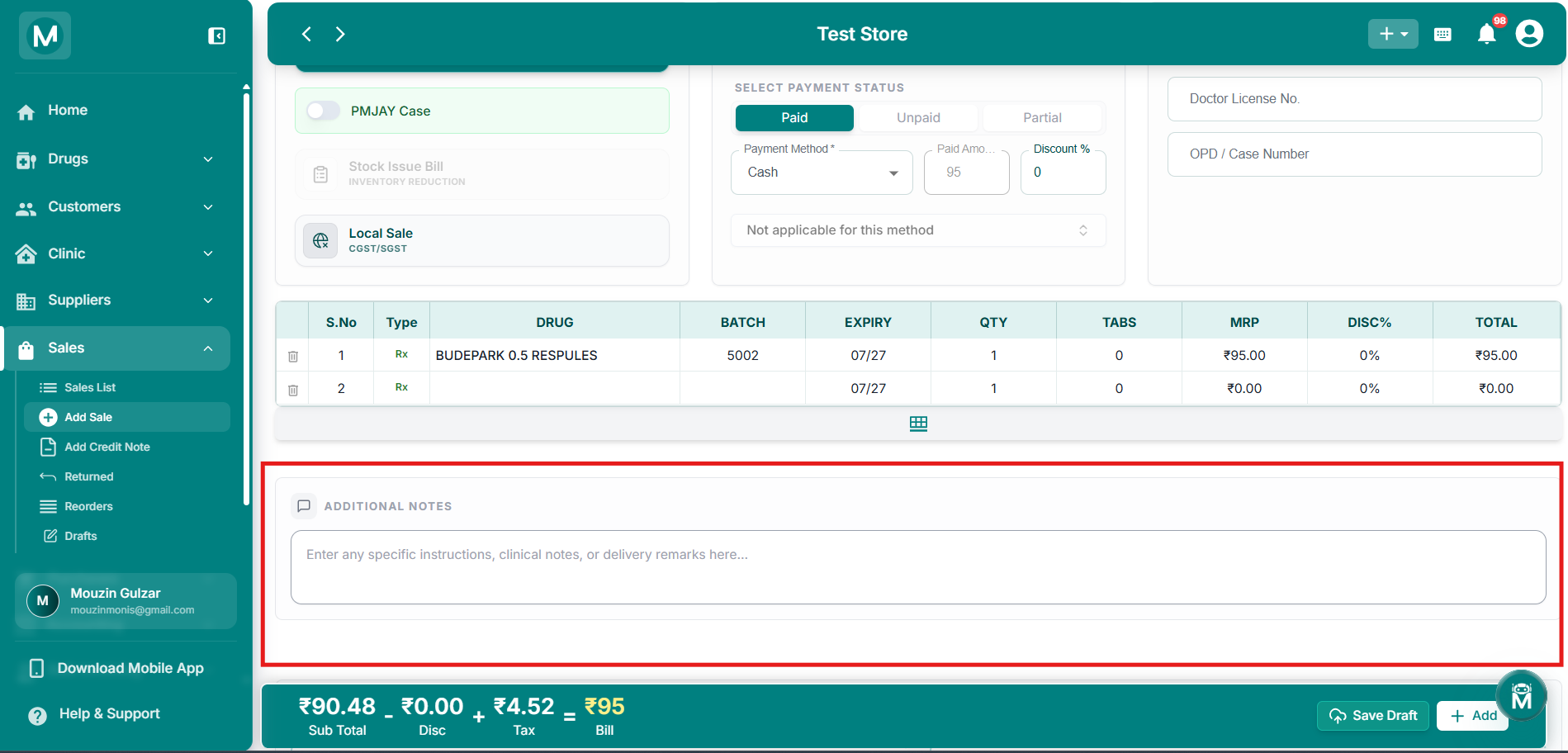
Additional notes field
Enter clinical notes, delivery remarks, or specific instructions.
Prescription Management & Documents
If the customer has a physical prescription, you can upload it directly instead of manually entering each drug line by line. MediFlux will scan the prescription and fill in the drug details automatically, saving you time and reducing manual errors.
Click + Upload Prescription to attach a scanned or photographed prescription. Once uploaded, the drugs from the prescription are read and added to the bill automatically.
You can also attach any additional supporting documents, reports, referral letters, or delivery notes using + Add More Files.
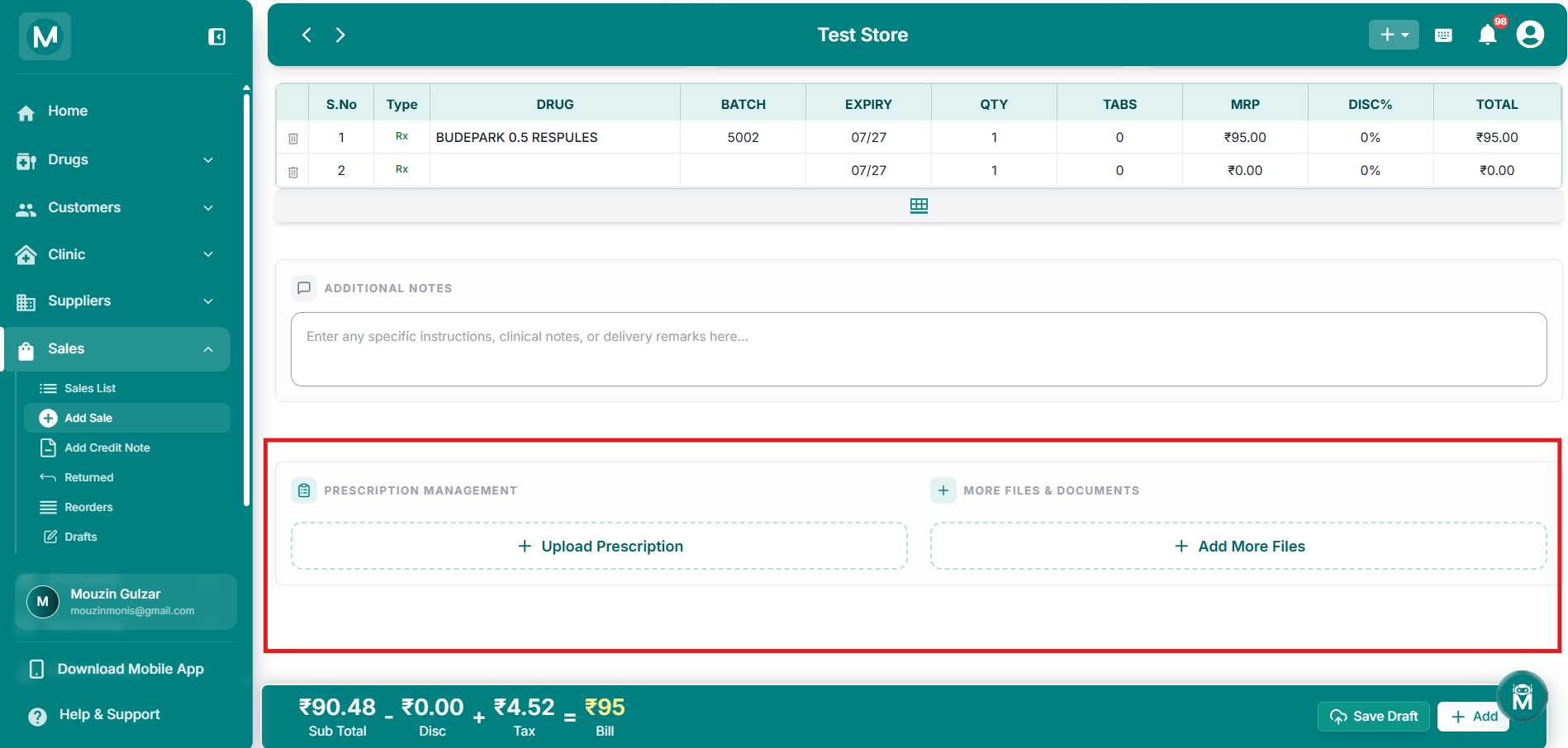
Prescription upload
Upload prescriptions for automatic drug population via OCR.
Bill Summary Bar
At the bottom of the page, a fixed summary bar shows a live breakdown of the bill:
Sub Total − Disc + Tax = Bill
Saving And Submitting
Wholesale Sale
The Wholesale mode is for bulk sale bills to other pharmacies and businesses. Switch to Wholesale using the toggle at the top-right.
For full details on bulk pricing and business customer fields, see Add Wholesale Sale.