
Schedules
Set doctor availability, configure booking rules, and generate shareable booking links for patients.
The Schedules page is where you define when each doctor is available for consultations. A schedule controls the days and times a doctor can be booked, along with rules like slot duration, breaks, and how far in advance patients can book, this is what powers the Appointments and Pending Bookings pages.
Searching And Filtering Schedules
The search bar lets you search by doctor name or speciality.
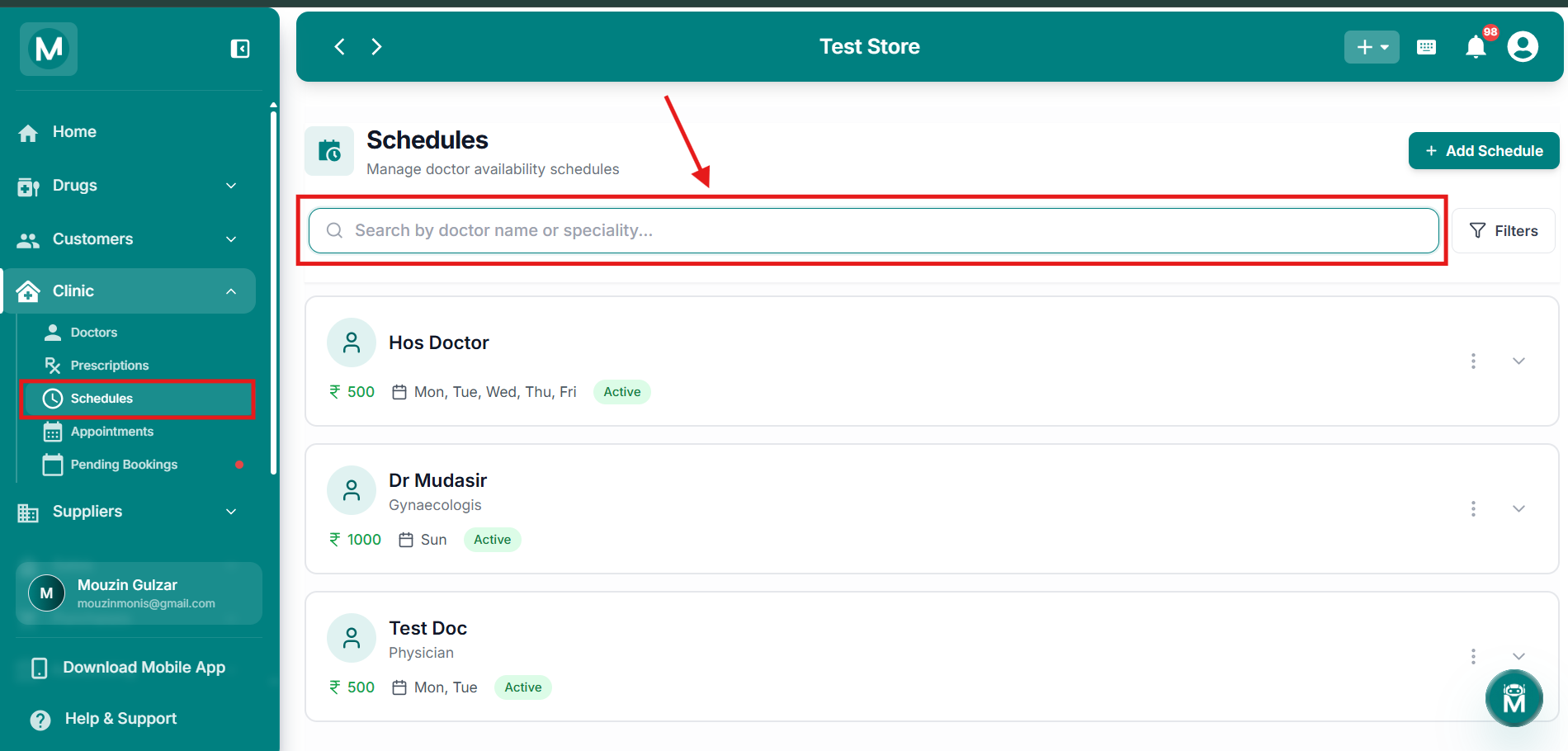
Schedules search bar
Search schedules by doctor name or speciality
Click Filters to open the Filter & Sort panel:
Click Apply Filters to apply, or Reset to clear all filters.
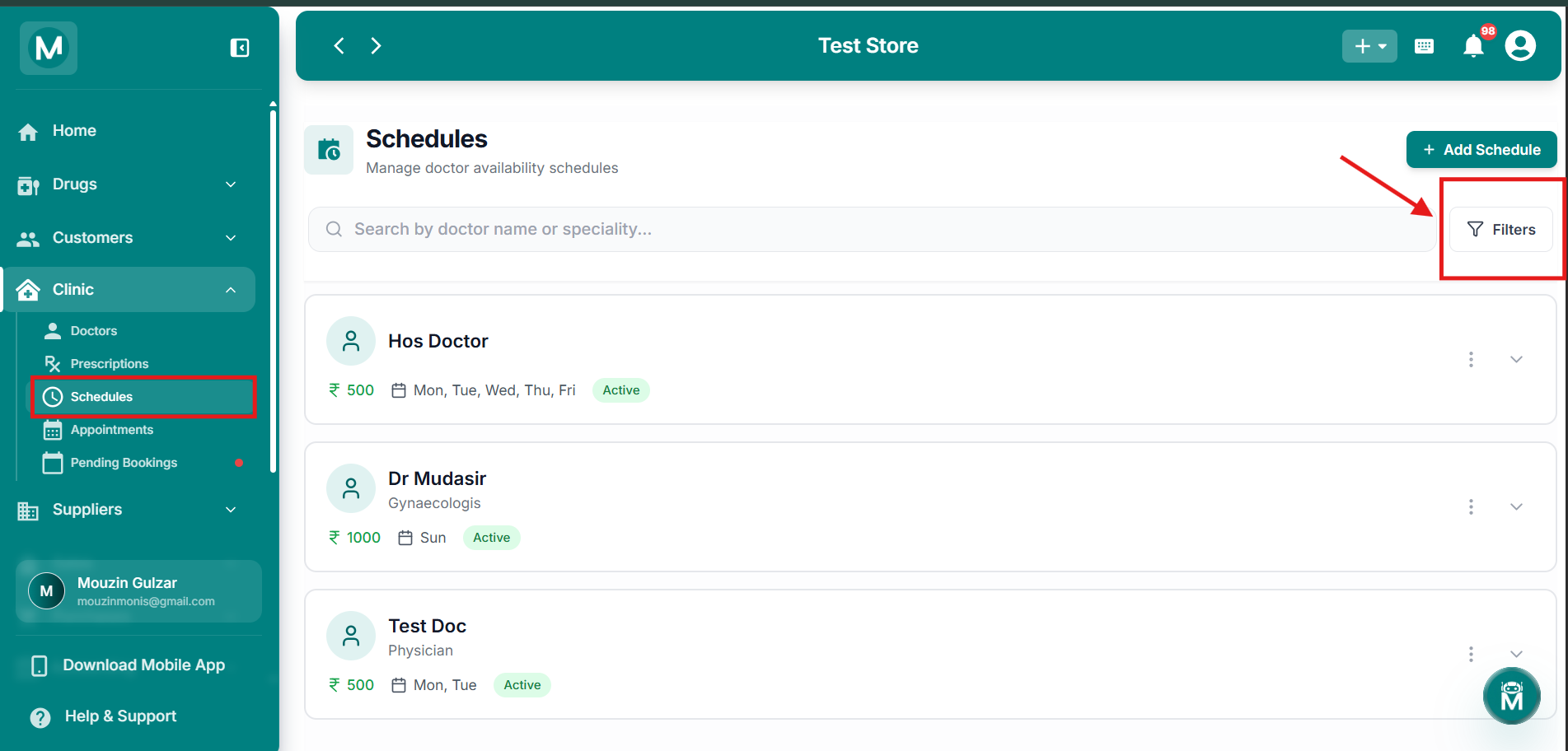
Filter & Sort panel
Filter and sort schedules using multiple criteria
The Schedules List
Each schedule card shows the doctor's name and speciality, their consultation fee, the days they're available, and their status (e.g., Active).
Click the ⌄ arrow on a card to expand it and see full details:
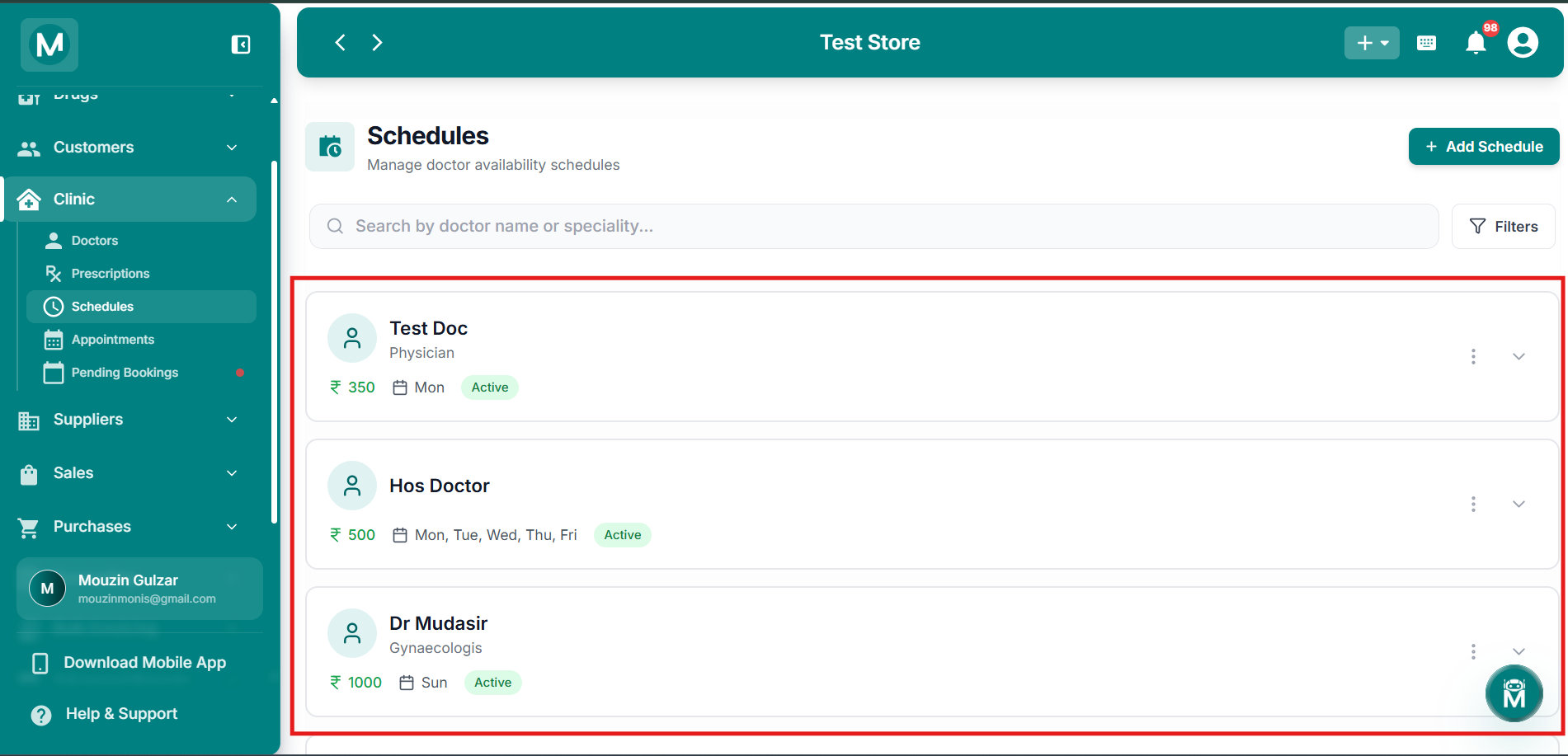
Schedules list
Schedule cards showing doctor availability overview
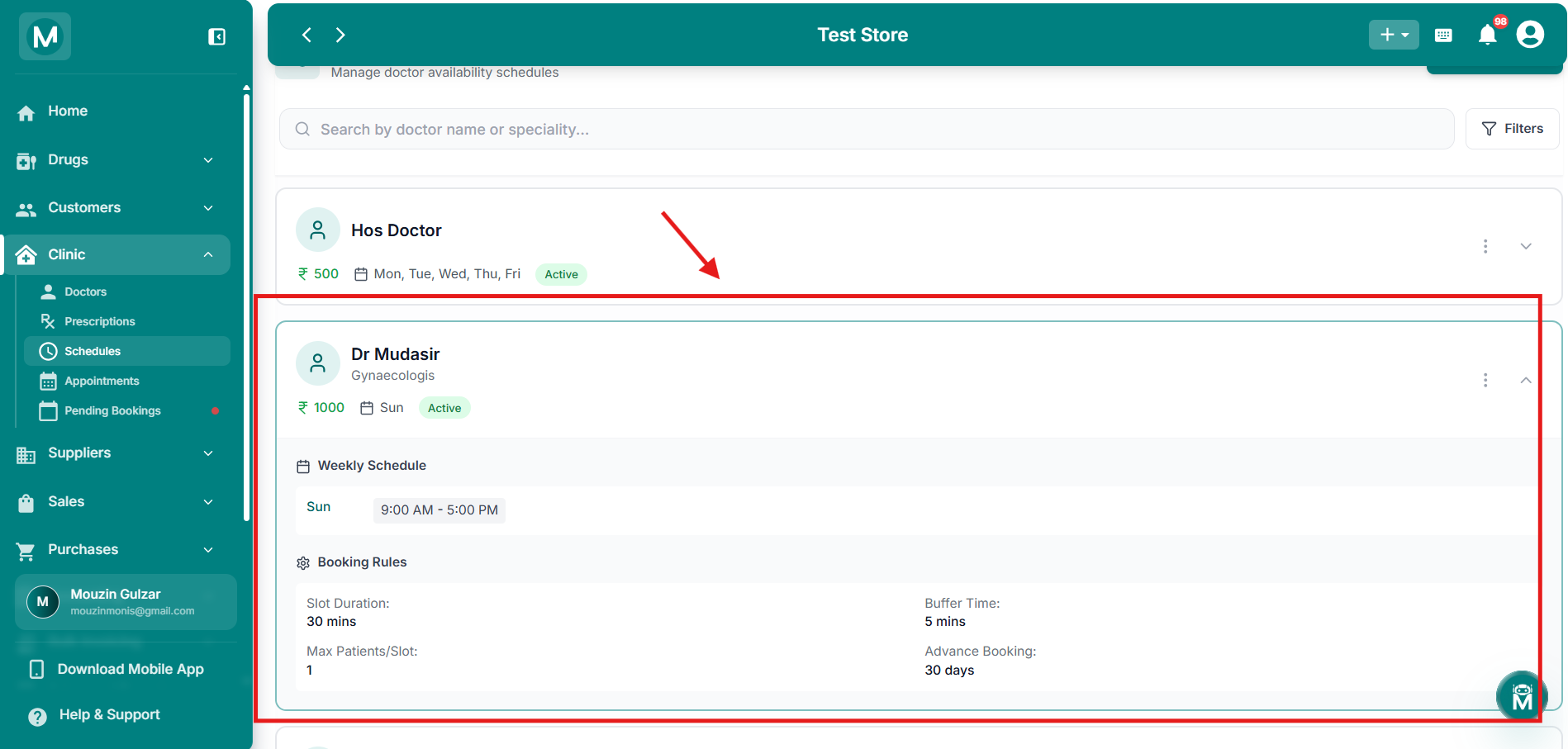
Expanded schedule card
Expanded view showing weekly schedule, exception dates, and booking rules
Row Actions
Click the ⋮ menu on any schedule card to:
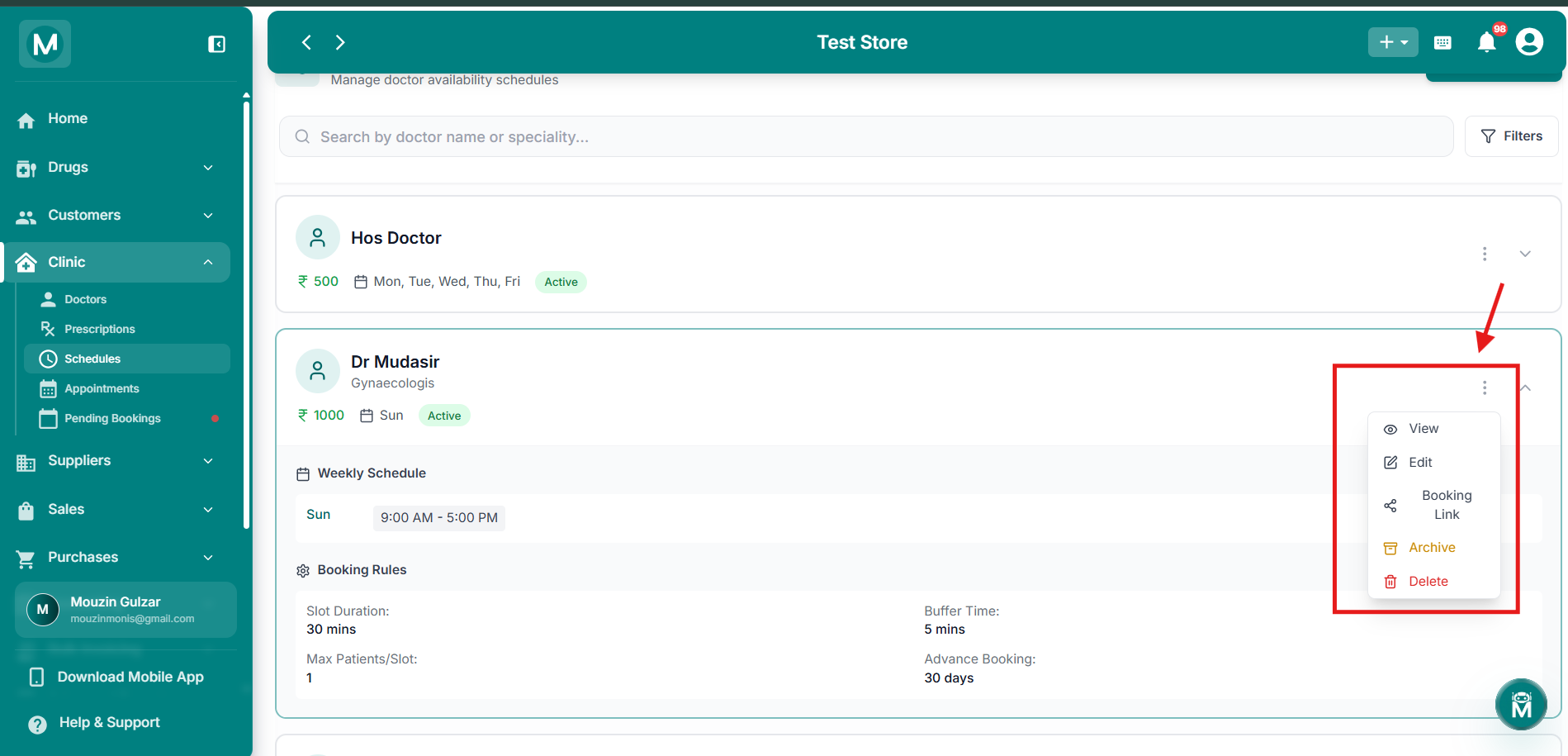
Row actions menu
Schedule card actions including View, Edit, Booking Link, Archive, and Delete
Adding A Schedule
Click + Add Schedule to open the Add New Schedule form:
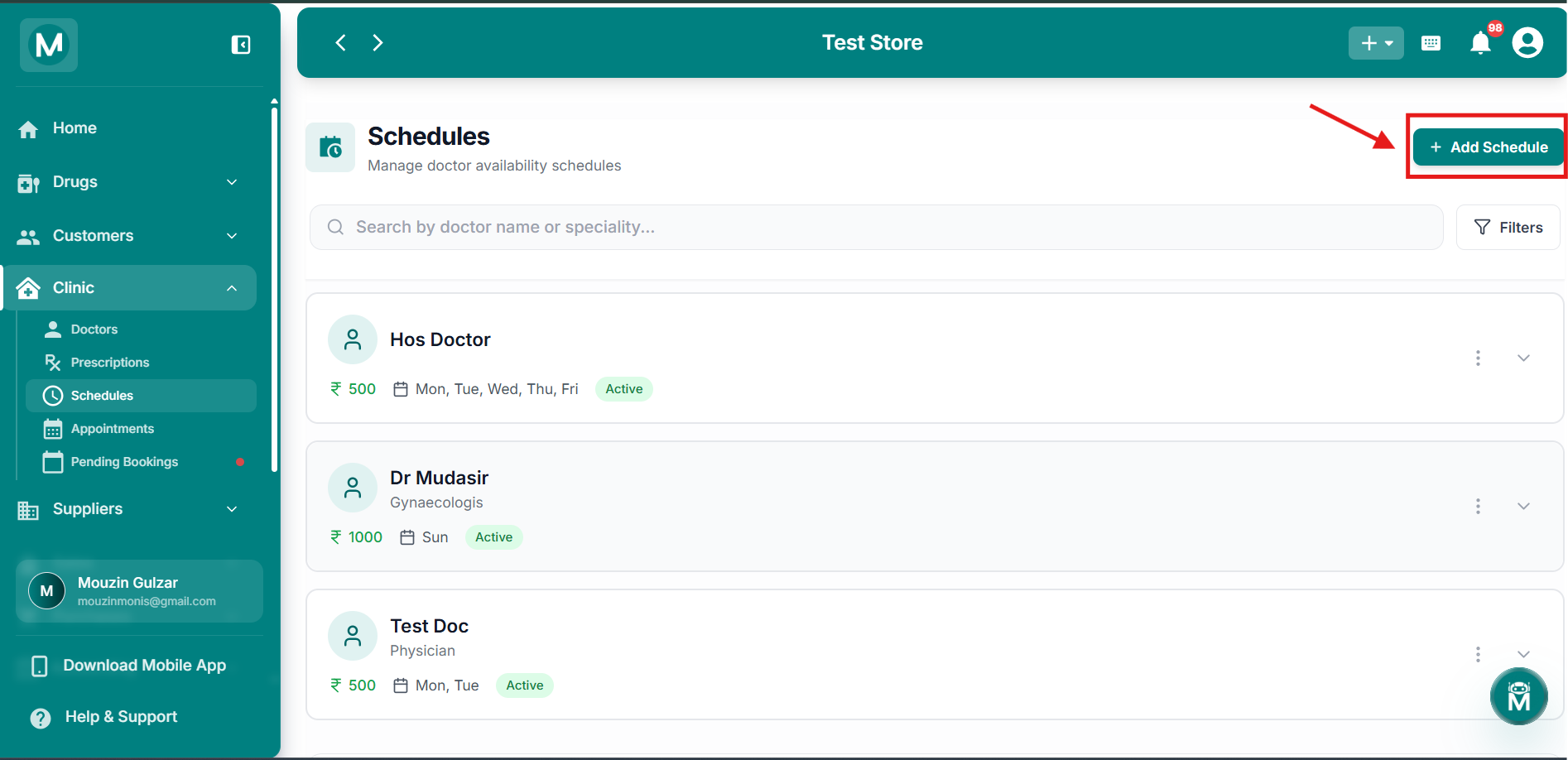
Add Schedule button
Button to open the Add New Schedule form
Schedule Type
Choose how patients book against this schedule:
Recurring Schedule
Click + Add Day to add a day to the doctor's weekly availability. For each day:
- Select the day of the week
- Set a time range (from – to)
- Click + Add Time Slot to add more than one time range for the same day
- Use the copy icon to duplicate a day's schedule, or the delete icon to remove it
Break Times
Click + Add Break Time to block out a recurring time range within the day (e.g., a lunch break), with a time range and a label describing the break.
Exception Dates
Click + Add Exception Date to mark a specific date as an exception to the doctor's regular schedule, set a date, mark it Unavailable (or otherwise), and optionally add a reason.
Booking Rules
Other Fields
Once configured, click Create Schedule to save, or Cancel to discard.
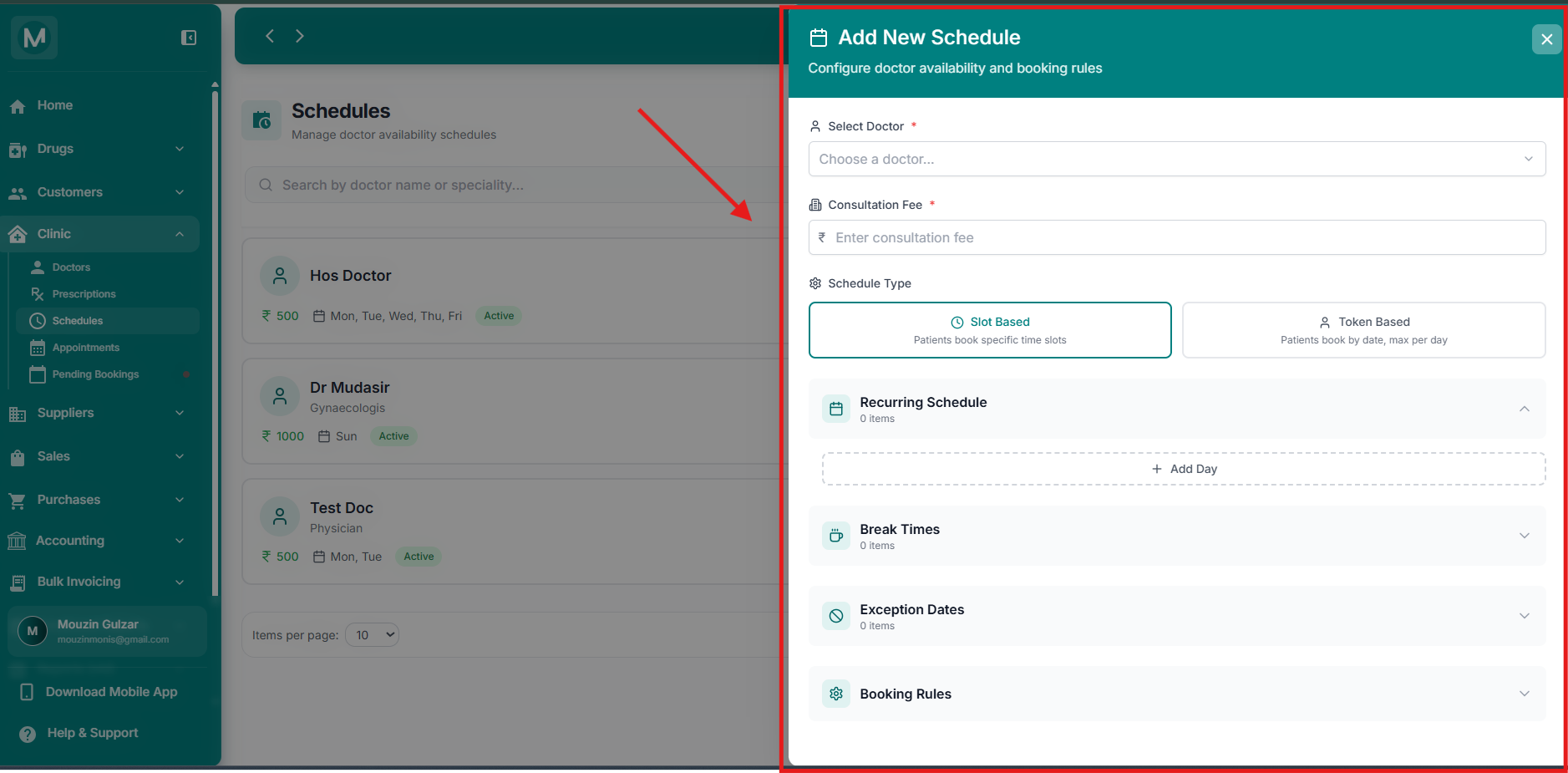
Add New Schedule form
Complete form for creating a new doctor schedule with all fields and sections
FAQs
Common Mistakes To Avoid
- Setting Advance Booking too short: if it's too restrictive, patients may not be able to book far enough ahead
- Forgetting to add Break Times: without this, patients could end up booking into a doctor's lunch or rest period
- Leaving old schedules active instead of archiving them: this can cause confusion when multiple schedules exist for the same doctor