
Customer Profile
View a customer's complete sales history, outstanding balance, and manage their details from one page.
Clicking on any customer's name in the Customer List opens their Customer Profile, a dedicated page showing everything about that customer in one place. From here you can view their sales history, track outstanding dues, and take actions like editing details or recording a new sale.
Profile Header
At the top of the page you'll see:
- A Created by You badge, indicating this profile was created by you
- The customer's name in large text under the CUSTOMER label
- Last edited timestamp showing when the profile was last updated
- The customer's phone number, email, and address displayed on the right side of the header
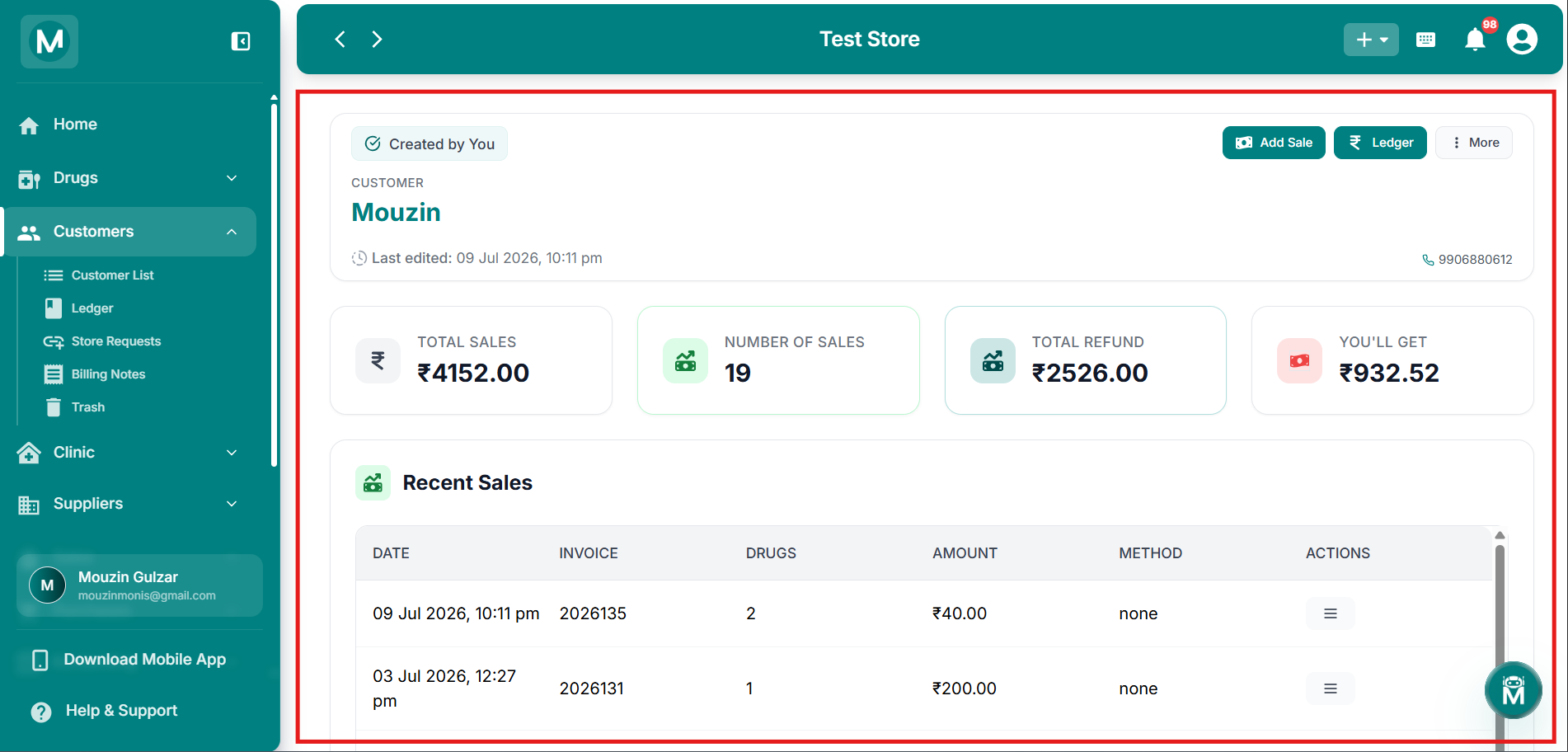
Profile header
Customer name, contact details, and last edited timestamp.
Summary Cards
Four stat cards sit below the header giving you a quick snapshot of this customer:
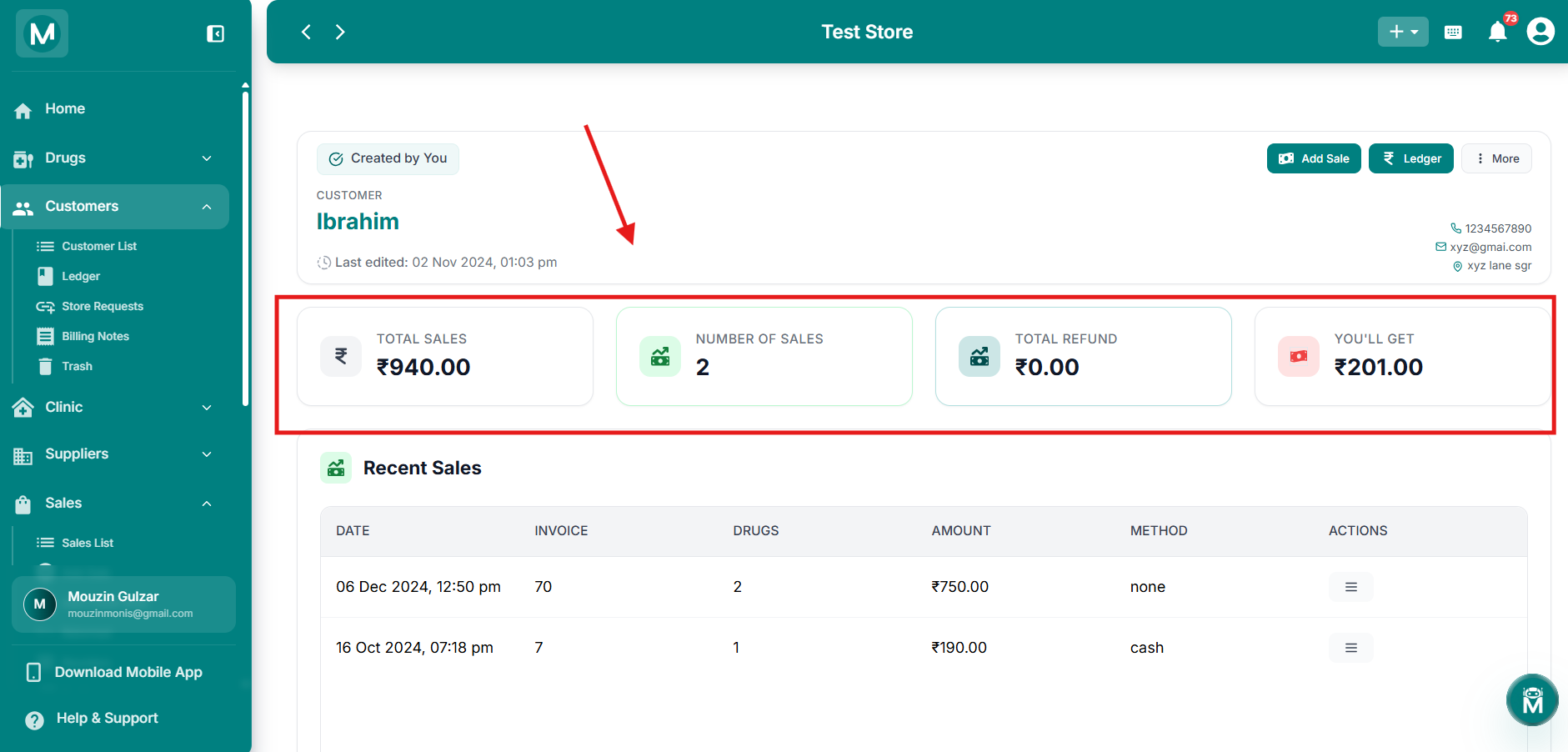
Summary cards, You'll Get
Example showing the You'll Get state when the customer owes you.
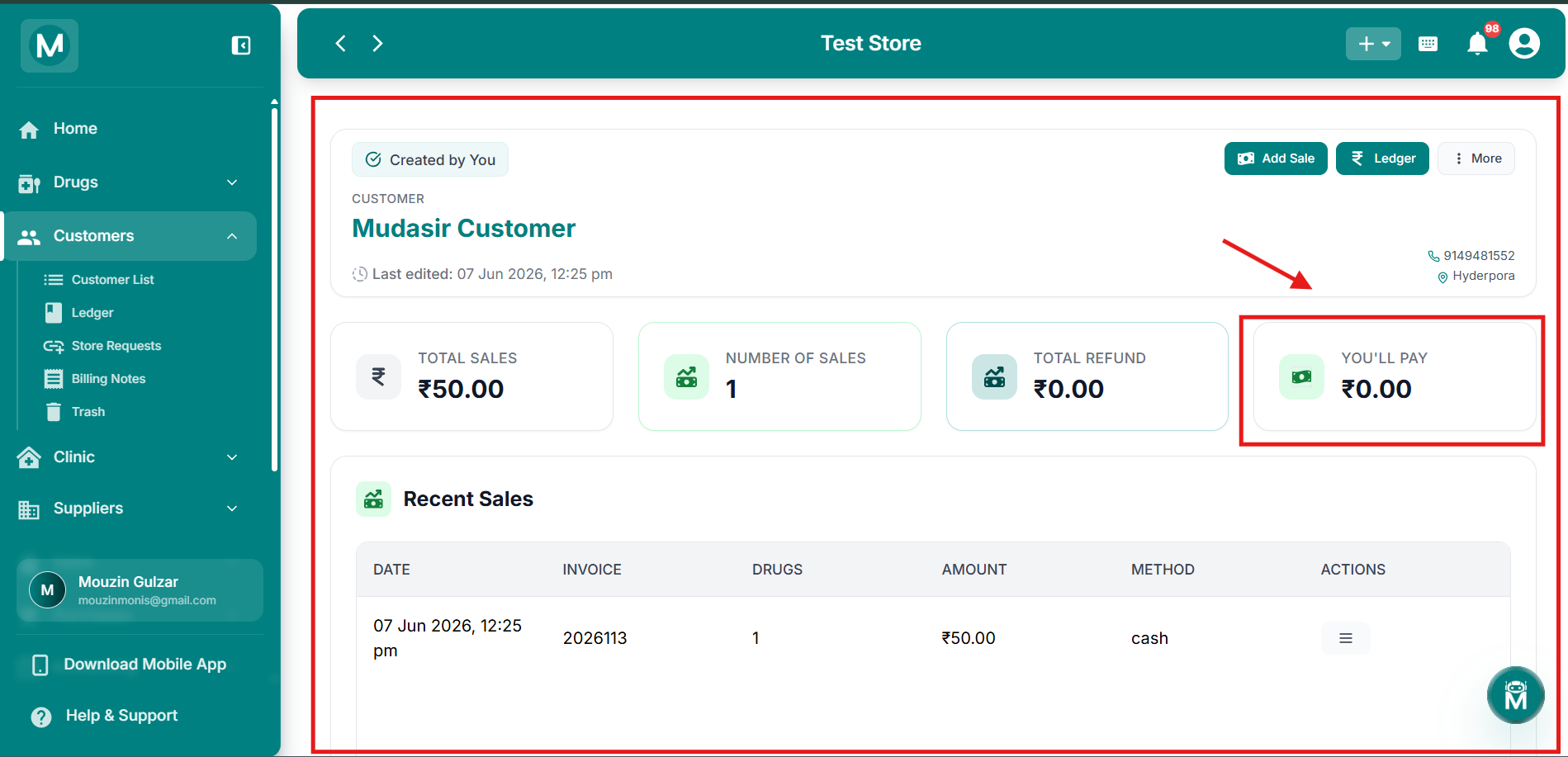
Summary cards, You'll Pay
Example showing the You'll Pay state when you owe the customer.
The fourth card label changes depending on who owes whom, You'll Pay means you owe the customer (for example, after a refund or credit), while You'll Get means the customer has an outstanding balance owed to you.
Page-Level Actions
Three buttons and a menu sit at the top-right of the customer profile:
Add Sale
Click Add Sale to create a new sale entry directly linked to this customer, without having to search for or select the customer again in the sale form.
Ledger
Click Ledger to jump straight to this customer's individual ledger, showing their full transaction history, running balance, and options to add payments or adjustments.
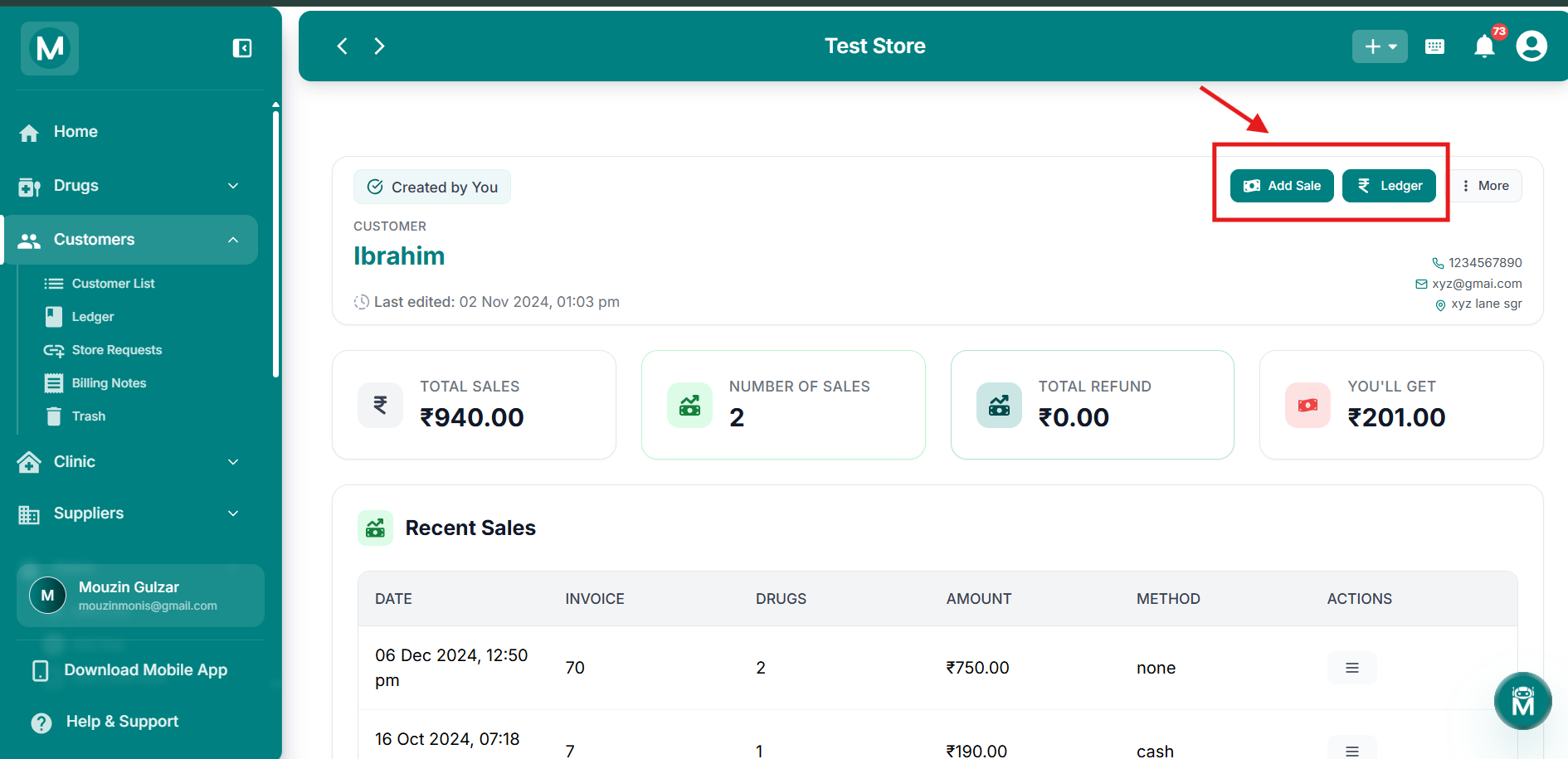
Action buttons
Quick access to the customer's sale and transaction ledger.
More Menu Options
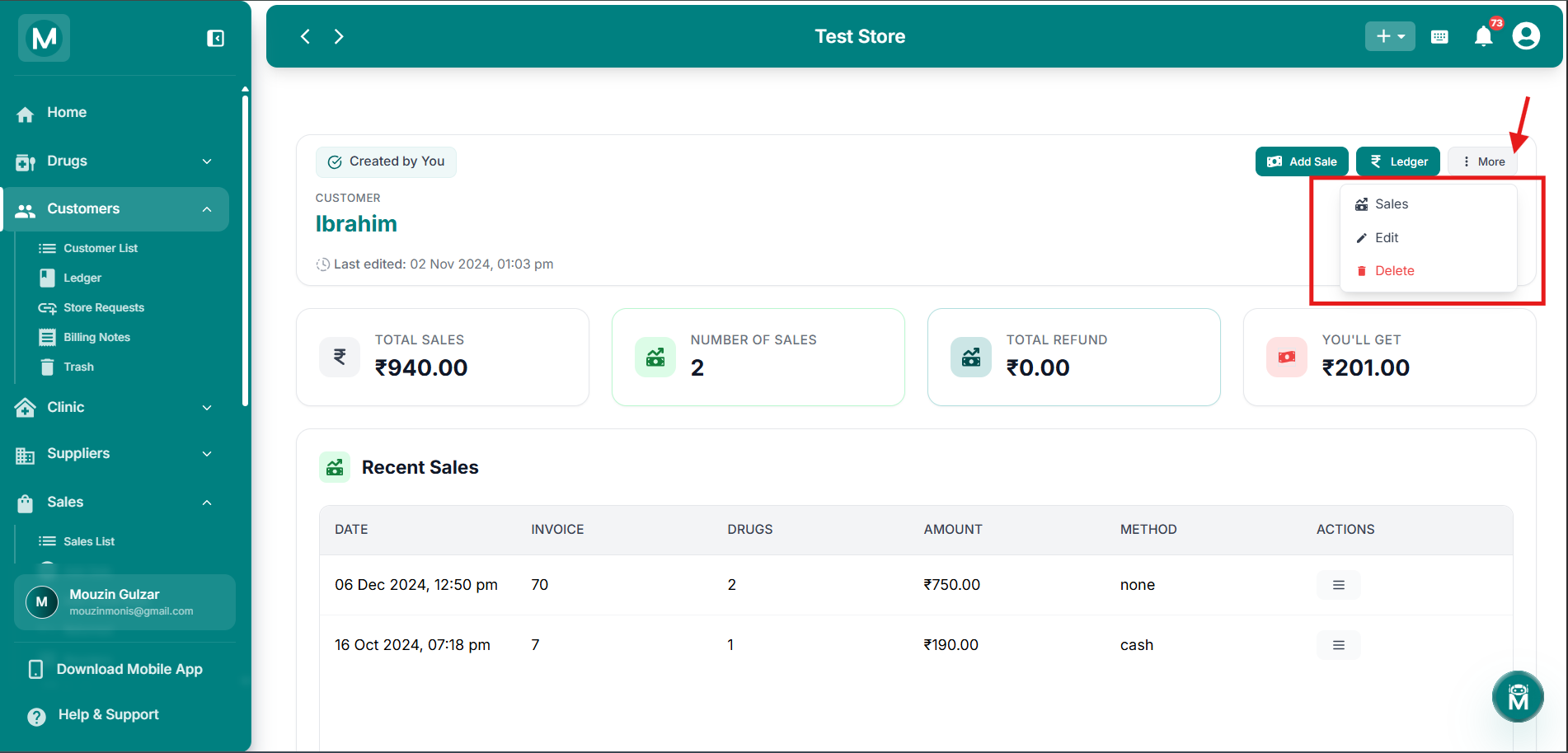
More menu
Additional actions available from the dropdown menu.
Recent Sales
Below the summary cards, the Recent Sales table shows the latest sale entries recorded for this customer:
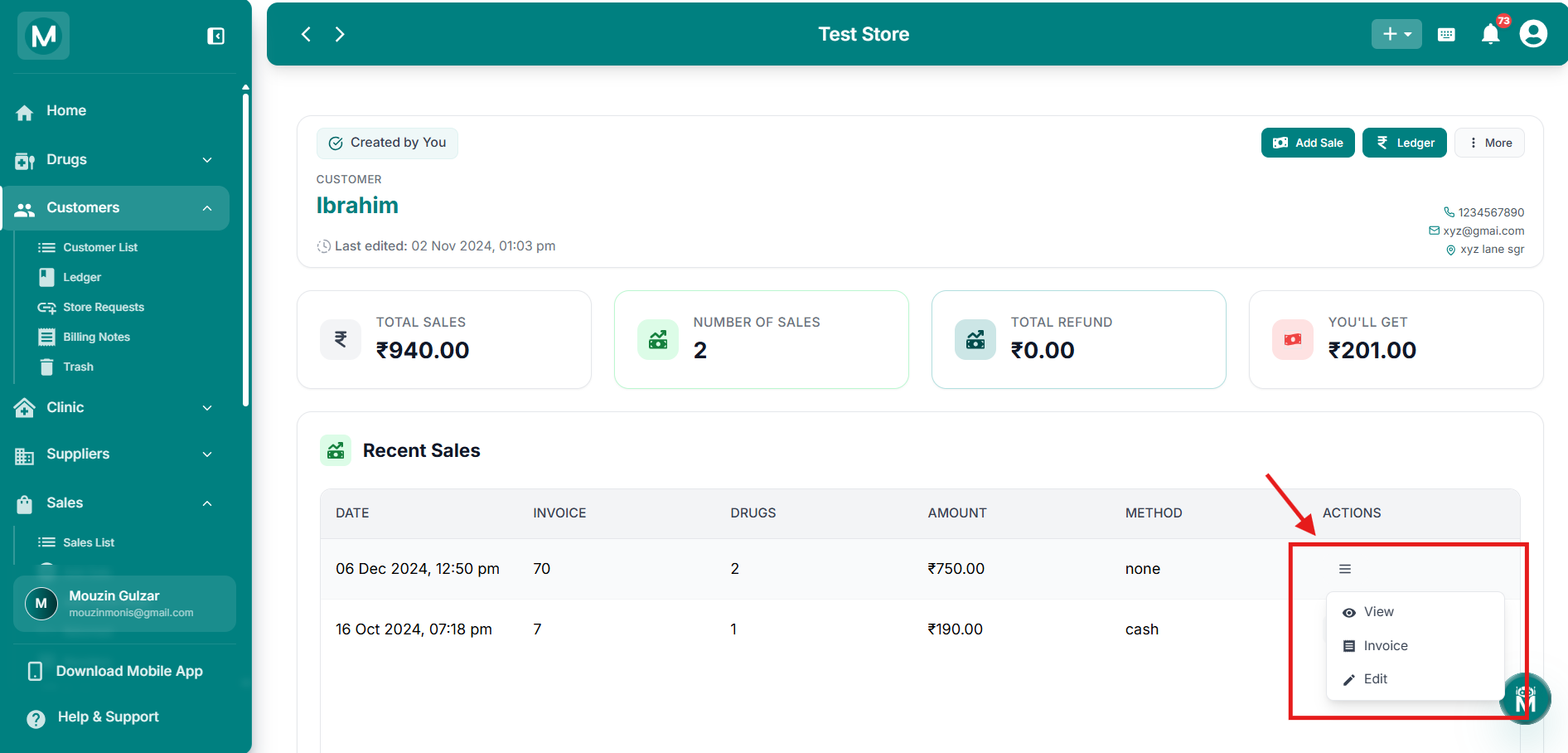
Recent Sales table
Latest sales with actions menu open showing View, Invoice, and Edit options.
Notes
At the bottom of the profile, the Notes section displays any internal remarks entered when the customer was first created. If no notes were added, it shows No remarks provided.
To update the notes, use the Edit option from the More menu.
Common mistake to avoid
Trying to edit the Opening Outstanding from the customer profile
The Opening Outstanding field is locked once the customer is saved and cannot be changed from the Edit form. If the original amount was wrong, you'll need to correct it through the customer's Ledger.