
Doctors
View and manage doctor profiles, search by qualification or speciality, and add new doctors to your clinic.
The Doctors page is your directory of every doctor associated with your pharmacy's clinic. It gives you a quick view of each doctor's contact details, qualifications, and specialities, with the ability to search, filter, and manage profiles from one place.
Searching Doctors
The search bar lets you search by name, phone, email, or registration number. Just start typing and the list filters instantly.
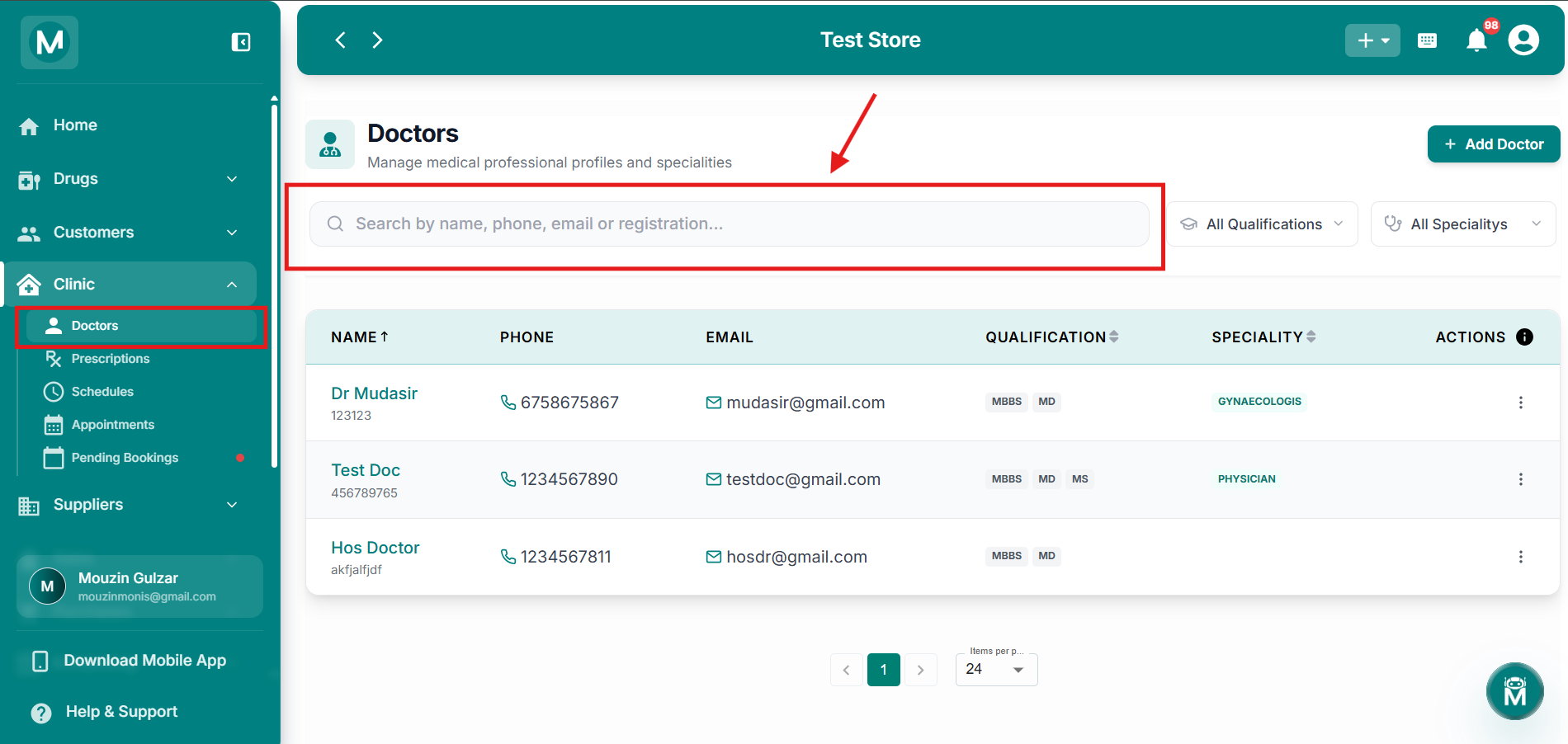
Doctors search bar
Search for doctors by name, phone, email, or registration number
Filtering By Qualification And Speciality
Two dropdowns next to the search bar let you narrow the list further:
You can type in either dropdown to search for a qualification or speciality, and select a match from the list.
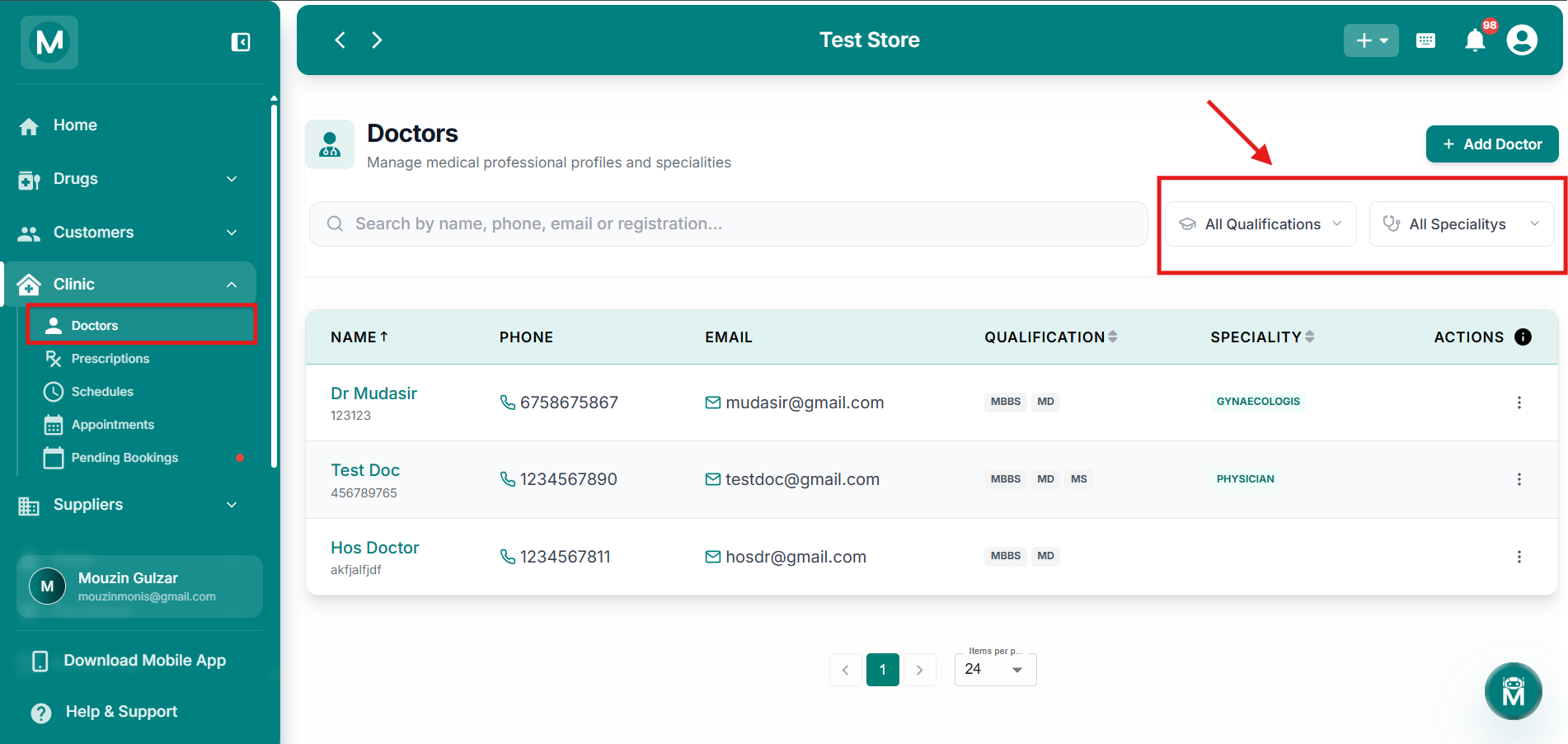
Qualifications and Specialities dropdowns
Filter doctors by qualification and speciality using the dropdowns
The Doctors Table
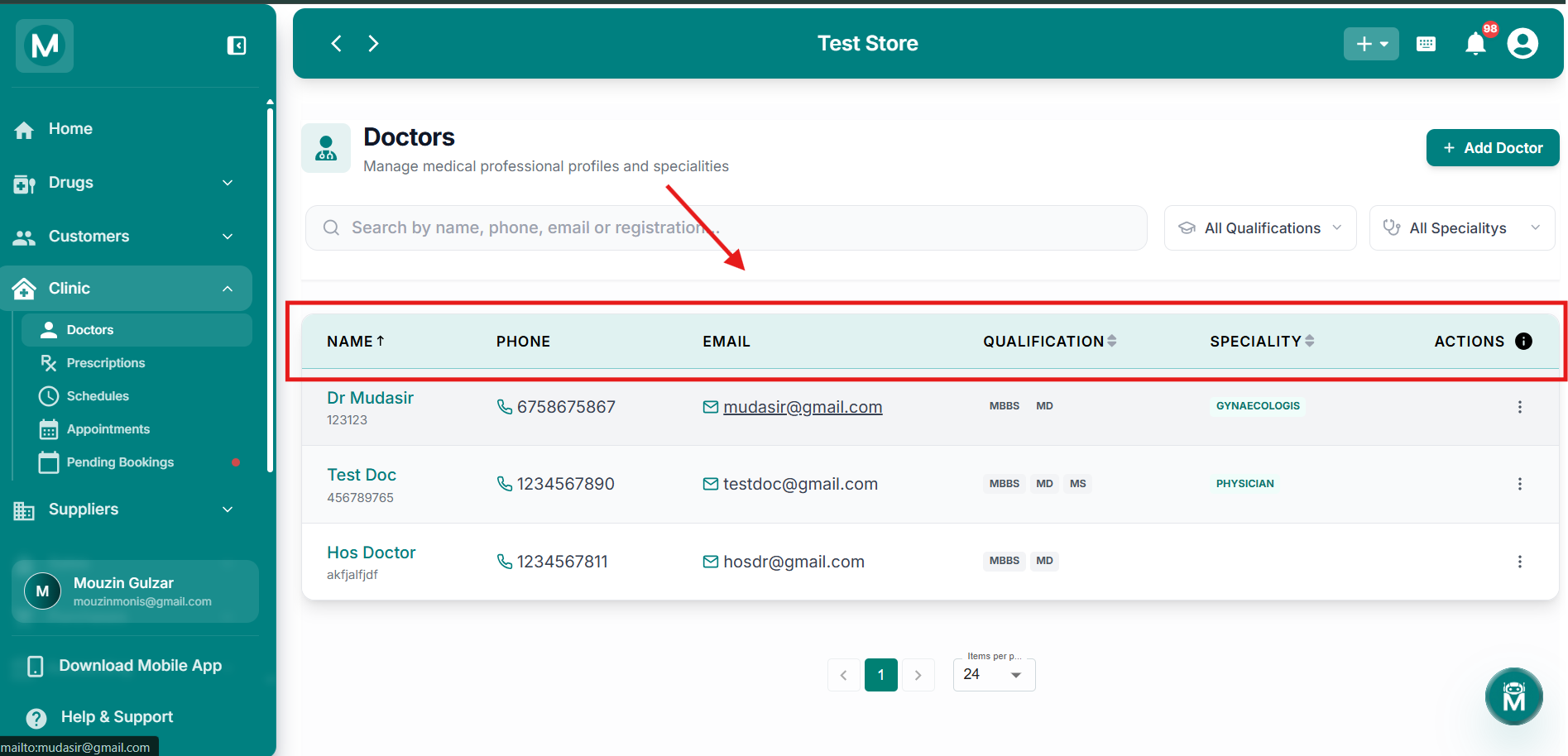
Doctors table
Doctors table showing all columns and data
Sorting The Table
The Name, Qualification, and Speciality columns are sortable. Click the column header to toggle between ascending and descending order.
Row Actions
Click the ⋮ menu on any doctor row to:
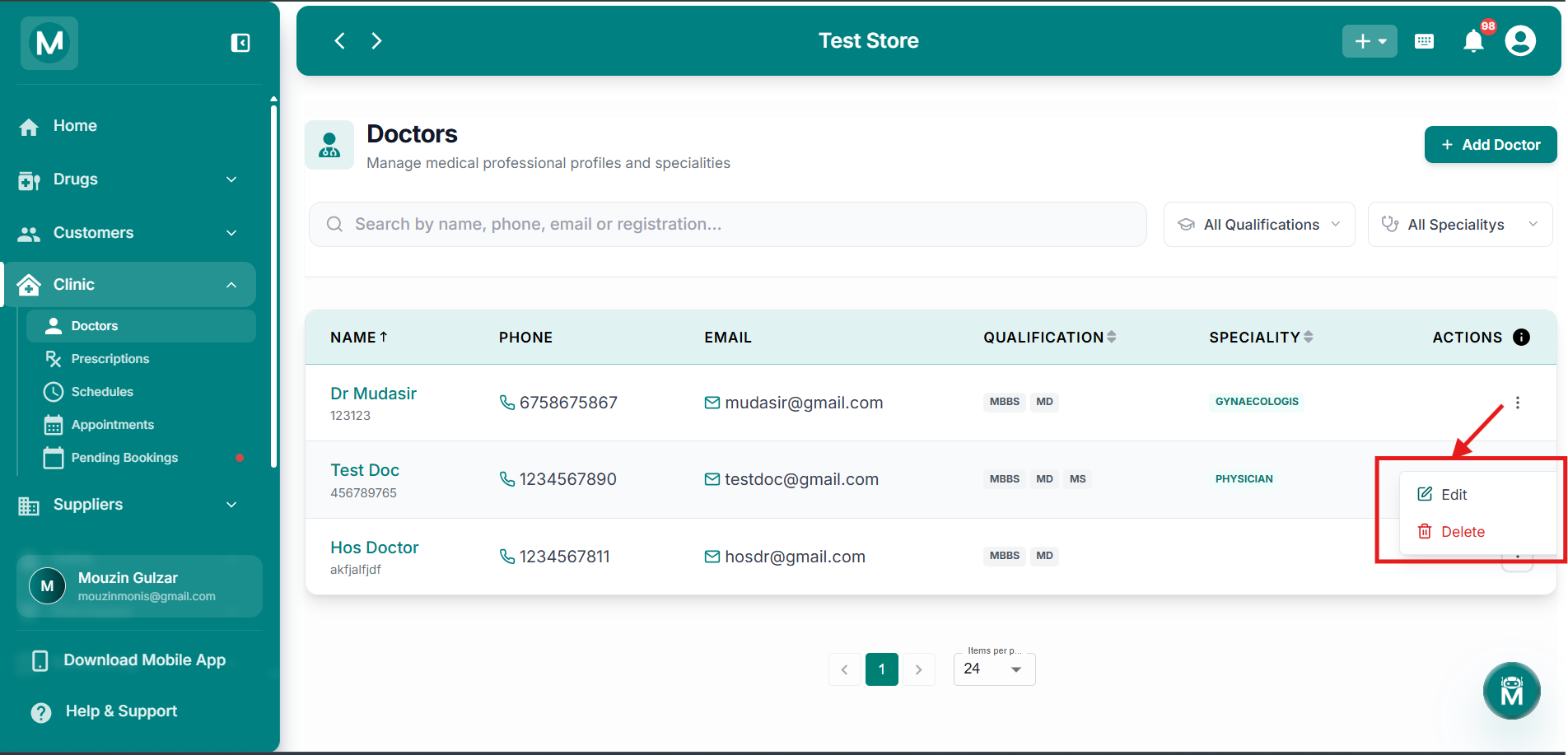
Row actions menu
Row actions menu with Edit and Delete options
Pagination
At the bottom of the table, you can move between pages and choose how many doctors to display per page using the Items per page dropdown.
Viewing A Doctor'S Profile
Click on any doctor's name to open their full profile, showing:
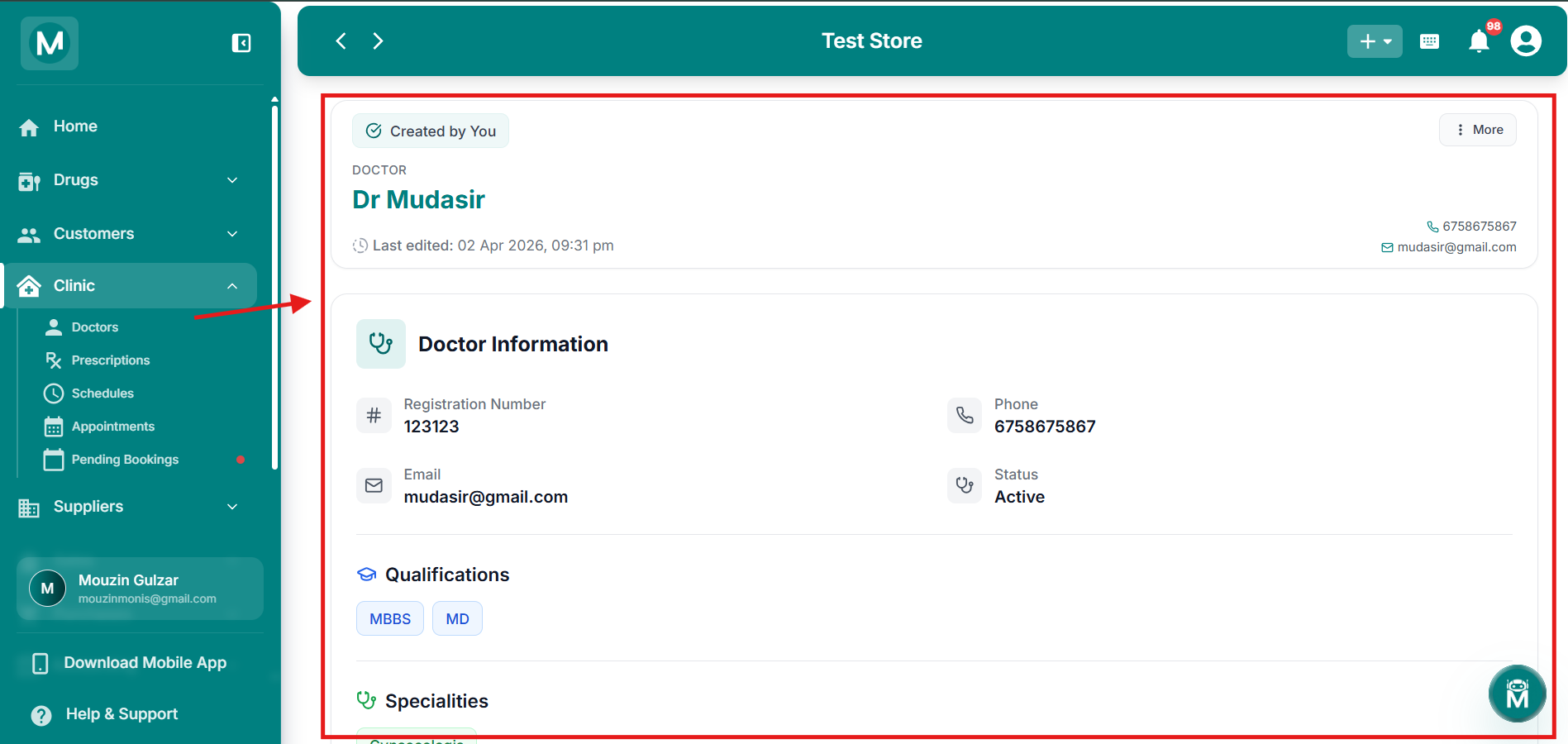
Doctor detail page
Doctor profile page showing all sections and information
Adding A Doctor
Click + Add Doctor at the top of the page to open the Add New Doctor form:
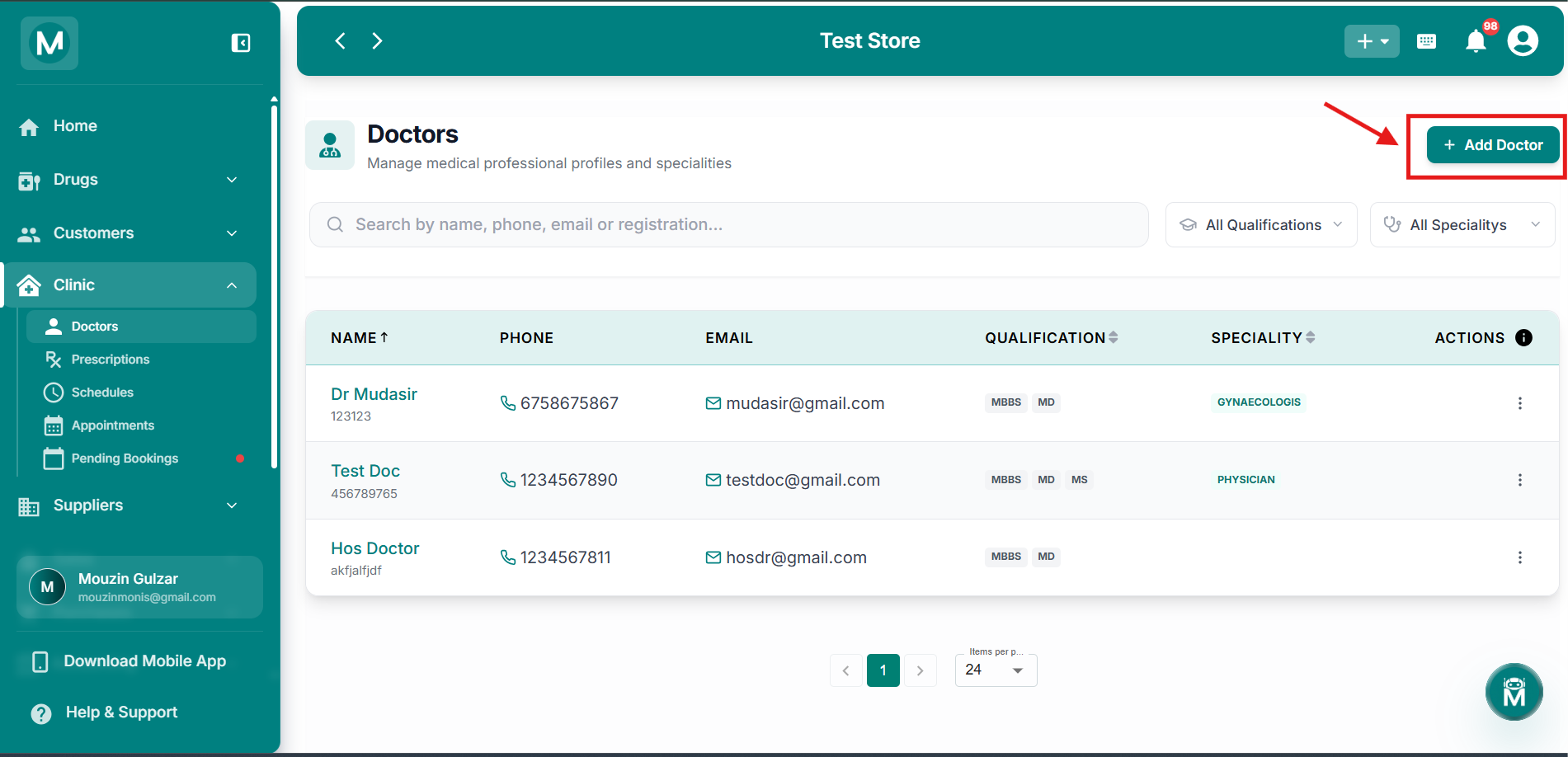
Add Doctor button
Add Doctor button located at the top of the page
The Doctors Form
Qualifications and specialities you type in are added to the list and can be searched or filtered by later using the dropdowns on this page.
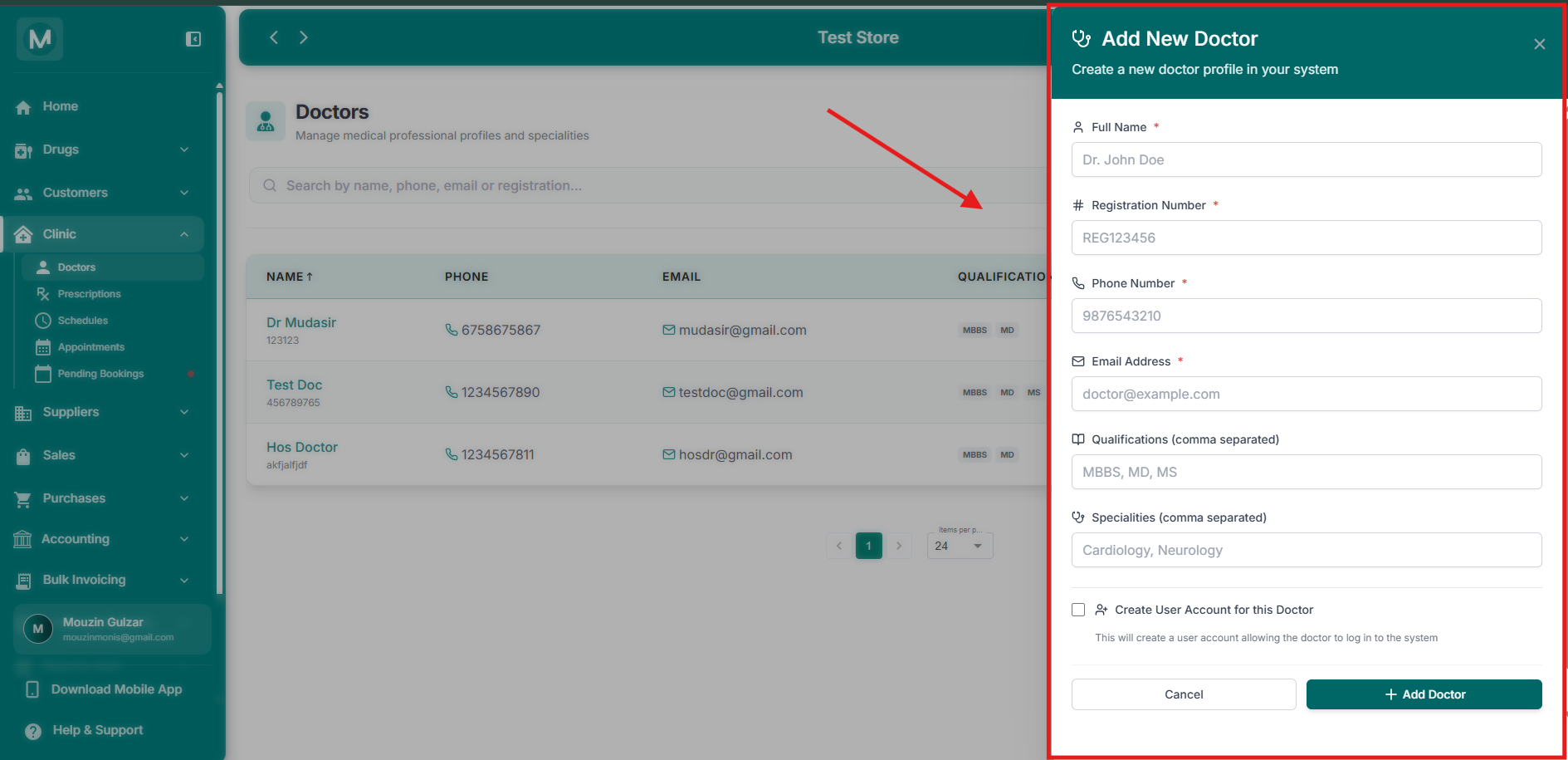
Add New Doctor form
Add New Doctor form with all required and optional fields
Creating A User Account For The Doctor
Checking Create User Account for this Doctor creates a login for the doctor, allowing them to access MediFlux directly under their own account.
A doctor's login only gives them access to the Clinic section, they won't be able to view or manage other parts of MediFlux like Sales, Inventory, or Customers.
Once all required fields are filled in, click Add Doctor to save the profile, or Cancel to discard it.
FAQs
Common Mistake To Avoid
Don't skip Qualifications and Specialities
Without these, the doctor won't show up when filtering by qualification or speciality, making them harder to find and schedule later. Fill them in during setup to keep your clinic directory fully searchable.