
General Ledger
View detailed transaction history and running balances for any individual ledger account.
What is the General Ledger
The General Ledger is the complete transaction history of a single ledger account. Every debit and credit that hits that account is recorded here in chronological order, with a running balance that updates after each entry. Use it to verify how an account's balance was built, trace transactions back to their source, and reconcile figures against your bank statements or supplier records.
Open the General Ledger
Go to Accounting → General Ledger from the left sidebar.
On your first visit, a Select Ledger dialog opens automatically because no account is pre-selected.
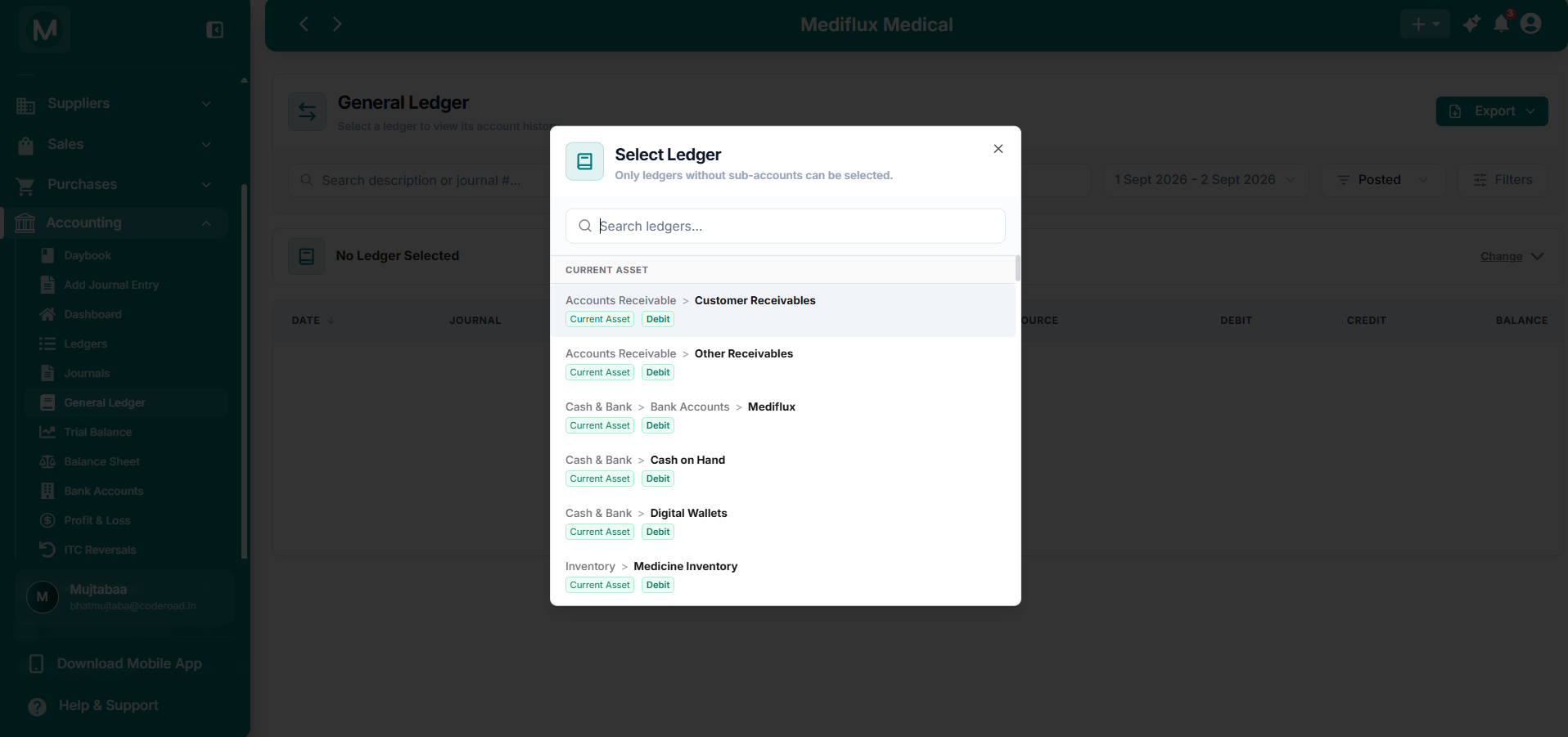
Select Ledger dialog
Only leaf-level accounts without sub-accounts can be chosen.
The dialog lists every leaf-level account. Each entry shows the breadcrumb path, such as Accounts Receivable > Customer Receivables or Cash & Bank > Bank Accounts > Test Bank, along with the account type and normal balance tags. Click any account to load its ledger.
Note: You cannot select parent groups like Cash & Bank or Inventory directly. You must select the specific child account, such as Cash on Hand or Medicine Inventory.
Switch to a different account
Click Change in the account header to reopen the Select Ledger dialog and pick a different account at any time.
Filter and search transactions
Use the filter bar at the top of the page to narrow down what you see.
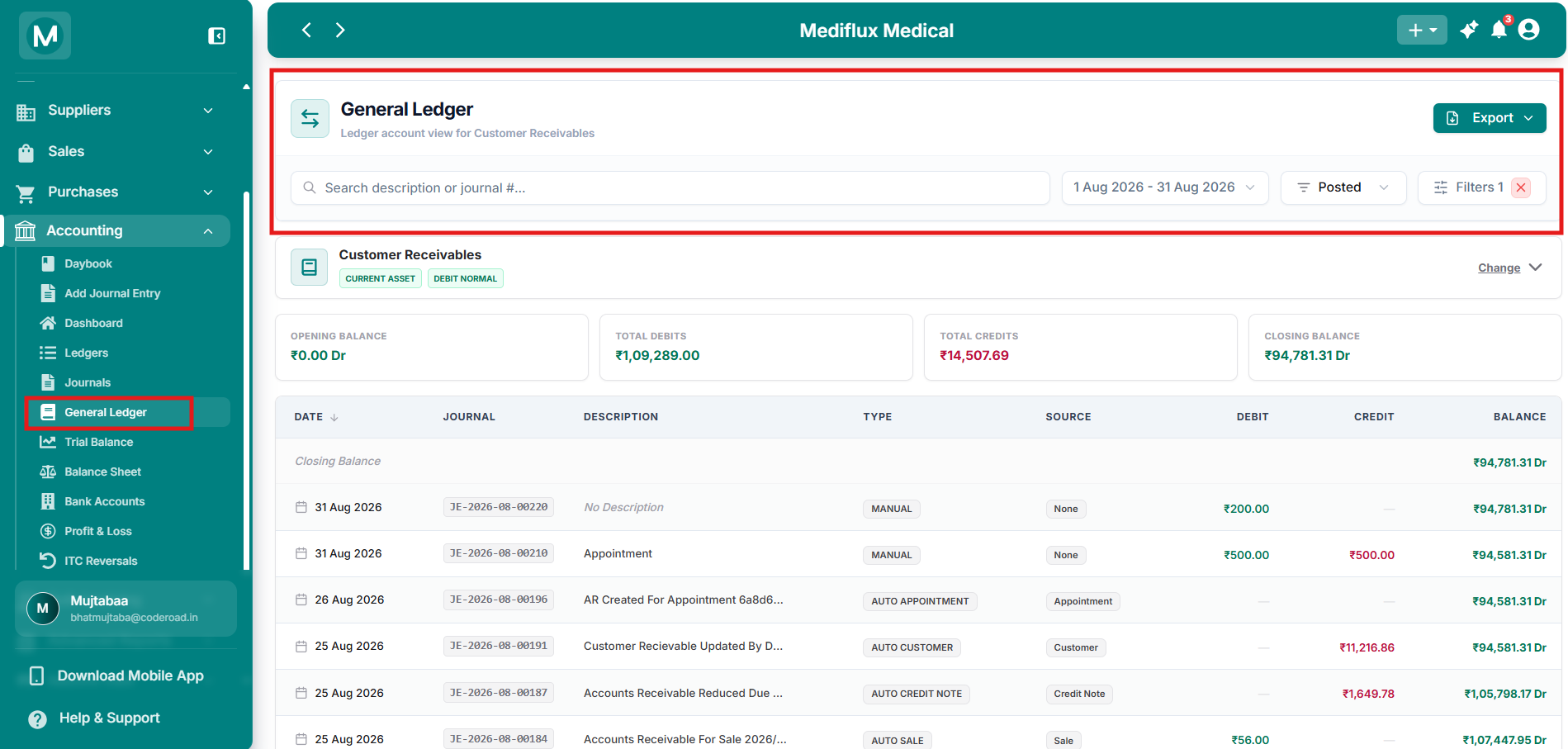
Filter bar
Search, date range, Posted/Reversals toggle, Filters, and Export controls.
Search
Type a description or journal number (for example JE-2026-08-00196) in the search box to instantly filter the table.
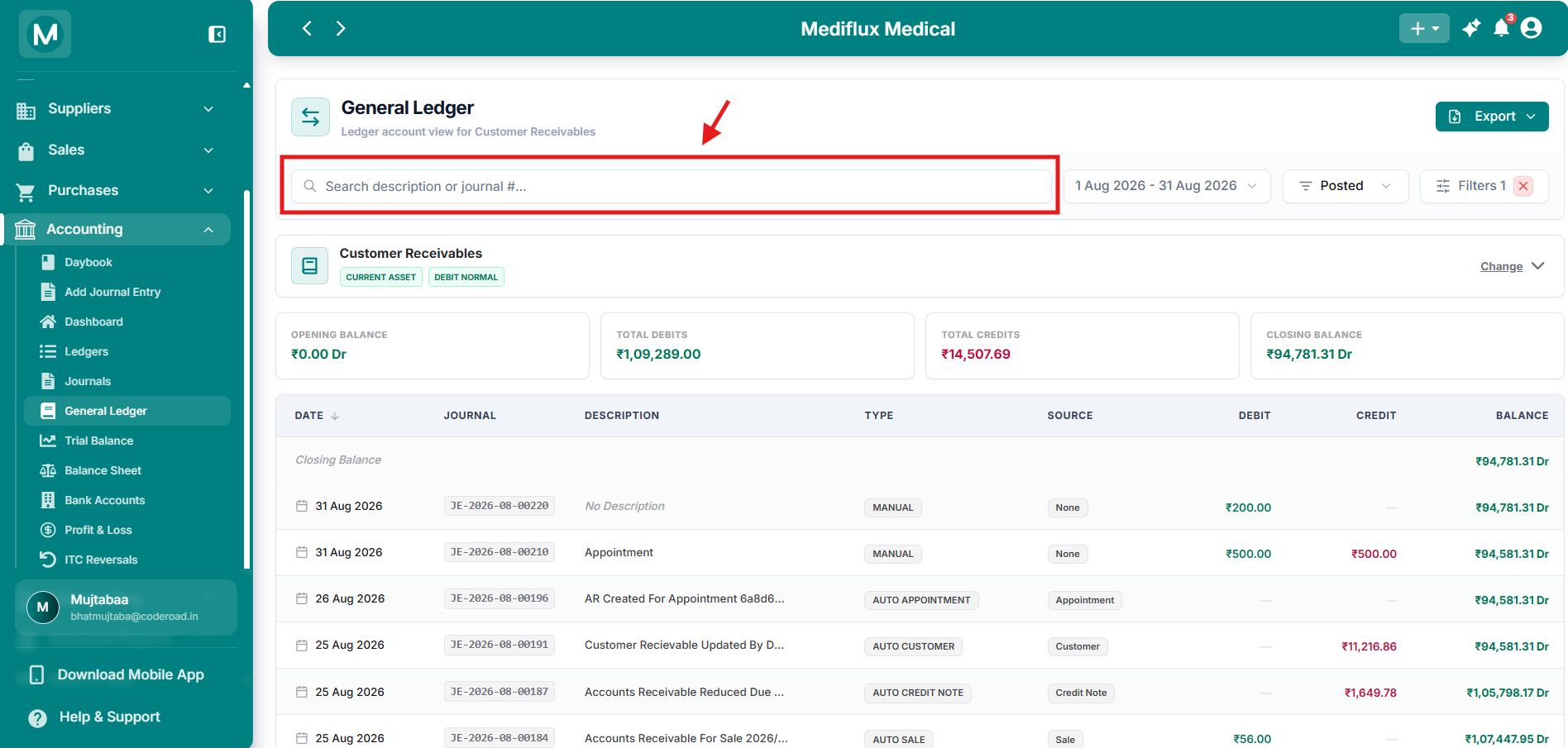
Search
Search by description or journal entry number.
Date range
Click the date range control to open the calendar. You can select custom dates or use quick presets such as Today, This Month, Last Month, etc.
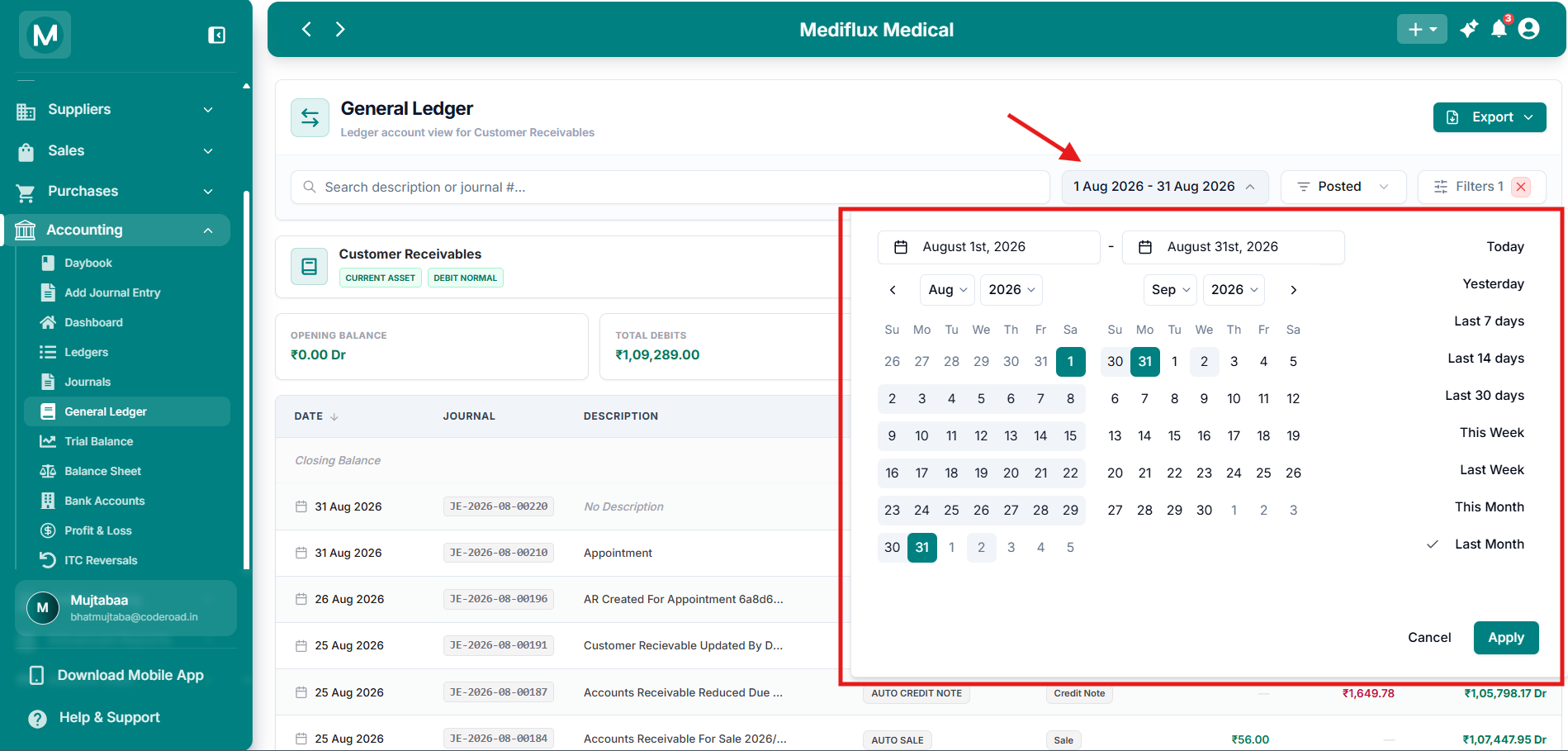
Date range picker
Choose a custom period or use the quick filter options.
Posted / Reversals toggle
Use this control to switch between regular posted entries and reversal entries.
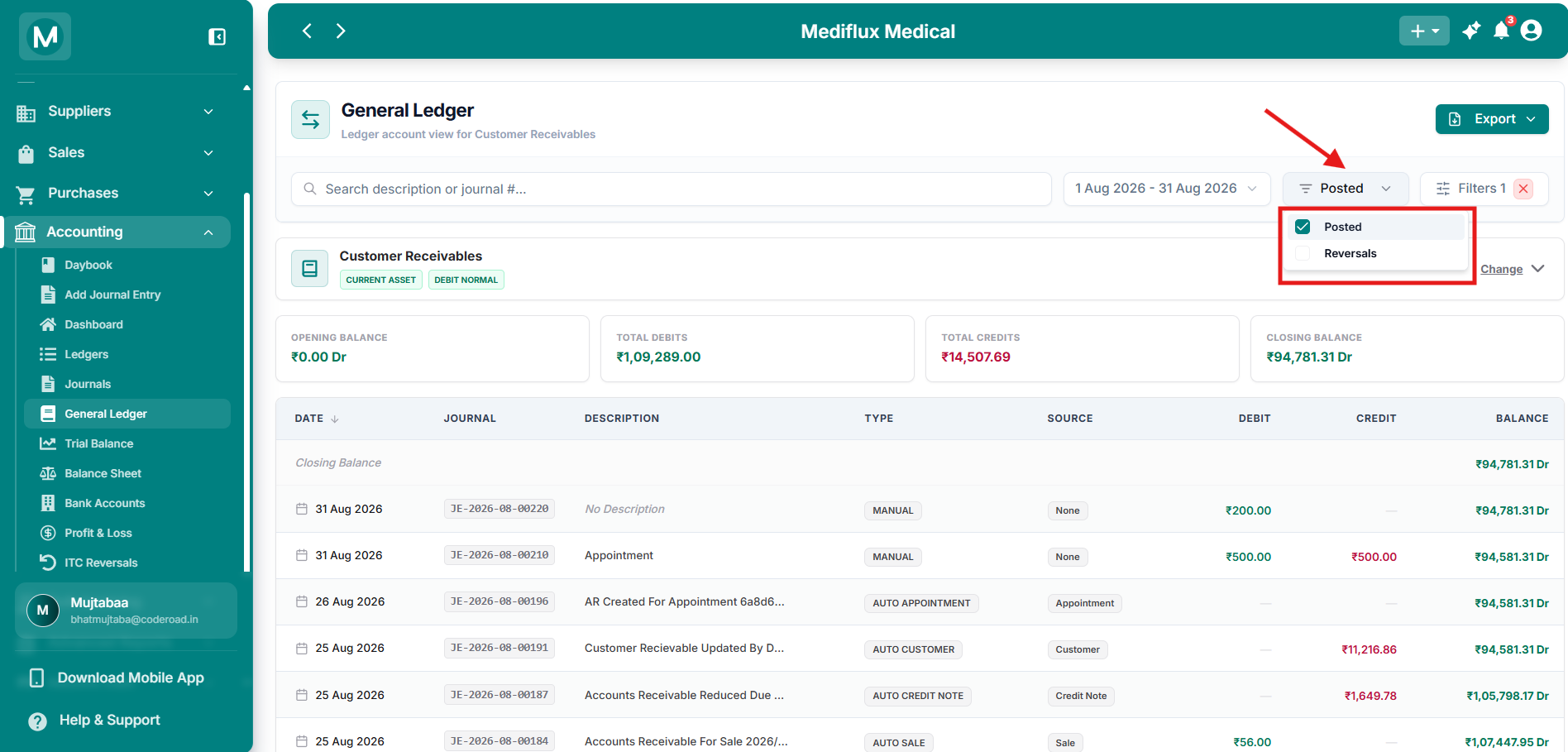
Posted / Reversals
Toggle between regular posted entries and reversal entries.
Export
Click Export and choose PDF Document or Excel Sheet.
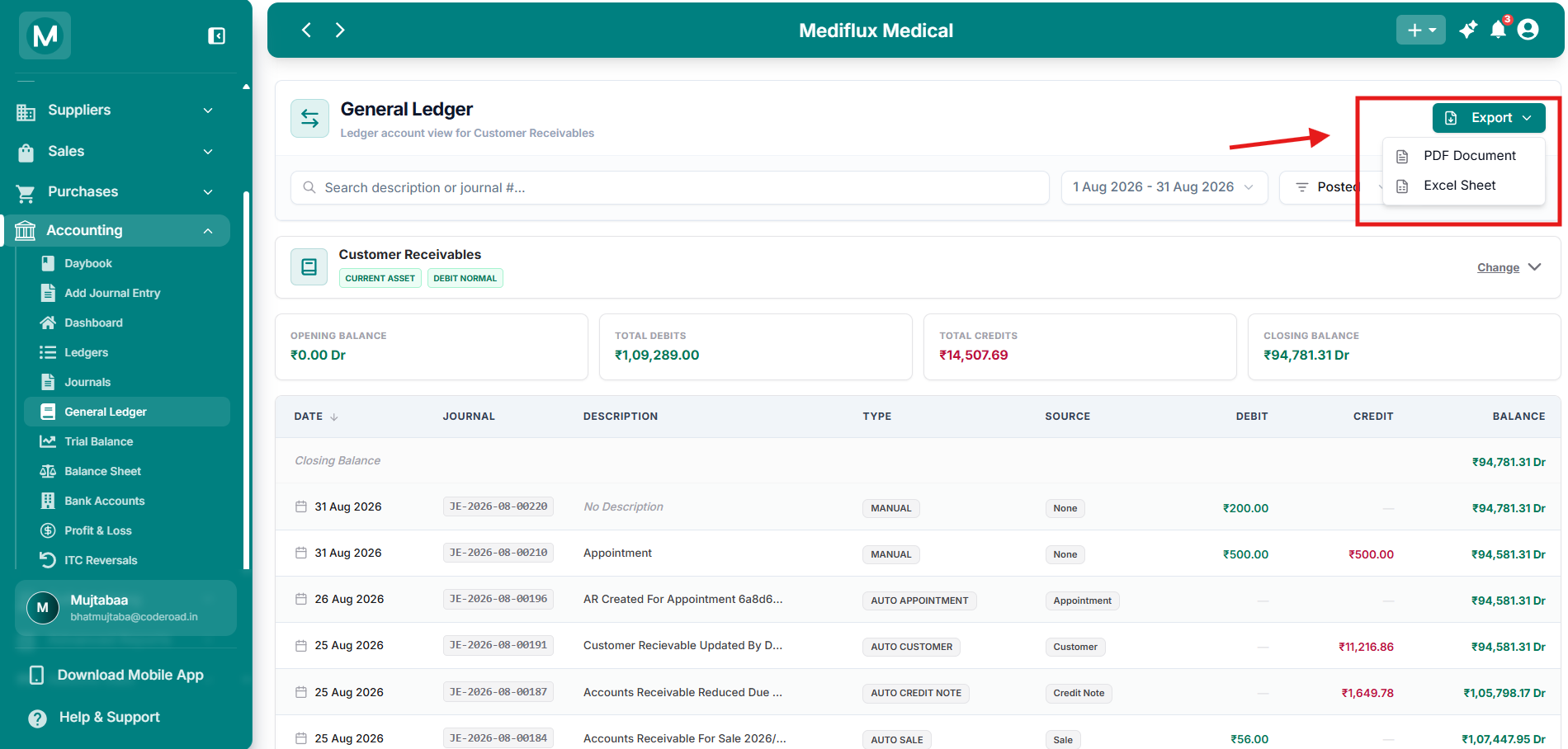
Export options
Download the ledger as PDF or Excel.
Read the account header and summary
Below the filter bar, the header shows the selected account name, its type tag (such as CURRENT ASSET or EXPENSE), and its normal balance tag (DEBIT NORMAL or CREDIT NORMAL).
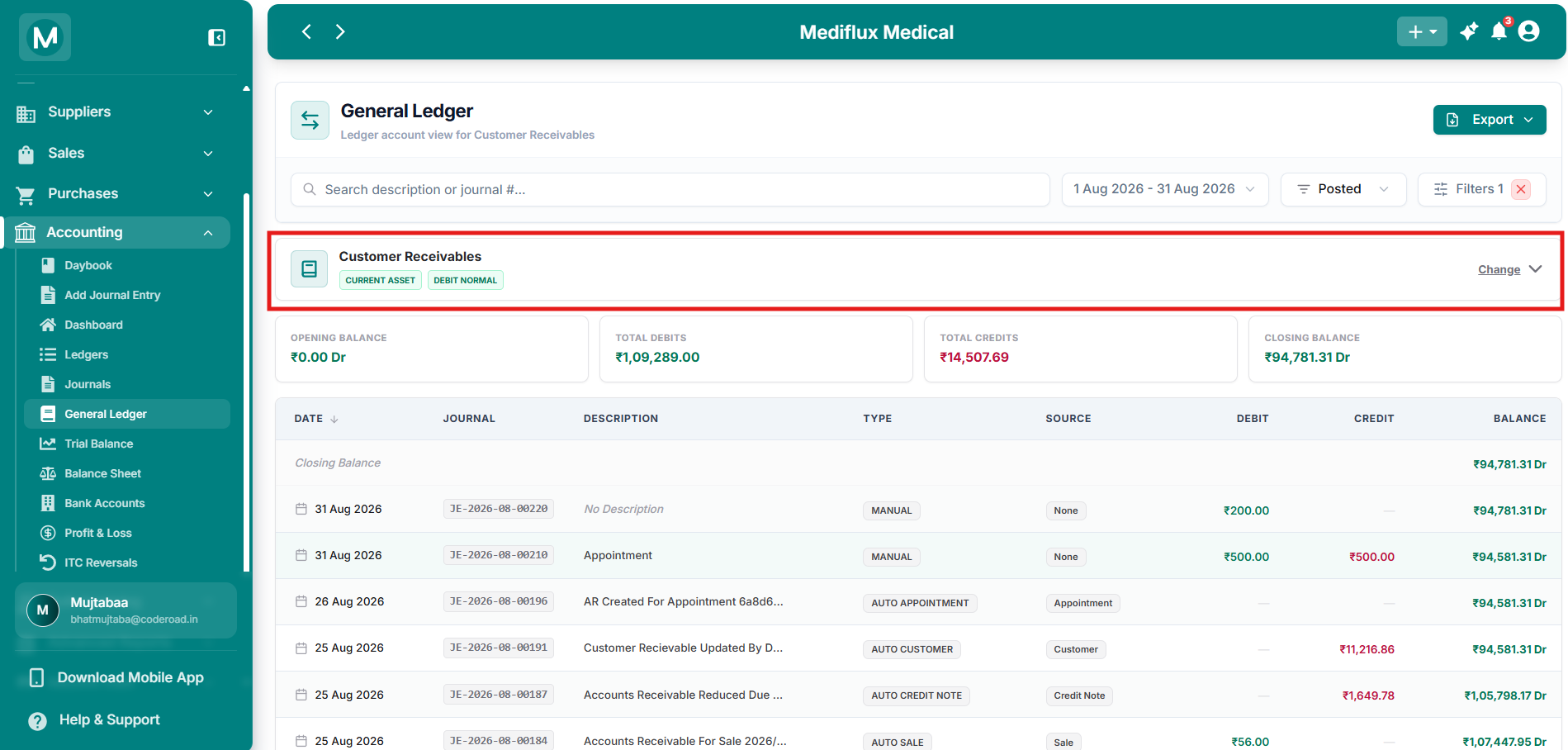
General Ledger for Customer Receivables
A debit-normal asset account with transaction history and running balance.
Four summary cards sit below the header:
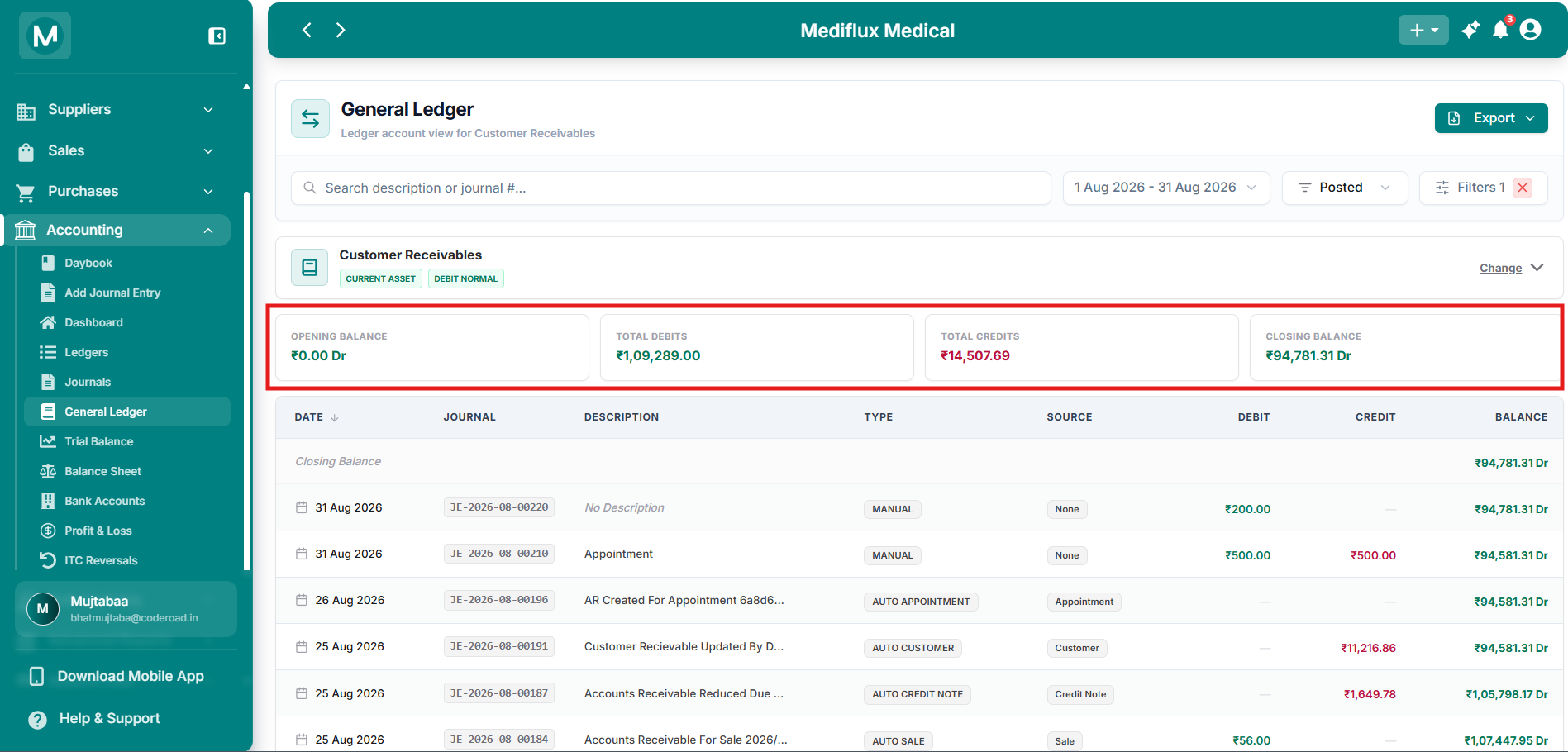
Summary cards
Opening Balance, Total Debits, Total Credits, and Closing Balance for the selected period.
Read the transaction table
The table lists every journal entry posted to this account, sorted by date with the most recent at the top.
How to read the running balance: The balance column updates after every row. If you are viewing a debit-normal account, debits add to the balance and credits subtract from it. For a credit-normal account, credits add and debits subtract.
Click the Journal number in any row to open the full journal entry. This shows all the accounts that were debited and credited in that single transaction, not just the entries for the current ledger.
How to read debit and credit entries
The direction of each entry depends on the account's normal balance.
Debit-normal accounts
Assets and Expenses are debit-normal. Their balance increases when debited and decreases when credited.
Example: Customer Receivables
Opening Balance is the balance at the start of the selected date range (shown at the bottom of the list).
Closing Balance is the balance after all entries in the selected period (shown at the top of the list).
In this example the closing balance is ₹94,781.31 Dr. Because this is a debit-normal asset account, a positive debit balance means customers still owe the pharmacy this amount.
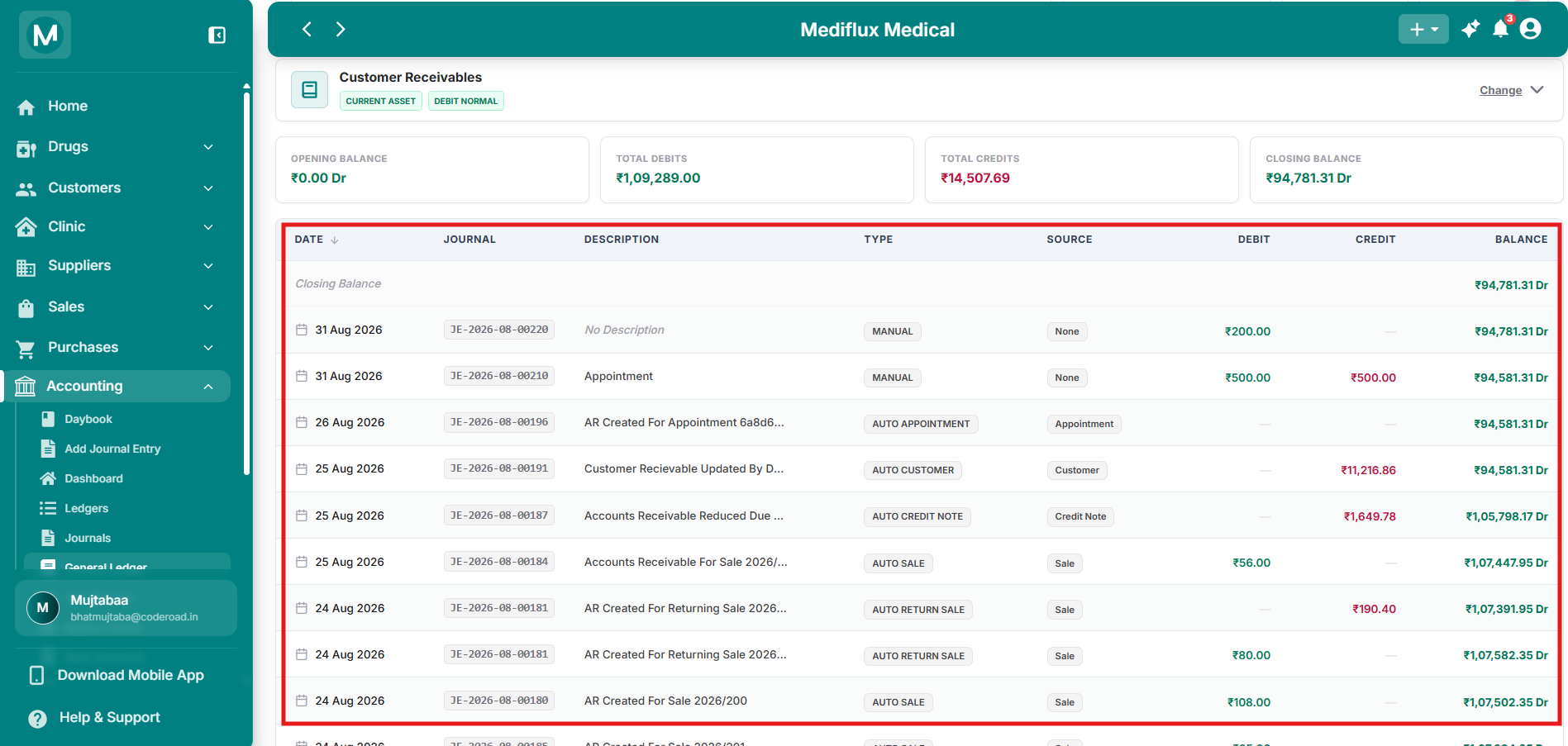
Customer Receivables
Debits increase what customers owe; credits decrease it.
Example: Stock Loss & Adjustments
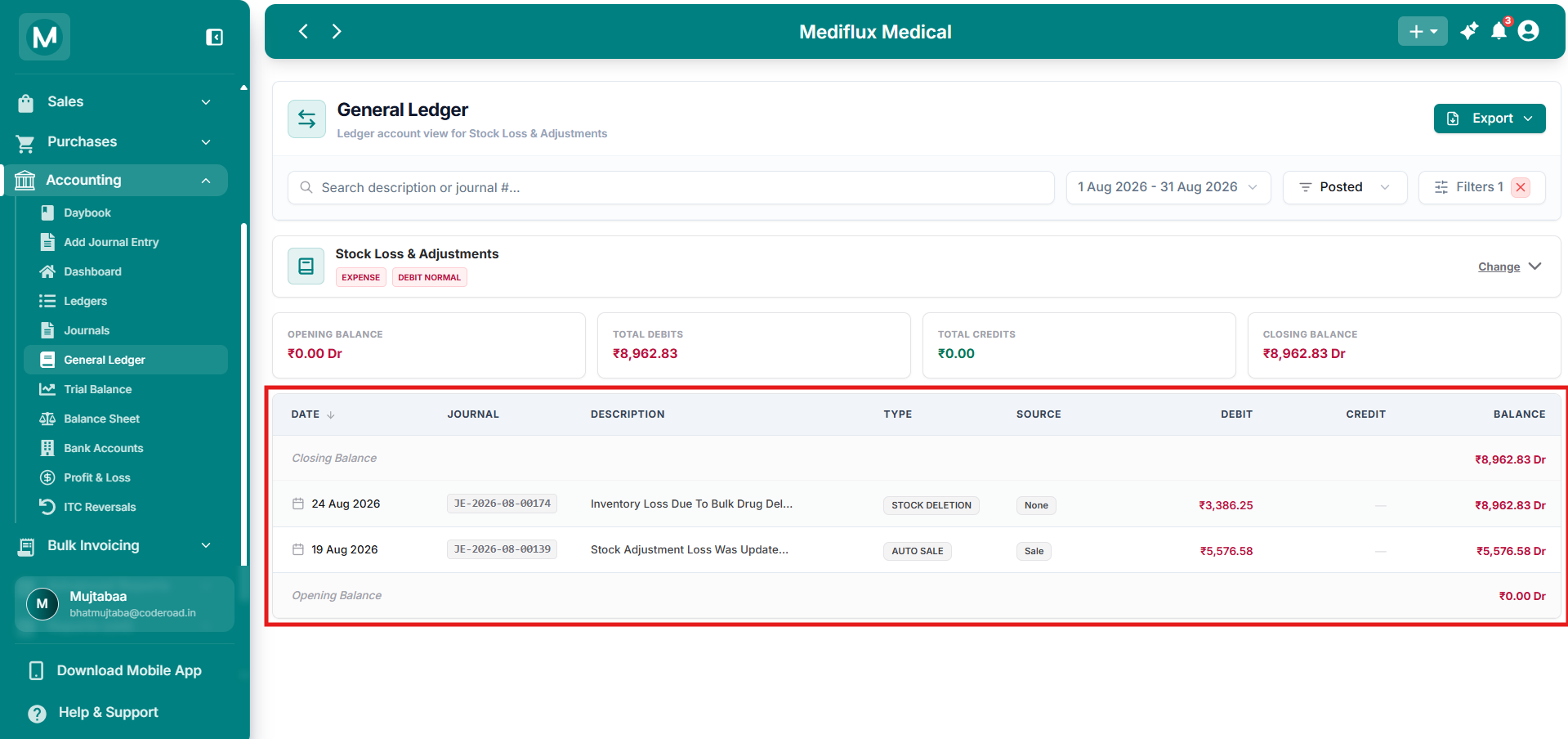
Stock Loss & Adjustments
A debit-normal expense account.
Closing balance:
₹8,962.83 Dr. Expenses always carry a debit balance.
Credit-normal accounts
Liabilities, Equity, and Revenue are credit-normal. Their balance increases when credited and decreases when debited.
Example: Purchase Return
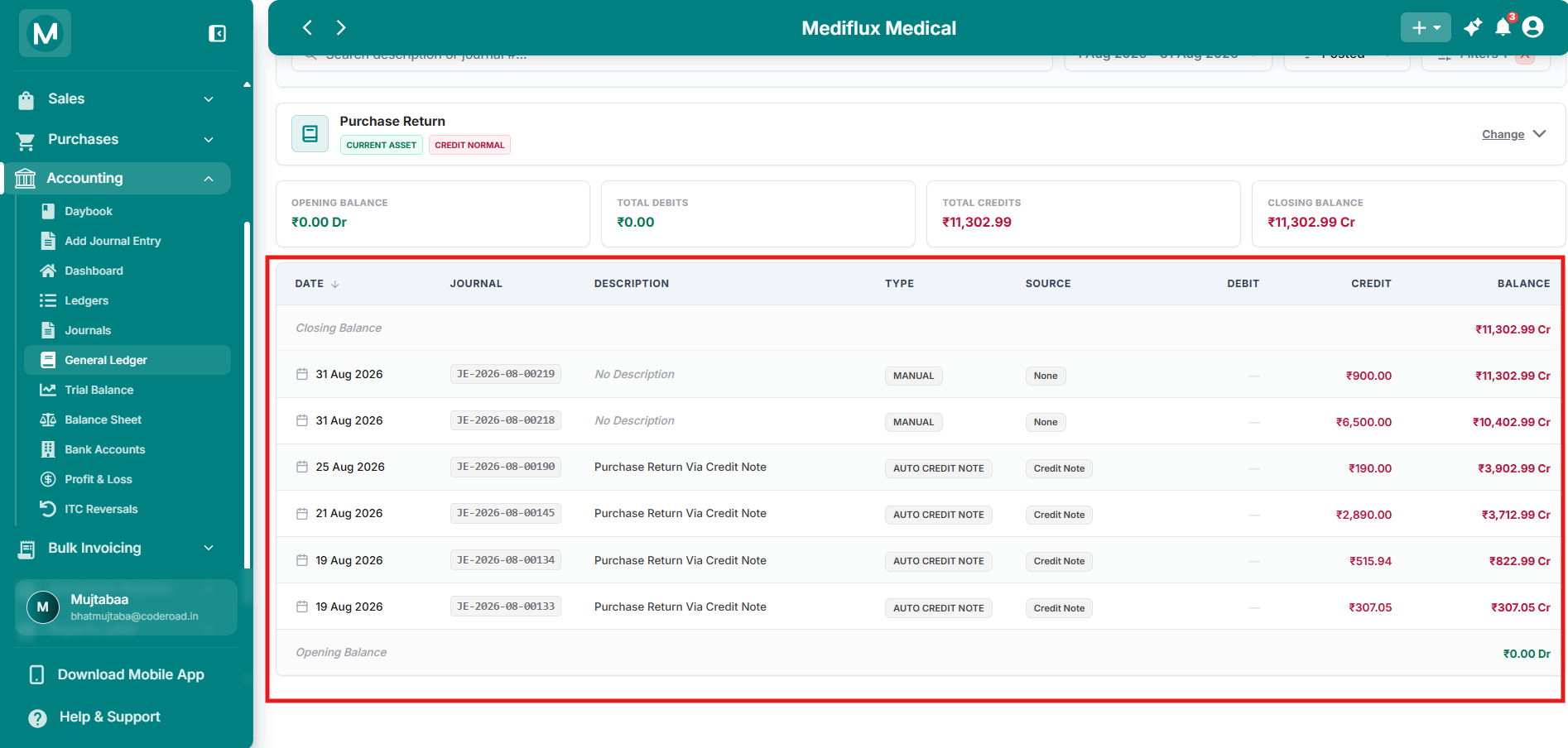
Purchase Return
A credit-normal contra-asset account.
Opening balance:
₹0.00 Dr
Closing balance:₹11,302.99 Cr
Purchase Return is a contra-asset account (Credit Normal). Credits increase its balance and reduce the total value of inventory on your books.
Example: GST Output CGST
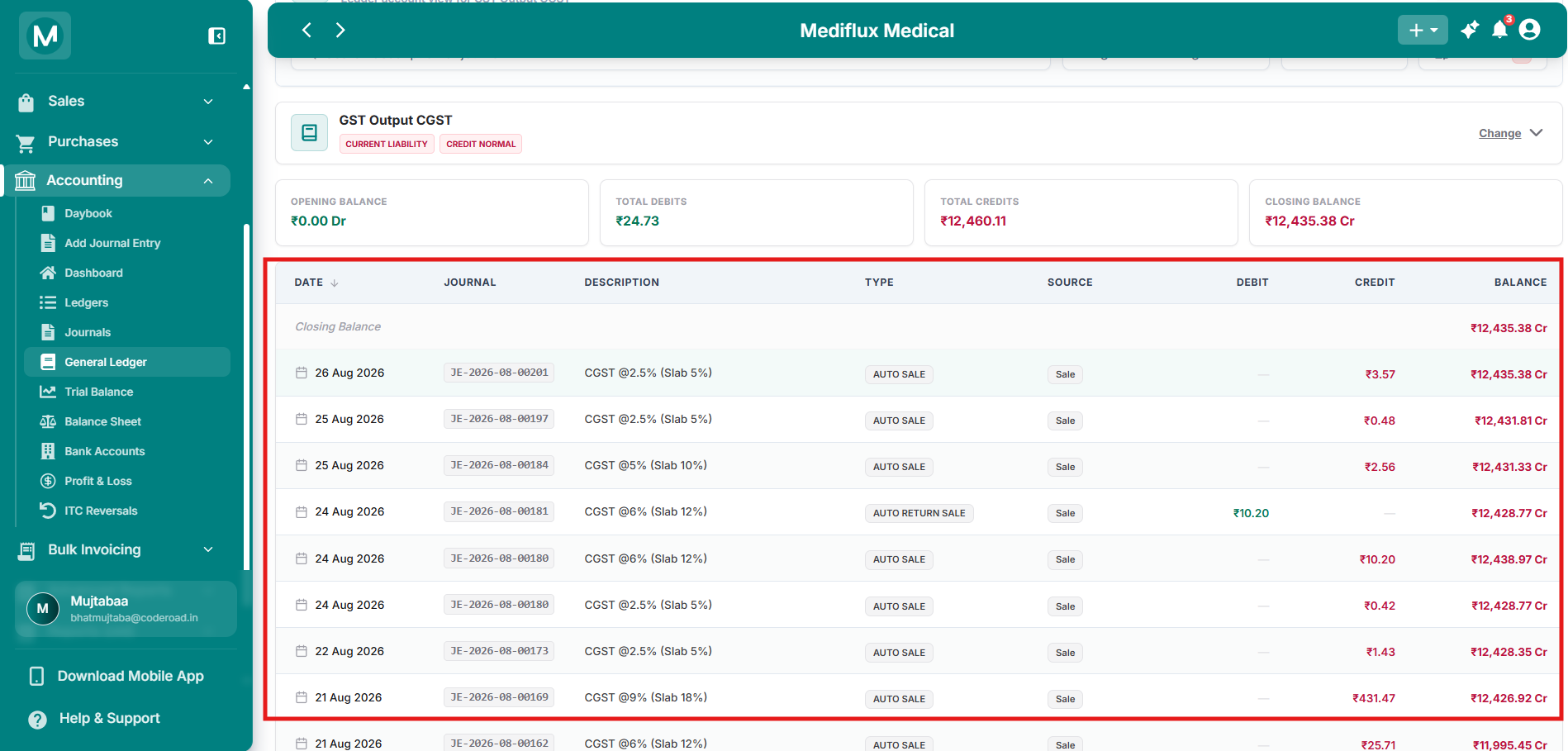
GST Output CGST
A credit-normal liability account.
Opening balance is the balance at the start of the selected date range (
₹0.00 Dr).
Closing balance is the balance after all entries in the selected period (₹12,435.38 Cr).
This is a credit-normal liability account. A credit balance means the pharmacy has collected this much CGST from customers and must remit it to the government.
When a customer returns a product, the related tax is reversed with a debit entry (see the AUTO RETURN SALE row on 24 Aug). This reduces the liability.
Newly initialized accounts
If you have just set up the Accounting module and have not yet recorded any sales, purchases, or journal entries, your ledgers will look sparse. A newly initialized account typically shows only one entry:
This is a system-generated entry that creates the ledger account in your books. It carries no monetary value. Once you start recording transactions, real debits and credits will populate the table and the balance will move away from zero.
Tip: For a debit-normal account like Medicine Inventory, the first real transaction will typically be a debit from your opening stock balance or your first purchase. For a credit-normal account like GST Payable, the first real transaction will be a credit from your first taxable sale.
For some accounts, the table may show No entries found with the message "Try adjusting the filters or date range." This happens when the account has no activity in the selected date range, or when it was initialized but has not yet received any transactions. Widen the date range or check back after recording sales, purchases, or journal entries.
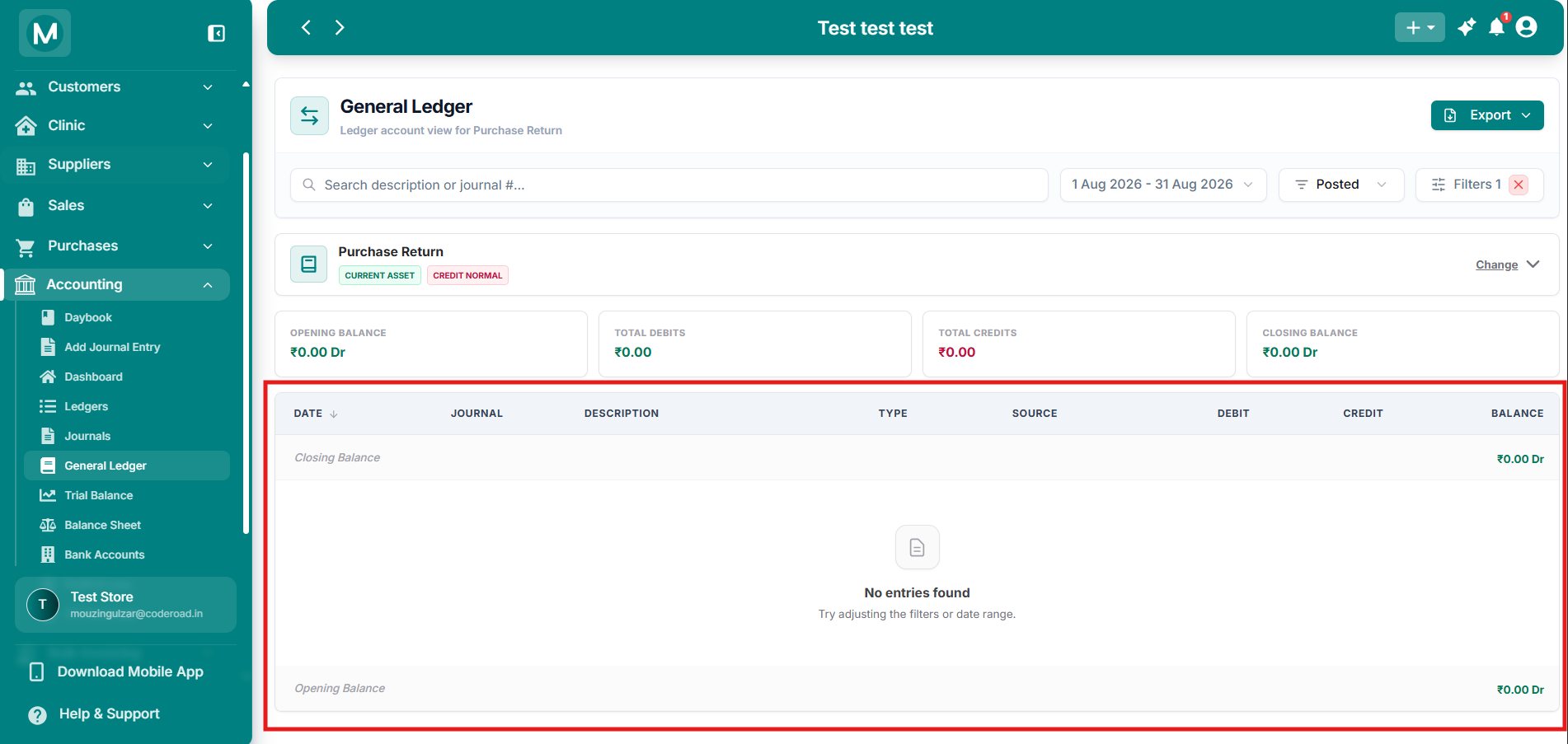
No entries found
Widen your date range or record transactions to populate the ledger.
Common Mistakes To Avoid
Narrow date range hiding transactions
If you cannot find a transaction you know exists, check your Date range filter. It defaults to the current month, so older entries are hidden. Click the date picker and widen the range to see everything.
Misreading green and red colors
Green does not always mean good and red does not always mean bad. For a debit-normal account like Cash on Hand, debits are green and credits are red. For a credit-normal account like GST Payable, credits are green and debits are red. Always check the DEBIT NORMAL or CREDIT NORMAL tag in the header before interpreting colors.