
Billing Notes
Manage debit notes raised by your connected retailers and credit notes issued to your customers, a supplier-only feature in MediFlux.
Billing Notes is only available to users with a supplier or distributor account on MediFlux. If you do not have a supplier account, this page will not be visible to you.
The Billing Notes page helps suppliers manage medicine return requests from their retailers and track credit notes issued to their customers. It has two tabs: Debit Notes and Credit Notes.
Navigate here from the sidebar: Customers → Billing Notes.
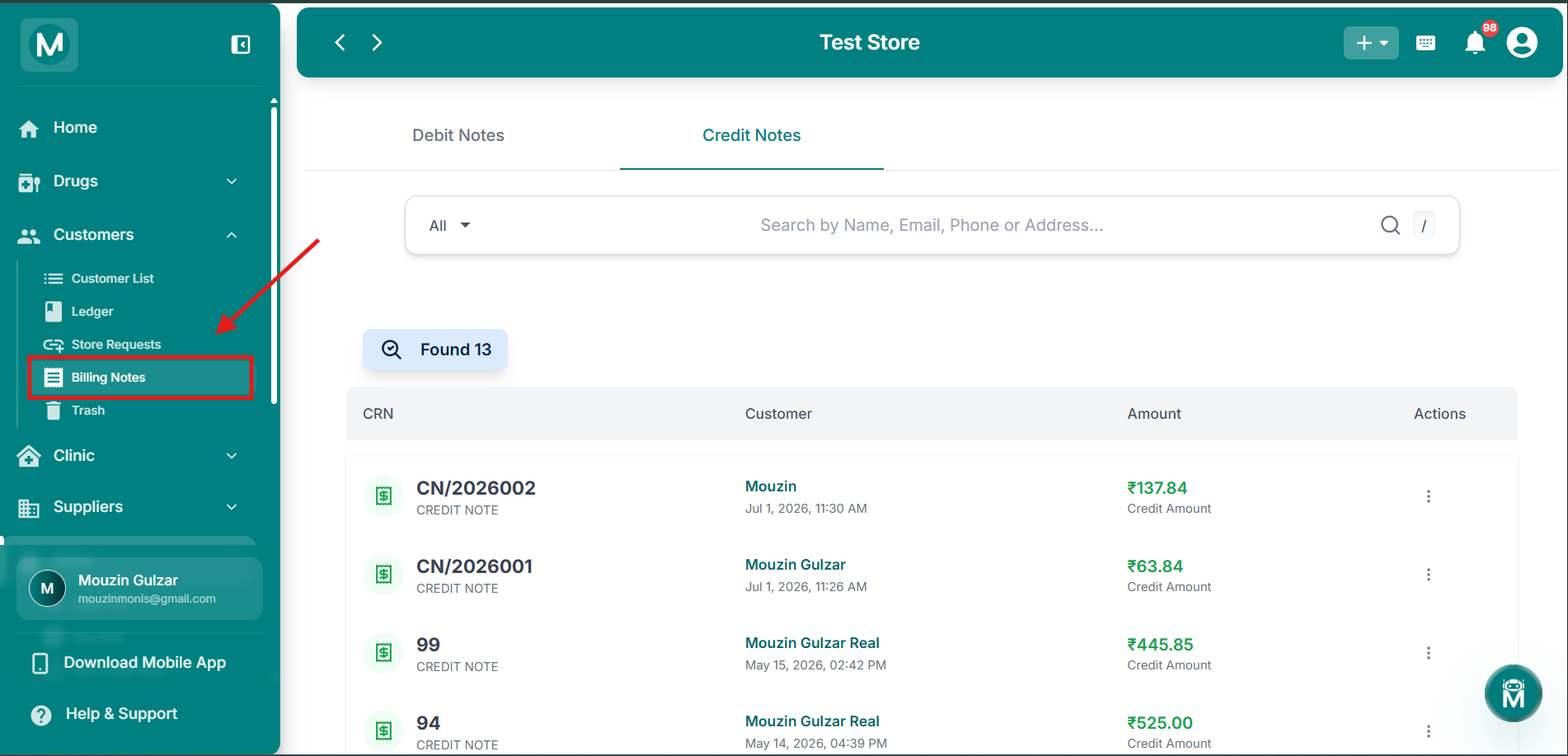
Billing Notes
Navigate from sidebar to billing notes.
Debit Notes Tab
When a connected retailer, party, or customer on MediFlux generates a debit note for medicines you sold them, that note appears here in your Debit Notes tab. This tells you exactly which medicines your retailer wants to return.
From here you can take action on each debit note:
- Credit it: accept the return request. The debit note is converted into a credit note and moves to the Credit Notes tab, for both you and the retailer who raised it
- Reject it: decline the return request. This is reflected on the retailer's dashboard as well
As a supplier, you cannot generate debit notes yourself. Debit notes can only be raised by your connected retailers or customers from their end. If none of your connected retailers have raised a debit note, this tab will show No Debit Notes Found.
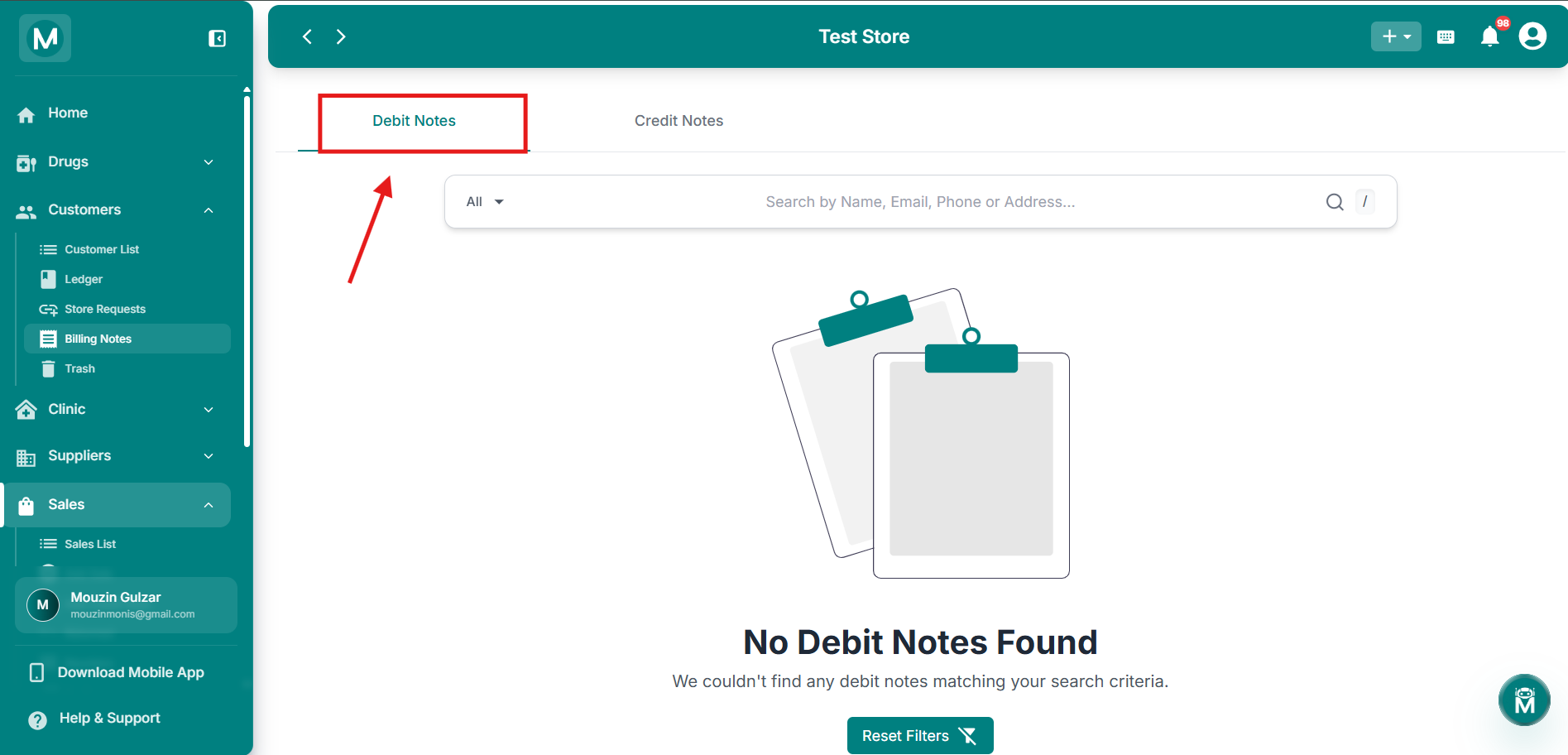
Debit Notes tab, empty state
No debit notes have been raised by connected retailers yet.
Credit Notes Tab
The Credit Notes tab shows all credit notes associated with your customers and retailers. Credit notes appear here in two ways:
From a credited debit note: when you accept and credit a debit note raised by your retailer, it is automatically converted into a credit note and appears here. At the same time, it also appears in the Credit Notes tab of the retailer who originally raised the debit note.
Manually generated: if you want to issue a credit note directly to a customer or retailer without a debit note being raised first, you can create one from Sales → Add Credit Note. These appear directly in this tab.
Every time a credit note is generated, whether from a credited debit note or manually, a credit note entry is automatically added to that customer's ledger. You can verify this at Customers → Ledger → [customer/retailer name].
Each entry in the Credit Notes tab shows:
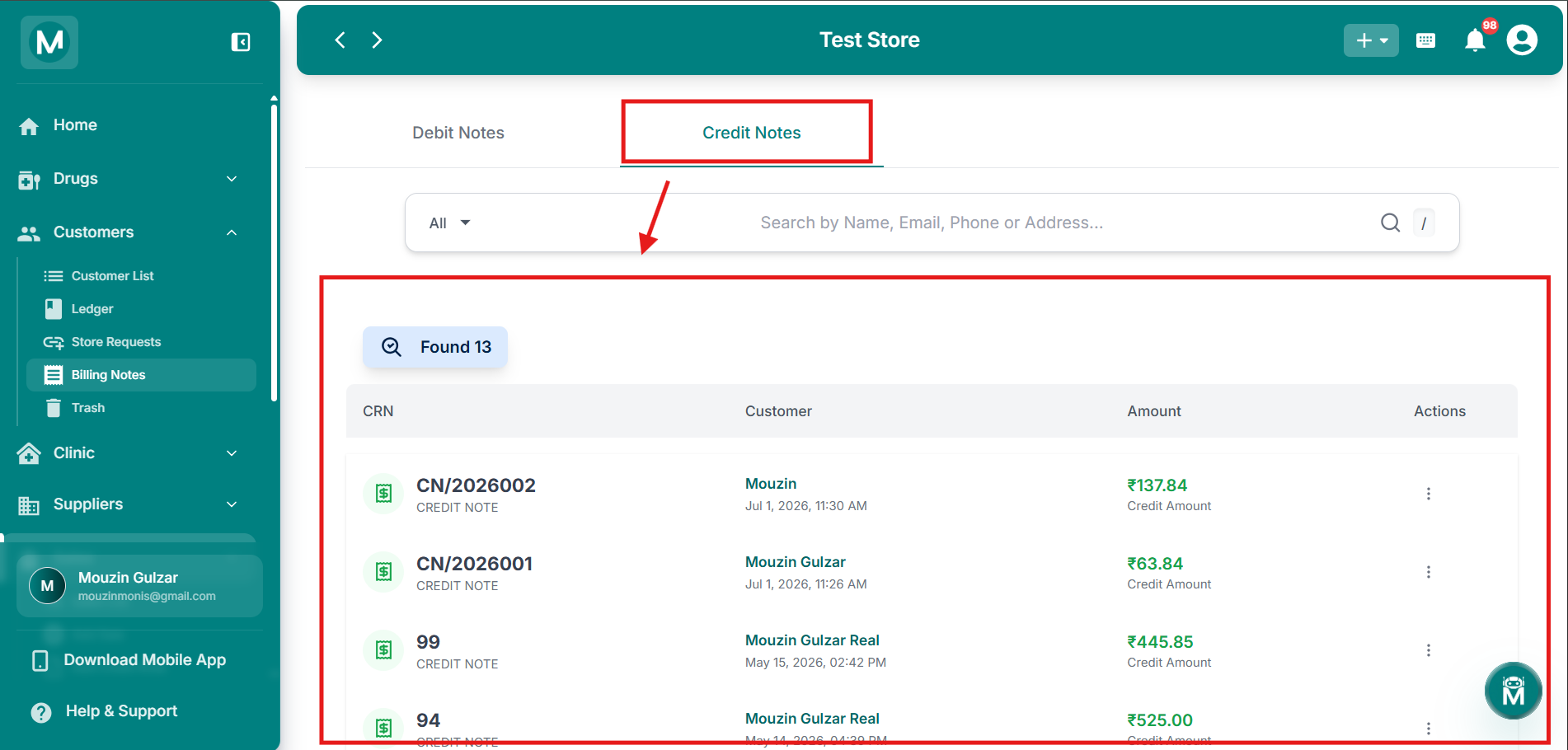
Credit Notes tab
List of credit notes with CRN, customer, amount, and actions.
Credit Note Actions
Clicking the three-dot menu (⋮) on any credit note row gives you two options:
From the detail page you can also Print, Download, or Delete the credit note using the More menu.
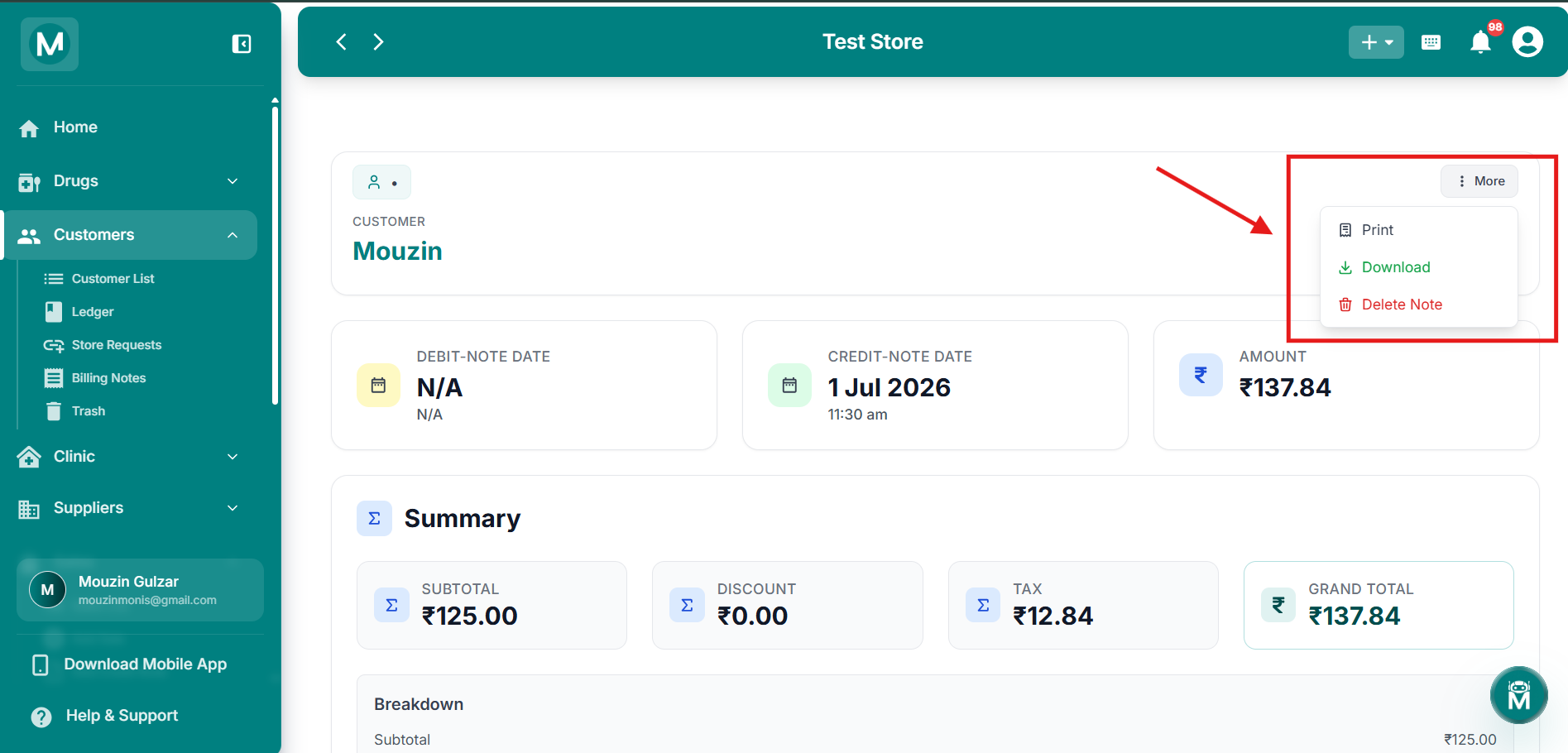
Credit Note detail page
Full credit note details with the More menu open showing Print, Download, and Delete options.