
Sales List
View, search, filter, and manage all your recorded sales in one place.
The Sales List is your complete record of every sale made in your pharmacy. You can search across sales, filter by sale type, payment method, payment status, and date range, and export your sales data as PDF or Excel.
Searching Sales
The search bar at the top lets you search across suppliers, drugs, and challan numbers. Just start typing and the list filters instantly.
To the left of the search bar is an All dropdown. Use it to narrow the search scope if needed.
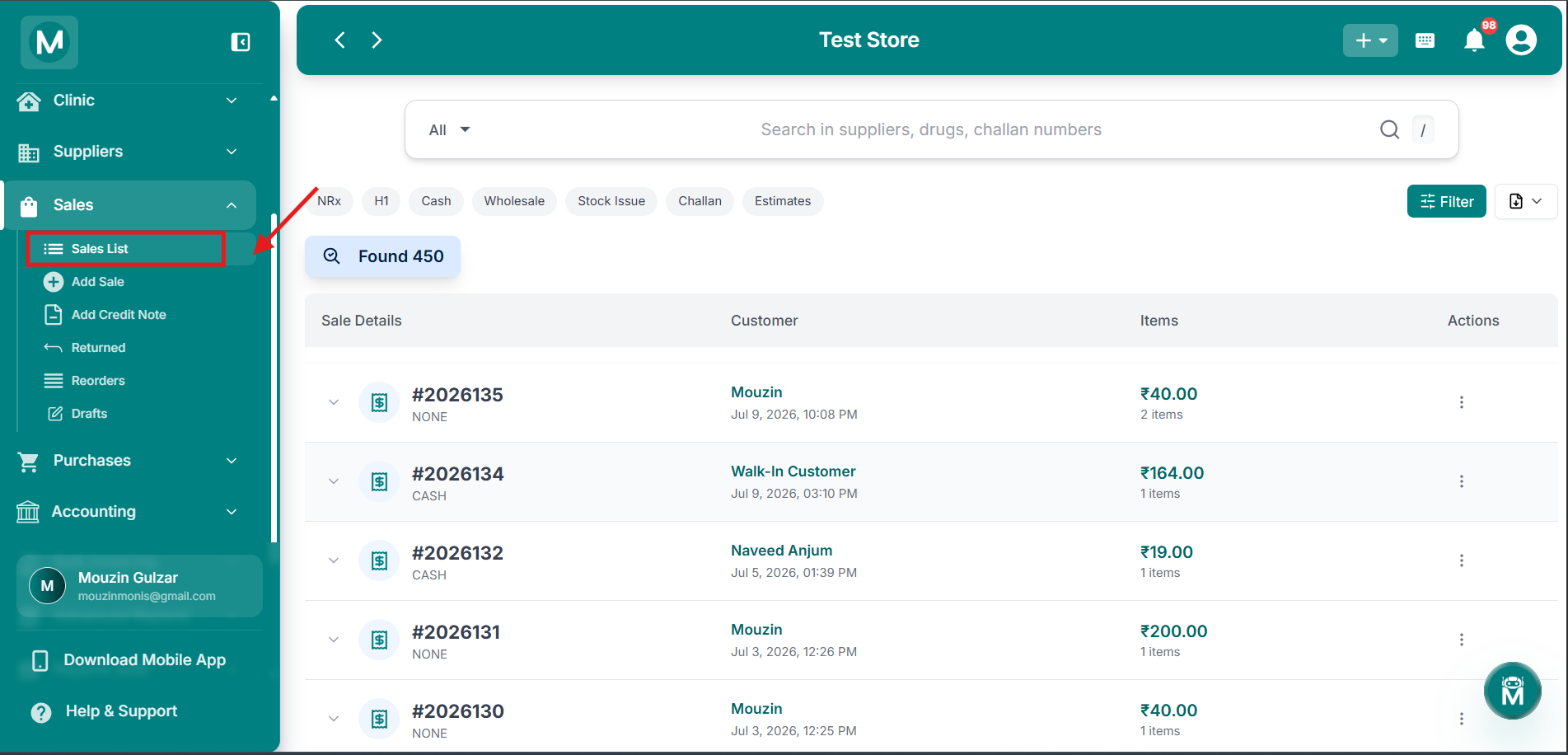
Sales list
Navigate to Sales list from sidebar
Filter Chips
Below the search bar, six quick-filter chips let you slice the list by sale type instantly:
Click a chip to apply it, click again to remove it.
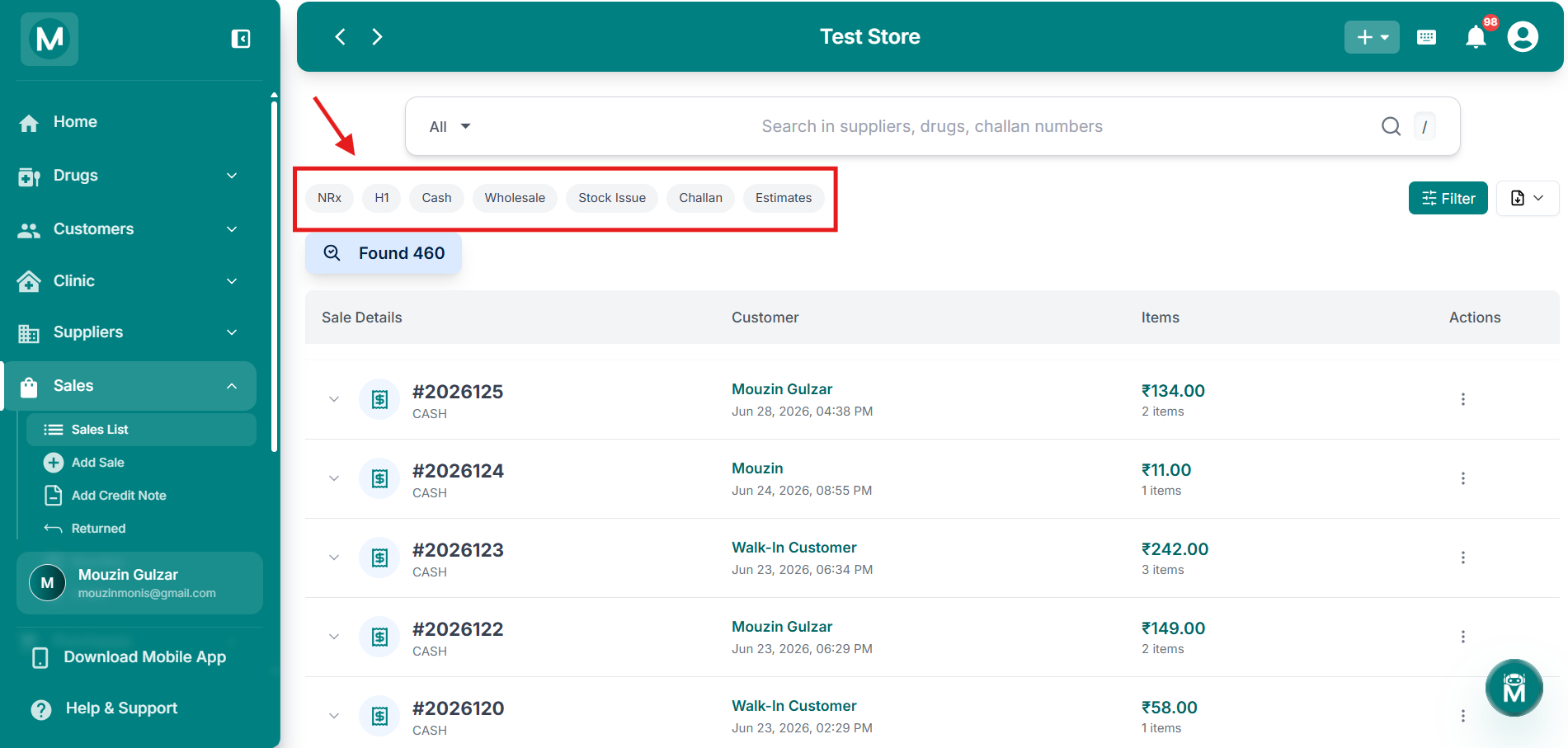
Filter chips
Quick-filter chips for slicing the sales list by sale type.
The Sales Table
The main table lists all your sales with the following columns:
The page shows a Found X count above the table indicating how many sales match the current filters.
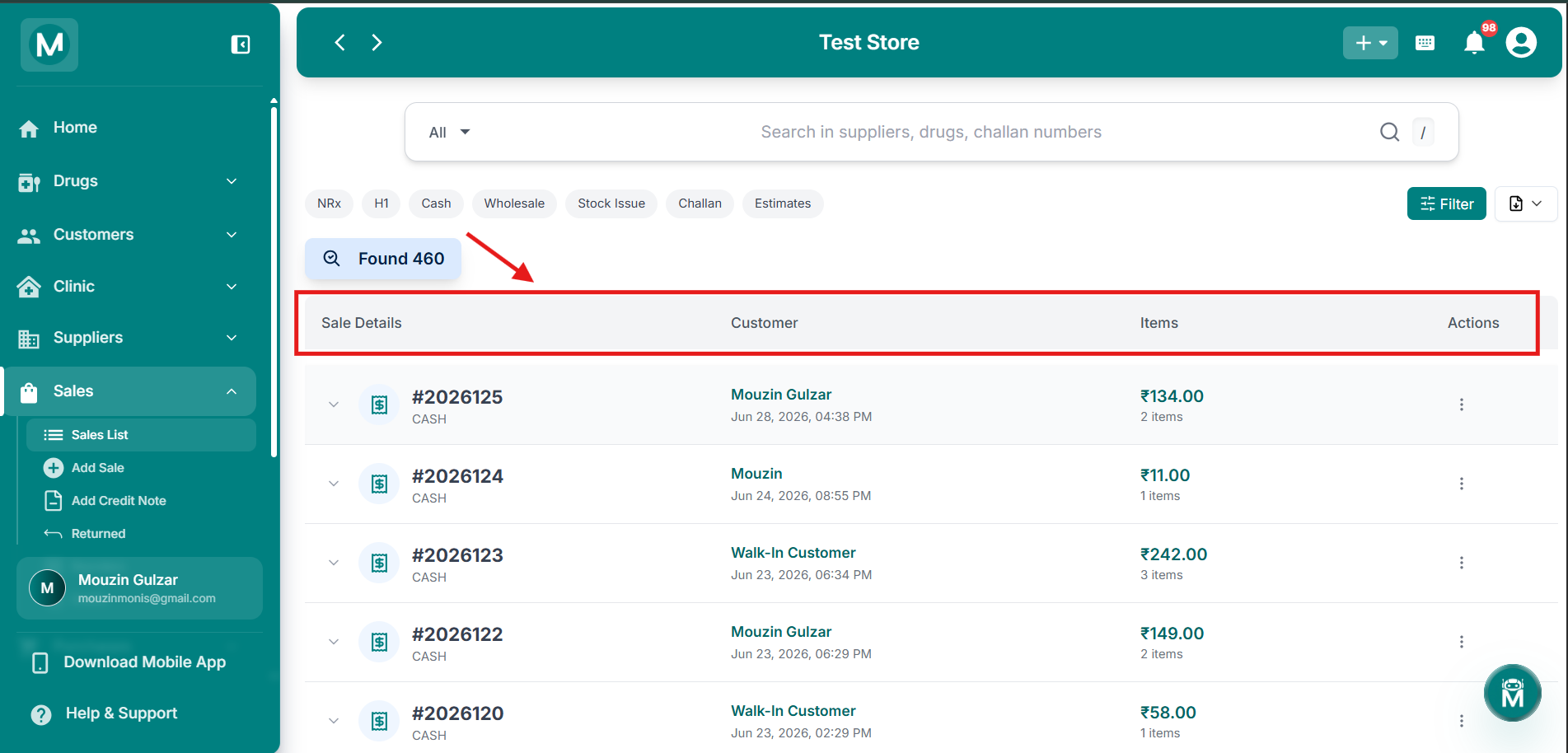
Sales List table
Main table listing all sales with details, customer, items, and actions.
Expanding A Sale Row
Click the chevron (▾) on the left of any sale row to expand it and see the full line item breakdown:
The Grand Total is shown at the bottom right of the expanded row.
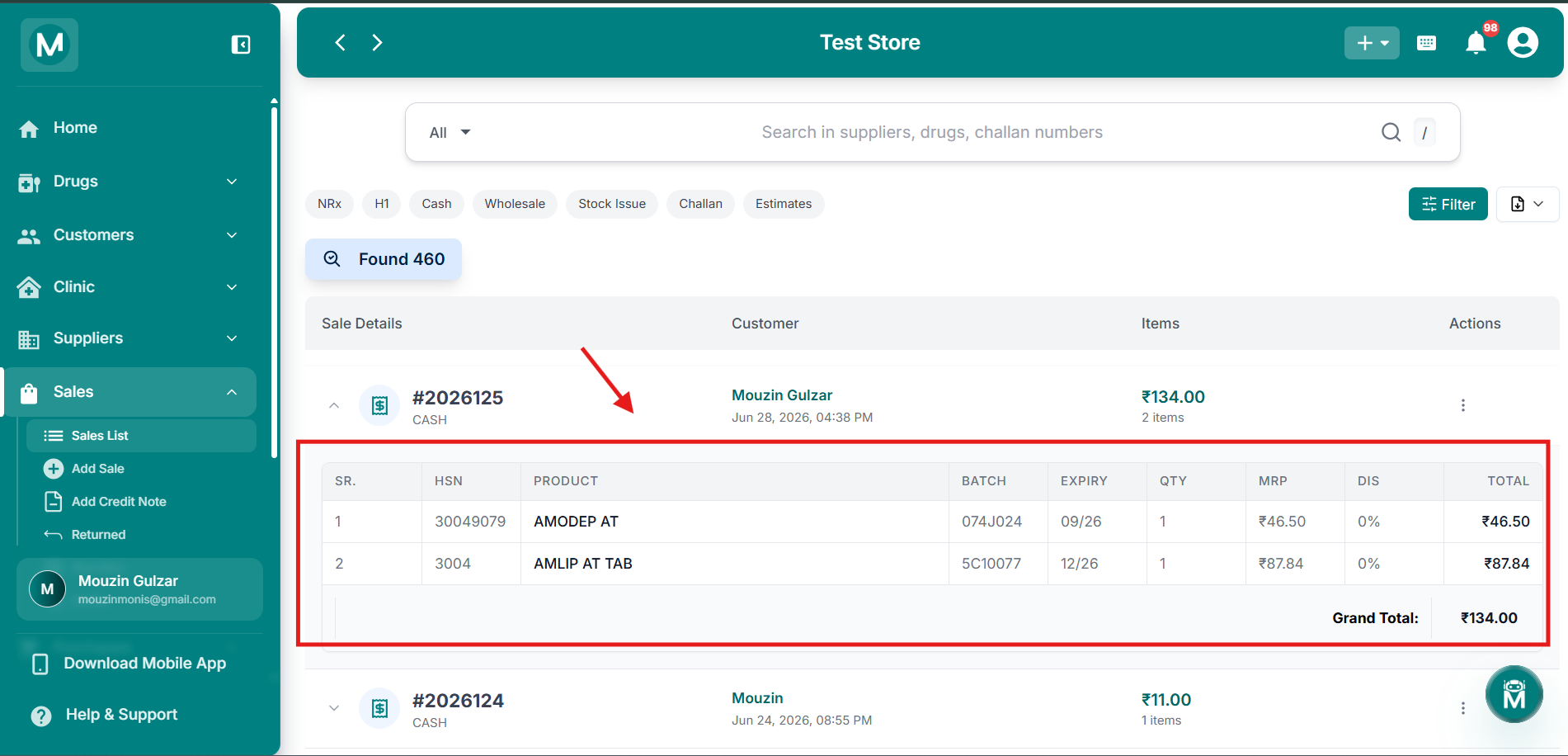
Expanded sale row
Line item breakdown with HSN, product, batch, expiry, quantity, MRP, discount, and total.
Row Actions
Clicking the three-dot menu (⋮) on any sale row opens a quick-actions menu with three options:
These options are the same for all sale types.
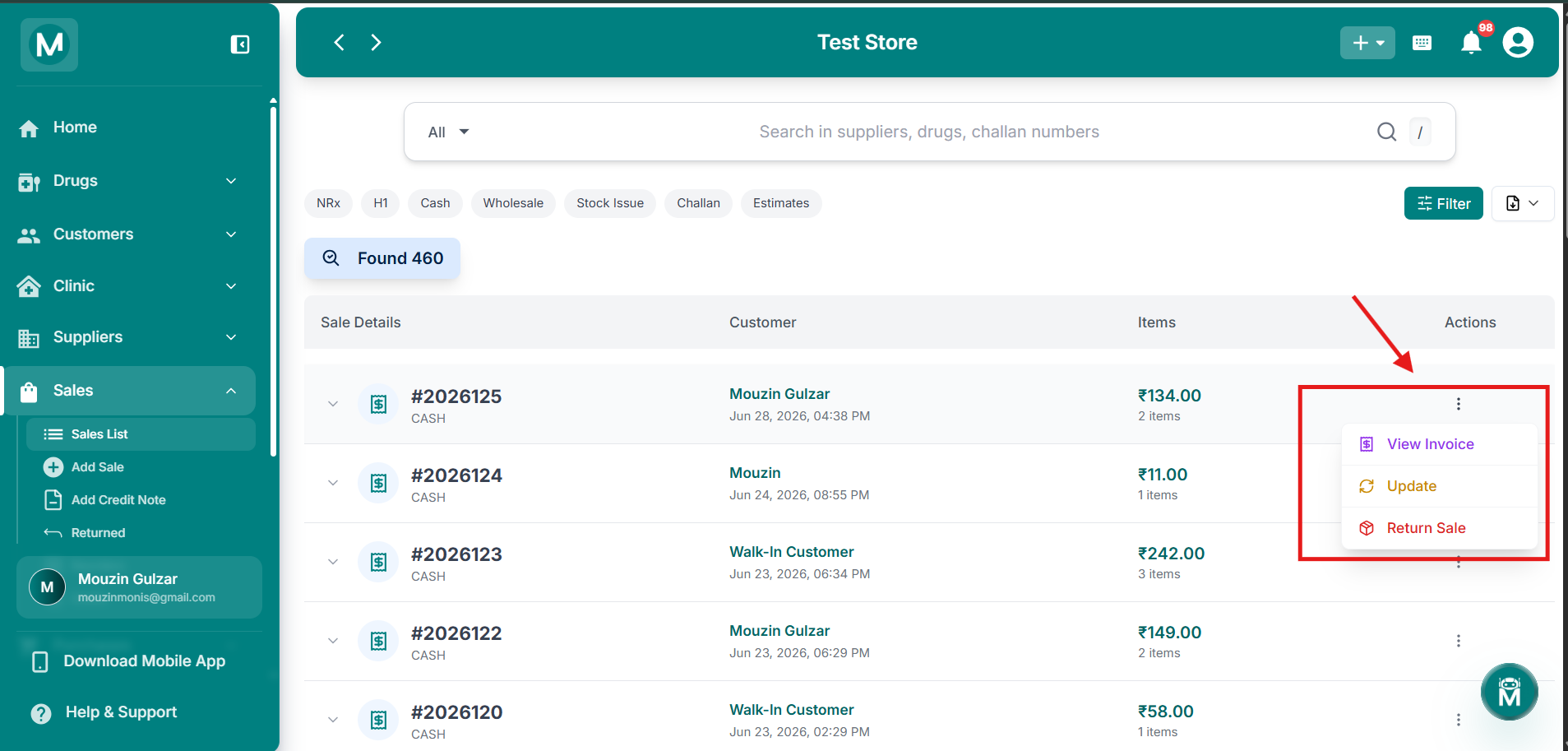
Row actions
Three-dot menu showing View Invoice, Update, and Return Sale options.
Filters Panel
Click the Filter button at the top-right to open the Sales Filters panel:
Click Apply to apply filters. The filter button highlights when active filters are applied.
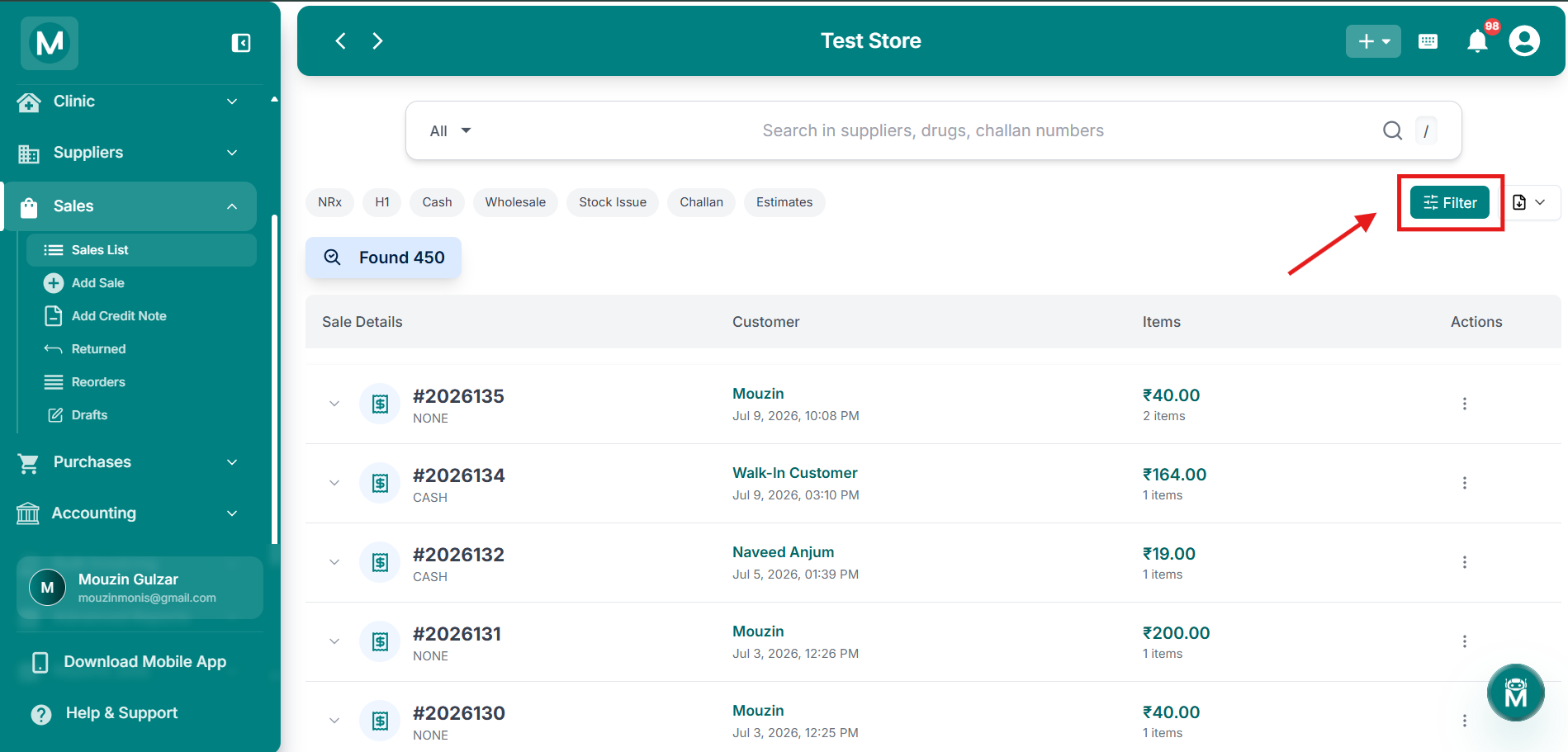
Filter Button
Filter by drug type , payment method etc and sort by different options.
Exporting Sales
Click the export icon at the top-right to choose your export format:
- Export as PDF
- Export as Excel
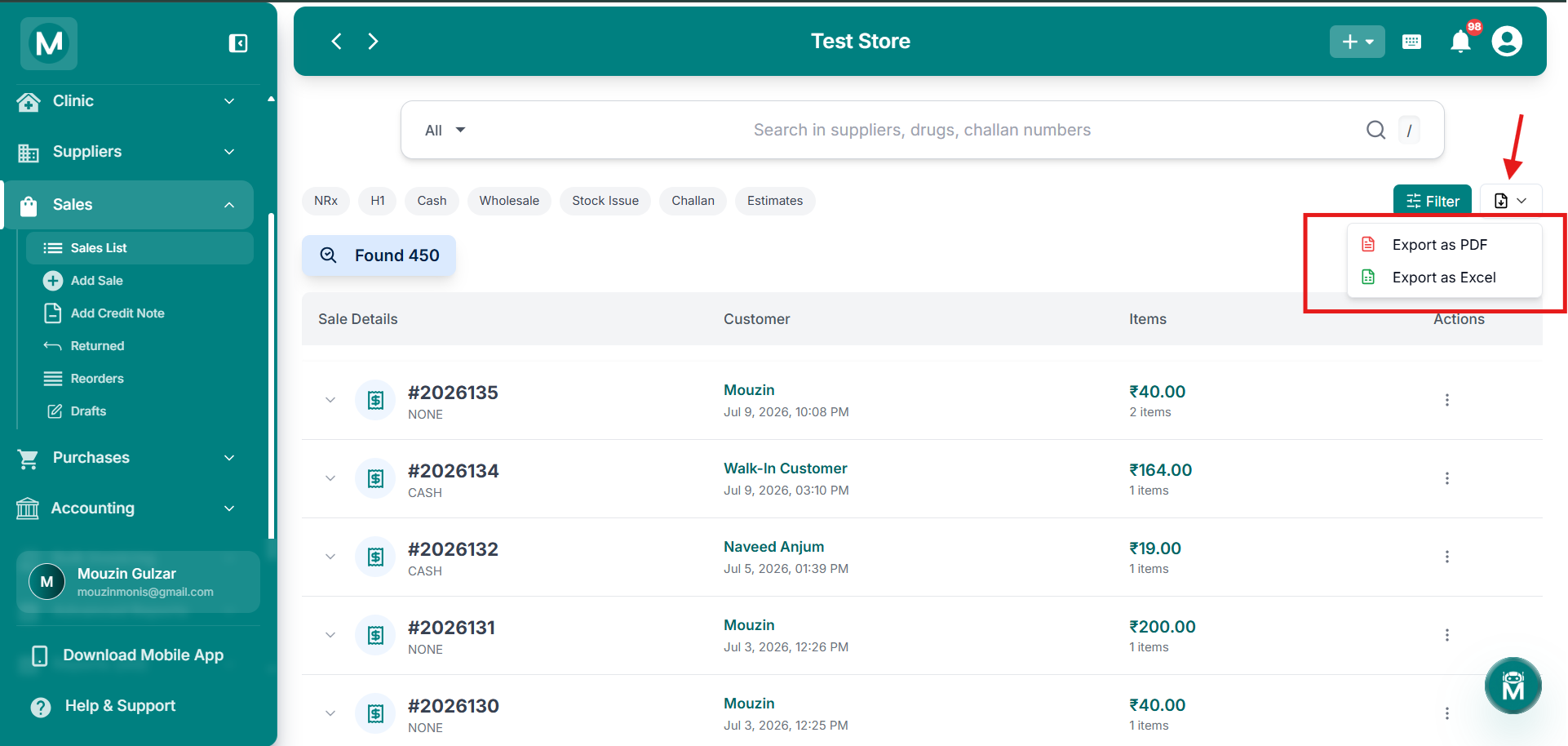
Export options
Choose between PDF and Excel export formats.
Adding A Sale From Anywhere
You don't have to navigate to the Sales section to add a sale. Click the + button in the top-right corner of any screen and select Add Sale to start a new sale bill from anywhere in MediFlux.
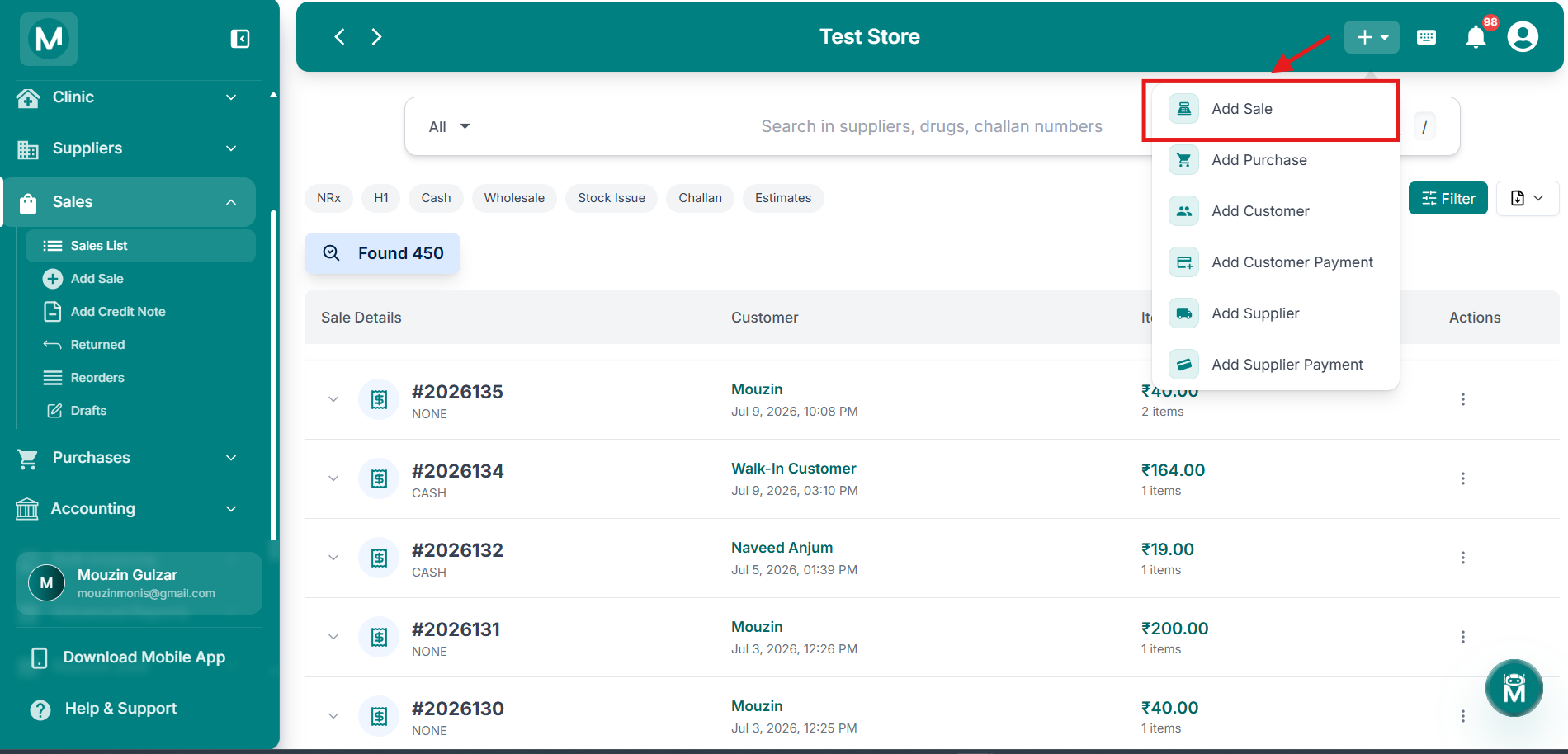
Quick Add Sale
Click the `+` button in the top-right corner of any screen and select Add Sale to start a new sale from anywhere.