
Journals
View, search, filter, and export all ledger journal entries in MediFlux. See manual entries, auto-generated purchase journals, and initialization entries.
The Journals page is where you can see every accounting entry that has been posted to your ledgers. This includes manual journals you create yourself, automatic entries generated from purchases and sales, and the one-time initialization entry that is created when your Chart of Accounts is first set up.
Navigate here from the sidebar: Accounting → Journals.
By default the page shows entries for the current month. If your store is newly initialized, you will usually see only one entry: the Accounting Initialization journal.
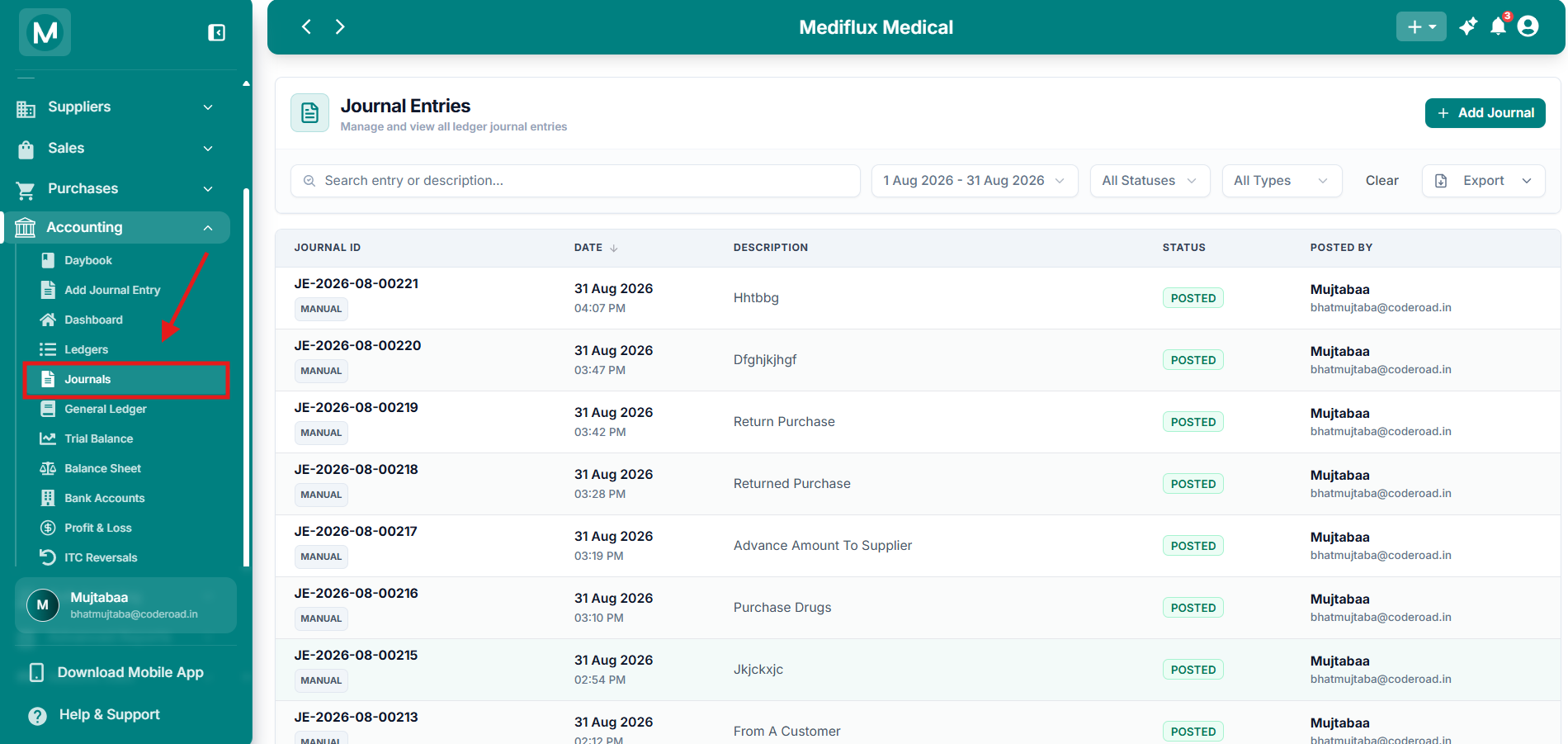
Journals list
Search, date range, status and type filters, and the list of journal entries.
Adding a new journal entry
Click + Add Journal in the top-right corner to create a manual journal entry.
This opens the journal entry form where you select debit and credit accounts, enter amounts, and add a description. Once posted, the entry appears in this list with status POSTED and type MANUAL.
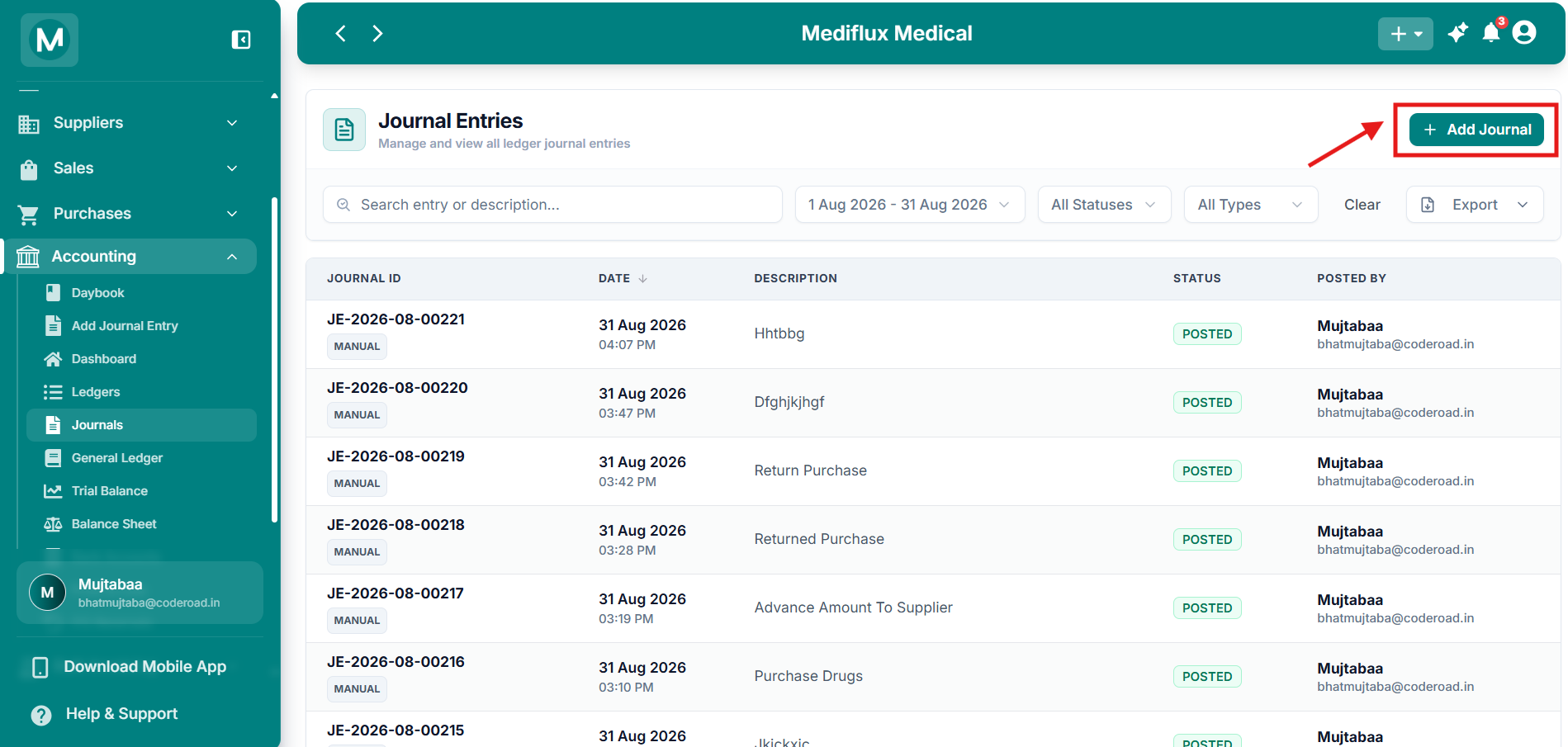
Add Journal button
Click + Add Journal in the top-right to create a manual entry.
Searching and filtering
Use the controls at the top of the page to narrow down the list.
Date range picker
Click the date range to open the calendar. You can:
- Select custom start and end dates
- Use quick presets: Today, Yesterday, Last 7 days, Last 14 days, Last 30 days, This Week, Last Week, This Month, Last Month
Click Apply to update the list.
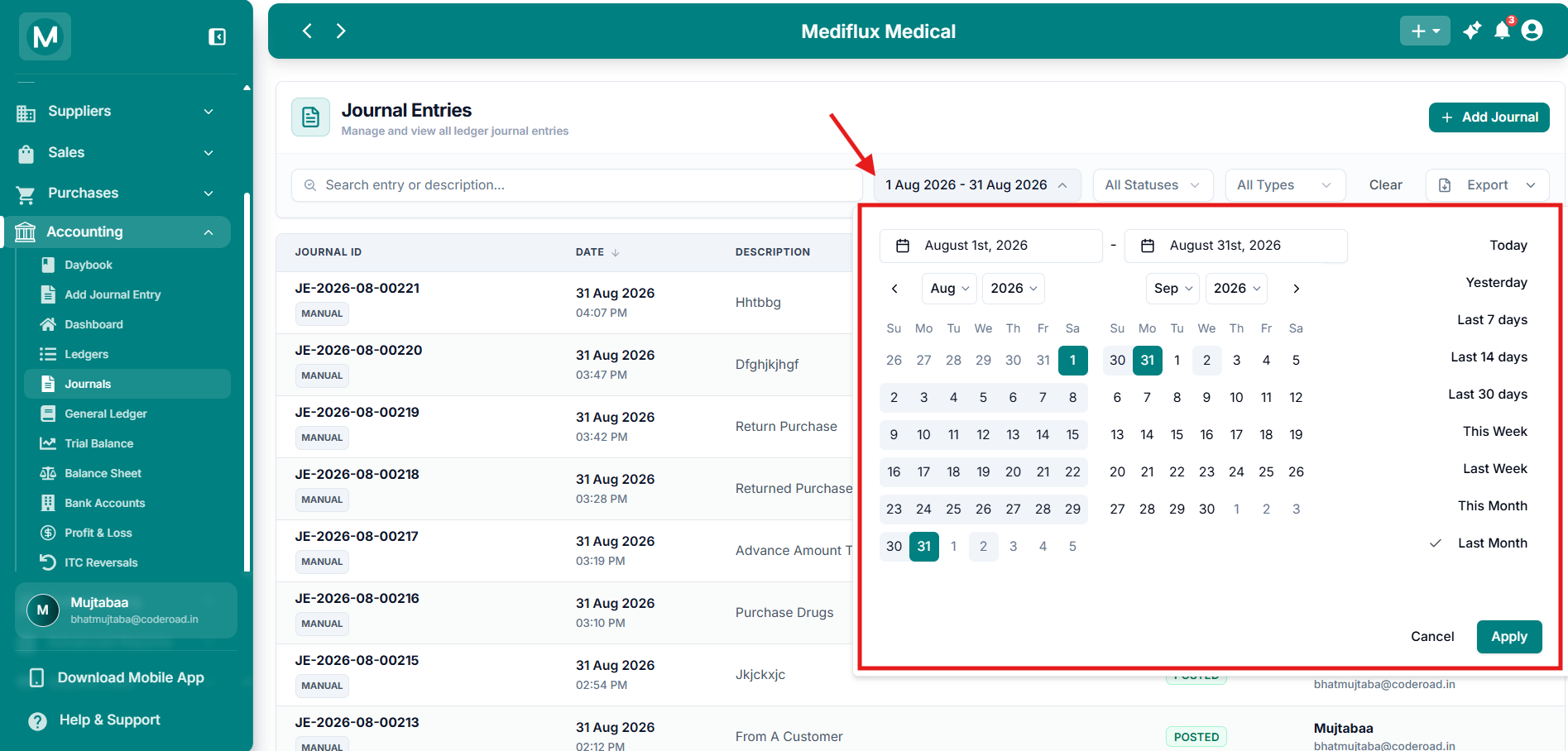
Date range picker
Calendar with quick filter options for common periods.
Status filter
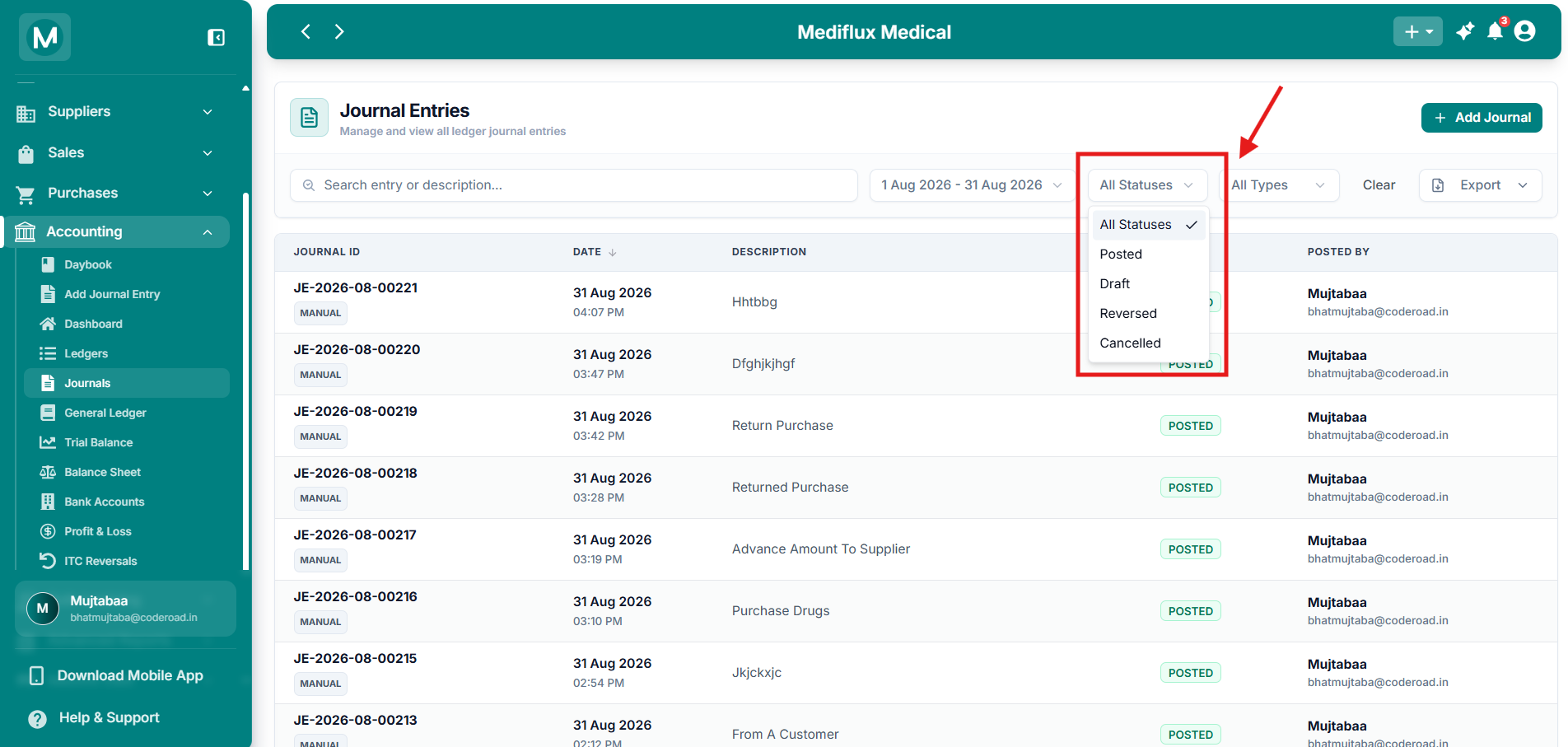
Status filter
Filter journals by Posted, Draft, Reversed, or Cancelled.
Type badges on each row
Each journal shows a small badge under the Journal ID that tells you how it was created:
Understanding the table
Example entries of a mature account
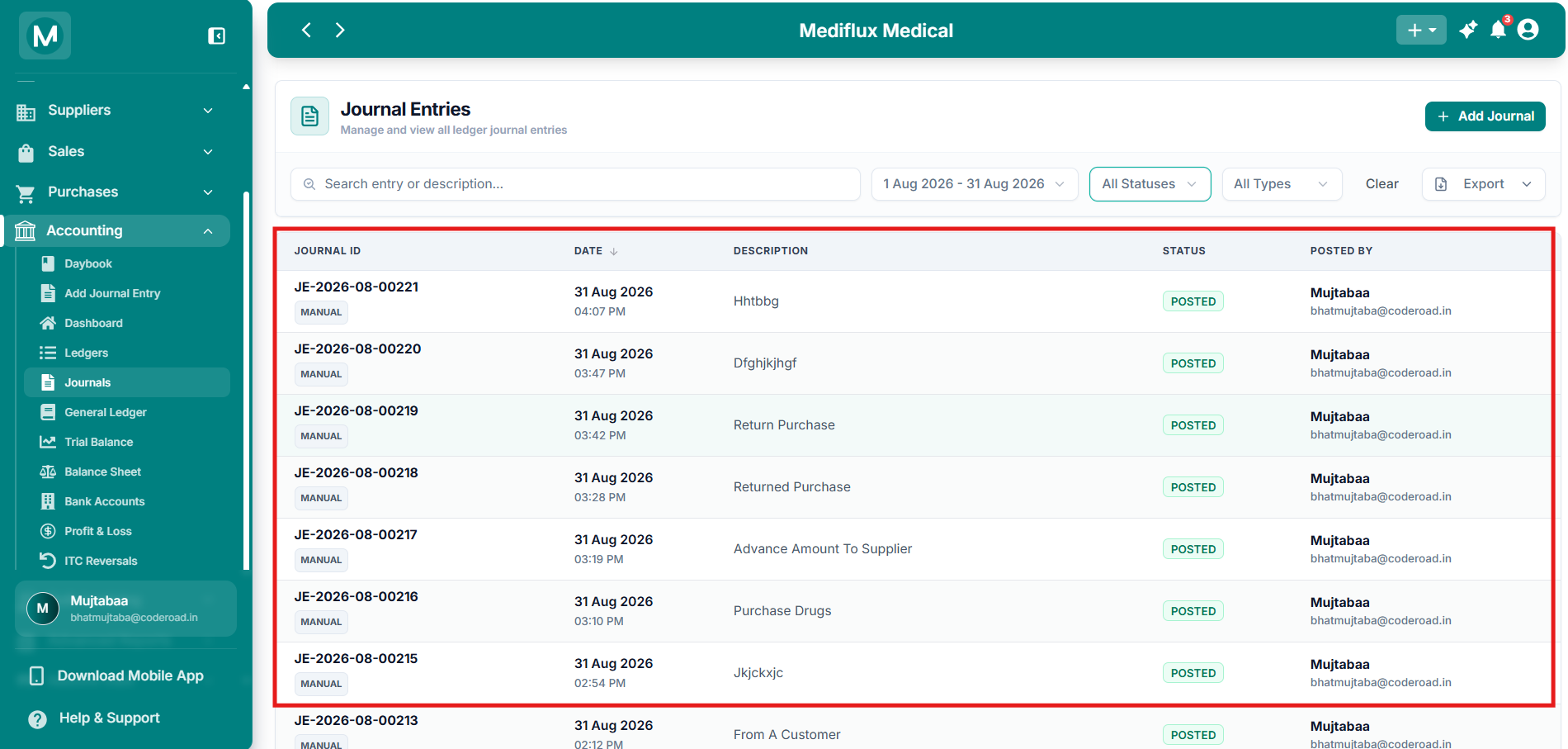
Auto-generated and reversed entries
Purchase-related journals showing POSTED, REVERSAL, and REVERSED statuses.
Newly initialized stores
When you first set up accounting, MediFlux creates a single journal entry:
- Journal ID: something like
JE-2026-08-00004 - Type: ACCOUNTING INITIALIZATION
- Description: Entries Added On Initialization Of Chart Of Accounts
- Status: POSTED
This is normal. As you start recording sales, purchases, and manual journals, more entries will appear in the list.
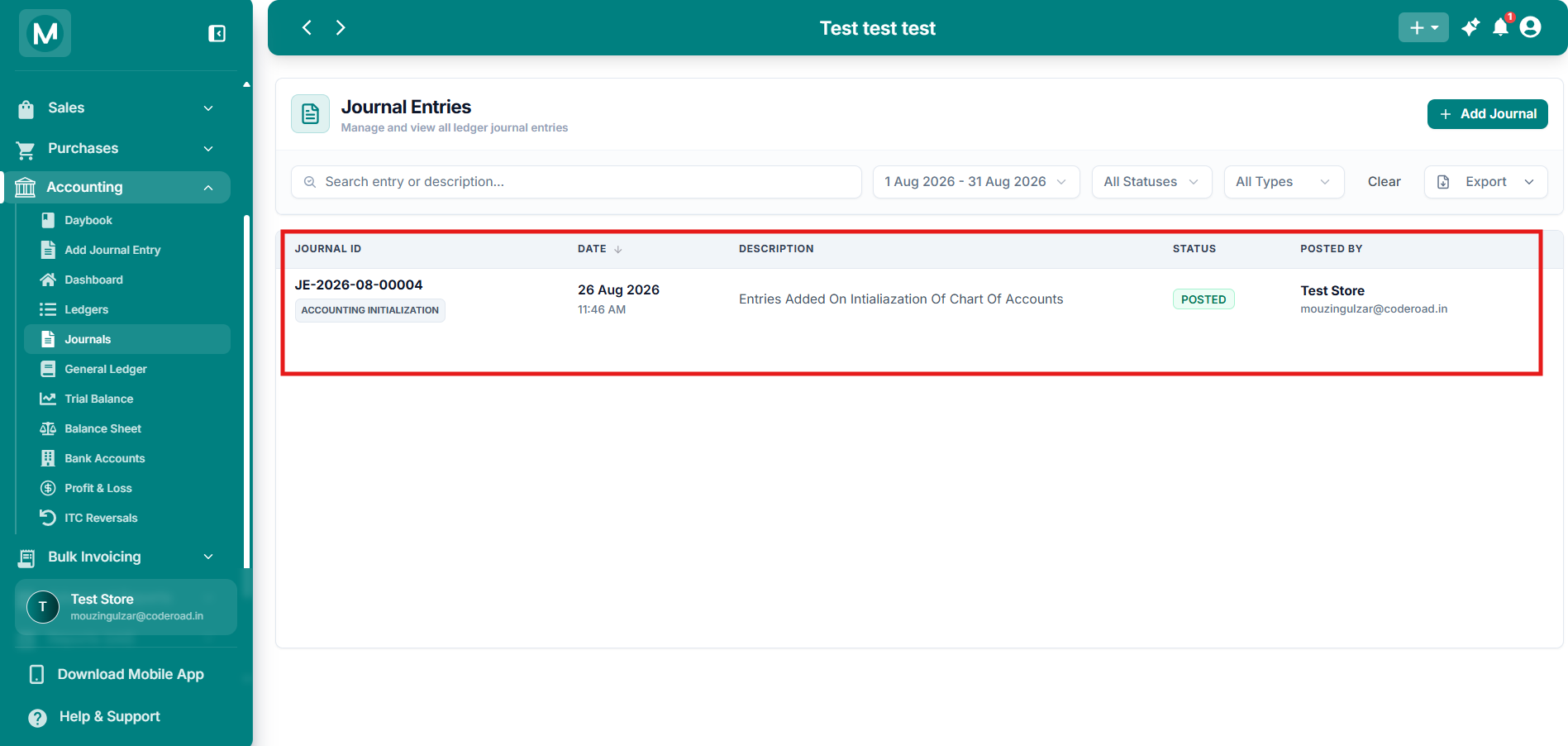
Initialization entry
The single Accounting Initialization journal shown on a newly set-up store.
Common mistakes
Looking at the wrong date range
The list defaults to the current month. If you expect to see older entries and the list looks empty, open the date range picker and select a wider period or Last Month.
Confusing REVERSED and REVERSAL
REVERSED means the original entry has been cancelled by a later reversal entry. REVERSAL is the status of the entry that performed the reversal. Both appear in the list so you have a complete audit trail.
Frequently asked questions
Next steps
Add Journal Entry
Create a manual debit and credit entry using your Chart of Accounts.
Chart of Accounts
Browse the full list of accounts used in journal entries.
General Ledger
View the running balance and full history of any individual account.
Trial Balance
Check that total debits equal total credits across all accounts.