
Suppliers
Manage your drug suppliers, track outstanding payments, record purchases, and maintain a complete ledger, all from one place.
The Suppliers section is your central hub for managing every distributor and wholesaler your pharmacy works with. From adding a new supplier profile to tracking outstanding dues and recording payments, everything you need to maintain clean, audit-ready supplier accounts is here.
Overview
Supplier profiles connect to your purchase workflow so you can quickly record inward stock, track outstanding dues, and maintain a complete ledger for every distributor, all without leaving MediFlux.
What You Can Do In Suppliers
- Maintain a supplier directory: store contact details, GSTIN, license numbers, and reliability scores for every distributor
- Track outstanding payments: see at a glance how much you owe each supplier and across all suppliers combined
- View purchase history: every inward stock entry is linked to the supplier it came from
- Record payments and credit notes: mark dues as paid and log credit notes from suppliers directly into the ledger
- Analyse supplier performance: monitor gross margin percentage and units supplied per supplier
- Export ledger data: download supplier-wise or consolidated ledger entries as PDF or Excel for accounting and audits
Navigating The Suppliers Section
The Suppliers section in the left sidebar expands into three pages:
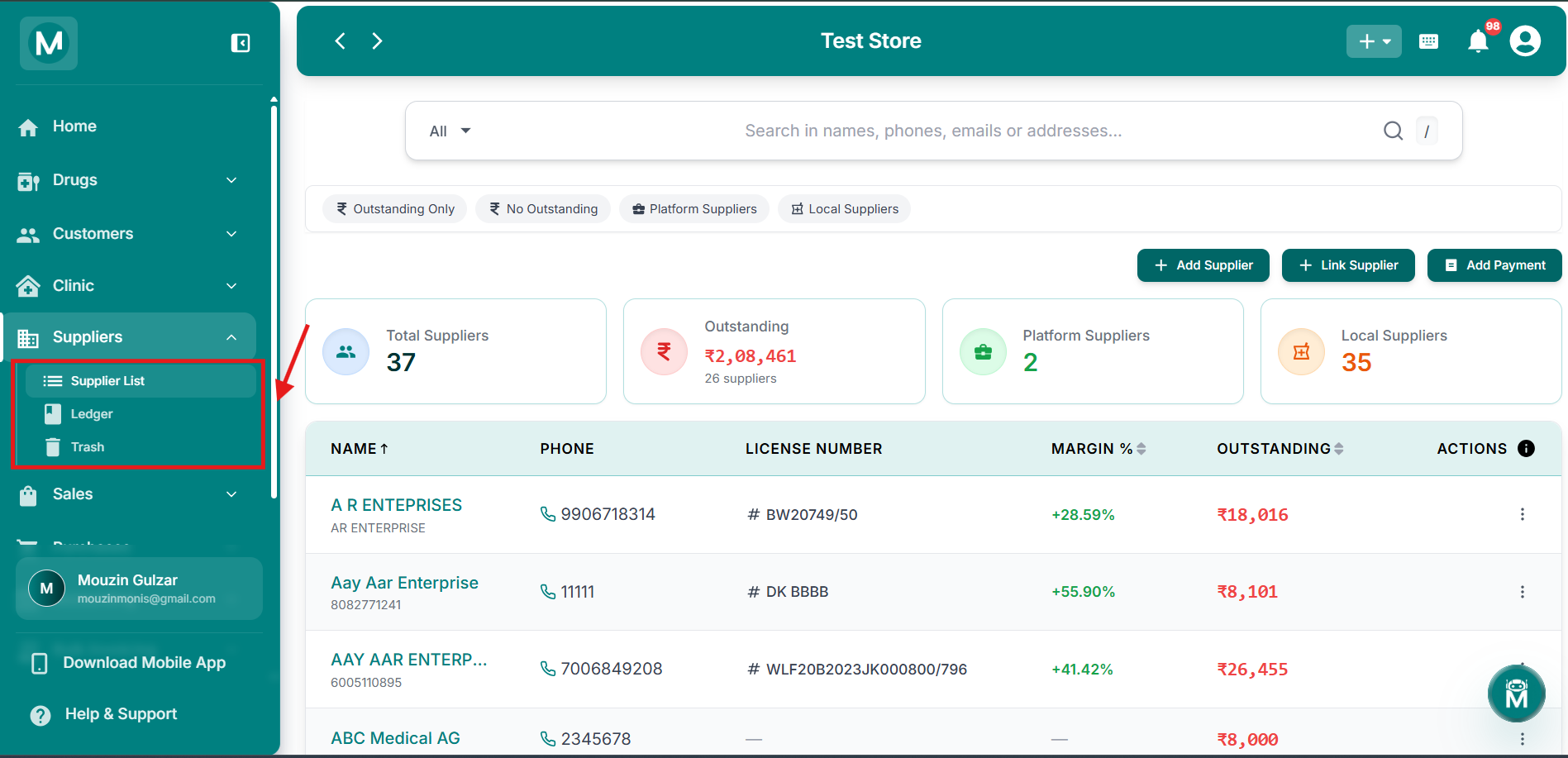
Suppliers sidebar
Sidebar showing Supplier List, Ledger, and Trash options.
Quick Actions From The Dashboard
You don't have to navigate to the Suppliers section to add a supplier or record a payment. The + button in the top-right corner of any screen gives you instant access to the most common actions from anywhere in MediFlux:
- Add Supplier: create a new supplier profile without leaving the dashboard
- Add Supplier Payment: record a payment directly without navigating away
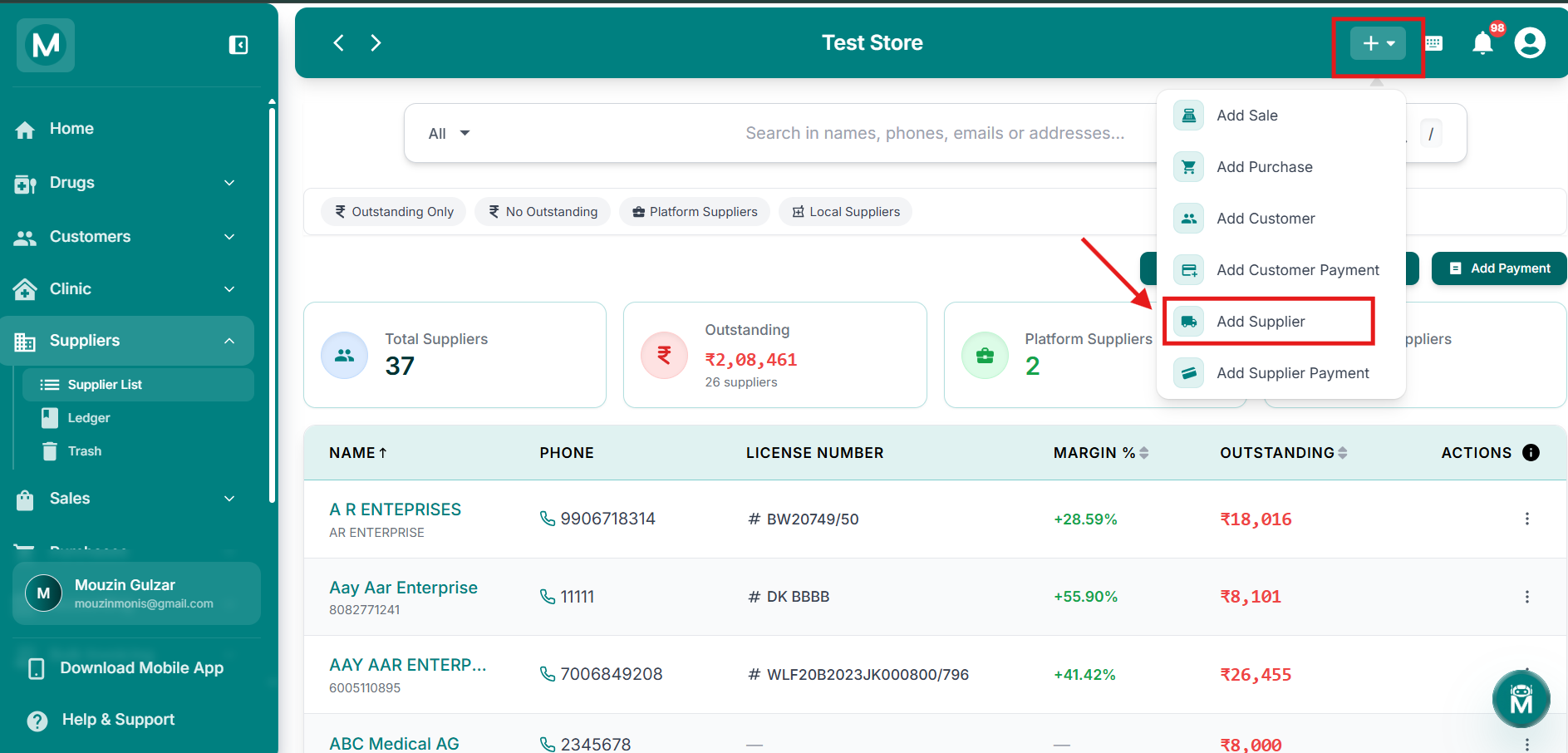
Dashboard + menu
Quick-add menu showing Add Supplier and Add Supplier Payment options.
The + quick-add menu is available on every screen, not just the dashboard. Use it whenever you need to add a supplier or record a payment without breaking your current workflow.
Supplier Types
MediFlux distinguishes between two types of suppliers:
Platform Suppliers are distributors registered on the MediFlux platform. Linking a platform supplier gives you access to verified business details and streamlined purchase workflows.
Local Suppliers are distributors you add manually. These are your neighbourhood wholesalers and local pharma distributors that aren't on the platform yet.
You can filter your supplier list by type at any time using the Platform Suppliers and Local Suppliers quick-filter chips.
Supplier List
The Supplier List is your complete supplier directory. View all your distributors at a glance with contact details, outstanding balances, gross margin percentages, and reliability scores. Search by name, phone, or GSTIN. Filter by platform or local suppliers. Click any supplier to view their full profile, purchase history, and ledger.
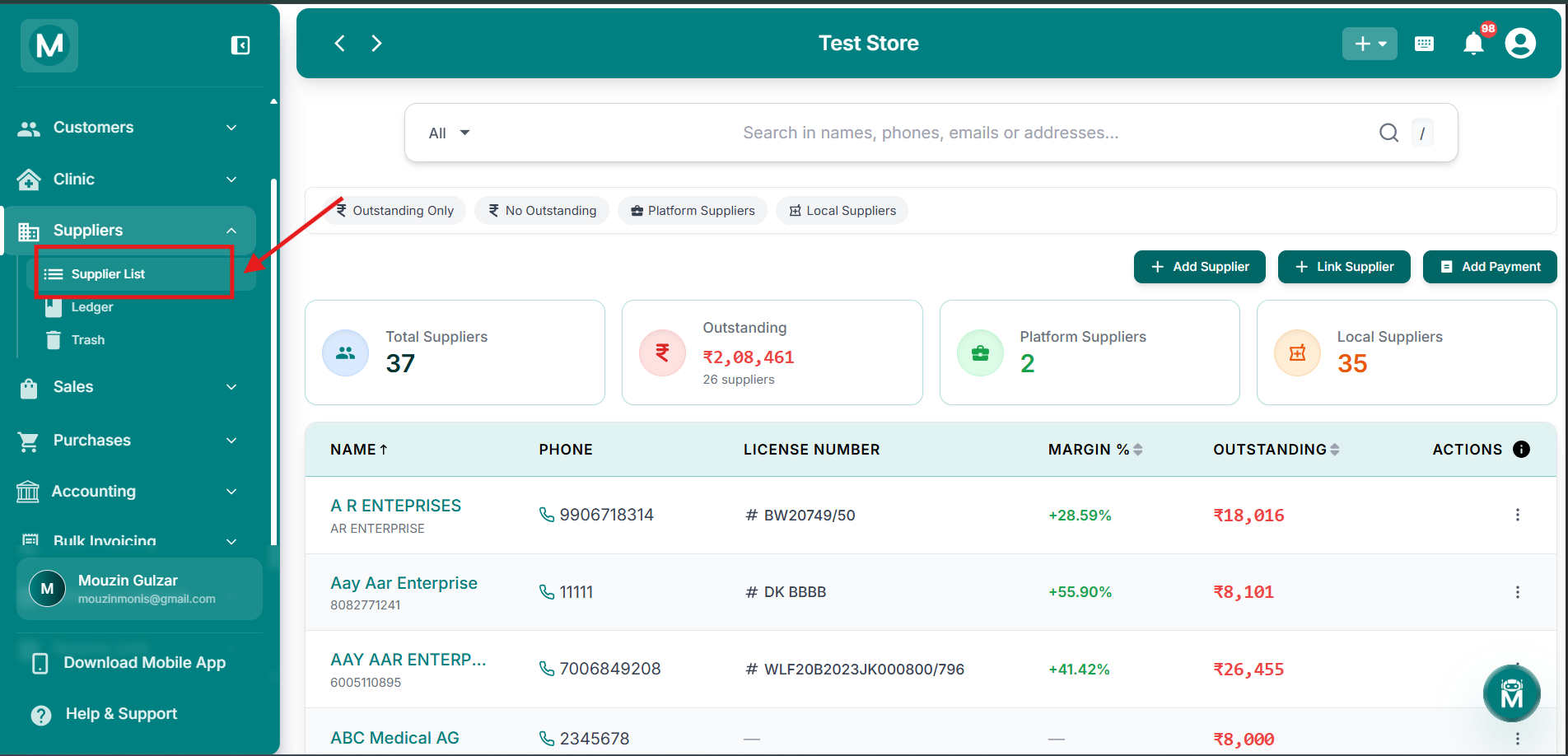
Supplier List
Complete supplier directory with search, filters, and performance metrics.
Ledger
The Ledger page gives you a complete financial record of all your supplier transactions. View a consolidated ledger across all suppliers at once, or click into any individual supplier to see their dedicated ledger with a running balance. Track purchases, payments, credit notes, and manual adjustments. Filter by date range, entry type, and payment method. Export entries as PDF or Excel.
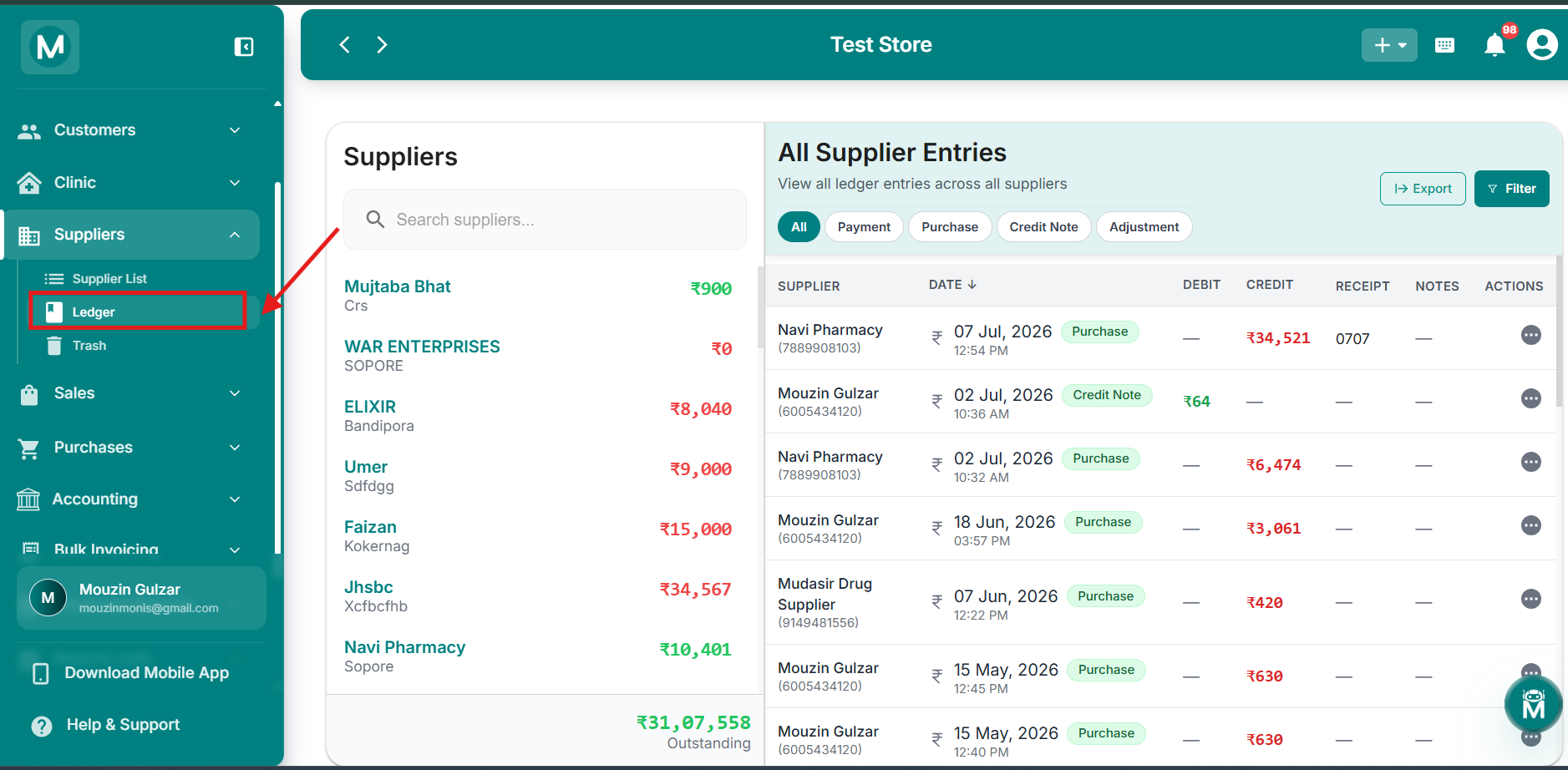
Supplier Ledger
Consolidated and individual supplier ledgers with balance tracking.
Trash
Deleted suppliers aren't gone forever. The Trash page holds all supplier profiles that have been removed from your system, so you can restore them if needed. View deletion history, check outstanding balances at the time of deletion, and restore suppliers back to your active directory with one click. All linked purchase records and ledger entries are preserved even after deletion.
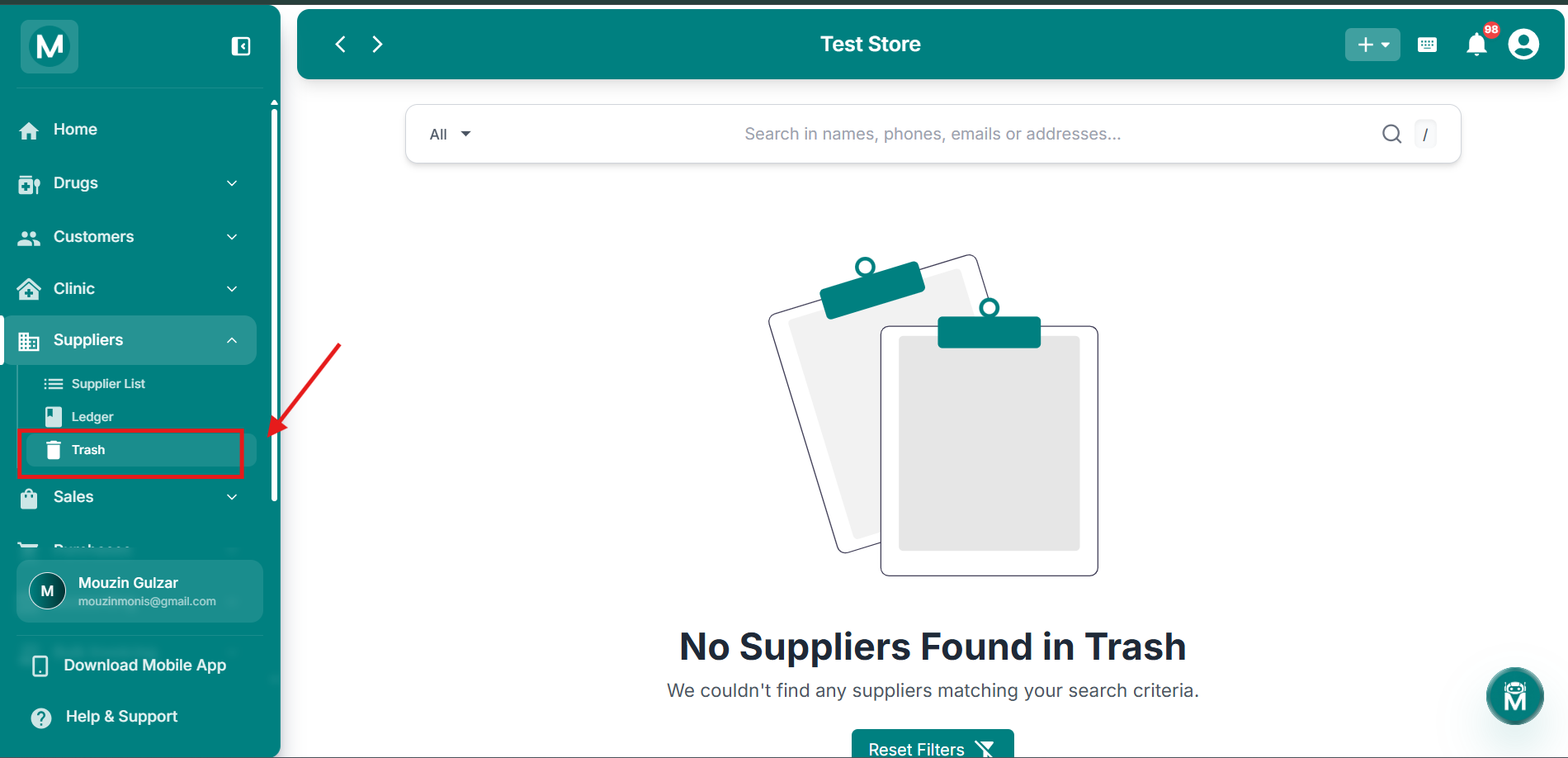
Supplier Trash
Recover deleted suppliers and view their preserved purchase history.
Common Mistakes To Avoid
Forgetting to add the Opening Balance
If you owe a supplier money before starting MediFlux, make sure to enter it in the Opening Balance field when creating the supplier. If you forget, you cannot edit it directly later. Instead go to the supplier's ledger and create an Adjustment entry to add it manually.
Leaving required fields empty
Store Name, Phone Number, and Address are required. If any of these are missing the supplier cannot be saved. Make sure all three are filled before clicking + Add Supplier.
Skipping GSTIN and License Number
These fields are optional but highly recommended. Without GSTIN your purchase entries will not be GST-ready, which can cause issues when generating GSTR reports during tax season.