
Purchases
Manage everything related to stock coming into your pharmacy, purchase bills, purchase orders, restocks, and drafts, all from one place.
The Purchases section is where every purchase your pharmacy makes from suppliers is recorded and managed. From regular purchase bills to purchase orders, restocks, and scanned drafts, MediFlux handles the full purchase lifecycle, with each purchase automatically updating your inventory and supplier ledger.
What You Can Do In Purchases
- Record purchases: log new stock coming in from a supplier, item by item
- Raise purchase orders: create and track orders sent to suppliers before stock arrives
- Track order status: see which purchase orders are pending, synced, or completed
- Restock inventory: manage restock orders for existing drugs
- Scan and auto-fill bills: use the built-in scanner to read supplier invoices and pre-fill purchase details
- Recover deleted purchases: view and restore purchases from Trash
- Access saved drafts: resume purchase bills that were scanned or saved but not yet finalised
Navigating The Purchases Section
The Purchases section in the left sidebar expands into six pages:
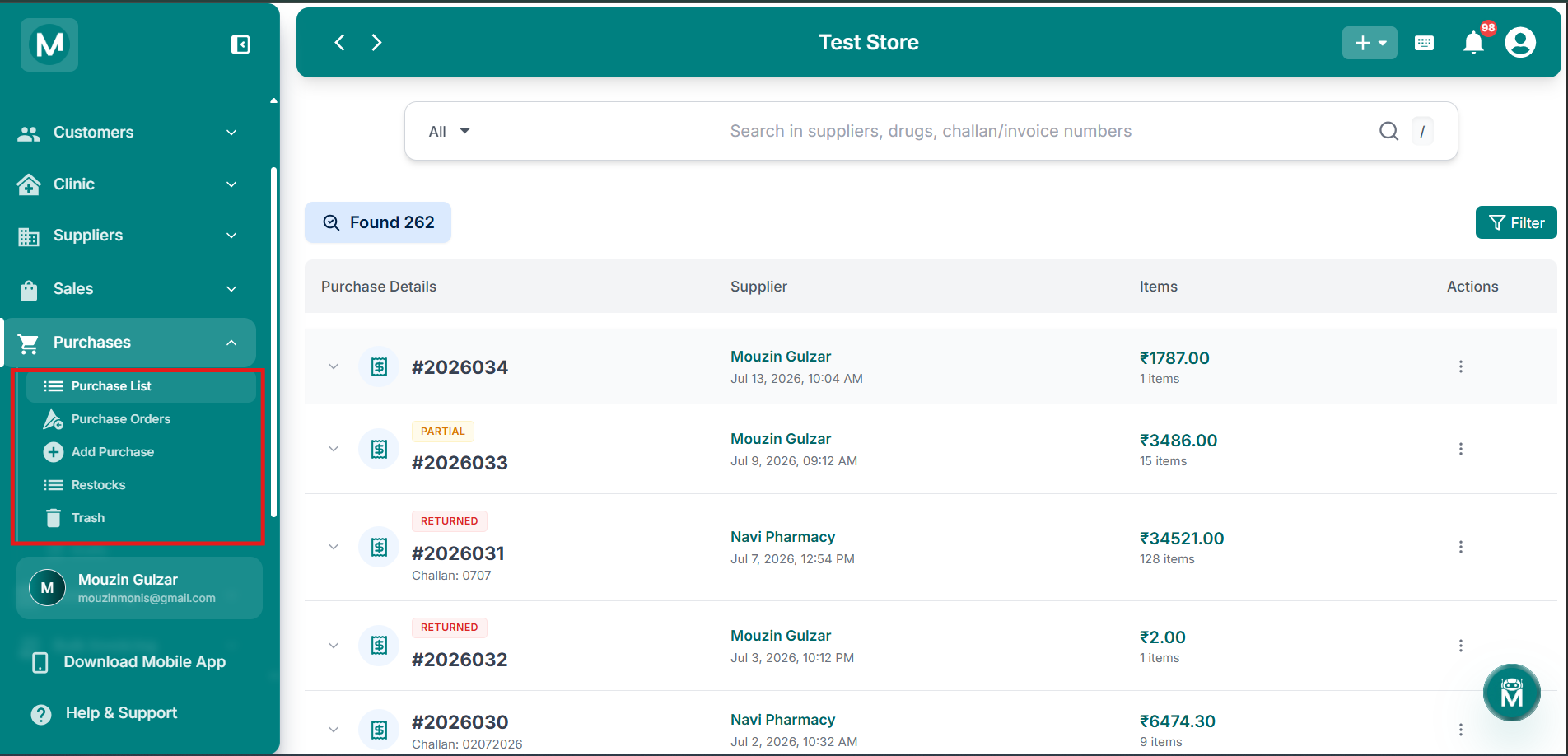
Purchases Sidebar
Six pages under Purchases: Purchase List, Purchase Orders, Add Purchase, Restocks, Trash, and Drafts.
Quick Actions From Anywhere
You don't have to navigate to the Purchases section to add a purchase. The + button in the top-right corner of any screen gives you instant access:
- Add Purchase: start a new purchase bill from anywhere in MediFlux
The + quick-add menu is available on every screen. Use it whenever you need to quickly start a new purchase without interrupting your current workflow.
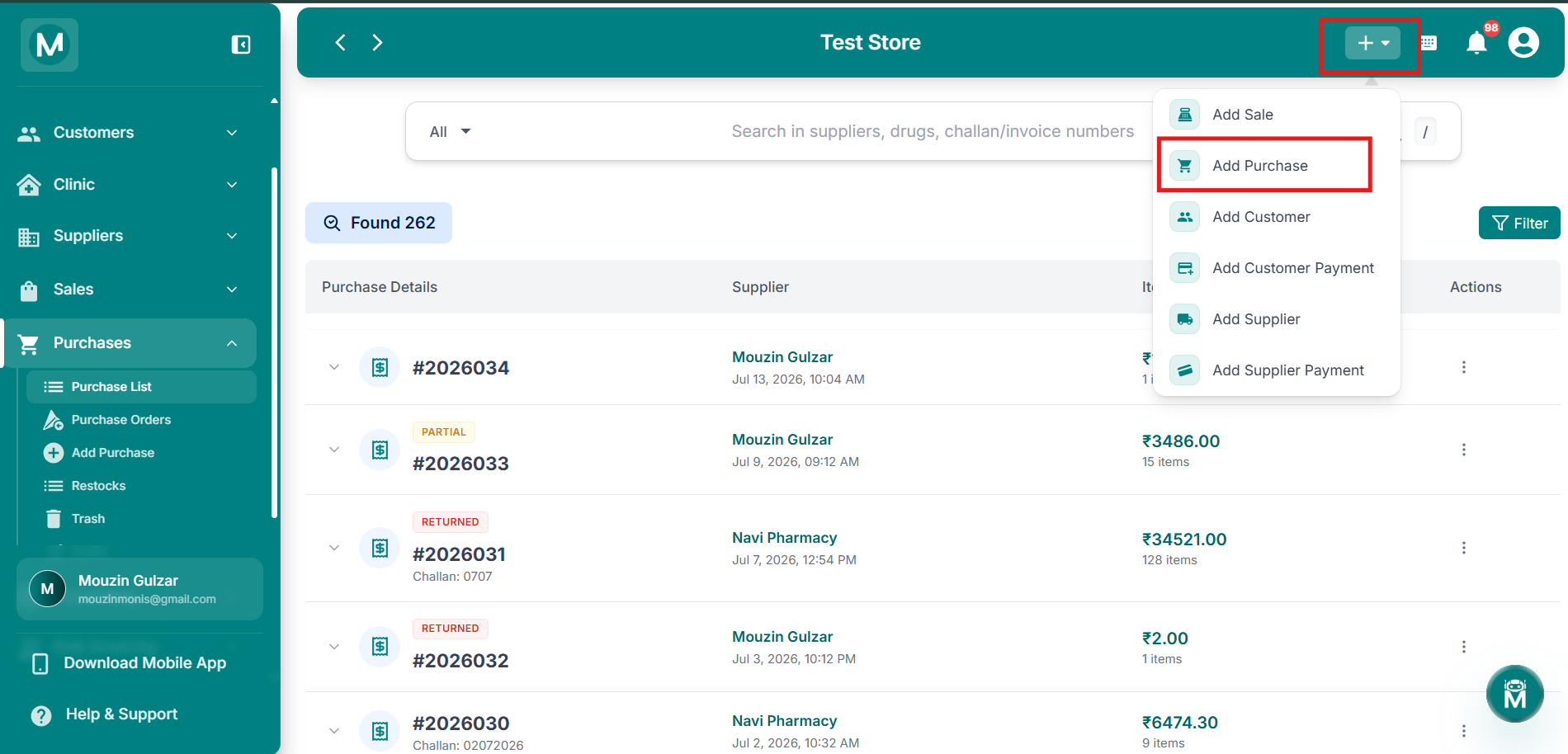
Quick Add Purchase
The + button in the top-right corner lets you start a new purchase from any screen.
Purchase List
The Purchase List is your complete purchase record. Each entry shows the purchase number, date and time, the supplier it was billed from, the total item count and amount, and a status tag where applicable, such as Partial (partially received) or Returned. Some entries also display a challan number alongside the purchase number. You can search by supplier, drug, or challan/invoice number, and filter the list to narrow results. Each purchase can be expanded for more detail or actioned from the row.
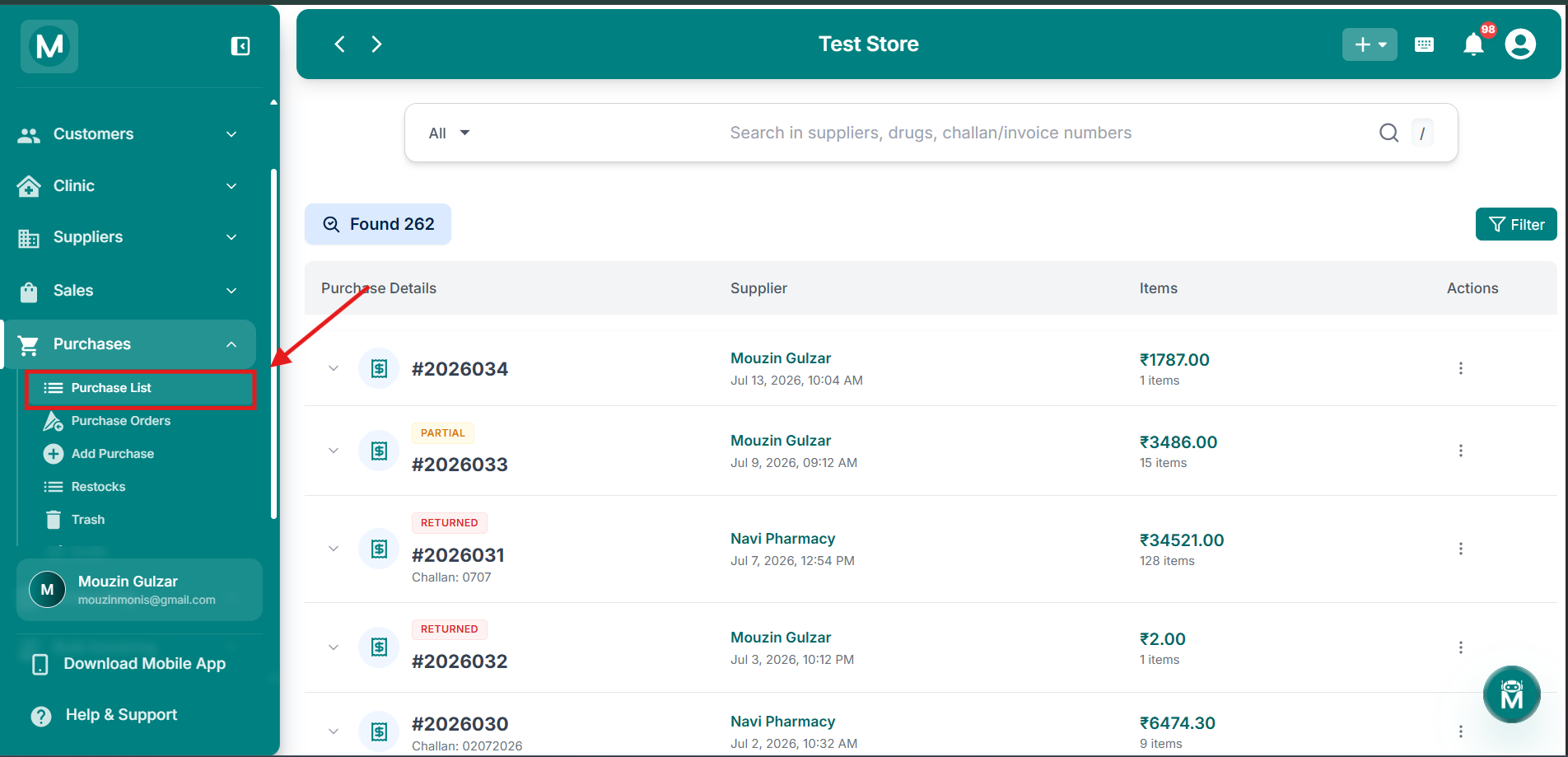
Purchase List
Complete purchase record with purchase number, supplier, item count, amount, and status tags.
Purchase Orders
The Purchase Orders page tracks orders raised with suppliers before stock physically arrives. Each order shows the order number, an Unpaid tag where relevant, the supplier, item count and amount, and a status such as Pending or Synced. Pending orders show quick approve/reject actions directly in the row, while synced orders use a standard actions menu. A counter at the top highlights how many orders are currently pending. You can search by supplier or drug name.
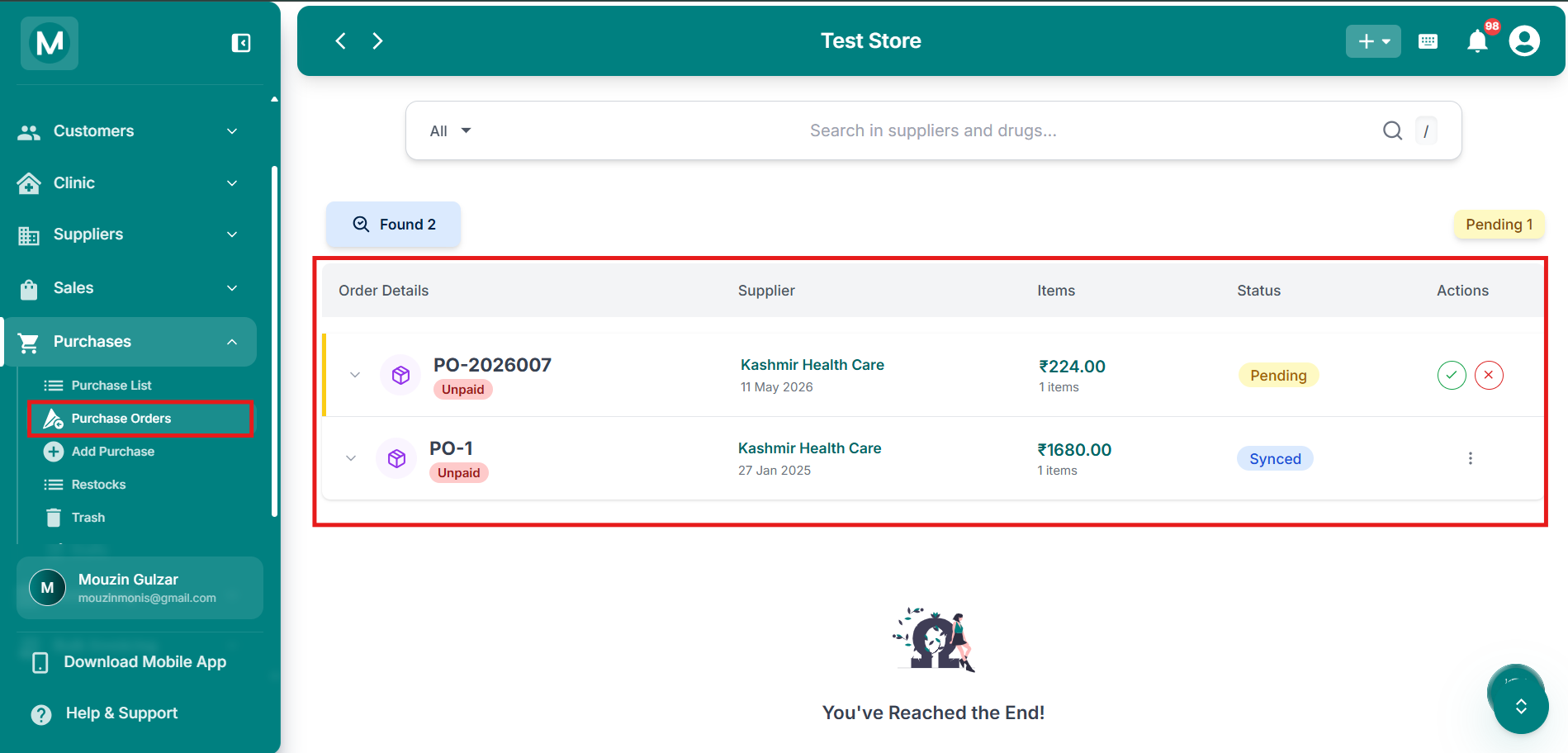
Purchase Orders
Track orders with suppliers, showing status, approve/reject actions, and pending count.
Add Purchase
The Add Purchase page is where you record a new purchase bill. Select the supplier, enter the invoice number and date, then add drugs to the bill either manually or via Scan (to auto-read a supplier invoice) or Import CSV. Each line item captures details such as type (e.g. Rx), units, HSN code, batch, expiry, quantity, packs, deal, free quantity, cost, trade price, and MRP. Clicking on a drug shows its purchase history and price comparison. The bill auto-calculates the subtotal, discount, tax, final bill amount, and margin. You can save the purchase as a draft or add it directly.
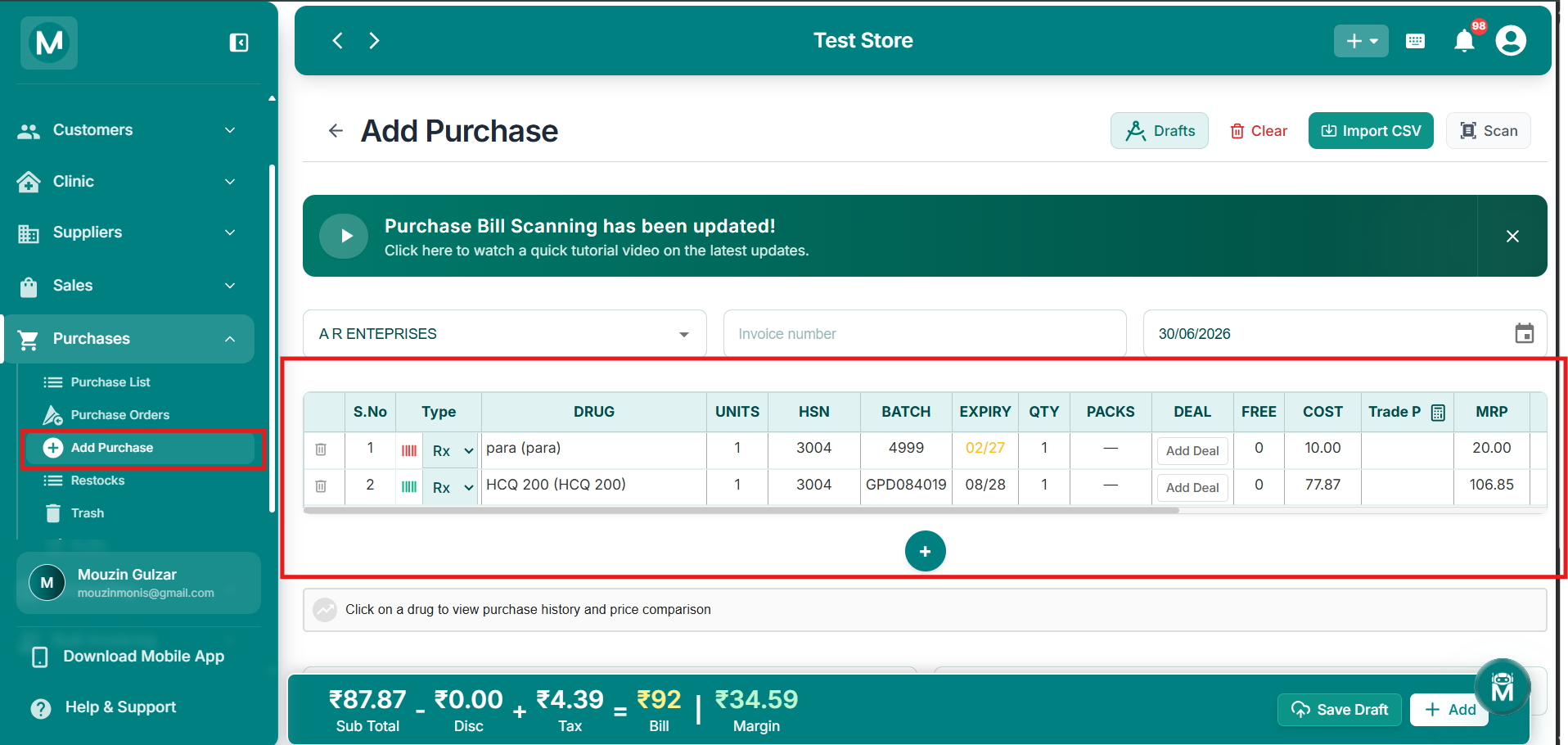
Add Purchase
Record a new purchase bill with manual entry, scan, or CSV import options.
Restocks
The Restocks page manages restock orders for drugs already in your inventory. You can search by brand, salt, drug class, or manufacturer, and filter by order status using the Filter by dropdown. When no restock orders exist, the page shows an empty state.
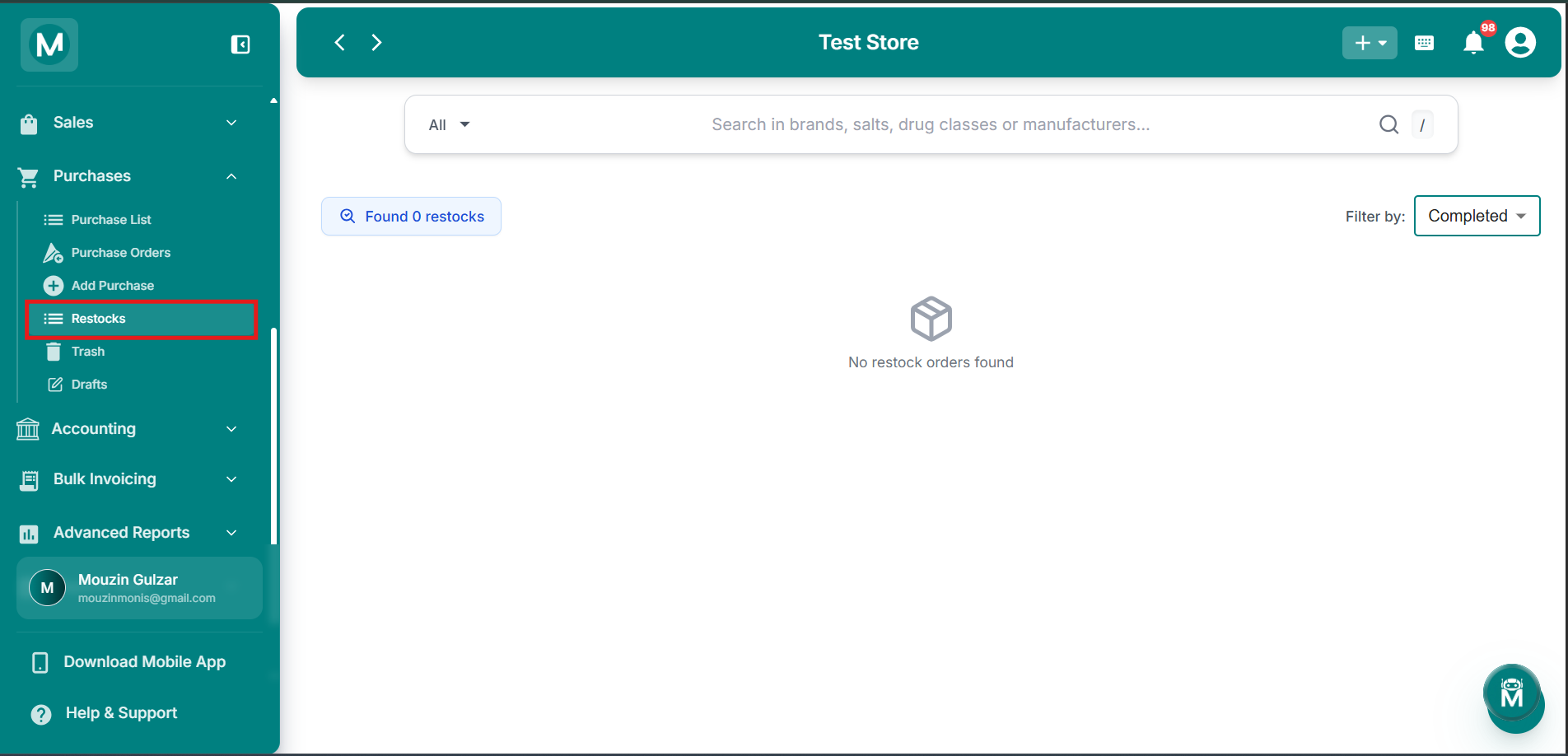
Restocks
Manage restock orders for existing inventory, with search and filter options.
Trash
The Trash page holds purchases that have been deleted. You can search by supplier, drug, or challan number, and reset filters if needed. When no deleted purchases match your search, the page displays an empty state.
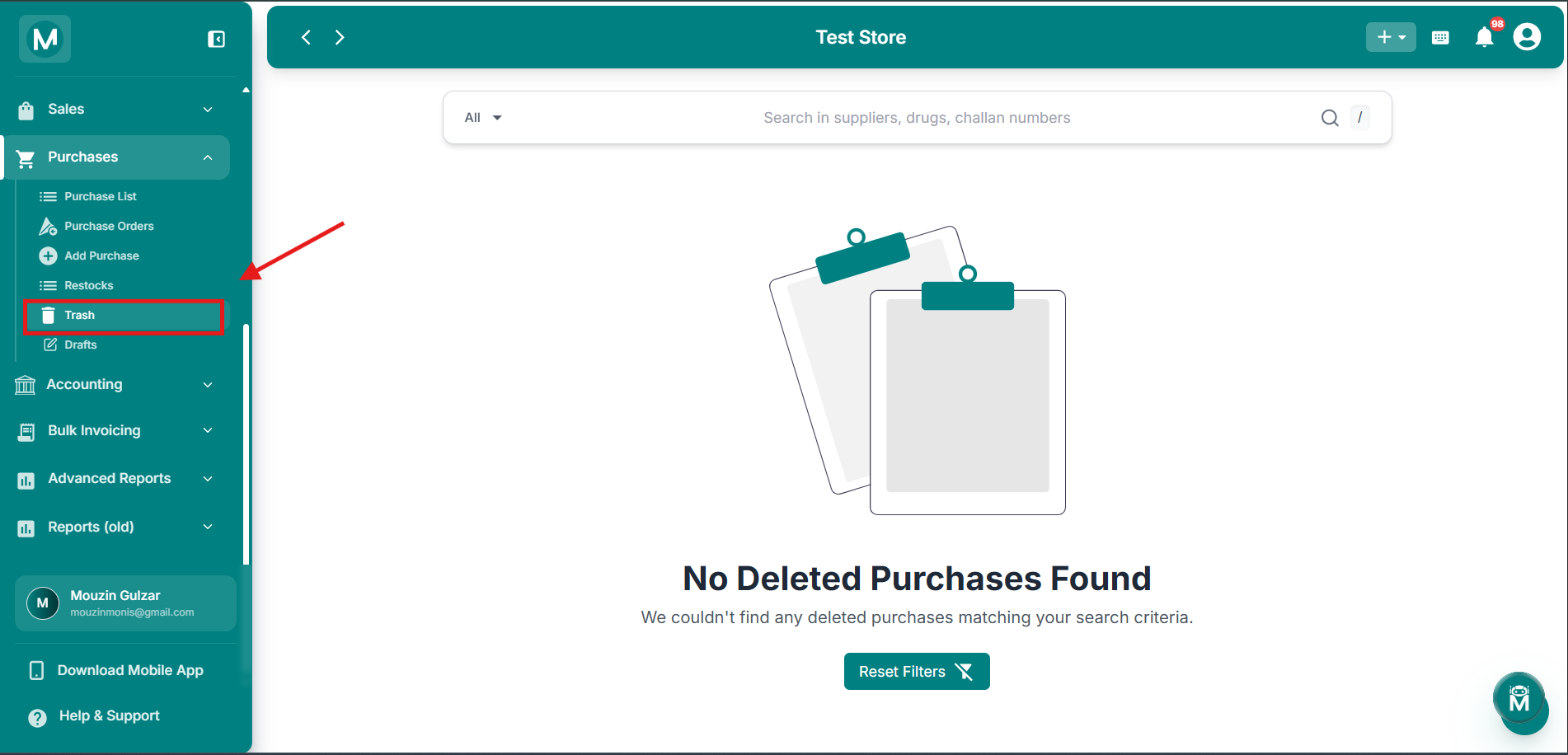
Trash
View and restore deleted purchases, with search by supplier, drug, or challan number.
Drafts
The Drafts page holds saved or scanned purchase bills that haven't been finalised yet. Drafts can be filtered by status, All, Awaiting, Scanning, Completed, or Failed, and each entry shows the draft ID, status, type, source (e.g. Scan), number of attached files, and date. This is where purchase bills scanned via the Add Purchase page land before they're reviewed and converted into a full purchase entry.
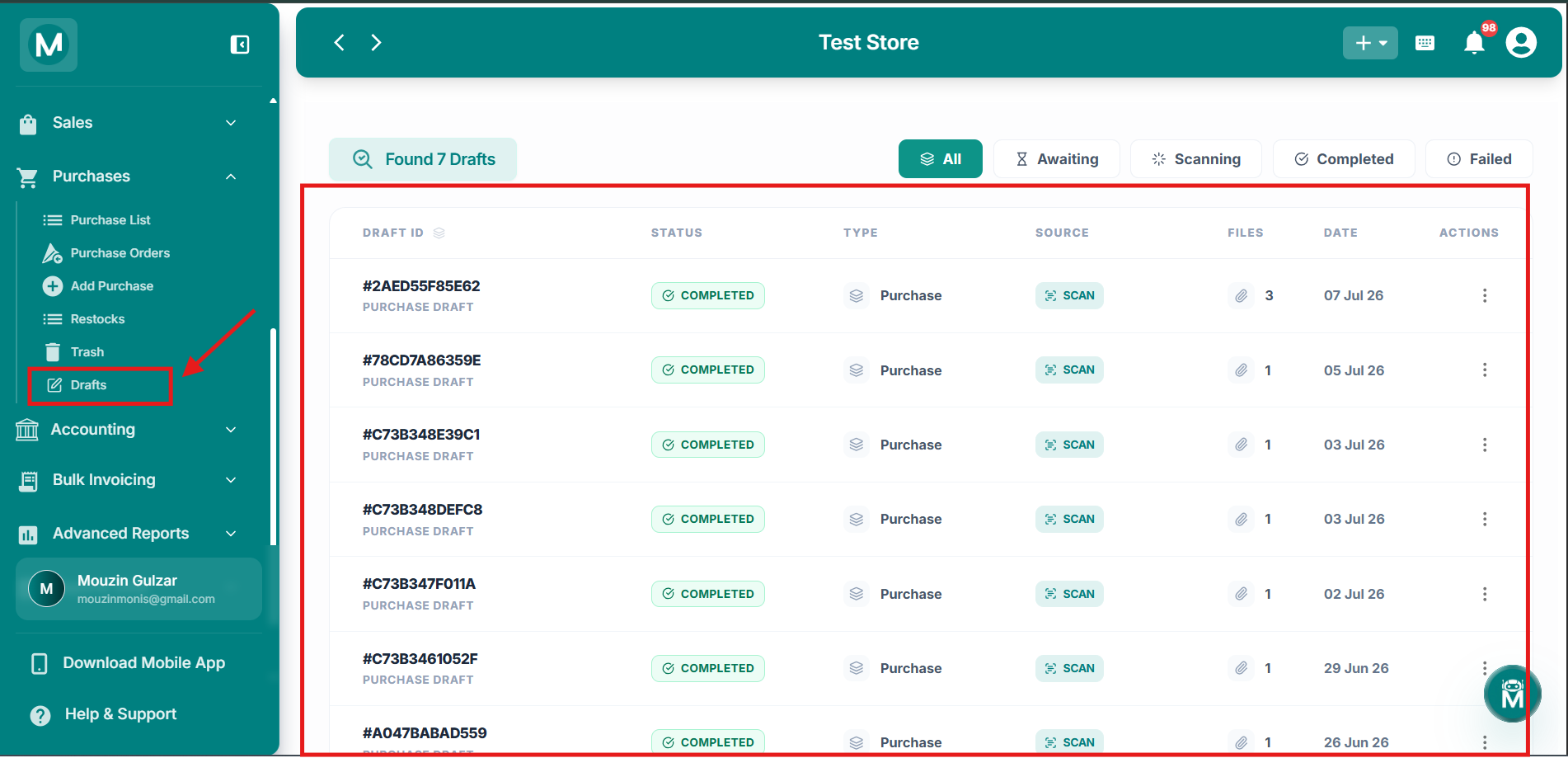
Drafts
Review and finalise scanned or saved purchase bills before converting to full entries.
Quick Tip
Use the Scan option on the Add Purchase page whenever you receive a physical supplier invoice, it saves you from manually typing out every drug, batch, and expiry, and the scanned bill lands in Drafts for you to review before finalising.
FAQs
Start Purchasing
Get stock into your pharmacy and keep your inventory up to date.
Add Purchase
Record a new purchase bill, scan supplier invoices, or import via CSV.
Purchase List
Review all recorded purchases, check status, and search by supplier or drug.
Supplier List
Manage your suppliers before recording purchases against them.
Drug List
Check current stock levels before placing restock orders.