
Daybook
View the daily record of all financial transactions in MediFlux. See money received, money spent, customer and supplier dues, and every journal entry for the selected period.
The Daybook is a chronological list of every financial transaction that affected your accounts during the selected period. It shows money that came in, money that went out, new customer dues, and new supplier dues, along with the full debit and credit details of each entry.
Navigate here from the sidebar: Accounting → Daybook.
By default the Daybook shows the current month. A newly initialized store will usually show only the Accounting Initialization entry and zero values in most summary cards.
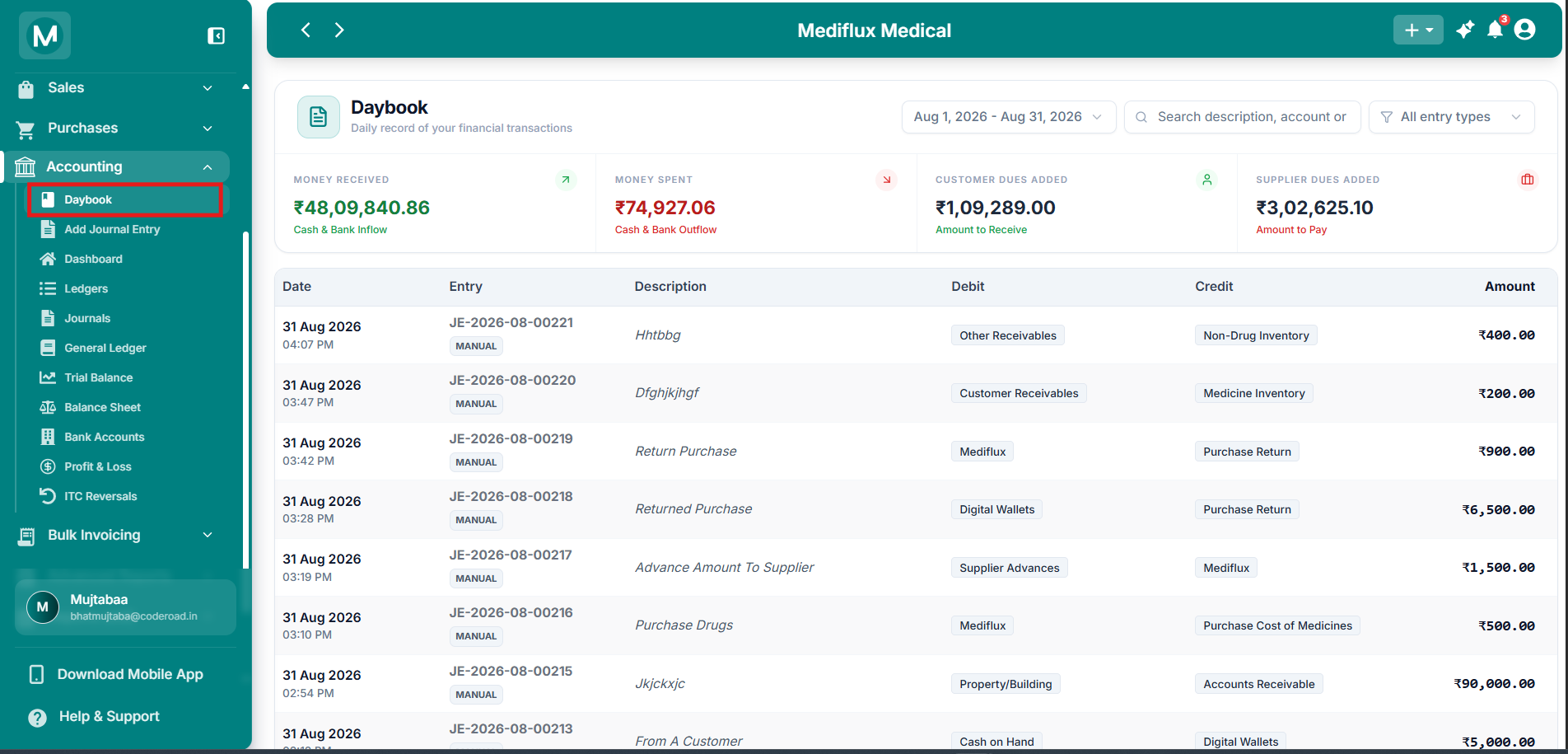
Daybook
Daybook overview of a mature store.
Summary cards
Four cards at the top give you a quick overview of the selected period.
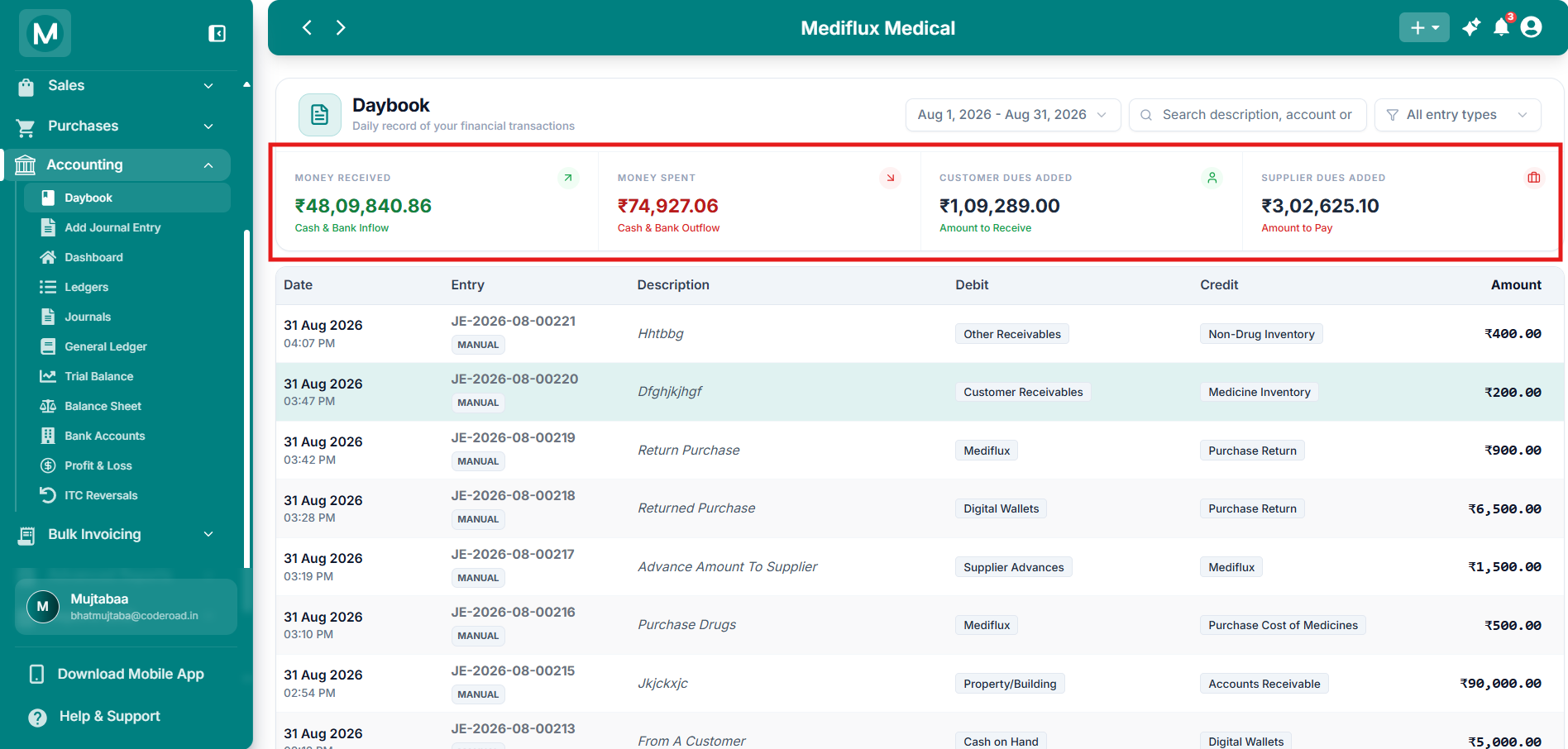
Summary Cards
Summary cards for money received, money spent, customer dues, and supplier dues.
Filtering the Daybook
Use the controls at the top to change the period or narrow the list.
Date range picker
Click the date range to open the calendar. You can pick custom dates or use the quick options:
Today · Yesterday · Last 7 days · Last 14 days · Last 30 days · This Week · Last Week · This Month · Last Month
Click Apply to update the Daybook.
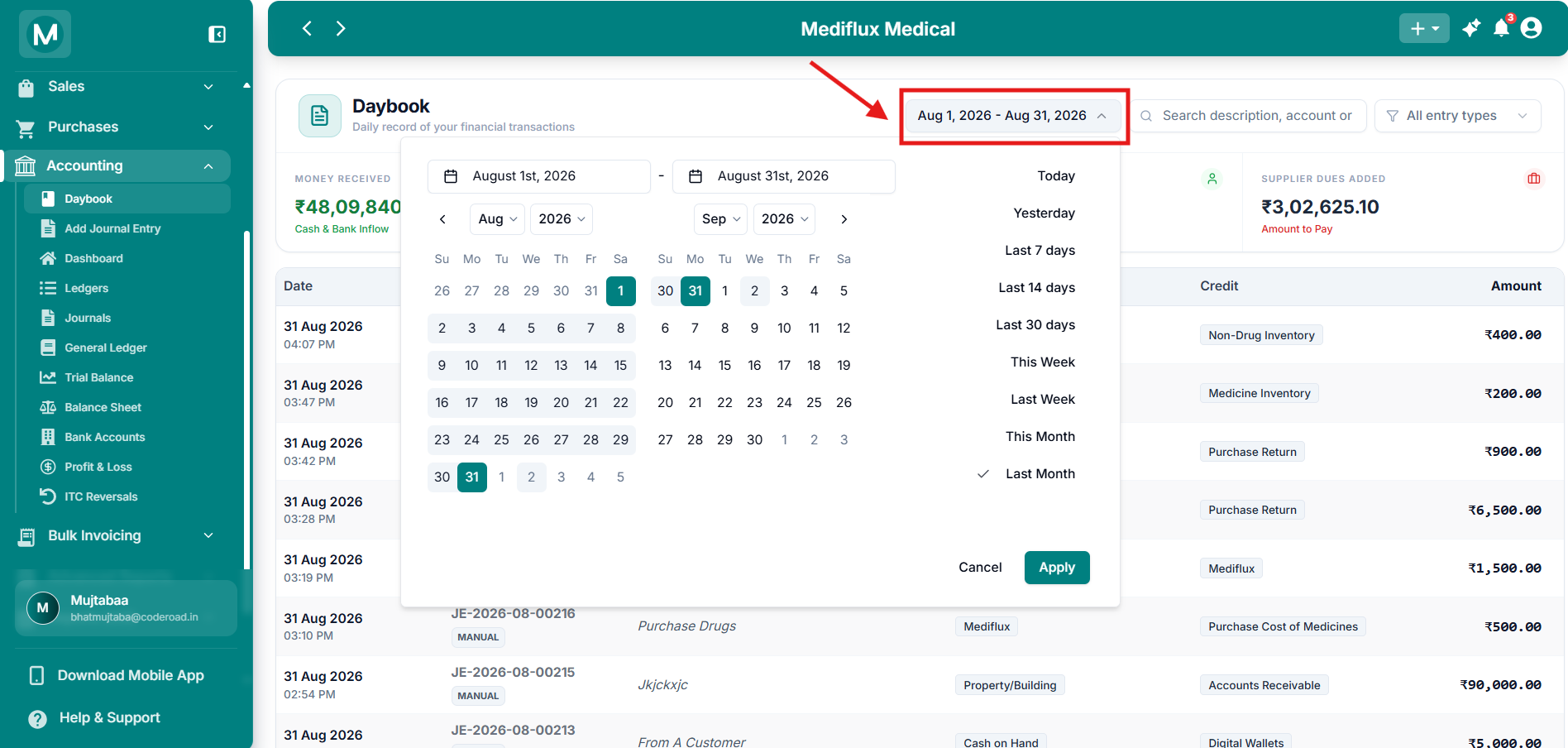
Date range picker
Calendar with quick filter options for common periods.
Entry type filter
Understanding the table
Clickable sale and purchase links
When a description contains a Sale or Purchase link (shown with an arrow icon), click it to open that specific sale or purchase document. This lets you jump straight from the Daybook to the original transaction.
Example entries of a test store
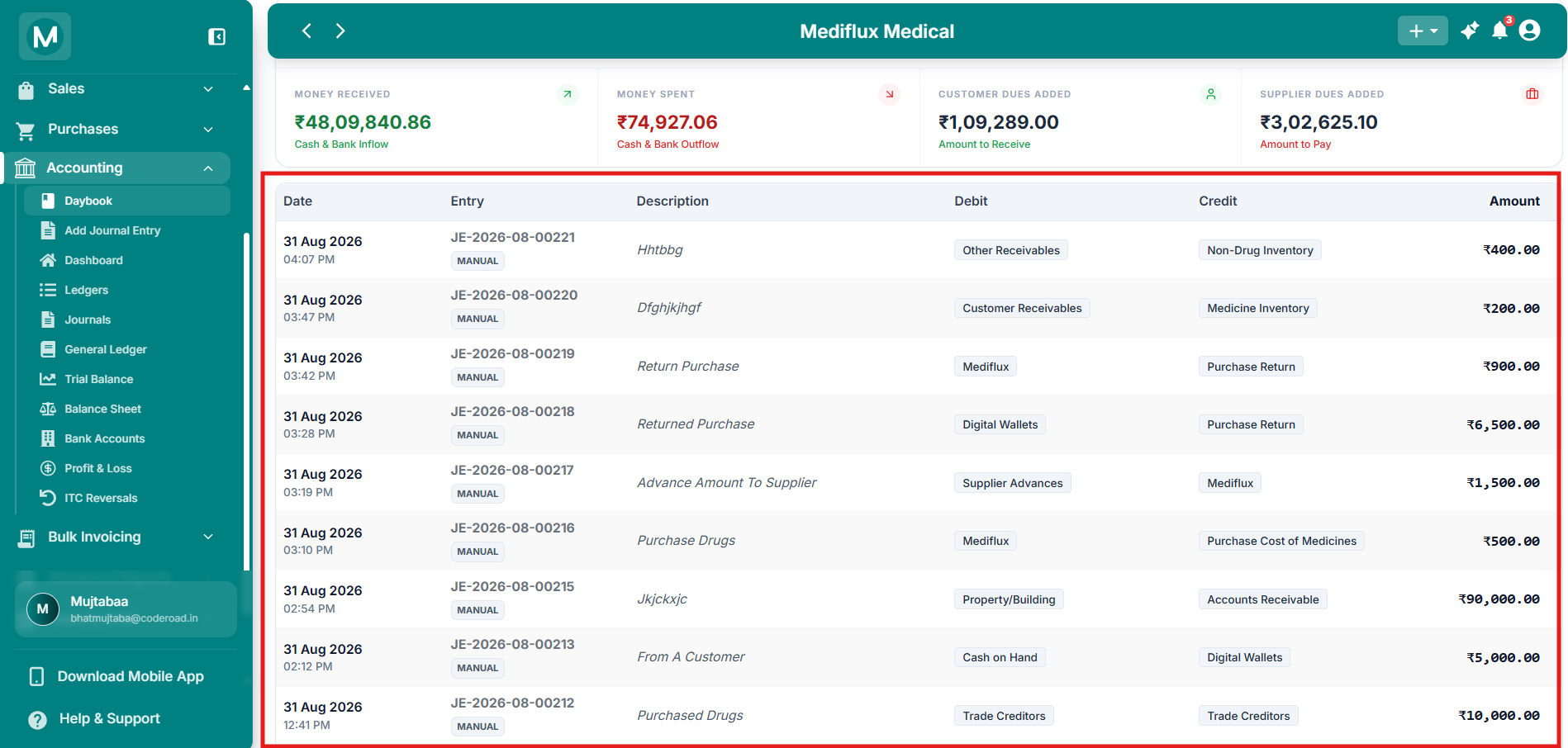
Auto-generated entries
Sale, credit note, stock adjustment, and return sale entries with linked descriptions.
Newly initialized stores
On a store that has just completed accounting setup you will typically see:
- Summary cards mostly at
₹0.00(except Supplier Dues Added if opening balances were entered) - A single entry with type ACCOUNTING INITIALIZATION
- Description: Entries Added On Initialization Of Chart Of Accounts
This is expected. More rows appear as soon as you record sales, purchases, payments, and manual journals.
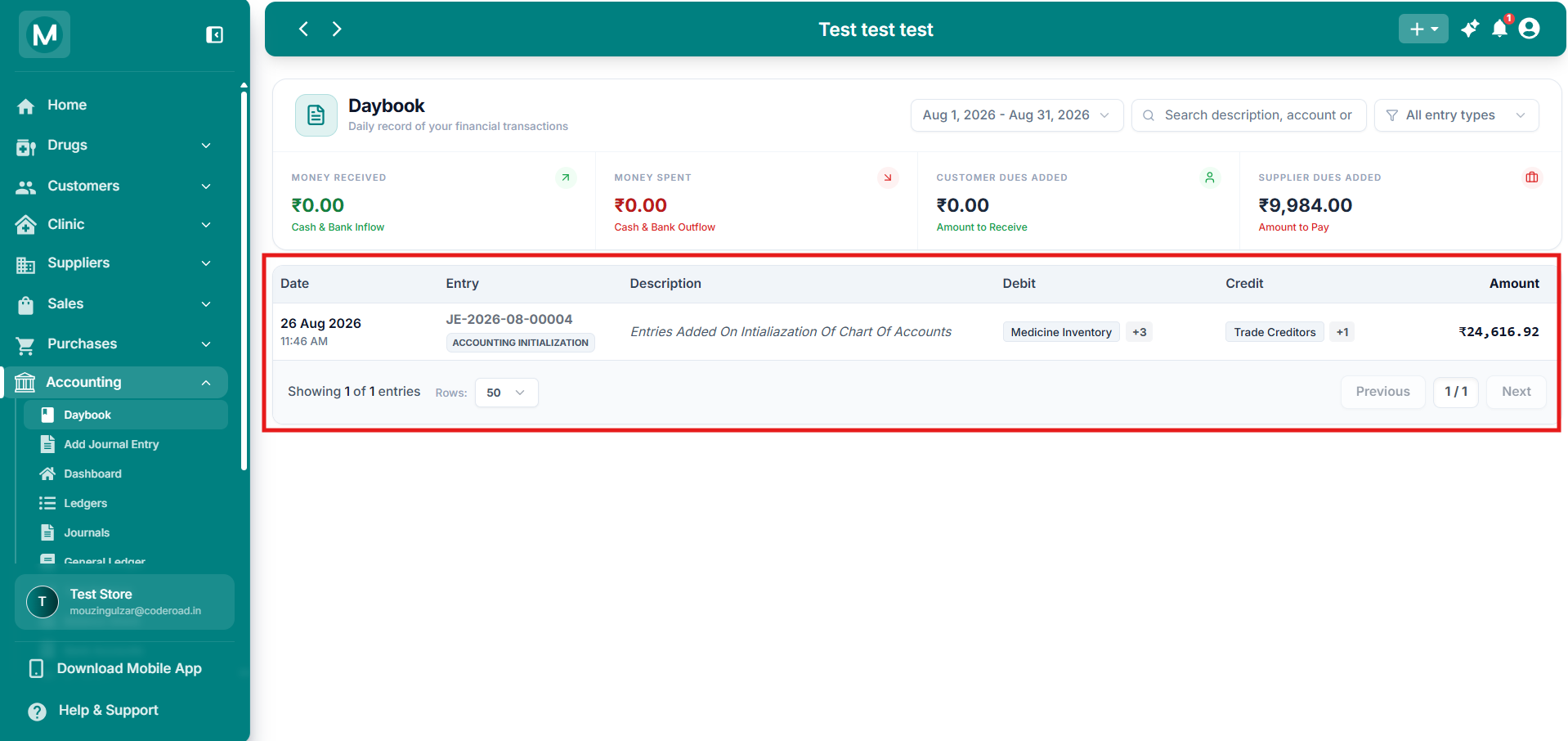
Daybook on a newly initialized store
Single Accounting Initialization entry with zero values in most summary cards.
Common mistakes
Looking at the wrong date range
The Daybook defaults to the current month. If the list looks empty or incomplete, open the date range picker and select a wider period or Last Month.
Missing the linked sale or purchase
Some descriptions show a Sale or Purchase link with an arrow. Clicking the link opens the original document. If you only read the text and ignore the link, you miss the fastest way to see full transaction details.