
Bill Templates
Customize your invoice template, theme color, columns, tax display, and terms and conditions.
The Bill Templates tab controls how your invoices look, the layout, which columns appear, tax display format, theme color, and the terms and conditions printed at the bottom. Changes here apply automatically to all future invoices.
Select Template
Choose from four invoice layouts:
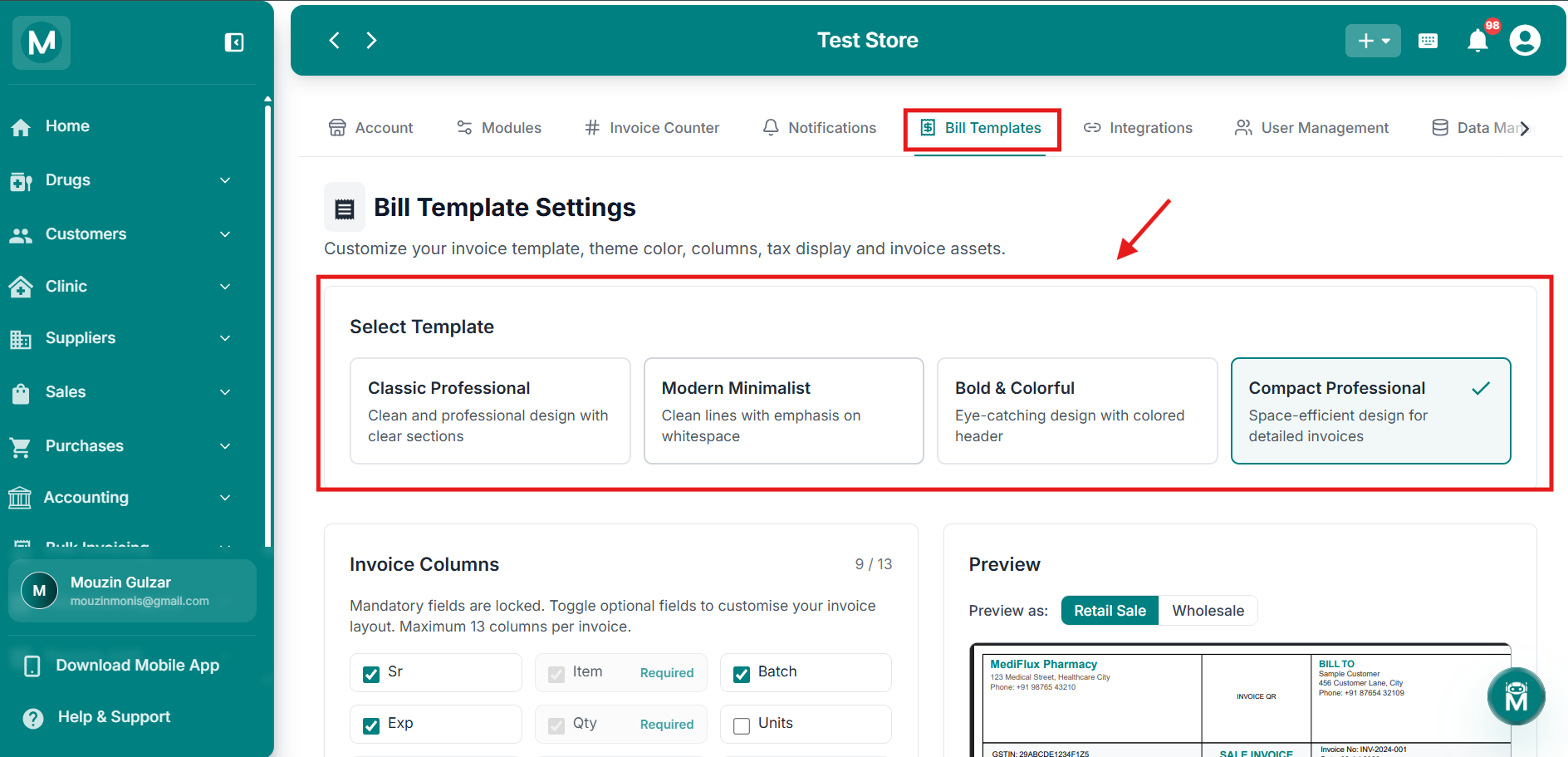
Select Template
Choose from four invoice layouts: Classic Professional, Modern Minimalist, Bold & Colorful, or Compact Professional.
Invoice Columns
Choose which columns appear on your invoice, up to a maximum of 13 columns. Some fields are mandatory and locked, shown as Required; the rest can be toggled on or off:
Tax Display Mode
Choose how tax is shown on your invoice:
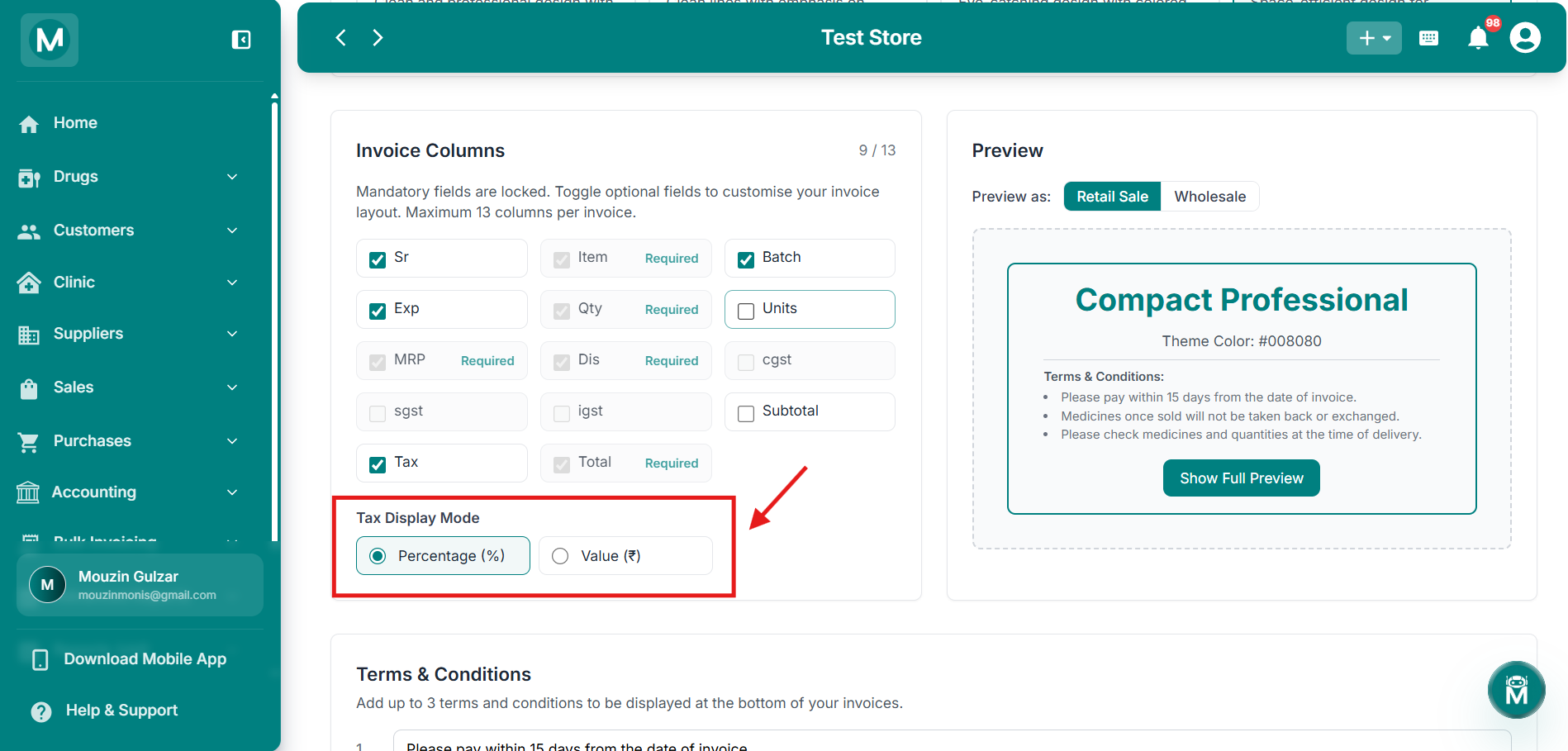
Invoice Columns
Toggle columns on or off, with mandatory fields locked as Required.
Terms & Conditions
Add up to 3 terms and conditions to be displayed at the bottom of your invoices, for example, payment terms or return policies.
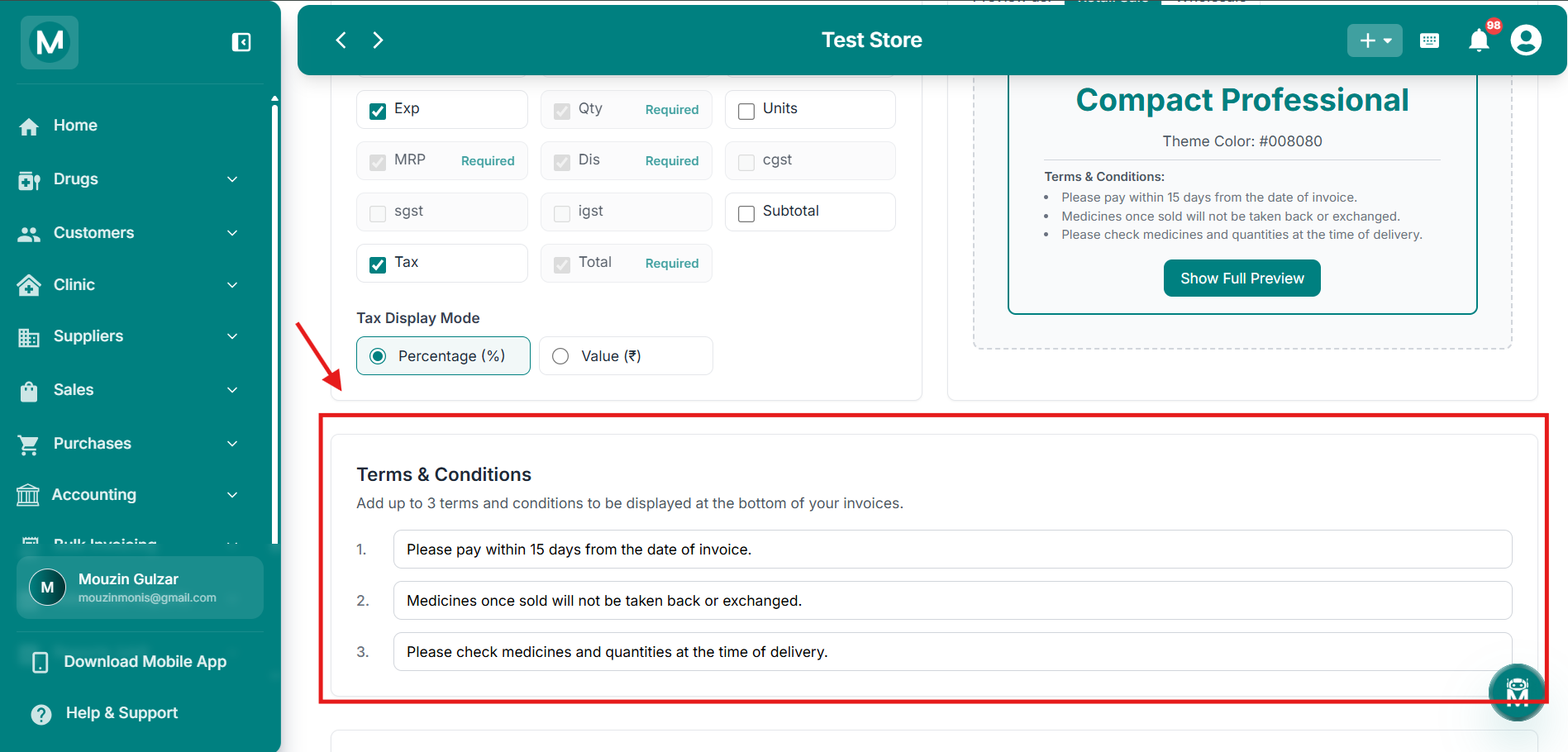
Terms & Conditions
Add up to 3 custom terms to appear at the bottom of every invoice.
Colors
Choose a theme color for your invoice from a preset palette, or enter a custom hex code directly.
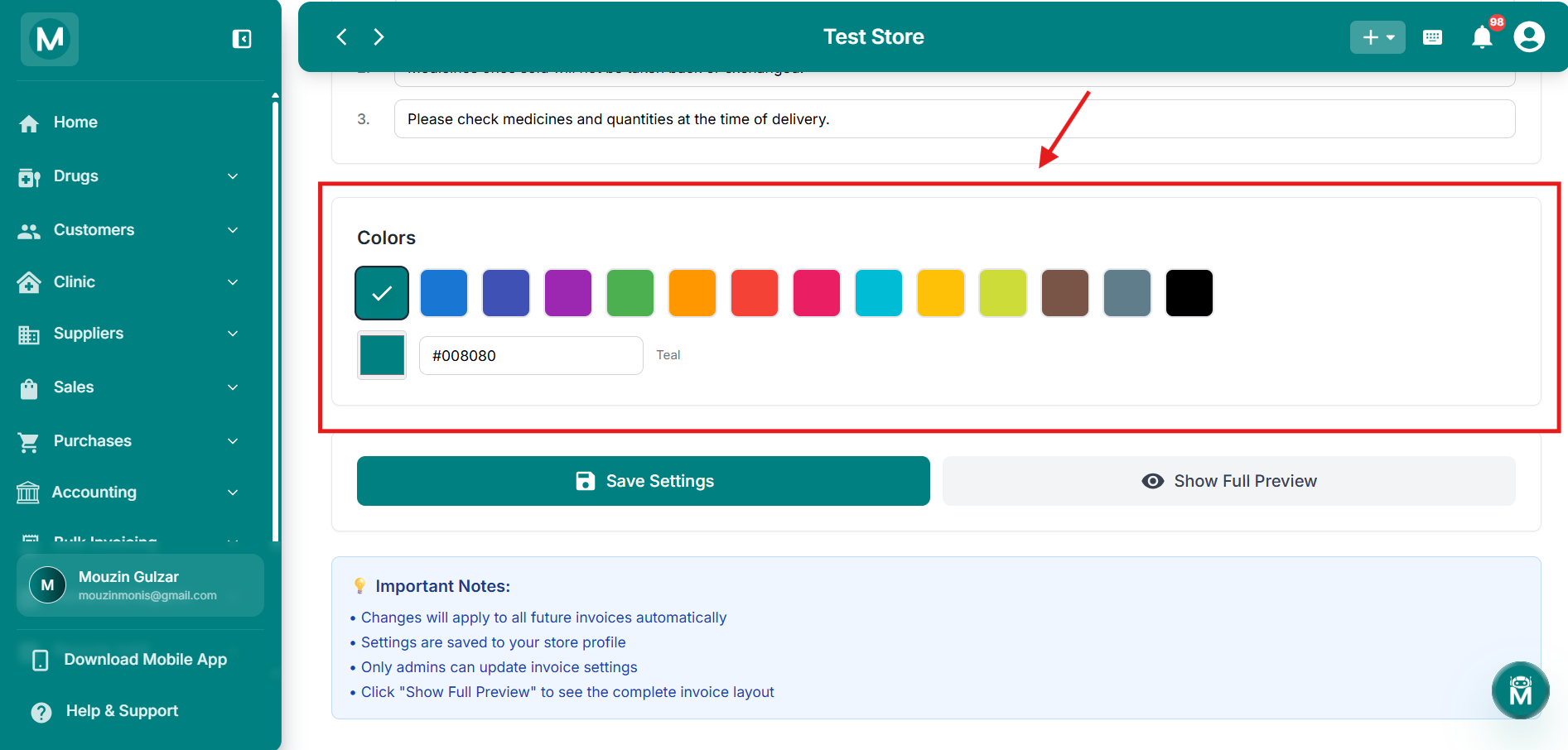
Colors
Pick a preset theme color or enter a custom hex code.
Preview
The Preview panel on the right shows a live preview of your invoice as you make changes. Toggle Preview as between Retail Sale and Wholesale to see how the template looks for each. Click Show Full Preview to see the complete invoice layout.
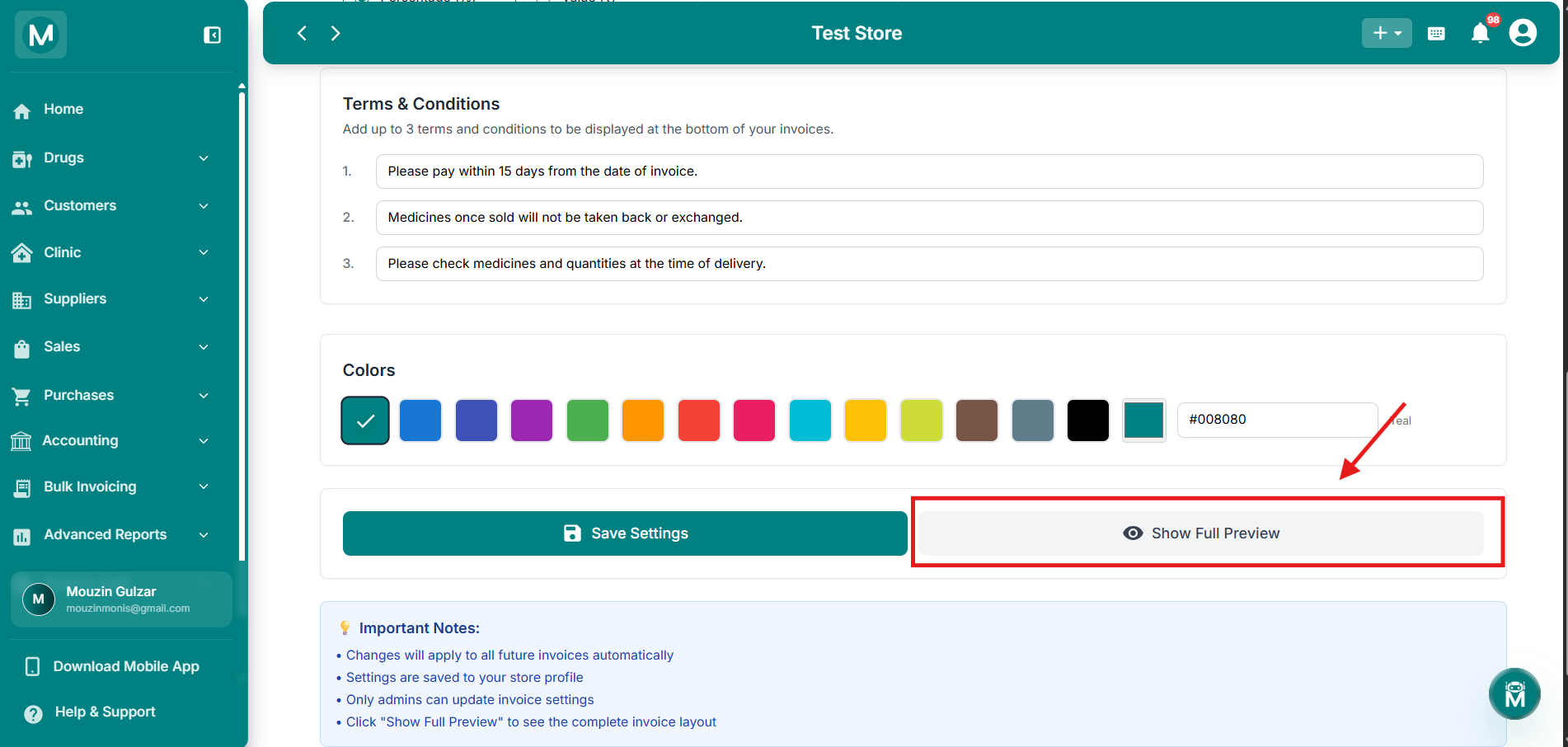
Preview Panel
Live preview of your invoice with Retail Sale and Wholesale toggle.
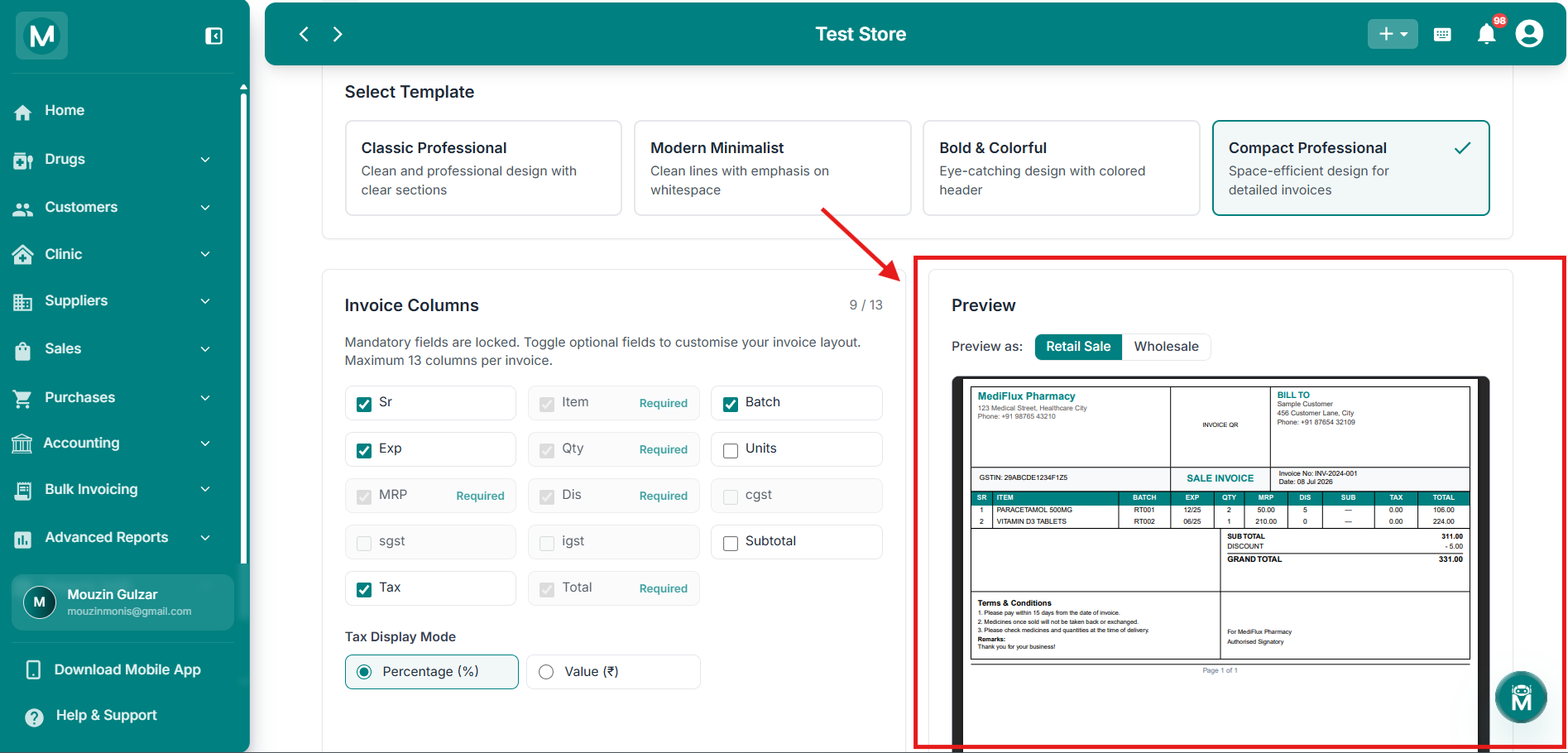
Full Invoice Preview
Complete invoice layout before saving.
Saving Your Template
Click Save Settings to apply your changes.
Changes apply to all future invoices automatically. Settings are saved to your store profile, and only admins can update invoice settings.
FAQs
Common Mistakes To Avoid
- Removing too many optional columns: while allowed, leaving out useful fields like Batch or Expiry can make your invoices harder to reference later
- Forgetting to click Save Settings: changes aren't applied until saved
- Not checking the full preview before saving: always use Show Full Preview to confirm your invoice looks correct for both Retail Sale and Wholesale
See It In Action
Your invoice layout is ready. Create a bill and preview how it looks with real data.
Add Sale
Create a retail or wholesale sale and see your customized invoice template live.
Add Purchase
Record a purchase and check how your template handles supplier invoices.
Invoice Counter
Review or adjust your invoice numbering format to match your new template style.
Account
Make sure your store logo, signature, and stamp are uploaded, they appear on every invoice.