
Supplier List
View and manage all your suppliers, filter by outstanding dues, sort by margin or payment status, and take quick actions from one place.
The Supplier List is your main directory of all suppliers added to your pharmacy. It gives you a real-time snapshot of outstanding dues, margin performance, and supplier details, all in one scrollable table.
Summary Cards
At the top of the page, four summary cards give you an at-a-glance overview of your entire supplier network:
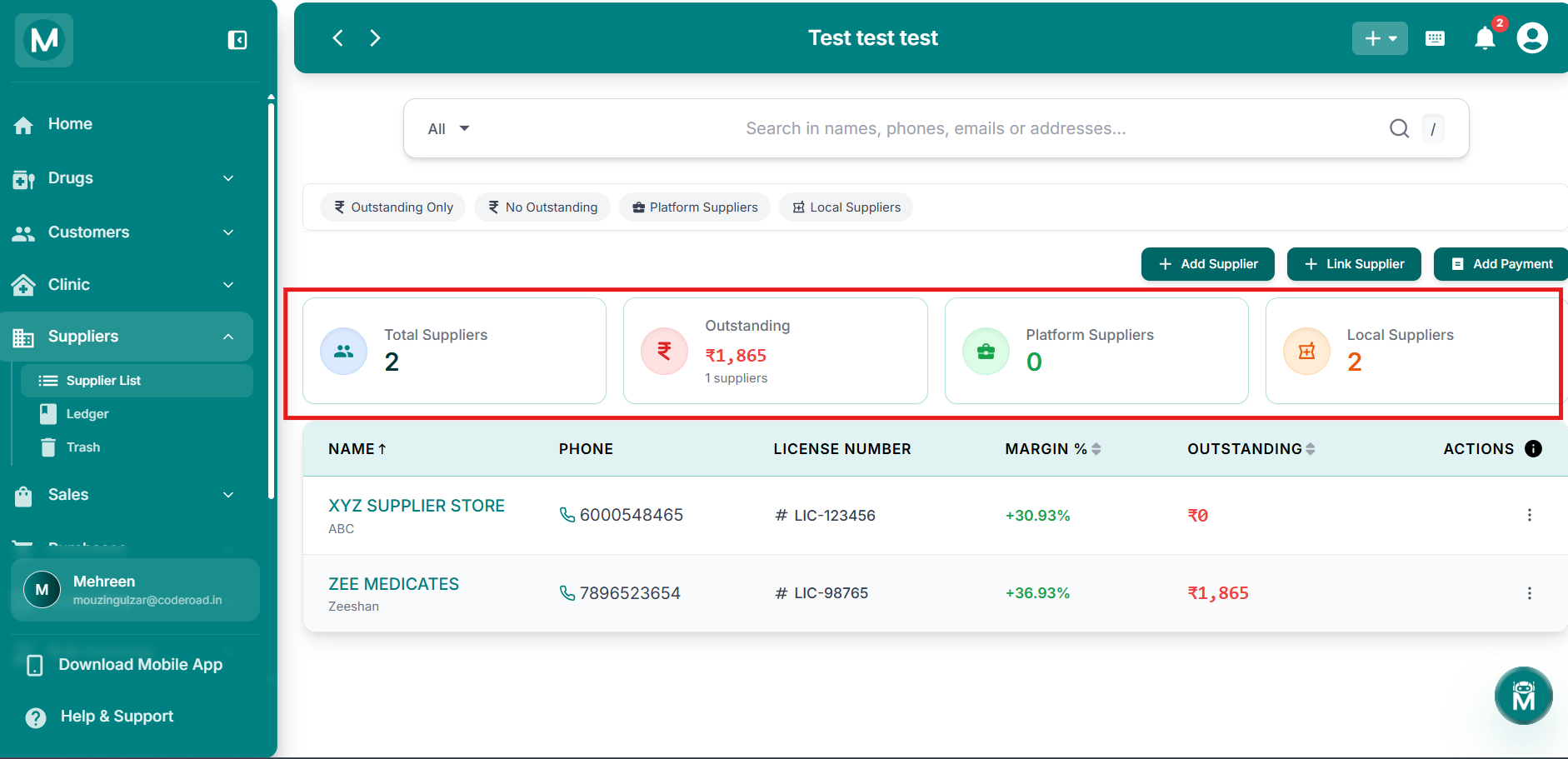
Summary cards
Four summary cards at the top of the Supplier List page.
Searching Suppliers
The search bar at the top lets you search across names, phone numbers, emails, and addresses. Just start typing and the list filters instantly.
To the left of the search bar is an All dropdown. Use it to narrow the search scope if needed.
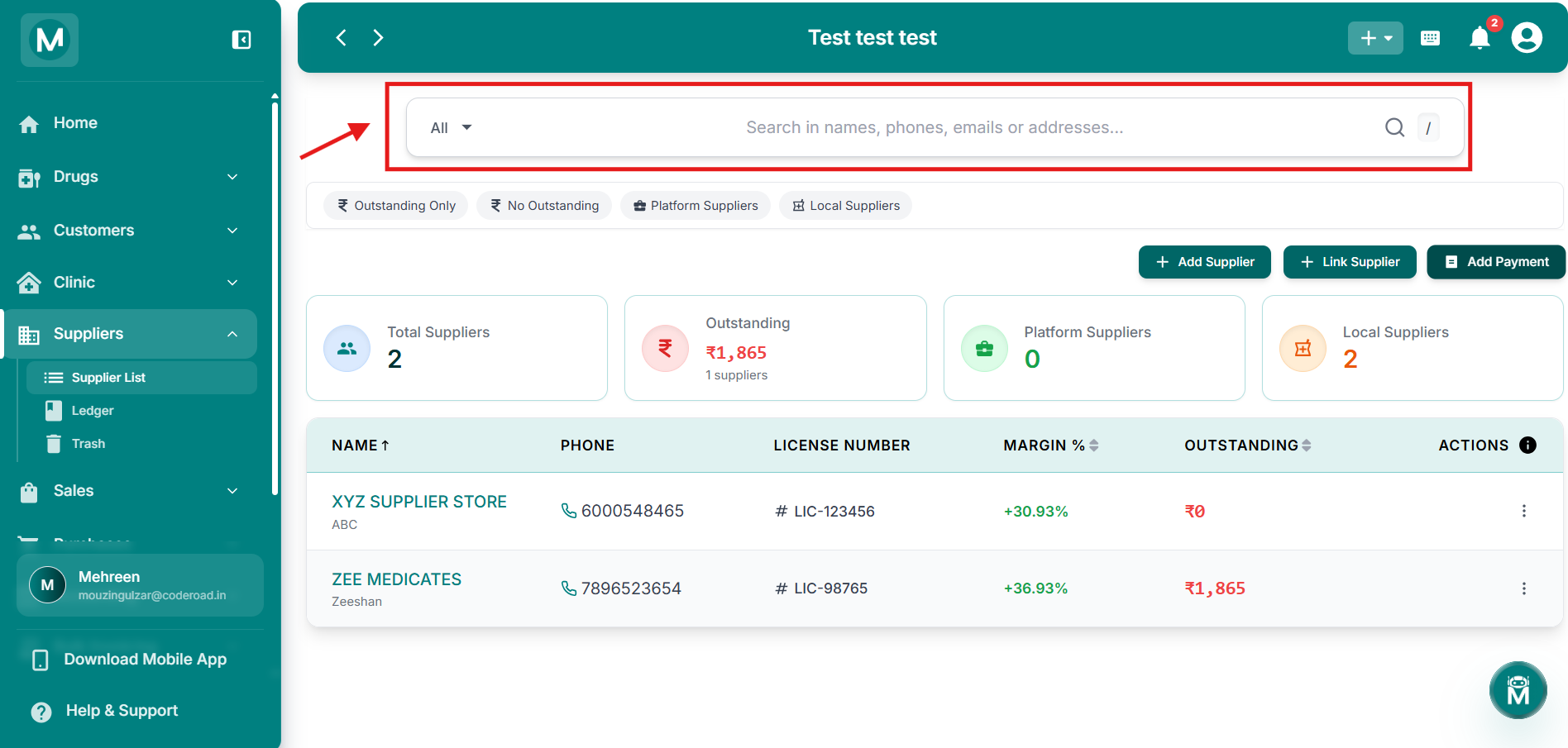
Search bar
Search across names, phone numbers, emails, and addresses.
Filter Chips
Below the search bar, four quick-filter chips let you slice the list instantly. Click a chip to apply it, click again to remove it:
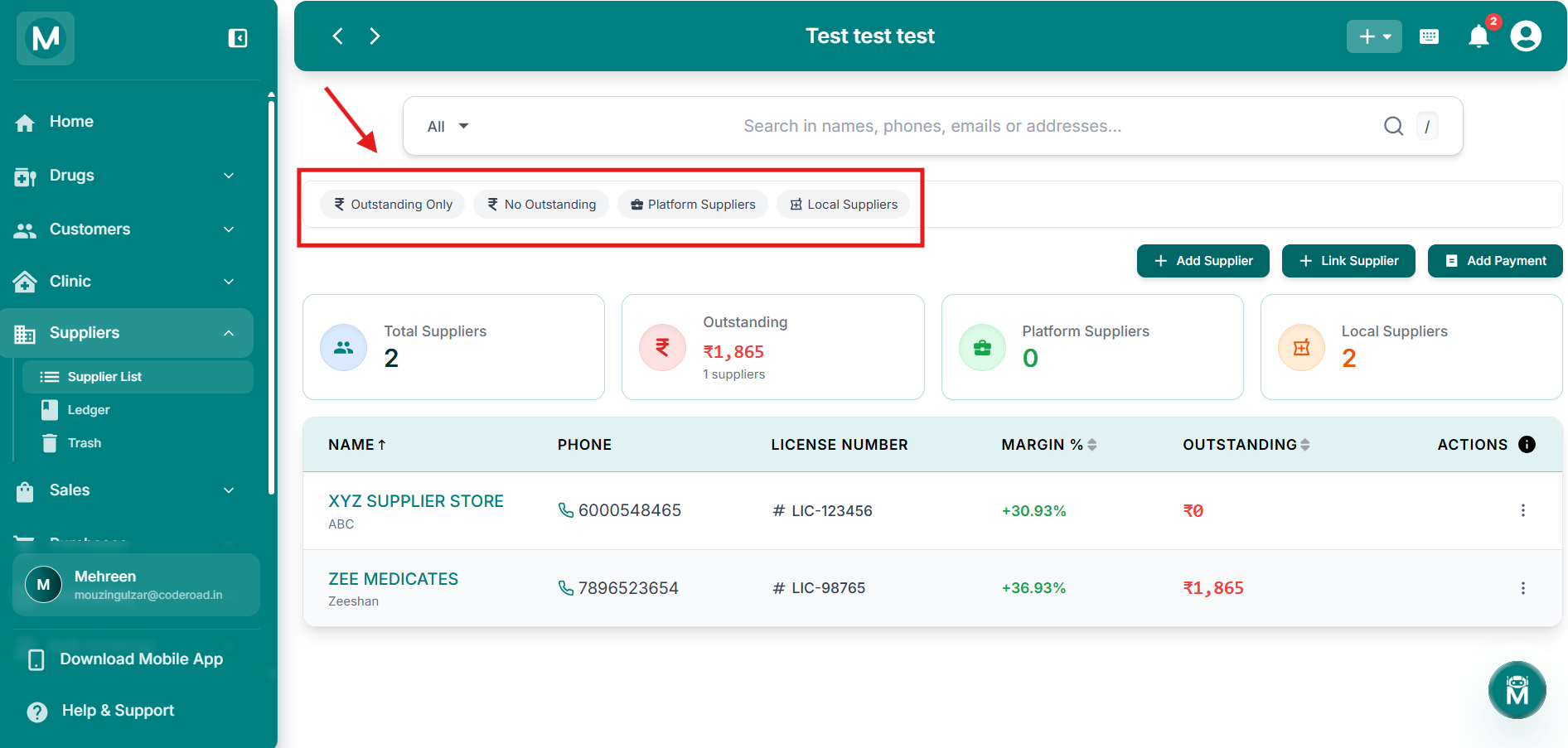
Filter chips
Quick-filter chips for slicing the supplier list.
The Supplier Table
The main table lists all your suppliers with the following columns:
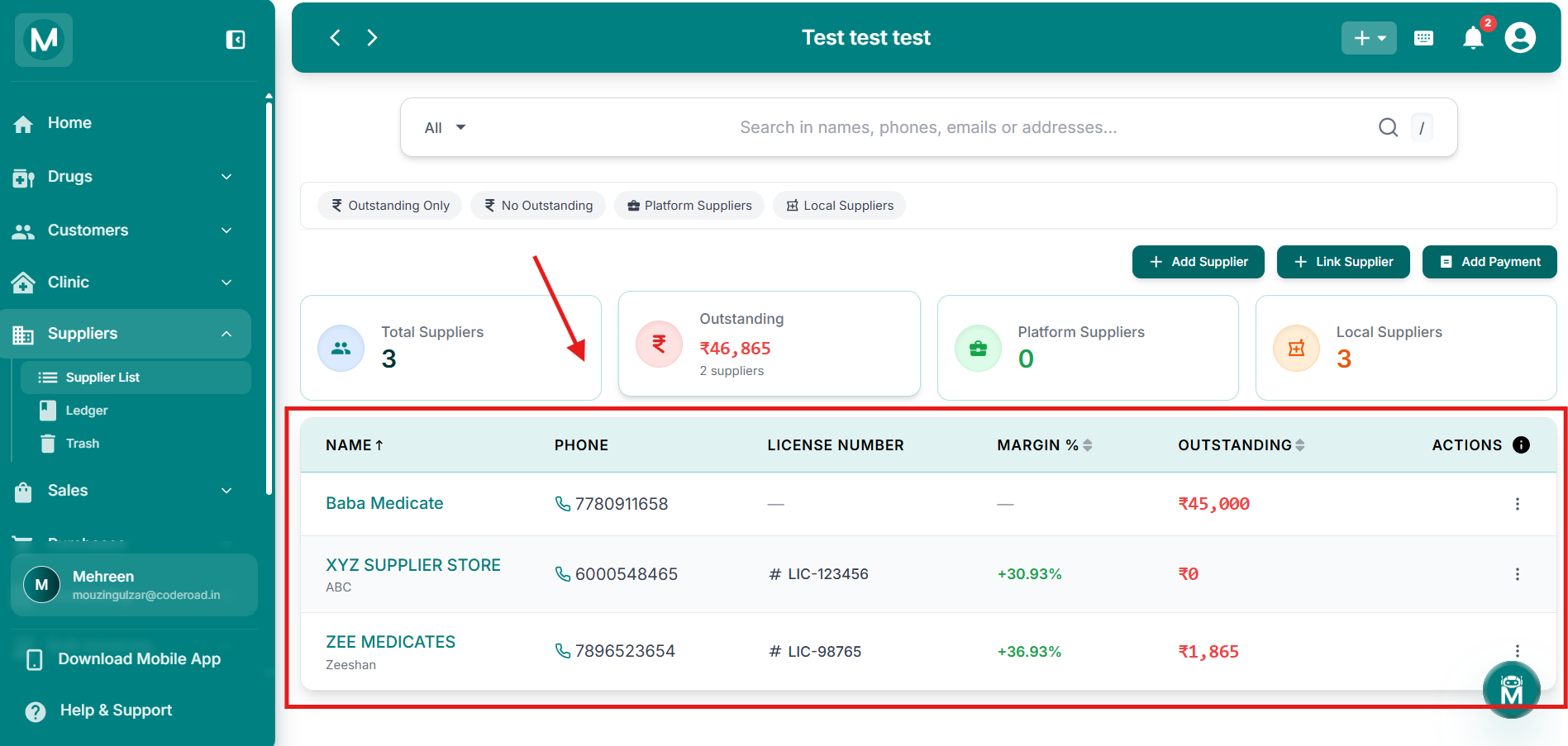
Supplier table
Main table listing all suppliers with details and actions.
Sorting The Table
The Margin % and Outstanding columns are sortable. Click the column header to toggle between ascending and descending order. The small up/down arrows next to the header show the current sort direction.
This is useful for quickly spotting:
- Suppliers with the highest pending dues
- Suppliers giving you the best or worst margin on purchases
Tip: Sort by Outstanding to instantly see which suppliers you owe the most money to. Click again to reverse the order and find fully paid suppliers.
Row Action, View Ledger
Clicking the three-dot menu (⋮) at the end of any supplier row gives you one quick action:
- View Ledger: jumps directly to that supplier's ledger entries
To access the full supplier profile, click on the supplier name directly in the table.
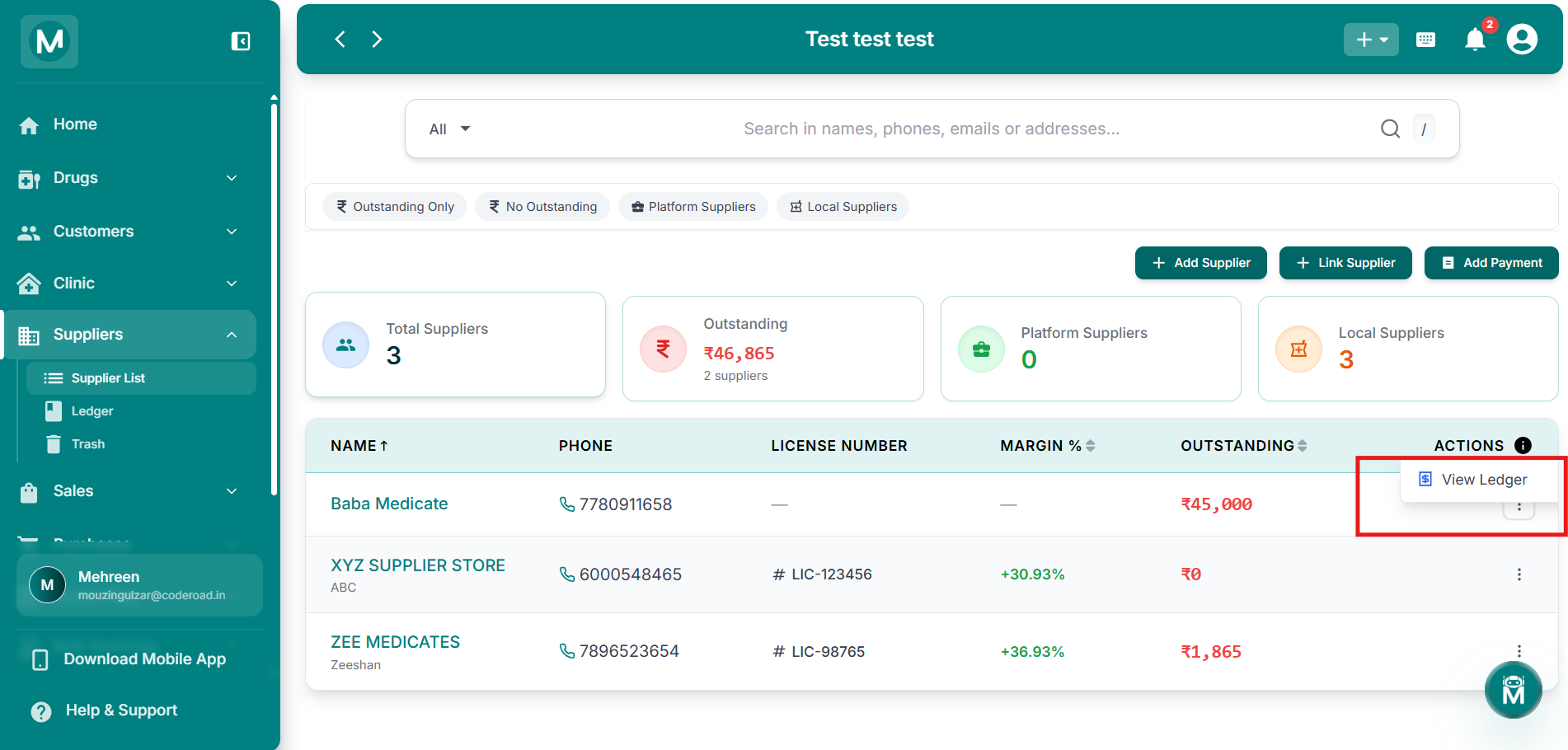
Row actions
Three-dot menu open showing View Ledger option.
Adding A Supplier
Click + Add Supplier at the top-right of the page to create a new supplier profile. See Add a Supplier for a full walkthrough.
Common Follow-Ups
Supplier Ledger
Check outstanding dues and record payments to suppliers.
Add a Supplier
Create a new supplier profile if someone is missing from the list.
Customer List
Manage customers who might also be suppliers in wholesale scenarios.
Drug List
Check stock levels before placing new orders with suppliers.