
Doctor Dashboard
A quick look at what a doctor can see and do once their account is created, including prescriptions, schedules, and appointments.
Once an admin creates a user account for a doctor from the Doctors page, the doctor gets their own login to MediFlux. Signing in takes them straight into the Clinic section, scoped to just their own work: their prescriptions, their schedules, and their appointments.
A doctor's login only gives them access to the Clinic section. They won't be able to view or manage other parts of MediFlux like Sales, Inventory, or Customers.
The Doctor Sidebar
Doctors see a simplified version of the Clinic sidebar, with five sections:
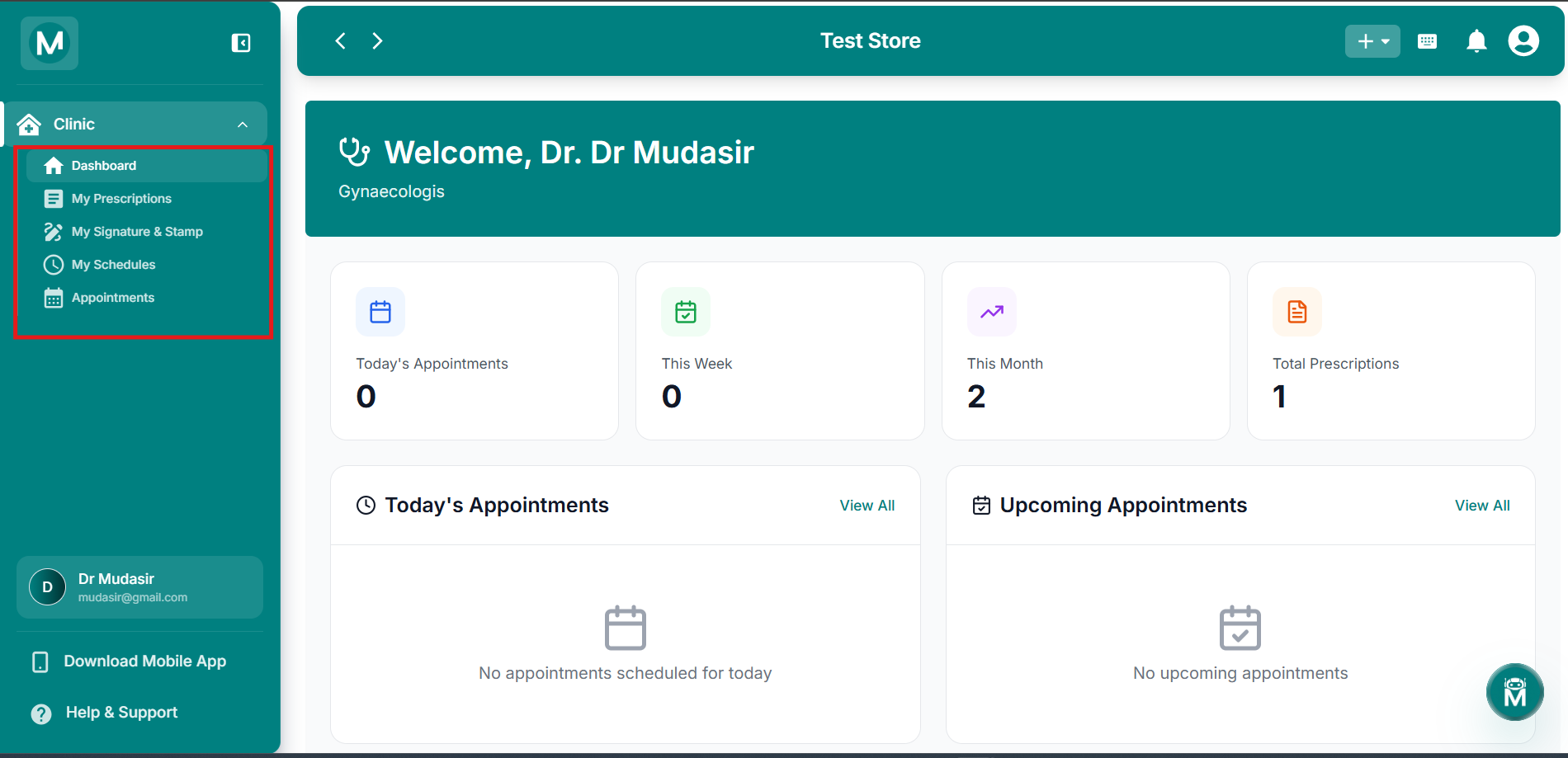
Doctor sidebar
Simplified Clinic sidebar with Dashboard, Prescriptions, Signature and Stamp, Schedules, and Appointments
Dashboard
The Dashboard is the doctor's landing page after login. It opens with a welcome banner showing the doctor's name and speciality, followed by four stat cards:
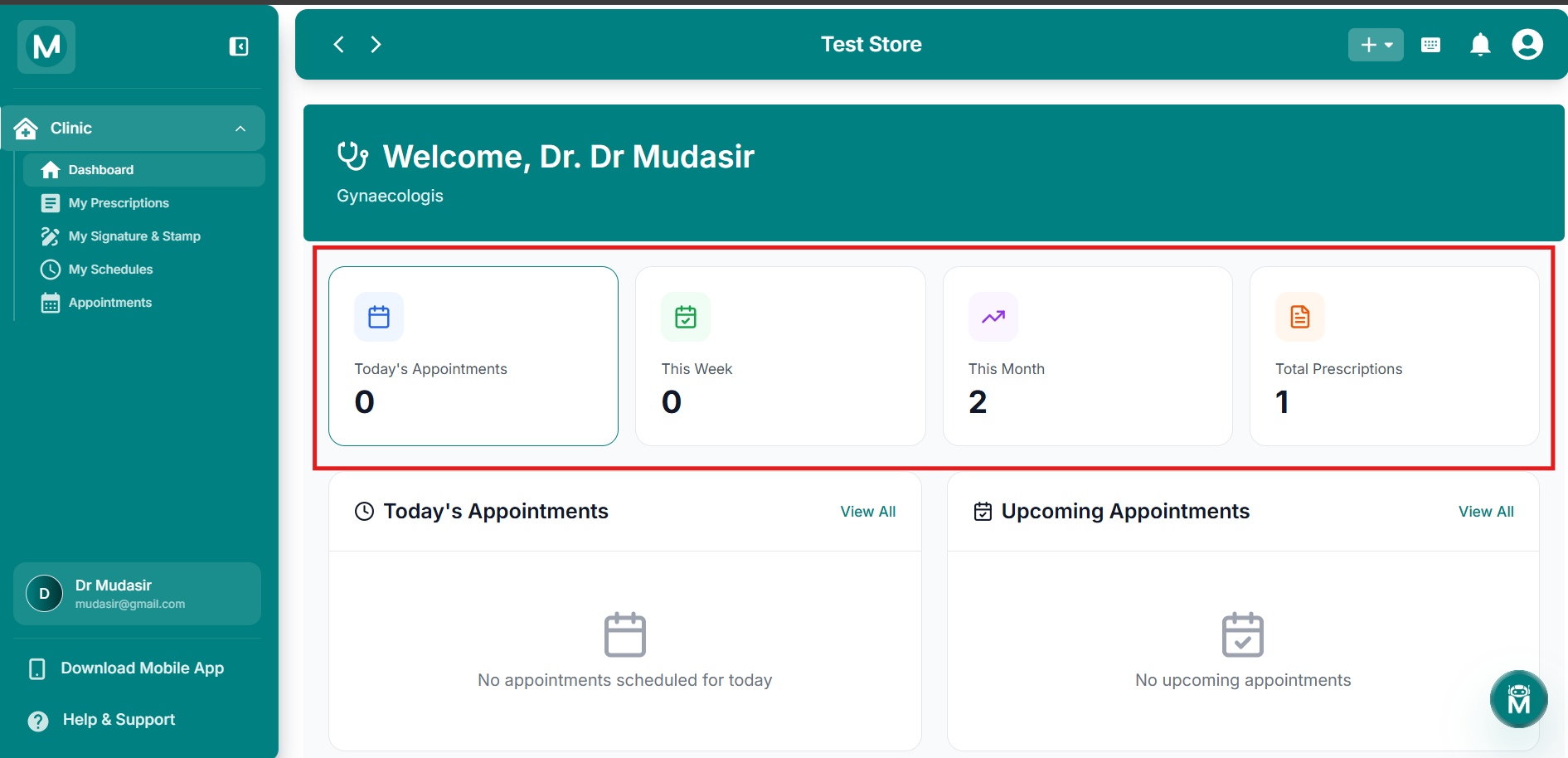
Doctor dashboard overview
Welcome banner with stat cards for appointments and prescriptions
Below the stat cards are three panels:
Each of the Today and Upcoming Appointments panels has a View All link, and the Active Schedules panel has a Manage Schedules link.
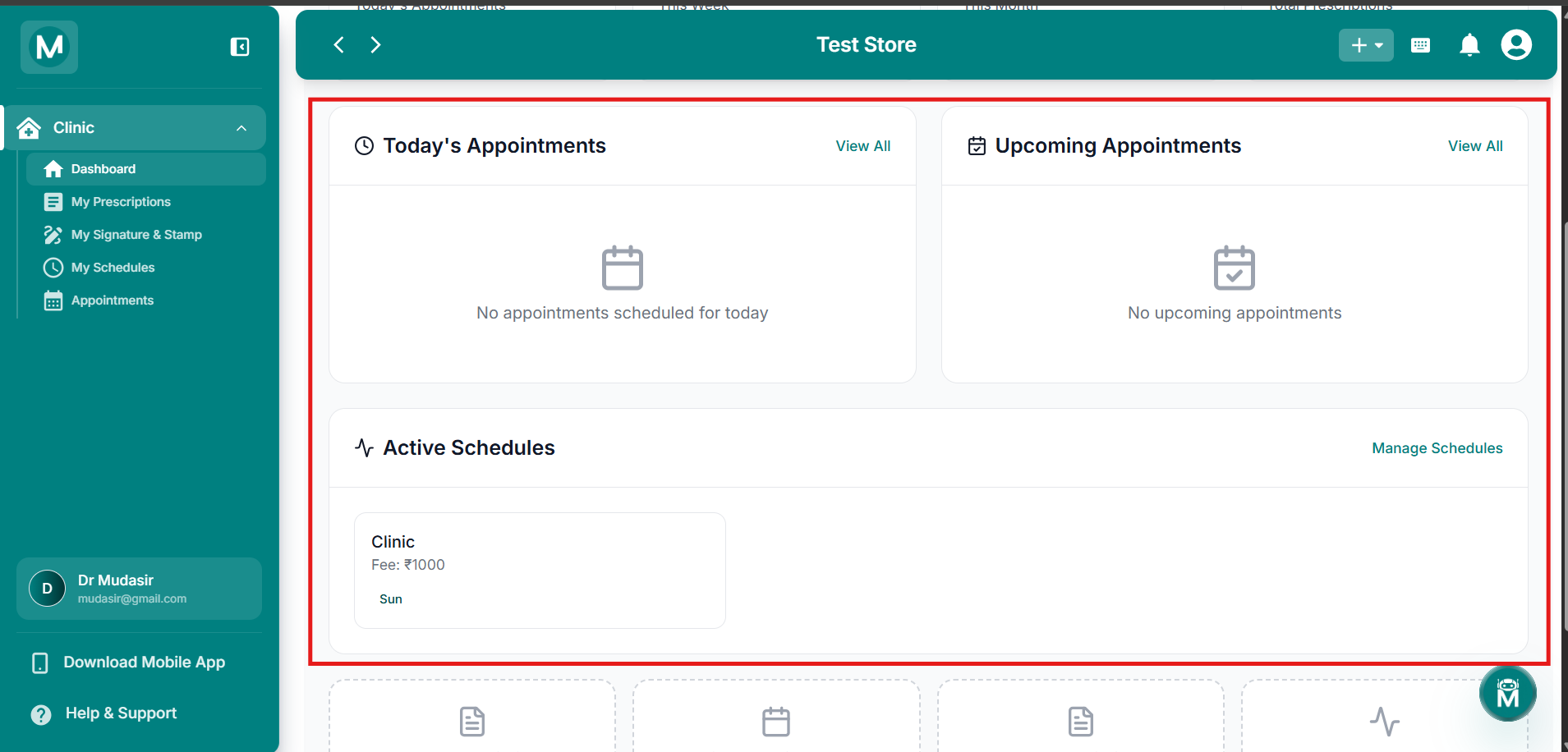
Active schedules and appointment panels
Today's appointments, upcoming appointments, and active schedules panels
Quick Actions
At the bottom of the Dashboard, four shortcut cards let the doctor jump straight into common tasks:
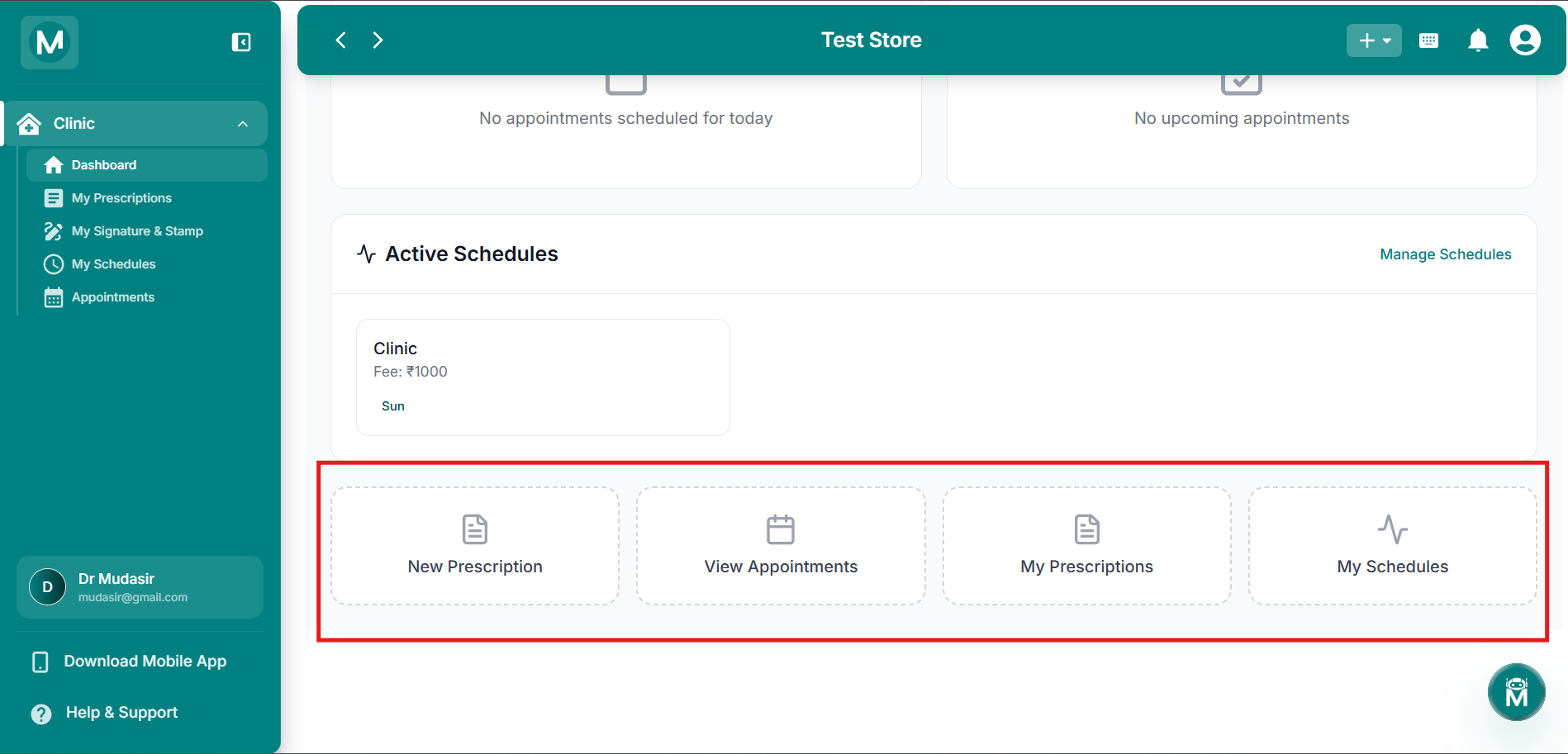
Dashboard quick action shortcuts
Shortcut cards for New Prescription, View Appointments, My Prescriptions, and My Schedules
My Prescriptions
This page lists every prescription the doctor has issued.
The header shows the Total count of prescriptions, and an Add Prescription button to start a new one. Below that is a search bar that lets the doctor search by patient name, medicine, or notes.
The Prescription History table shows:
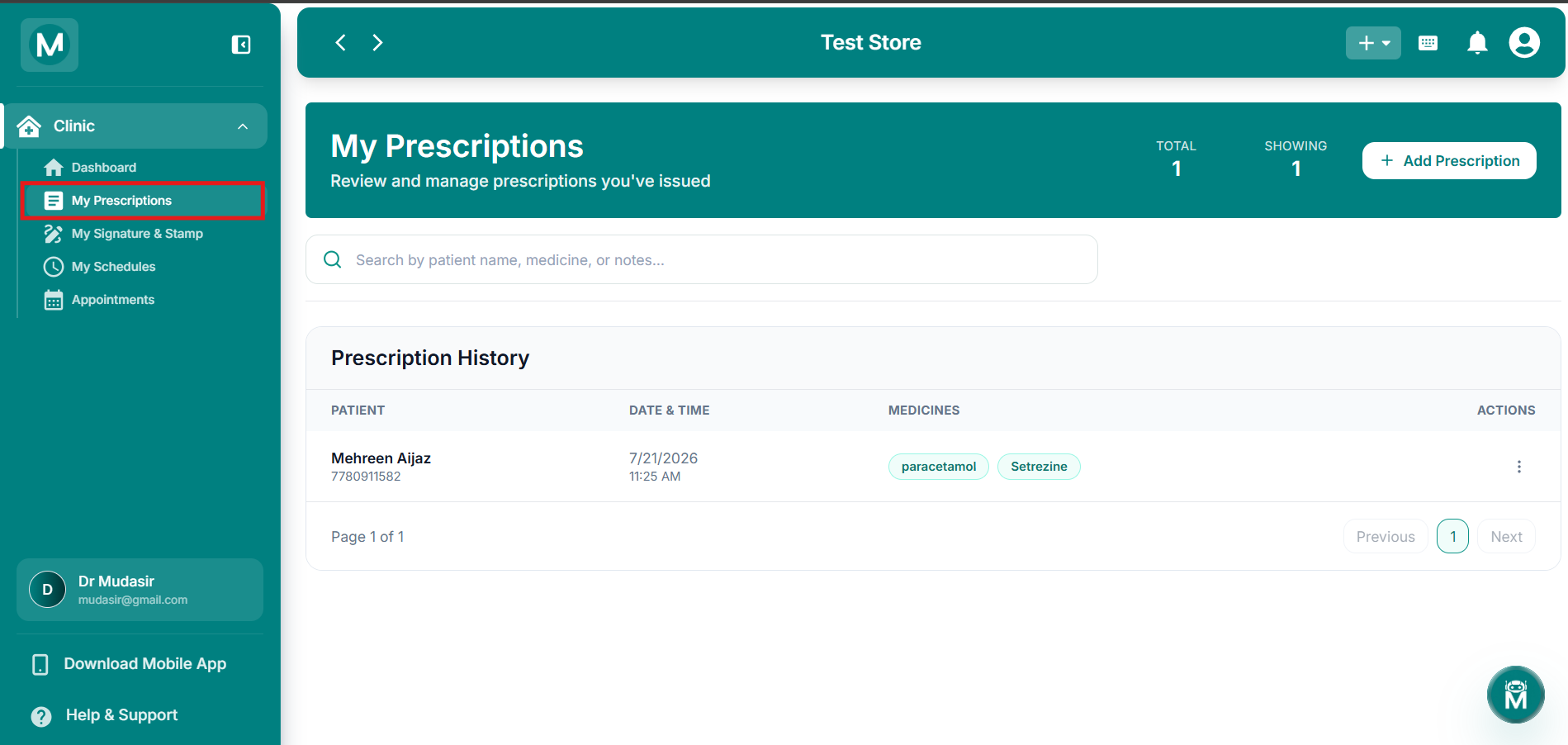
My Prescriptions page
Prescription history with patient details, date, medicines, and actions
Writing A Prescription
A prescription can be started in two ways:
- Clicking Add Prescription on the My Prescriptions page, or New Prescription on the Dashboard. This opens a Create Prescription screen to select a patient first.
- Clicking Consult on an appointment from the Appointments page. This skips patient selection and opens the prescription form directly, pre-filled with that patient's details.
Selecting A Patient
When starting from Add Prescription or New Prescription, the doctor first sees a Create Prescription screen to choose who the prescription is for:
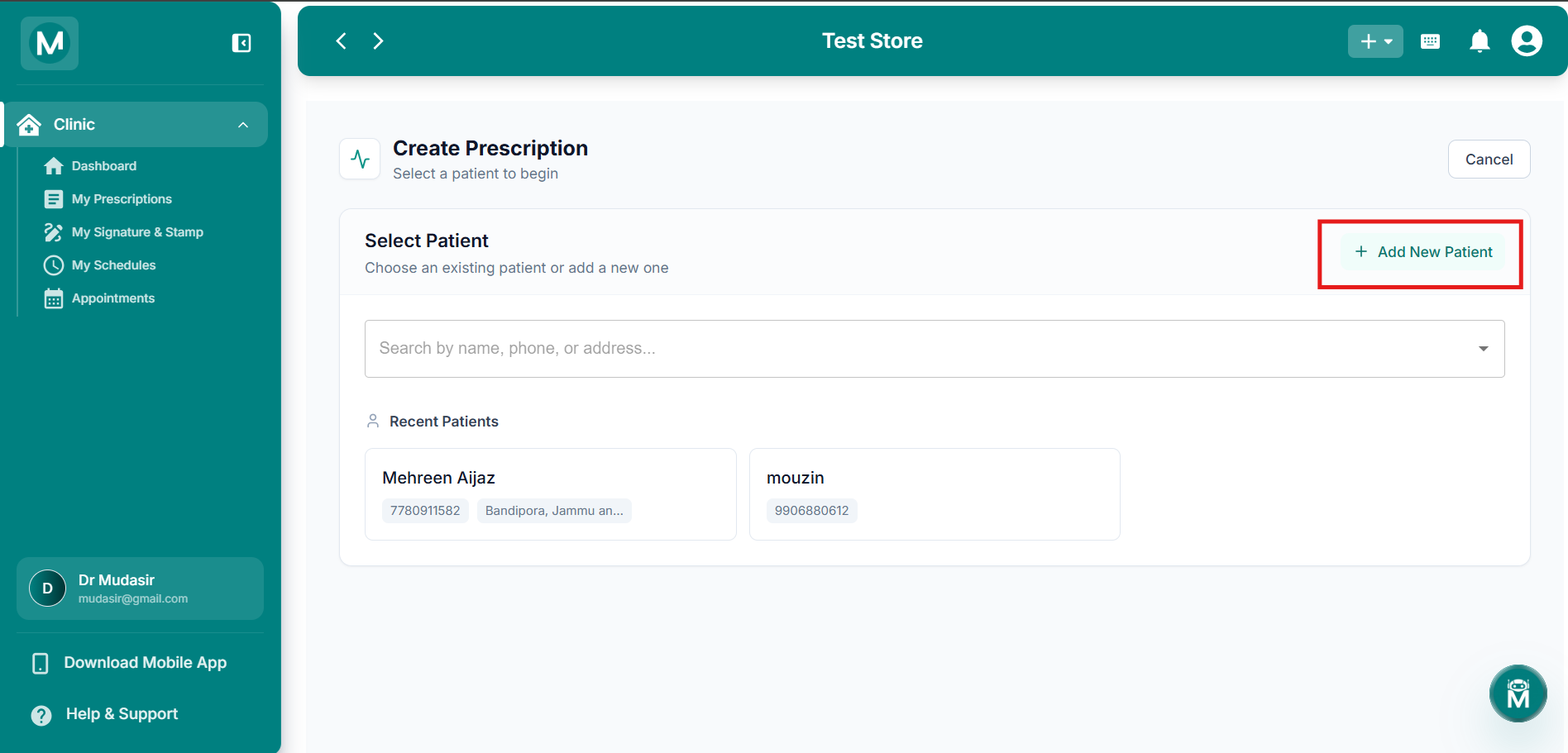
Create Prescription, Select Patient
Add a new patient
Once a patient is selected (or added), the doctor moves into the prescription form itself.
The prescription form includes:
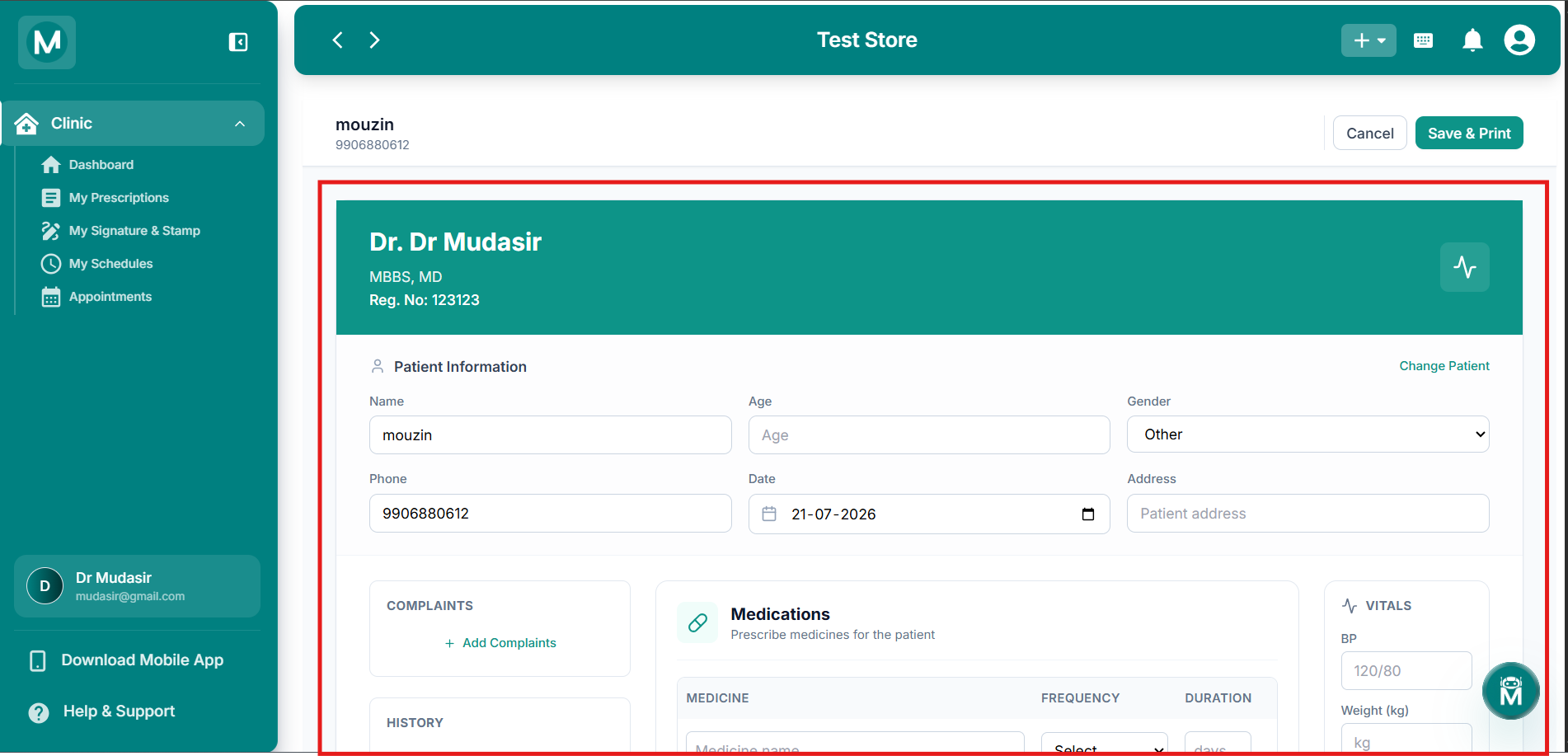
Prescription form
Complete prescription form with patient info, complaints, diagnosis, medications, vitals, and follow-up
Once filled in, click Save & Print to save the prescription, or Cancel to discard it.
My Signature & Stamp
Doctors can upload a signature and a stamp image, which are then automatically included on every prescription they issue.
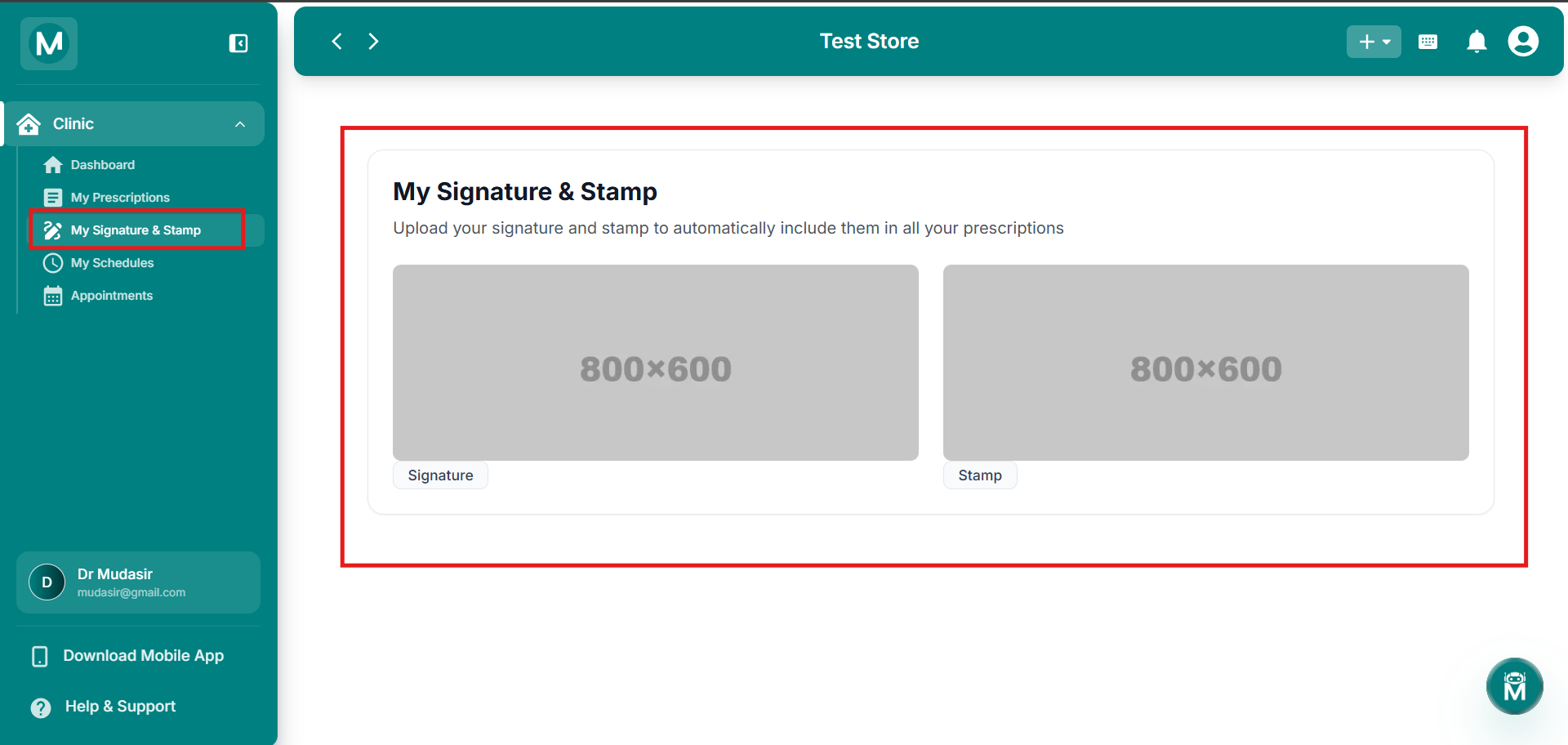
My Signature & Stamp page
Upload signature and stamp images for automatic inclusion on prescriptions
My Schedules
This page shows the doctor's own availability schedules.
The header includes an Add Schedule button, a search bar (search by doctor name or speciality), and a Filters button.
Each schedule card shows:
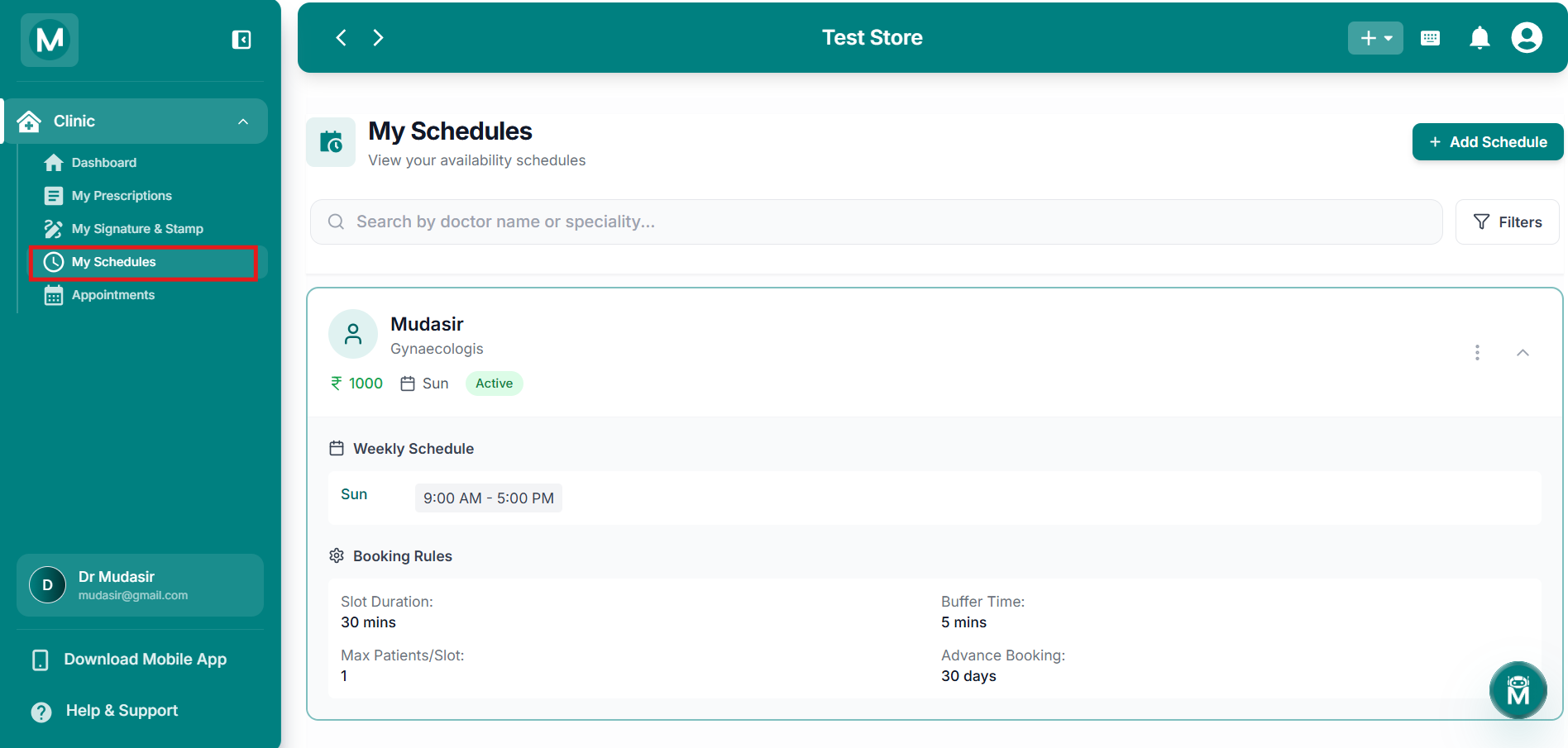
My Schedules page
Schedule cards showing name, speciality, fee, day, and status
Row Actions
Click the ⋮ menu on a schedule card to:
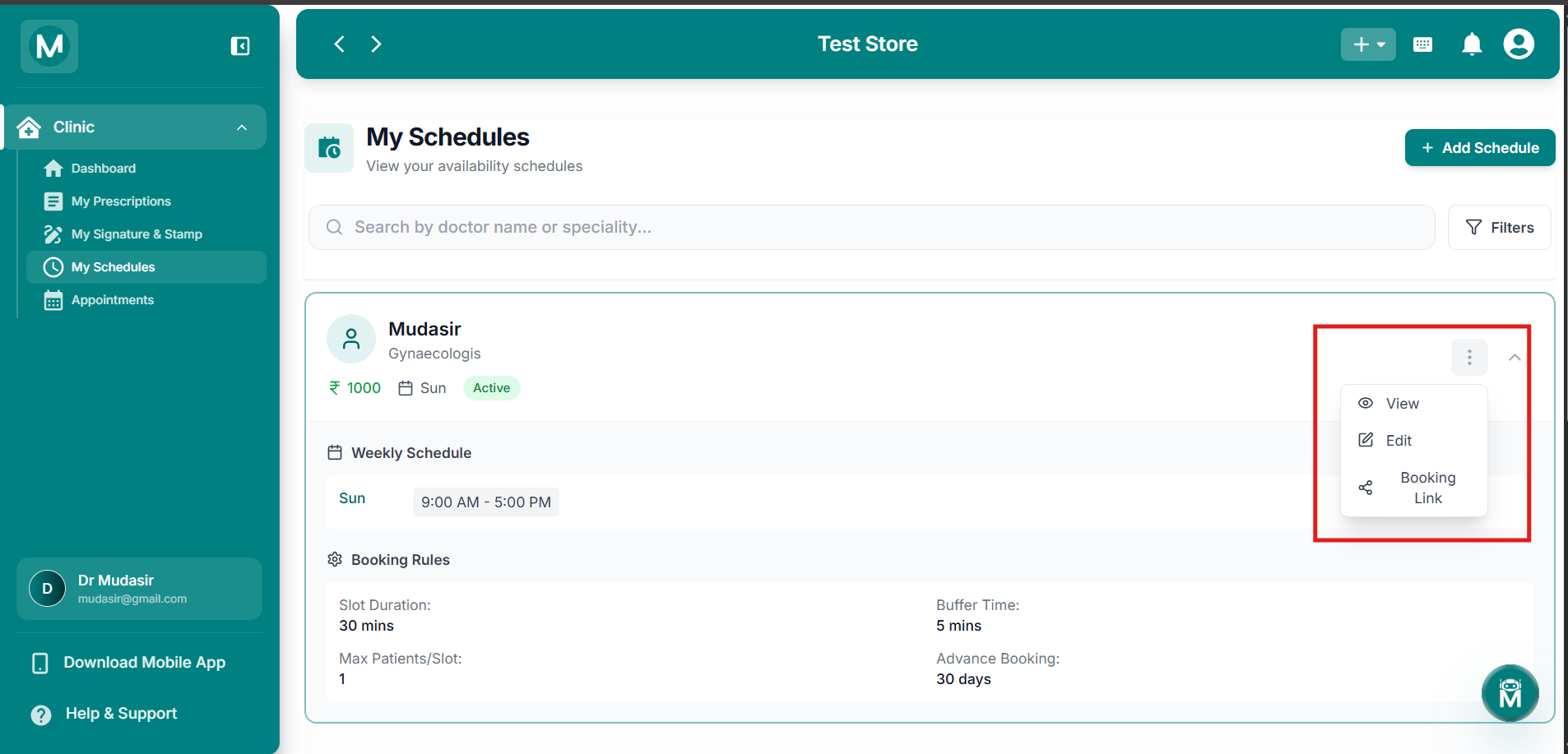
Schedule row actions menu
View, Edit, and Booking Link options for each schedule
Filtering Schedules
Clicking Filters opens a panel to refine the schedule list:
Use Reset to clear all filters, or Apply Filters to run the search.
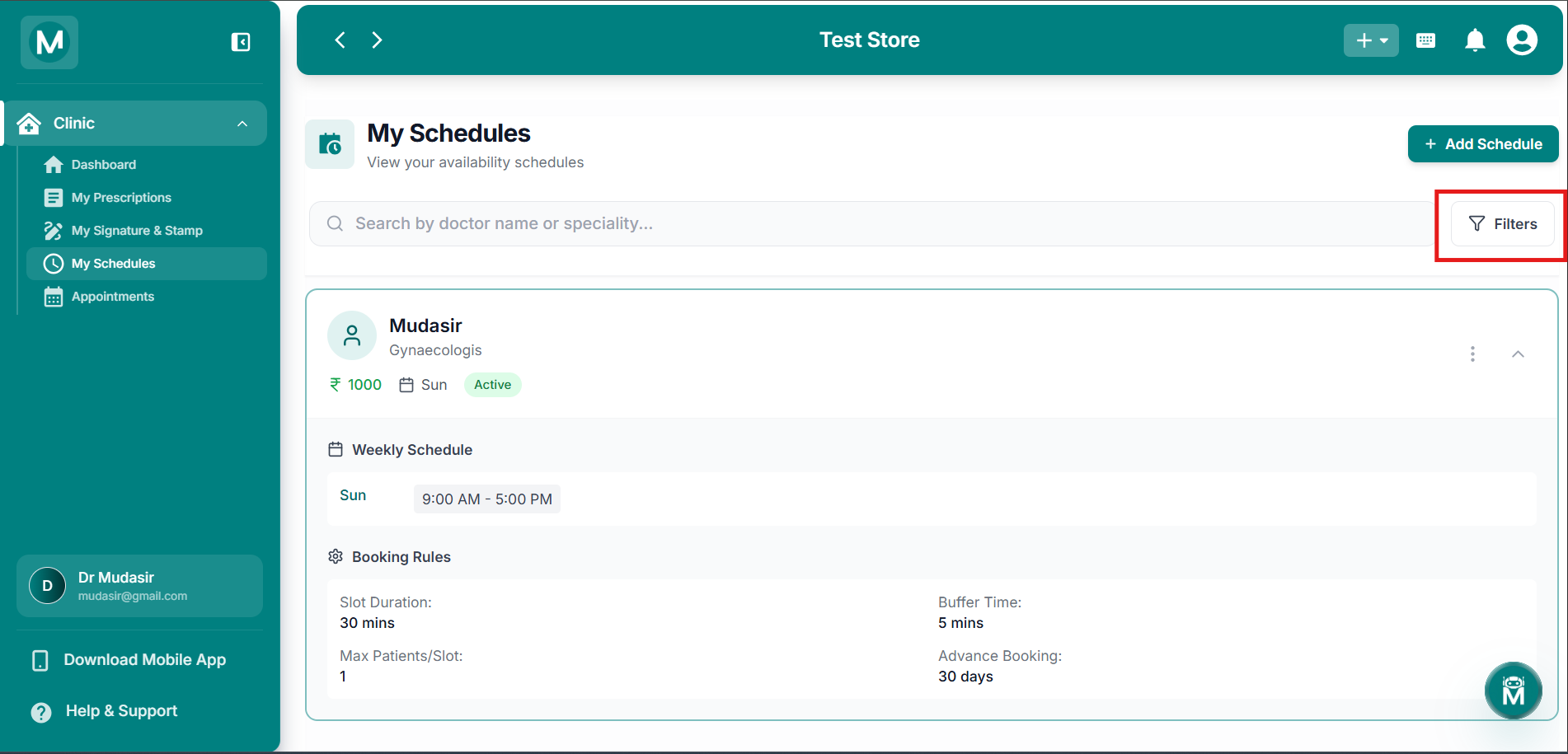
Filter & Sort panel
Filter schedules by days, time slot, status, fee range, and sort order
Adding A Schedule
Click + Add Schedule to open the Add New Schedule form:
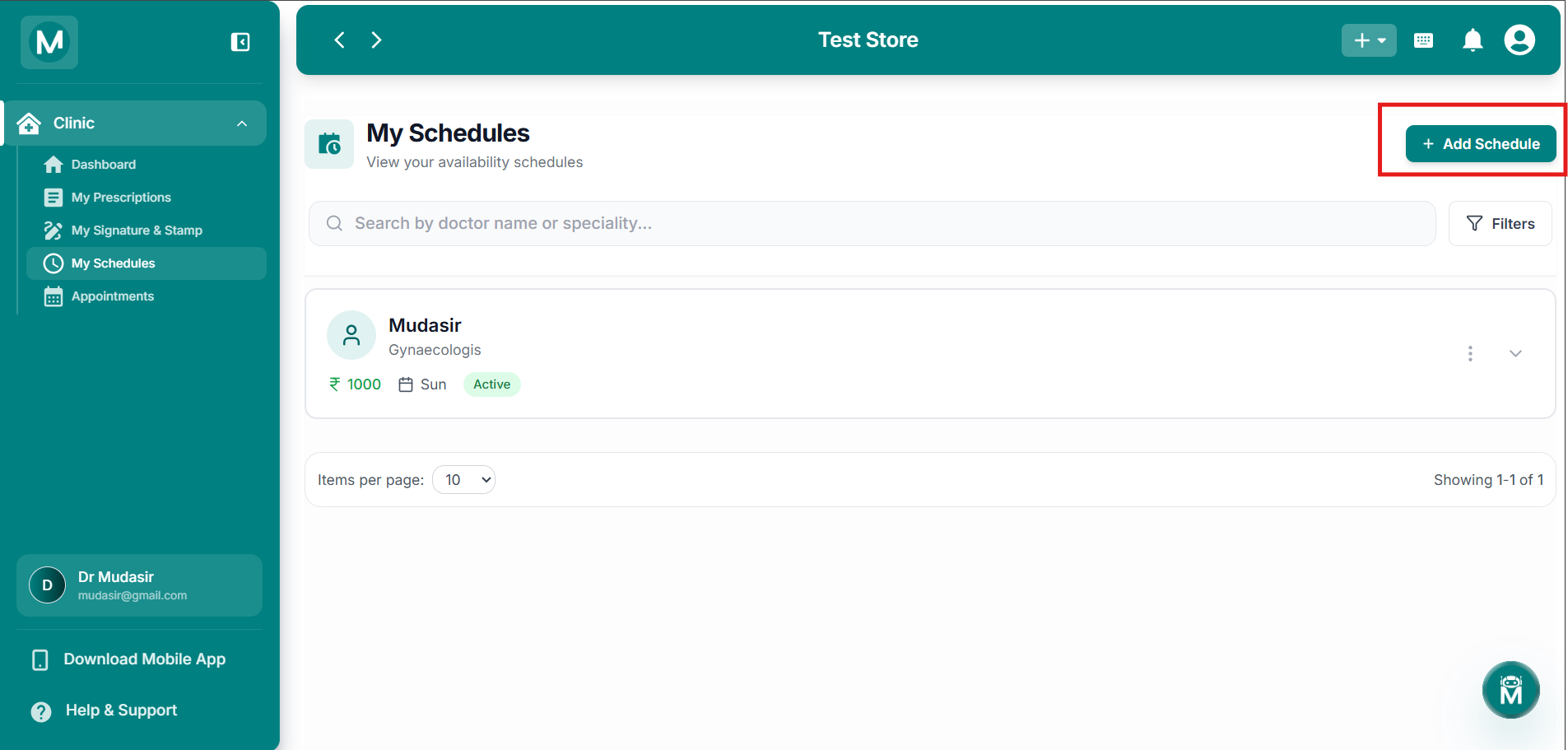
Add Schedule button
Button to open the Add New Schedule form
Once filled in, click Create Schedule to save it, or Cancel to discard it.
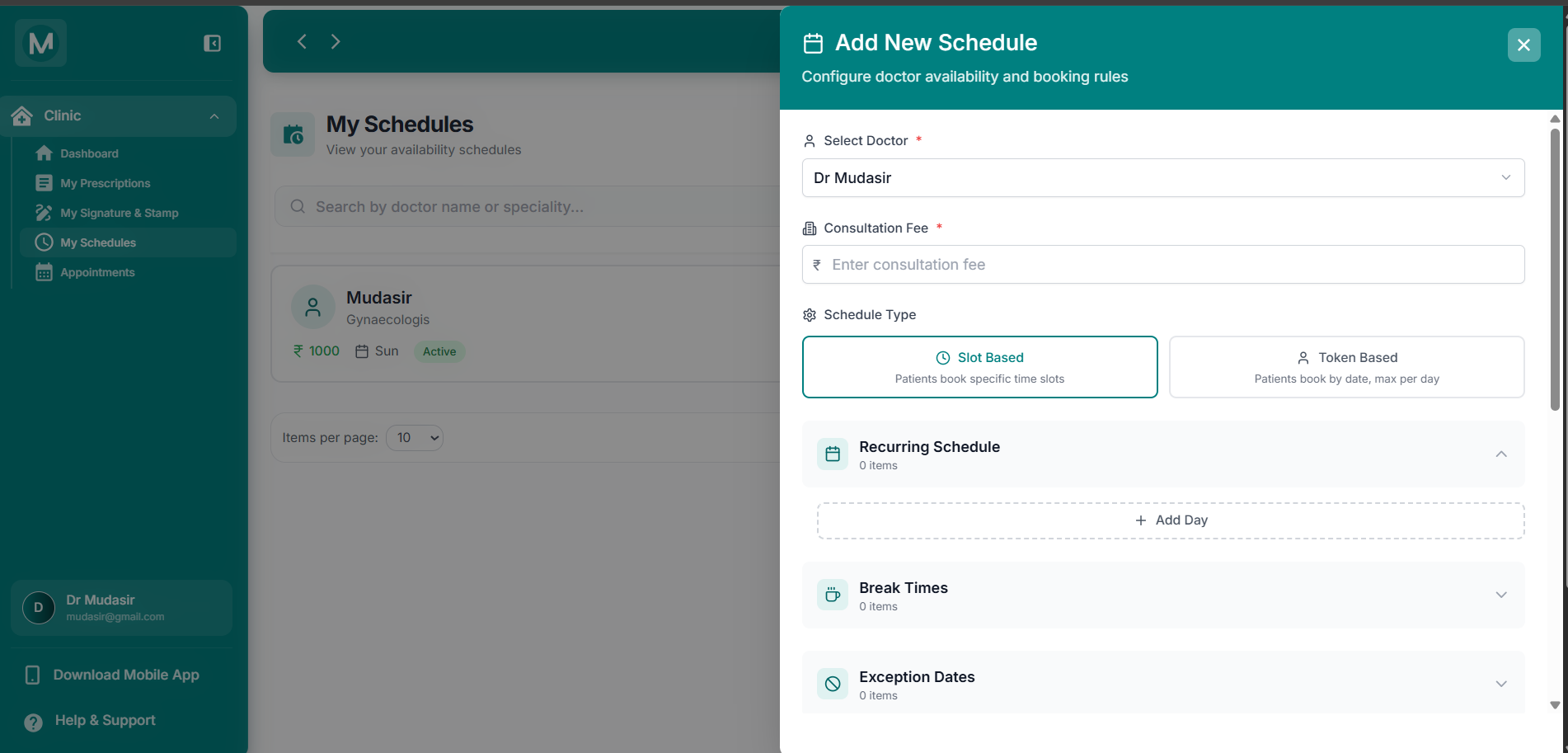
Add New Schedule form
Complete form for creating a new availability schedule with all fields
Appointments
This page lists all of the doctor's patient appointments.
The header includes a search bar (search by patient name, phone, or email), a Filters button, a per-page dropdown, and a refresh button.
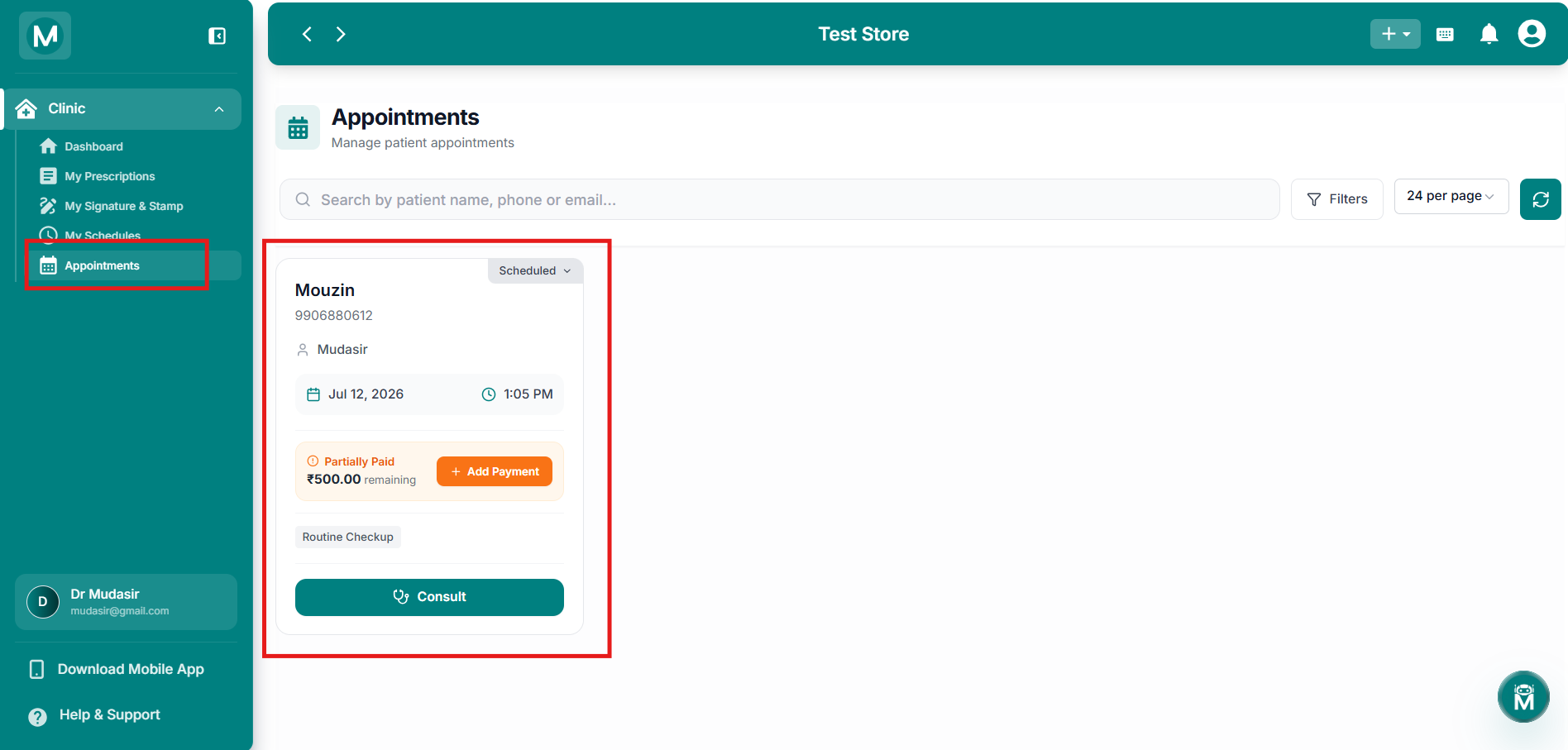
Appointments page
Doctor's appointments list with search, filters, and refresh options
Each appointment card shows: