
Create Debit Note
Raise a debit note to a supplier to remove medications from your inventory and request a return.
A Debit Note is how you formally record that you're returning medications to a supplier, for reasons like damaged stock, excess quantity, or expired drugs. Creating a debit note permanently removes the selected quantity from your inventory, since that stock is no longer available for sale once it's marked for return.
There are two ways to create a debit note in MediFlux.
Method 1: From The Drug List (Separated View)
Select one or more drugs from the Separated View on the Drug List, then click Generate Debit Note from the bulk actions toolbar. This opens the Create Debit Note dialog for the drugs you selected.
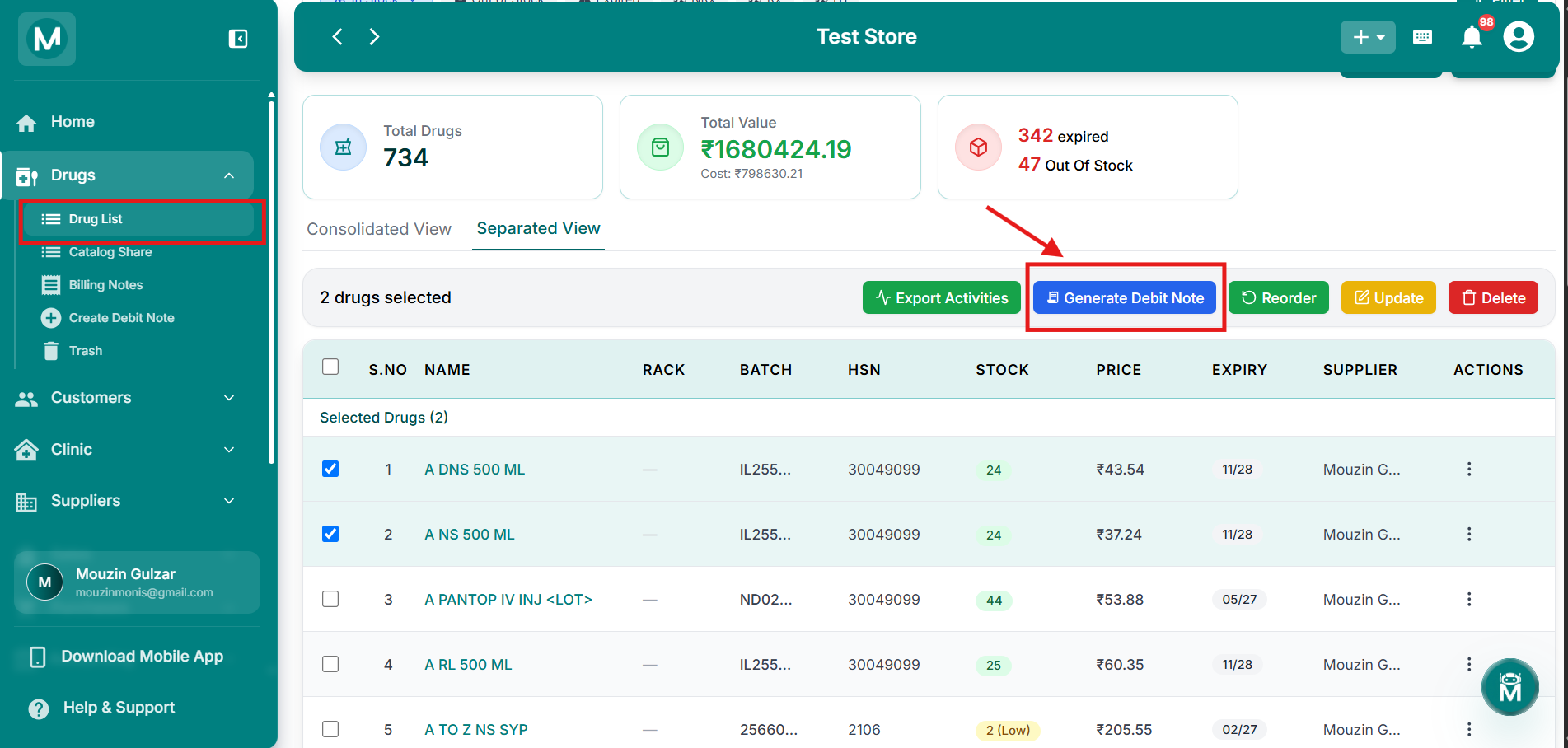
Generate Debit Note from Drug List
Bulk action toolbar showing Generate Debit Note option.
Selected medications will not be available for sale after creating the debit note.
Available Medications
For each selected drug, you'll see:
The dialog shows a running Total medications selected and Total units to remove at the bottom. Use Reset All to clear your quantities and start over.
Once you're done, click Create Debit Note to proceed.
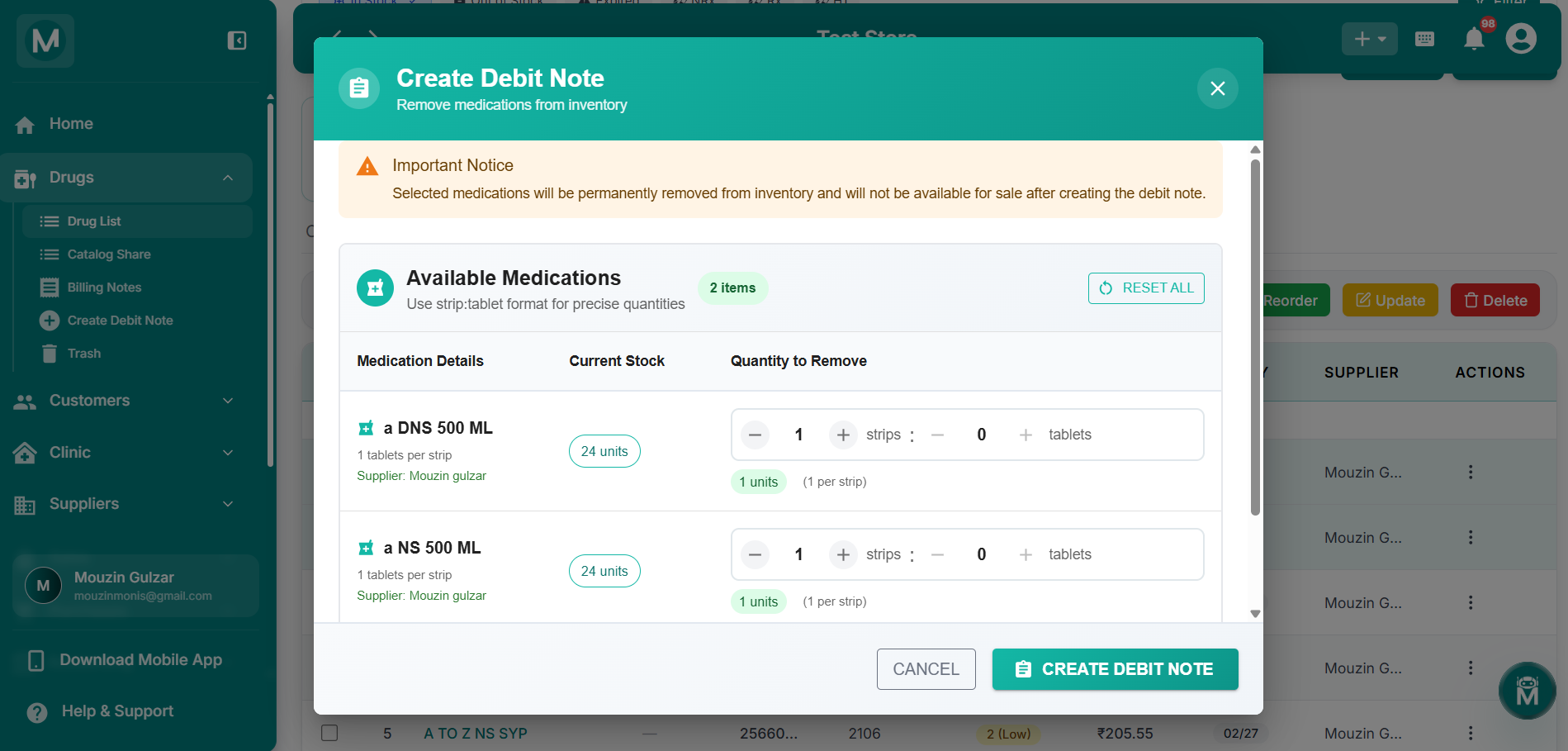
Available Medications
Selected drugs with current stock and quantity to remove fields.
Method 2: From Drugs → Create Debit Note
This opens a dedicated page to build a debit note from scratch, useful when you want to add drugs individually rather than starting from a selection on the Drug List.
Drug Entry Table
For each drug added to the note, fill in:
Click the + below the table to add another drug row, or the trash icon to remove one.
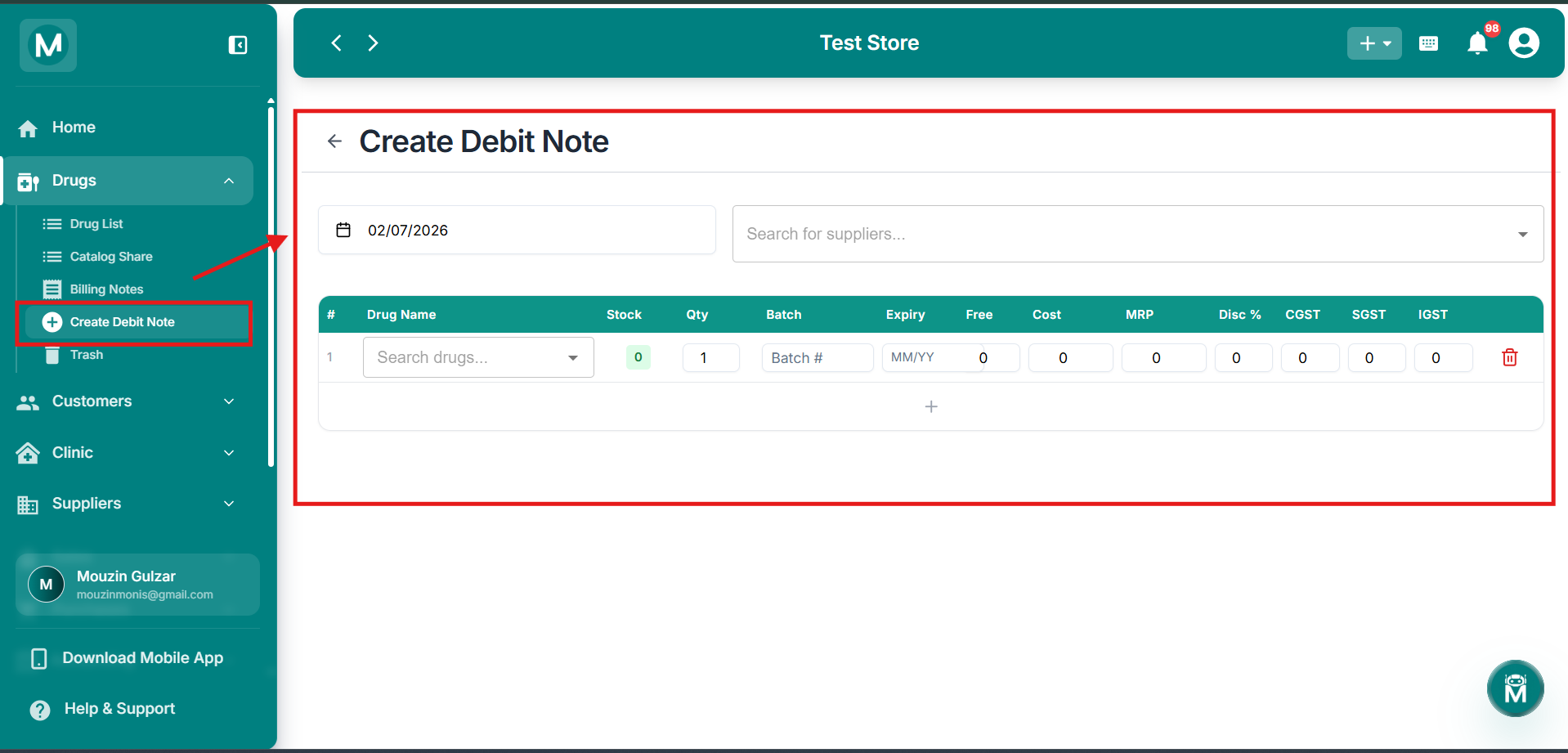
Create Debit Note page
Dedicated page to build a debit note from scratch with drug entry table.
Confirming The Debit Note
Method 1 (Separated View) shows a confirmation prompt before finalizing:
Create Debit Note?
Removed Stock will not be available to sell
Total units to remove: [X]
Click Confirm to finalize, or Cancel to go back and make changes.
Method 2 (Create Debit Note page) doesn't show this prompt. Clicking Create Debit Note submits it directly, and a success message confirms the debit note has been created.
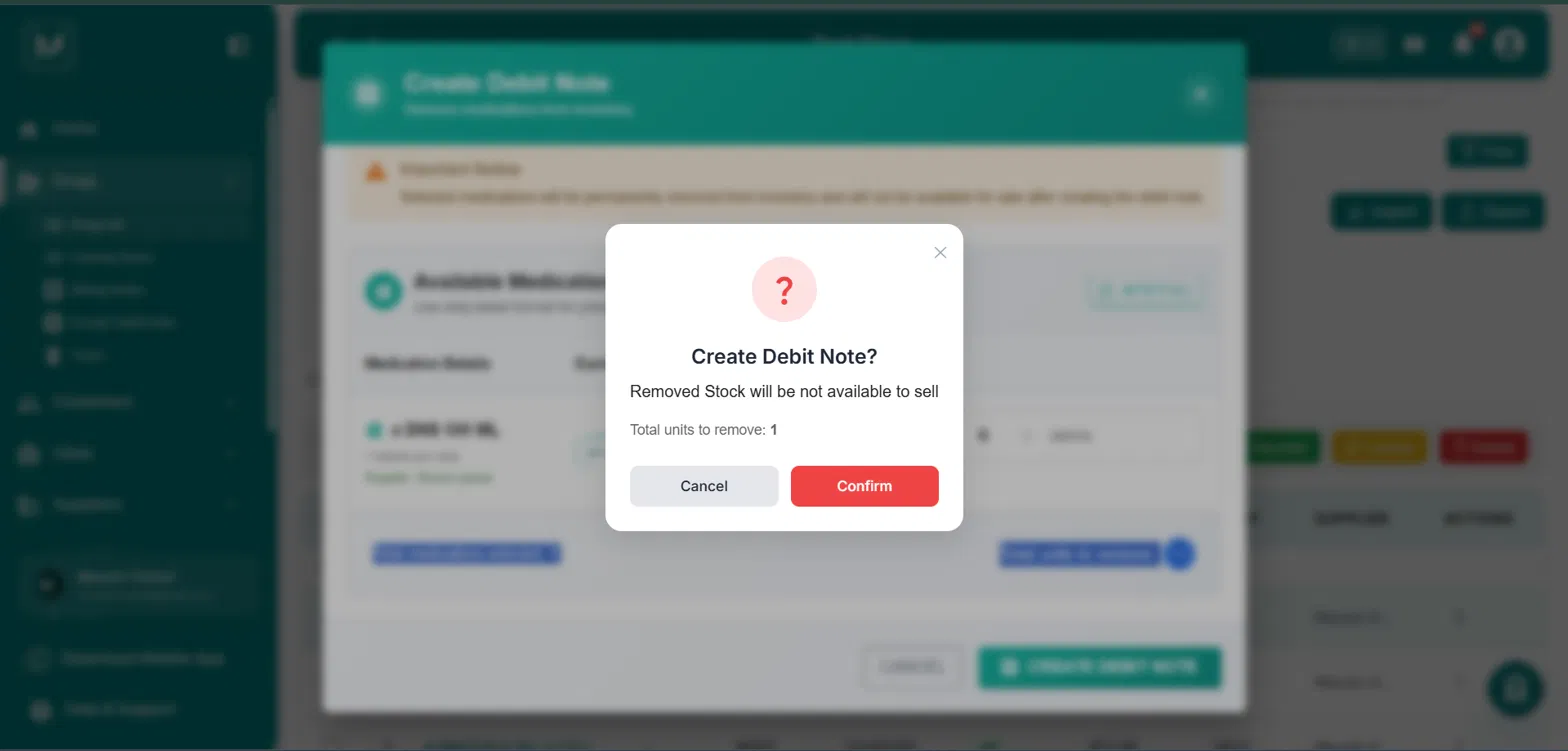
Create Debit Note confirmation
Confirmation prompt showing total units to remove before finalizing.
Once created, the debit note is finalized and the selected stock is deducted from your inventory immediately. This cannot be reversed. If you need the stock back, you'll need to add it again through a purchase.
The newly created debit note appears in Billing Notes → Debit Notes, where you can track its status.
Mistakes To Avoid
Leaving required fields empty
Batch, Expiry, Cost, MRP, and at least one GST rate (CGST, SGST, or IGST) are mandatory for each drug row. Missing any of these will block submission with an error.
Assuming a debit note can be edited after creation
Once confirmed, the stock is deducted immediately and cannot be added back automatically. If you need the stock again, it has to be re-added through a purchase.