
Add a Supplier
Create a new supplier profile in MediFlux, manually or by linking an existing platform supplier.
There are two ways to add a supplier in MediFlux. You can create a local supplier manually by filling in their details, or you can link a platform supplier who is already registered on MediFlux. Both options are available from the Supplier List page and from the + quick-add menu available on every screen.
Option 1: Add A Local Supplier Manually
You can open the Add New Supplier form in three ways:
- From the Supplier List page, click + Add Supplier
- Click the
+menu in the top-right corner of any screen and select Add Supplier - Press
Ctrl + K, type Add Supplier, and hitEnter
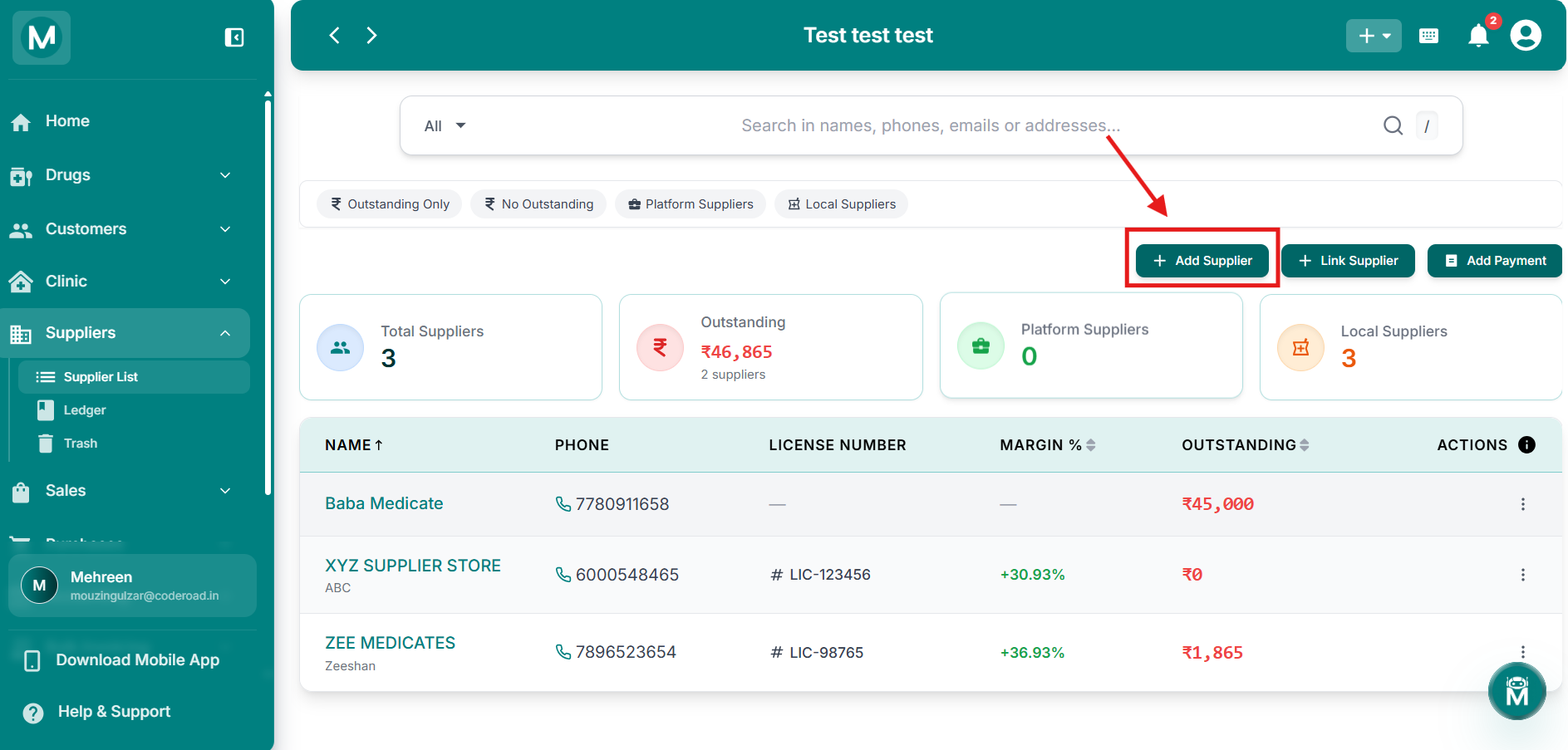
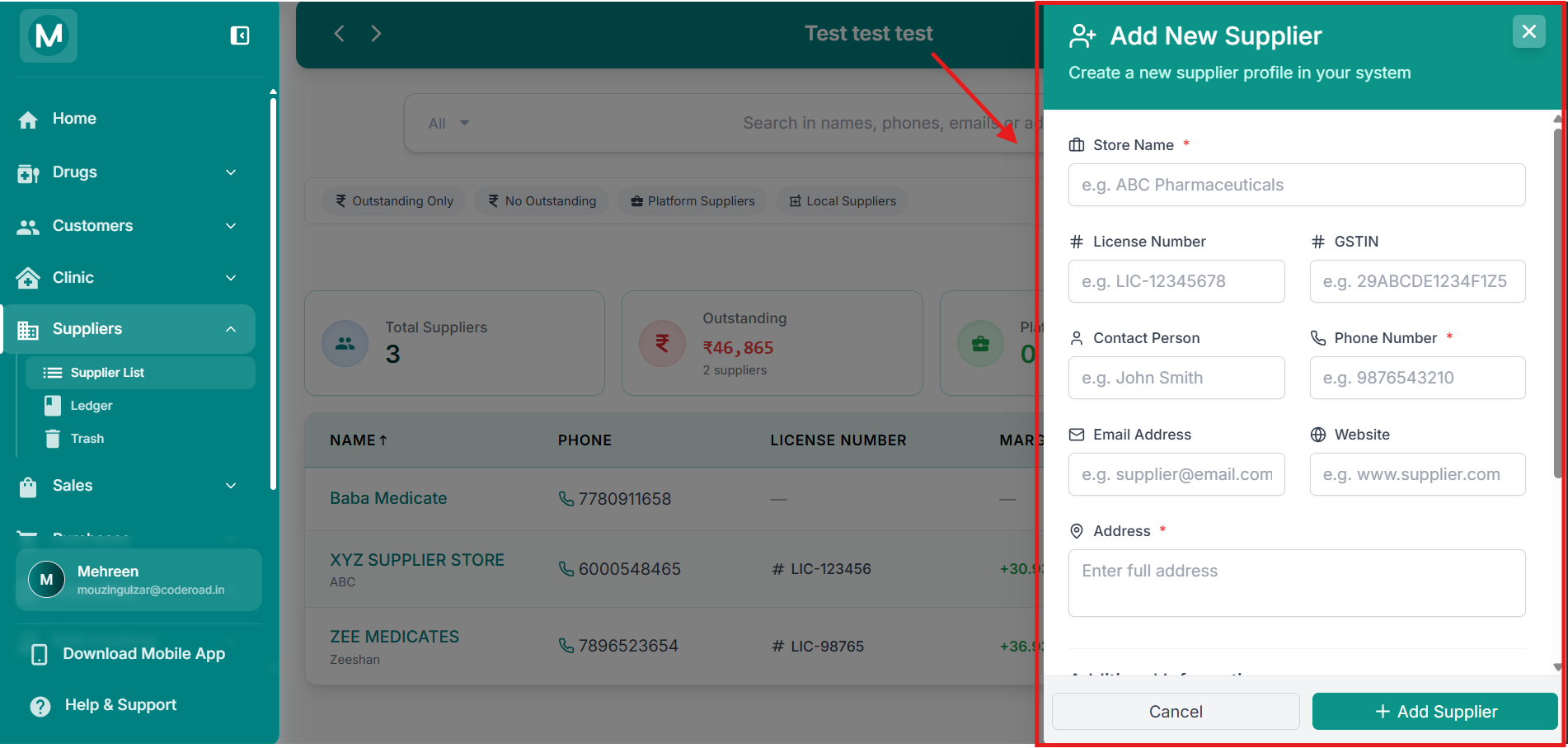
Add New Supplier form
Top section of the form showing basic details fields.
Basic Details
Additional Information
Additional Information
Opening Balance, Notes, and Reliability Score fields.
If you are migrating from an older system or manual registers, enter the amount you already owe this supplier in Opening Balance before saving. For example, if you owe a supplier ₹25,000 before starting MediFlux, enter that here. All future purchases and payments will automatically adjust from this starting figure.
Once all required fields are filled, click + Add Supplier to save the profile. Click Cancel to discard and close the form.
Once saved, MediFlux automatically maintains this supplier's ledger for every new purchase. No manual tracking needed.
Option 2: Link A Platform Supplier
If your supplier is already registered on the MediFlux platform, you can link them directly instead of entering their details manually.
Click + Link Supplier from the Supplier List page. This opens the Link to Platform Supplier dialog.
Search for your supplier by name, email, or license number, select them from the results, and click Link Supplier. Their verified business details are pulled in automatically.
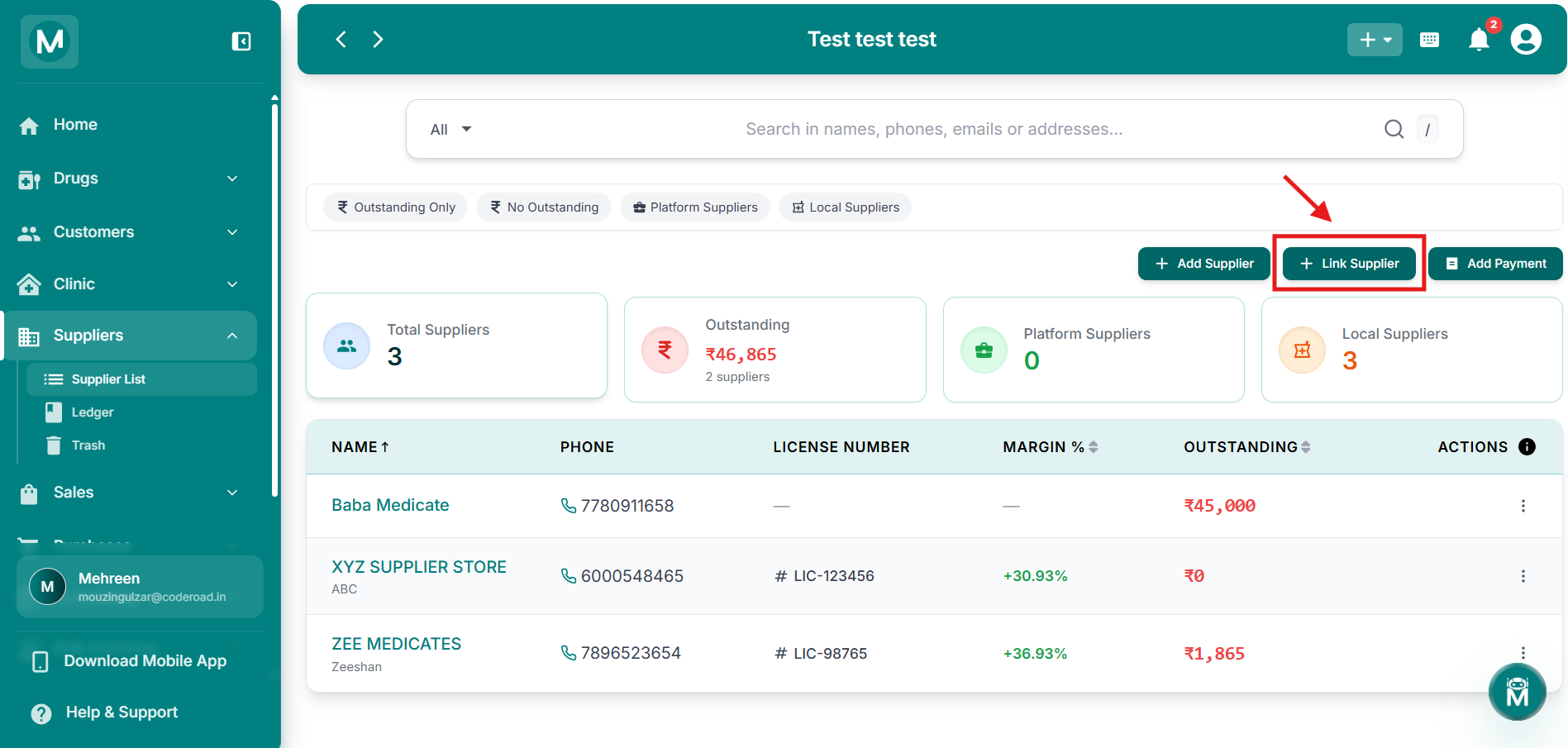
Link to Platform Supplier
Search and select a registered platform supplier to link.
If your supplier is not on the MediFlux platform, use + Add Supplier to add them manually instead.
Adding A Supplier From The Dashboard
You can also add a supplier without navigating to the Suppliers section at all. Click the + button in the top-right corner of any screen and select Add Supplier from the dropdown. This opens the same Add New Supplier form.
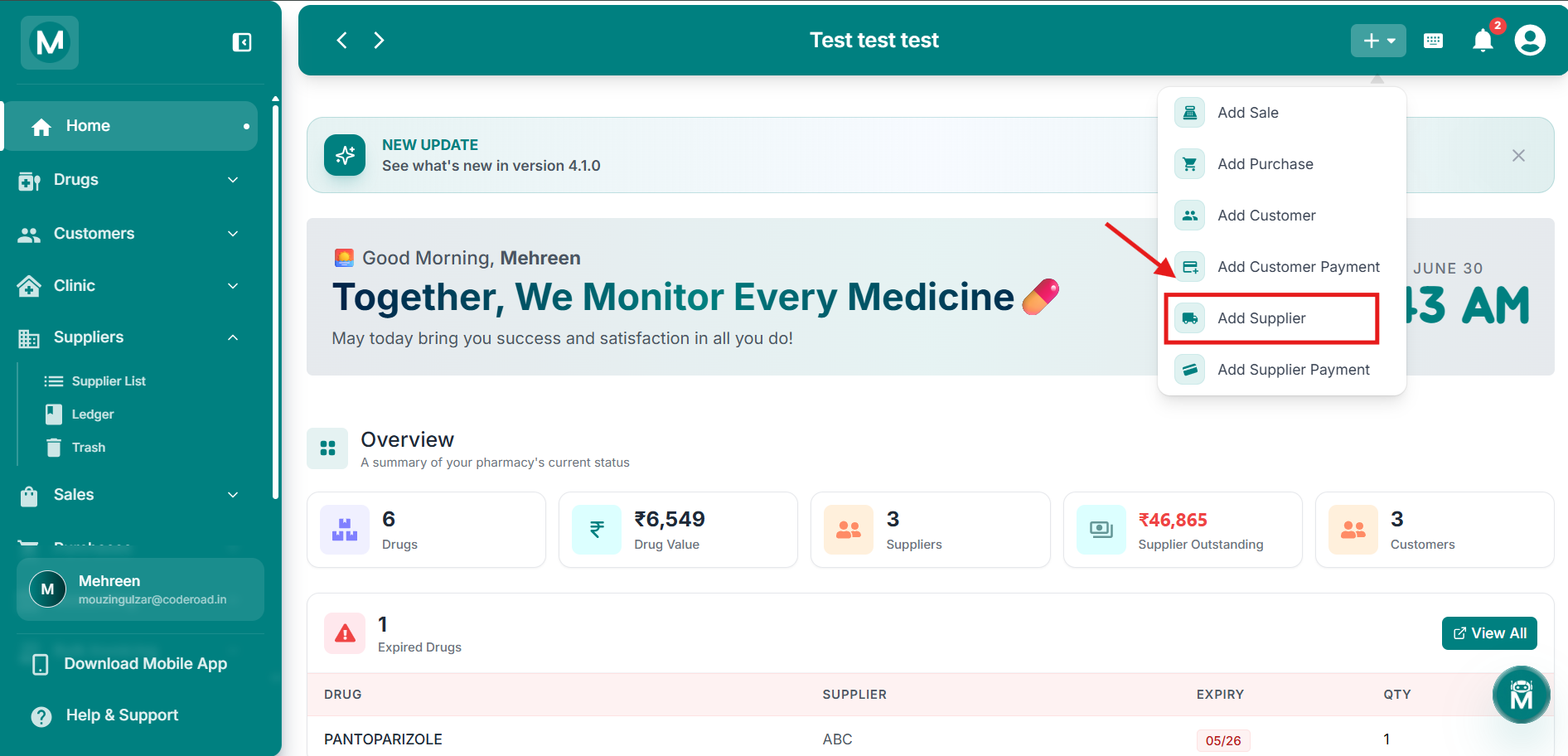
Dashboard + menu
Quick-add menu showing the Add Supplier option.
Tip: Press Ctrl + K anywhere in MediFlux, type "Add Supplier", and hit Enter to open the form without touching the mouse.
Common Mistakes To Avoid
Forgetting to add the Opening Balance
If you owe a supplier money before starting MediFlux, make sure to enter it in the Opening Balance field when creating the supplier. If you forget, you cannot edit it directly later. Instead go to the supplier's ledger and create an Adjustment entry to add it manually.
Skipping GSTIN and License Number
These fields are optional but highly recommended. Without GSTIN your purchase entries will not be GST-ready, which can cause issues when generating GSTR reports during tax season.