
Installation & Setup
Set up MediFlux for the first time. Either yourself, or with our support team's help via remote setup.
Before you can start billing, your MediFlux store needs to be created. You can do this yourself in a few minutes, or have our support team connect remotely and set everything up for you. This page covers both paths, along with how to install MediFlux as an app on your device. Once your store is created, head to Getting Started to configure billing, add inventory, and make your first sale.
What You Need
MediFlux is a web-based PWA that runs on any device with a browser and internet connection, no downloads or local servers are required for the software itself.
Even pharmacies in remote areas with modest connectivity and basic desktops can run MediFlux comfortably.
Self-Service Setup
If you'd rather get started right away without waiting for support, sign up directly:
Go to the Start Free Trial page and enter your pharmacy details, GSTIN, and business type. Your cloud store is provisioned instantly. No downloads, no servers, no IT team required.
Once done, log in and your store is ready to configure.
Assisted Setup (Remote Installation)
If you'd prefer our team to handle the setup for you, we install and configure your store remotely using UltraViewer, a remote-access tool that lets our support team see and control your screen with your permission, so they can set things up exactly as you'd do it yourself.
Here's how it works:
You'll need UltraViewer running on the computer you want to set up. You can either download it directly from your browser, or our team will send you the installer file directly over WhatsApp ,or click here to download.
Once UltraViewer is open, it displays a unique ID and Password for your computer. Share this ID and Password with our support team over call or chat, they'll enter it on their end and connect to your computer with your permission.
From there, our team will:
- Create and configure your MediFlux store
- Help import or manually add your stock and customer records
- Set up billing preferences, expiry alerts, and staff roles
- Walk you through the system live, so your team can start using MediFlux confidently
You stay in control throughout the session. UltraViewer only allows access once you've shared your ID and Password, and you can close the connection at any time from your end.
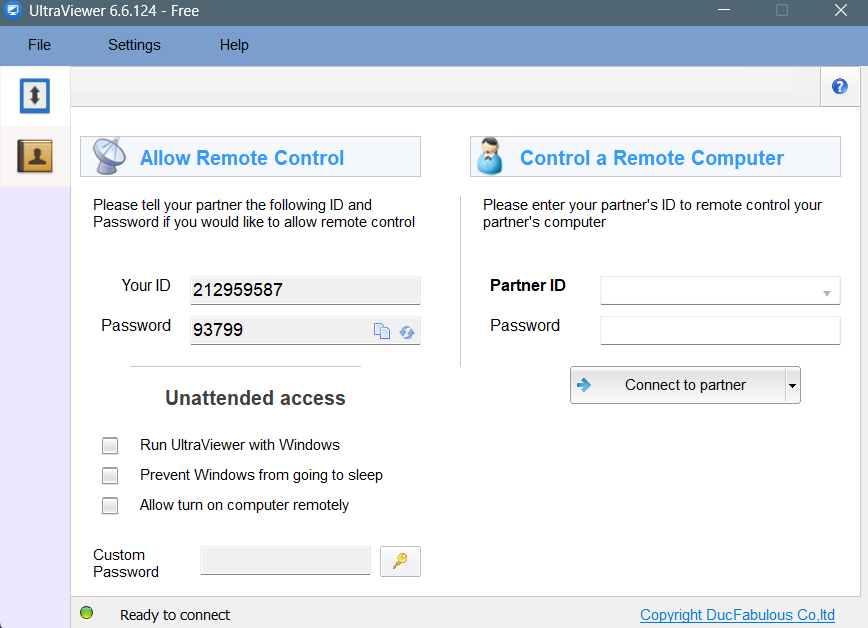
UltraViewer Remote Setup
Share your UltraViewer ID and Password with support for assisted installation.
Installing MediFlux As An App
MediFlux can be installed directly on your desktop or mobile device as a standalone app, so it opens with its own icon instead of running inside a browser tab.
Desktop (Windows)
- Go to mediflux.in
- Scroll to the footer and click Download for Windows
- Run the downloaded MediFluxSetup.exe installer
Mobile (Android)
- Go to mediflux.in on your Android device
- Scroll to the footer and click GET IT ON Google Play
- Install the MediFlux app from the Play Store
This is separate from the remote UltraViewer setup described above. Installing MediFlux as an app is simply a faster way to launch it on your own device. It doesn't involve anyone else connecting to your computer.
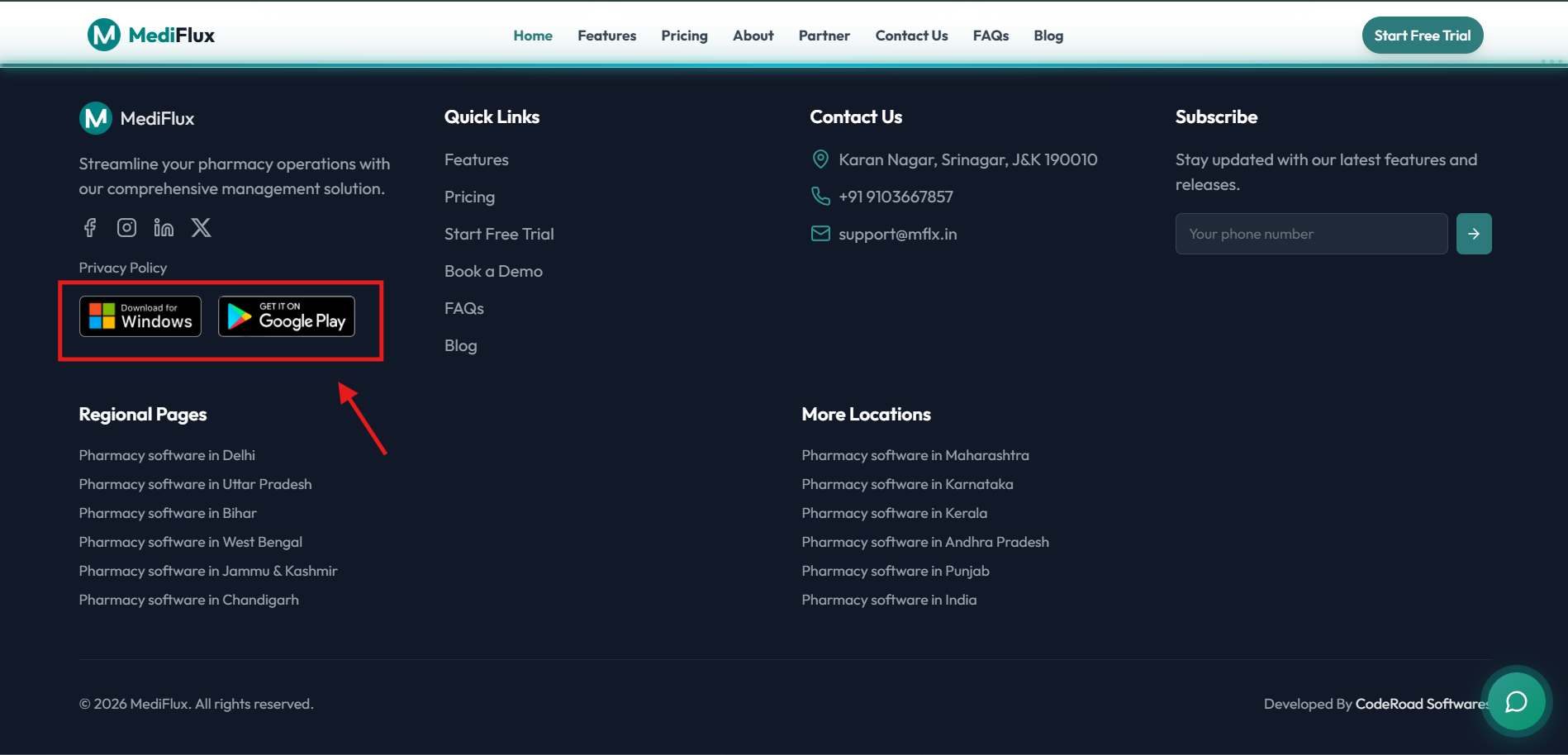
Install as App
Download for Windows and GET IT ON Google Play badges in the website footer.
You're in Control
Close UltraViewer anytime once your store is configured. The connection ends immediately, no lingering access.
FAQs
Start Using MediFlux
Your store is ready. Here's how to get billing.