
Getting Started
Set up your MediFlux store, configure billing preferences, add inventory, and make your first sale, with both self-service and assisted onboarding options.
This guide walks you through setting up MediFlux for the first time, from creating your store to making your first sale. Whether you prefer a quick self-service setup or guided onboarding with our support team, you'll be up and running within minutes.
What You Need
MediFlux is a web-based PWA that runs on any device with a browser and internet connection. No downloads or local servers are required.
Even pharmacies in remote areas with modest connectivity and basic desktops can operate efficiently.
Creating Your Store
You have two ways to get started:
Self-Service Signup
Go to the Start Free Trial page and enter your pharmacy details, GSTIN, and business type.
Your cloud store is provisioned instantly: no downloads, no servers, no IT team required.
Log in and start exploring the dashboard right away.
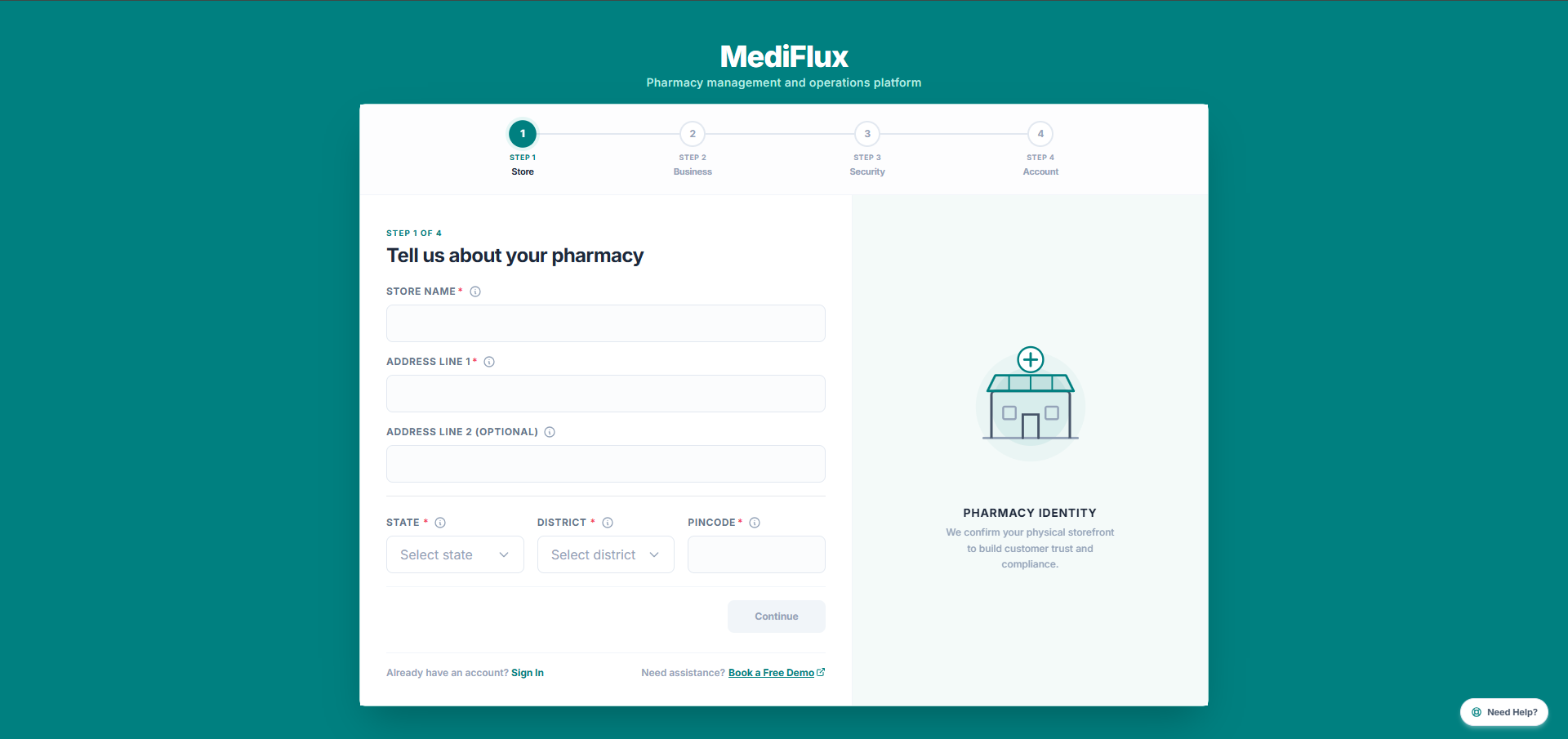
Registration form
Step 1 of the signup flow, enter your store name, address, state, district, and pincode.
Fill out the form on the Start Free Trial page with your pharmacy details.
Our support team will contact you and guide you through the setup process.
We connect remotely to help you understand the system and give you a live walkthrough.
We assist with importing or manually adding your stock and customer records.
We guide you through billing, expiry alerts, and staff role configuration.
Training is provided remotely so your team can start using MediFlux confidently from day one.
Configuring Your Store
Once your store is created, configure the basics before you start billing:
Adding Your Inventory
You can populate your drug catalog in three ways:
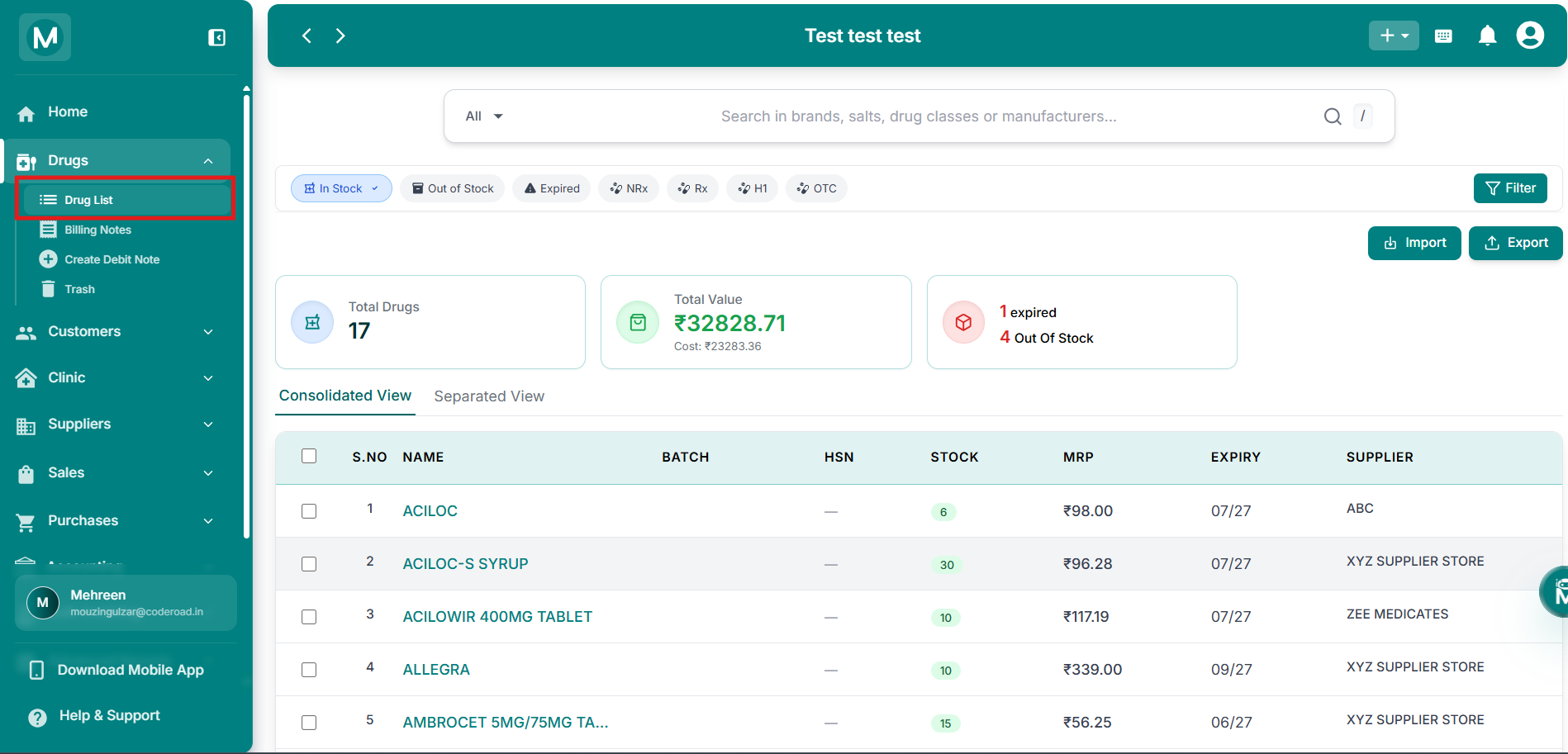
Drug List
View your full inventory, check stock levels, and use the Import button to bulk upload drugs via Excel.
For detailed instructions, see Drug List.
Making Your First Sale
Once your inventory is set up, you're ready to bill:
Go to Sales → Add Sale and select Retail or Wholesale mode.
Add a customer (or leave as cash sale) and select drugs from your inventory.
Choose the payment status: Paid, Unpaid, or Partial.
Click + Add to finalise the bill.
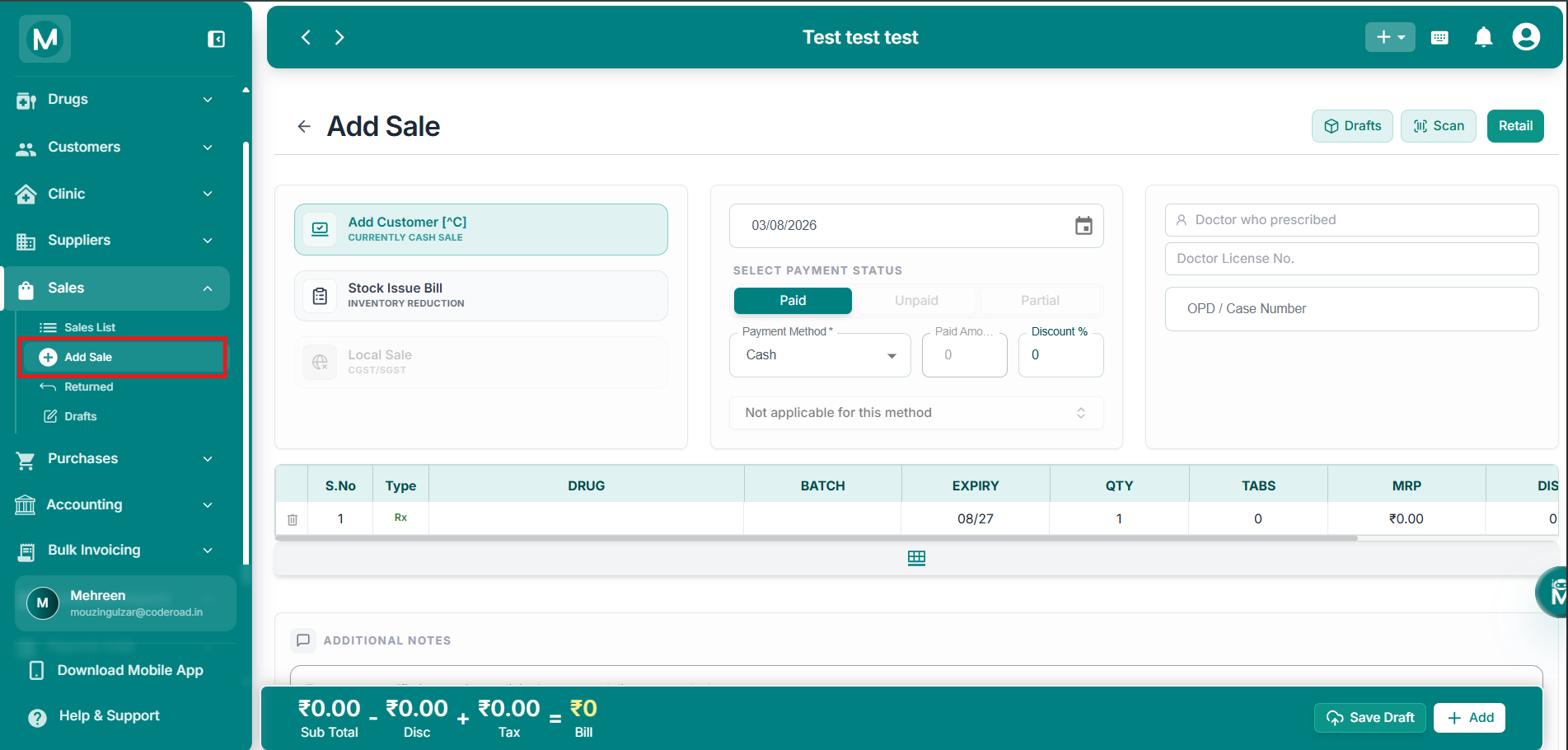
Add Sale
The Retail sale form with customer details, payment status, and drug table ready for billing.
Your first sale is now recorded. You can view it anytime in Sales List, share it via WhatsApp, or print it directly.
Moving To A Paid Subscription
After your free trial, our team will guide you through purchasing a subscription. We offer transparent yearly and multi-year plans with no hidden fees or surprise charges. Payment can be made via UPI, net banking, or other secure channels.
With your paid subscription, you get access to all advanced features, regular updates, and our support team whenever you need help.
What'S Next
Once your setup is complete, explore these features to get the most out of MediFlux:
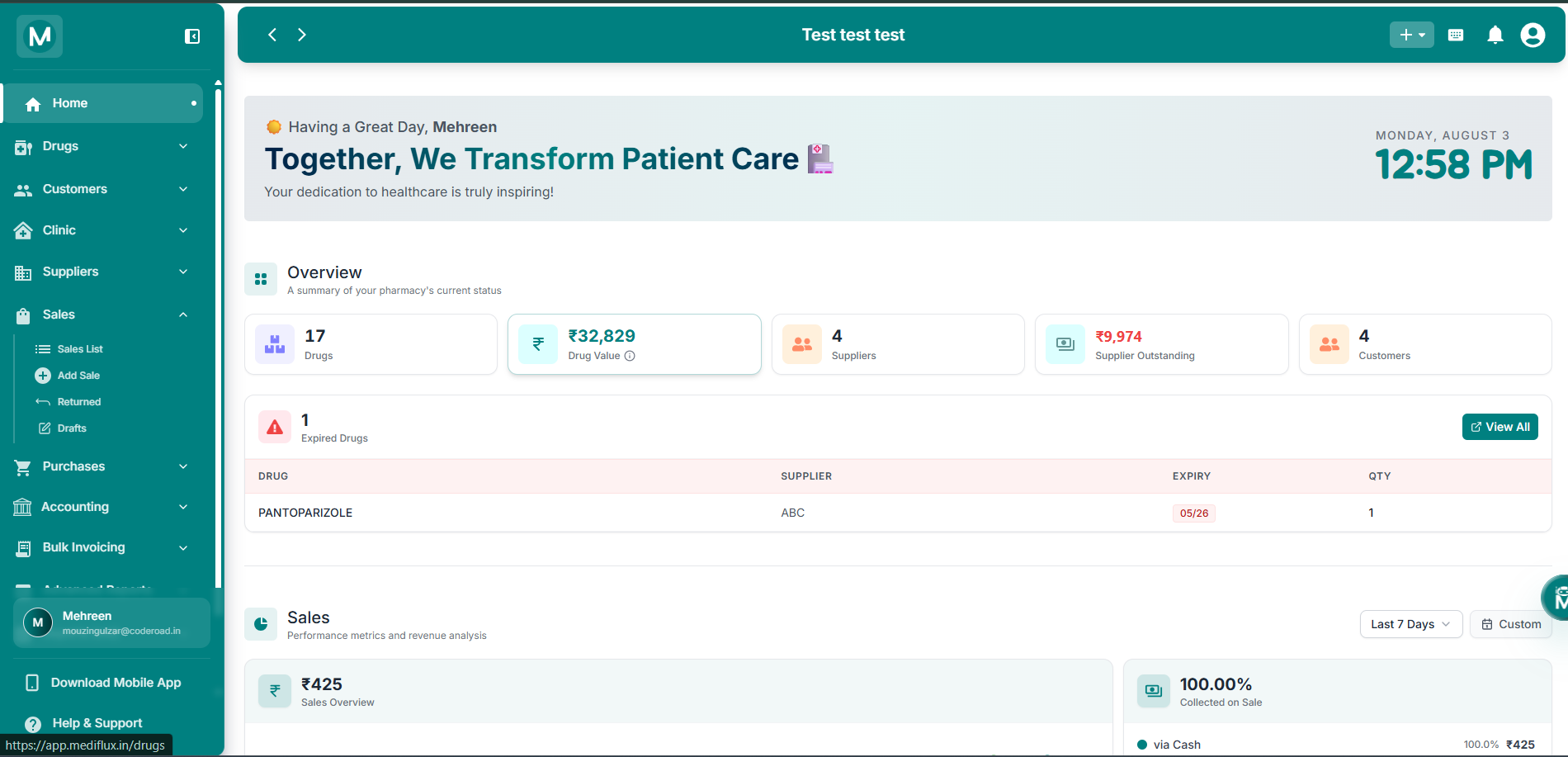
Dashboard Overview
Your home screen shows key metrics, total drugs, drug value, suppliers, customers, and expired stock alerts.
- Expiry and stock alerts: Get notified before drugs expire or run low
- Sales analytics: Track trends, profit margins, and top-selling drugs from the dashboard
- GST reports: Generate GSTR-1, GSTR-2, and GSTR-3B with one click
- Customer and supplier ledgers: Track credit, payments, and outstanding dues
- Role-based access: Control what each staff member can view and edit
Quick tip
Click the + button in the top bar from any page to quickly add a Sale, Purchase, Customer, Customer Payment, Supplier, or Supplier Payment without navigating through menus.