
Drafts
Access and manage all your saved sale drafts, including bills saved mid-way and prescriptions being scanned.
The Drafts page stores every sale bill that has been saved before being finalised. This includes bills you manually saved mid-way through entering drug details, as well as prescriptions that were uploaded for scanning and are still being processed.
Navigate here from the sidebar: Sales → Drafts, or click Drafts from the top-right of the Add Sale page.
How Drafts Are Created
A draft is created in two ways:
- Manually: while creating a sale, click Save Draft at any point to save your progress and come back to it later. This is useful if you need to step away mid-billing or need more time to complete the bill.
- Prescription upload: when you upload a prescription in the Add Sale form, MediFlux scans it automatically. While scanning is in progress, the bill is saved as a draft so you can continue other work and return once scanning is complete.
The Drafts Table
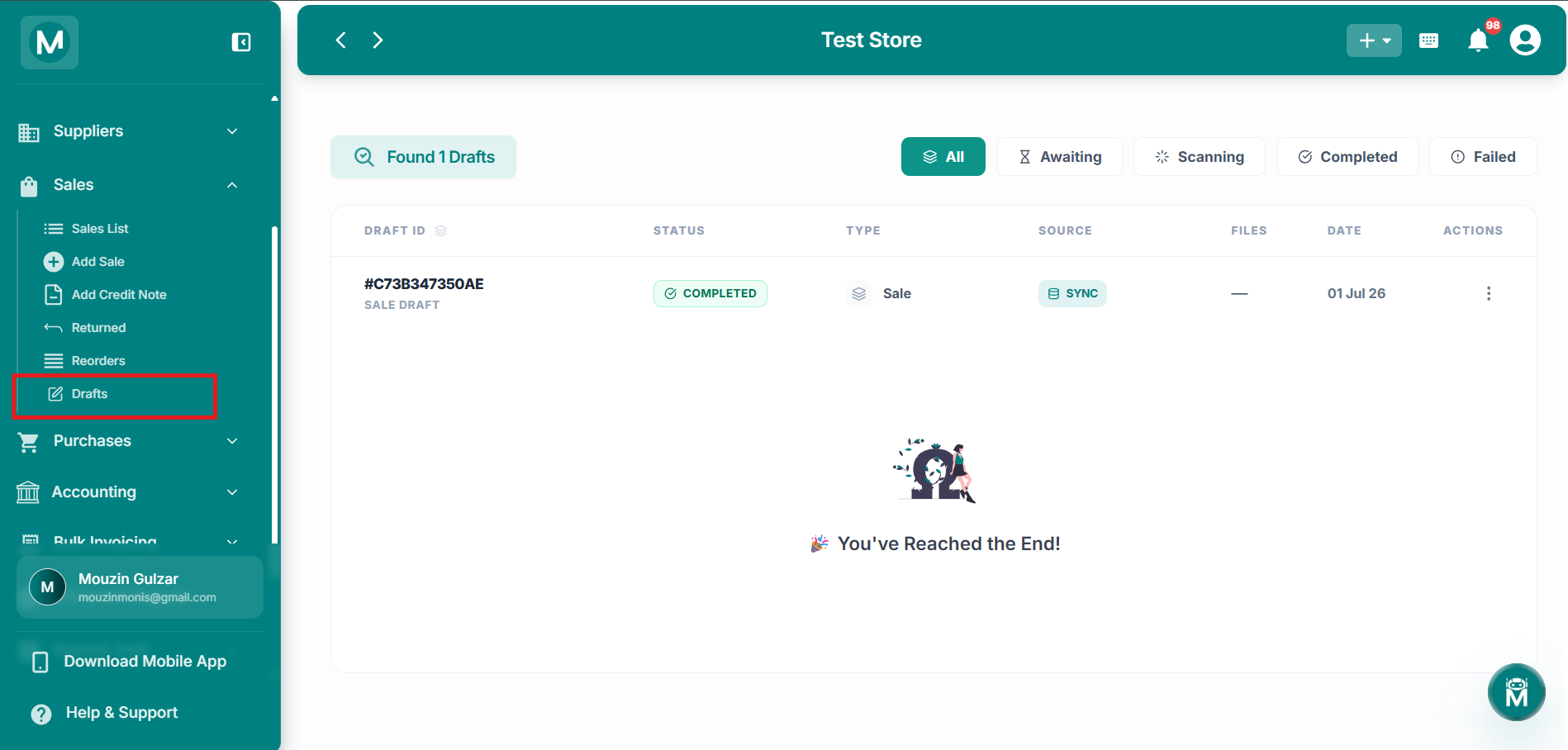
Drafts page
Drafts table showing a draft entry with status, type, source, and actions.
Draft Statuses
Filter By Status
Use the status tabs at the top to filter drafts:
All · Awaiting · Scanning · Completed · Failed
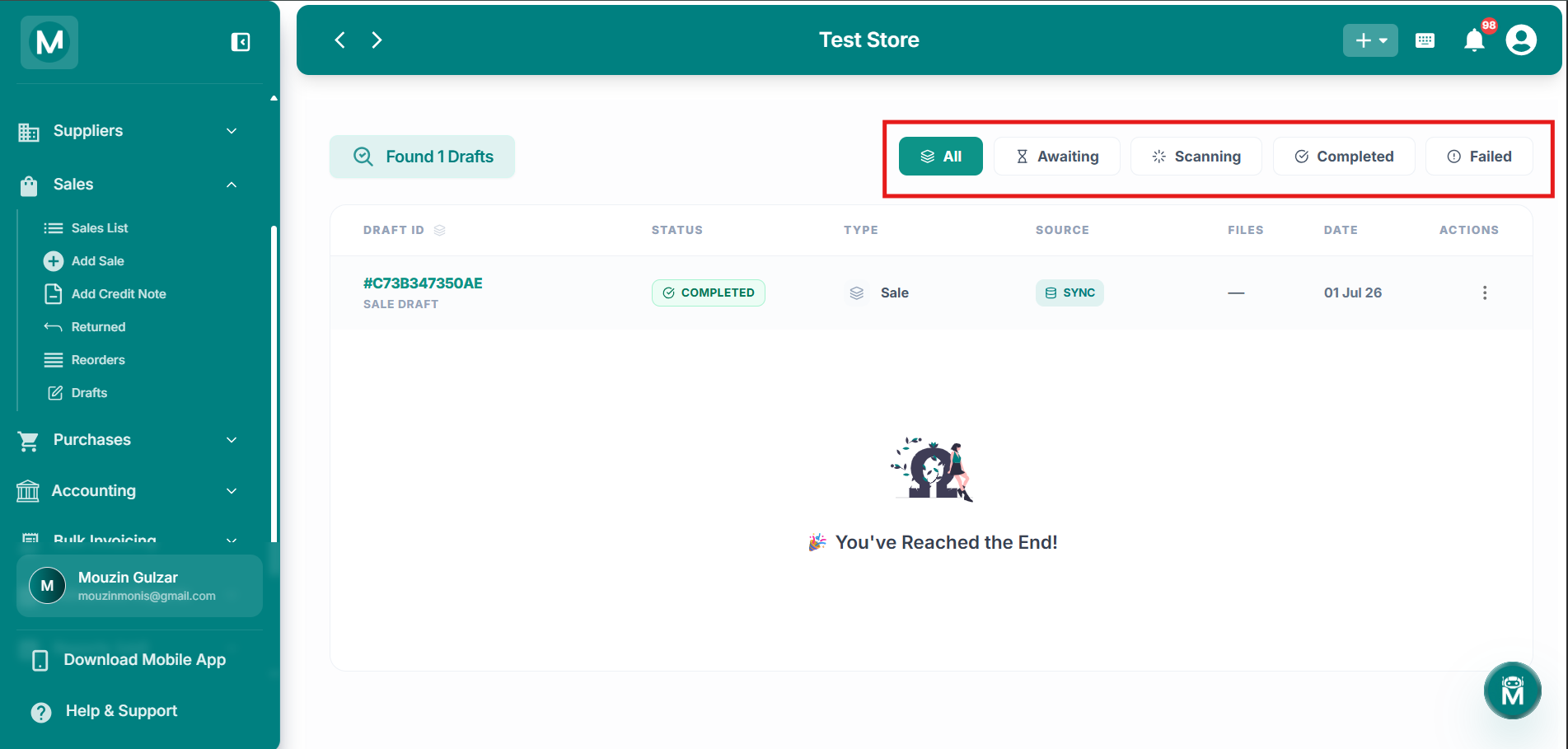
Status filter tabs
Filter drafts by All, Awaiting, Scanning, Completed, or Failed.
Resuming A Draft
Click on any draft row to open it and resume the bill from where you left off. If the prescription scan is completed, the drug details will already be filled in for you.
Deleting A Draft
Click the three-dot menu (⋮) on any draft row and select Delete Draft to permanently remove it.
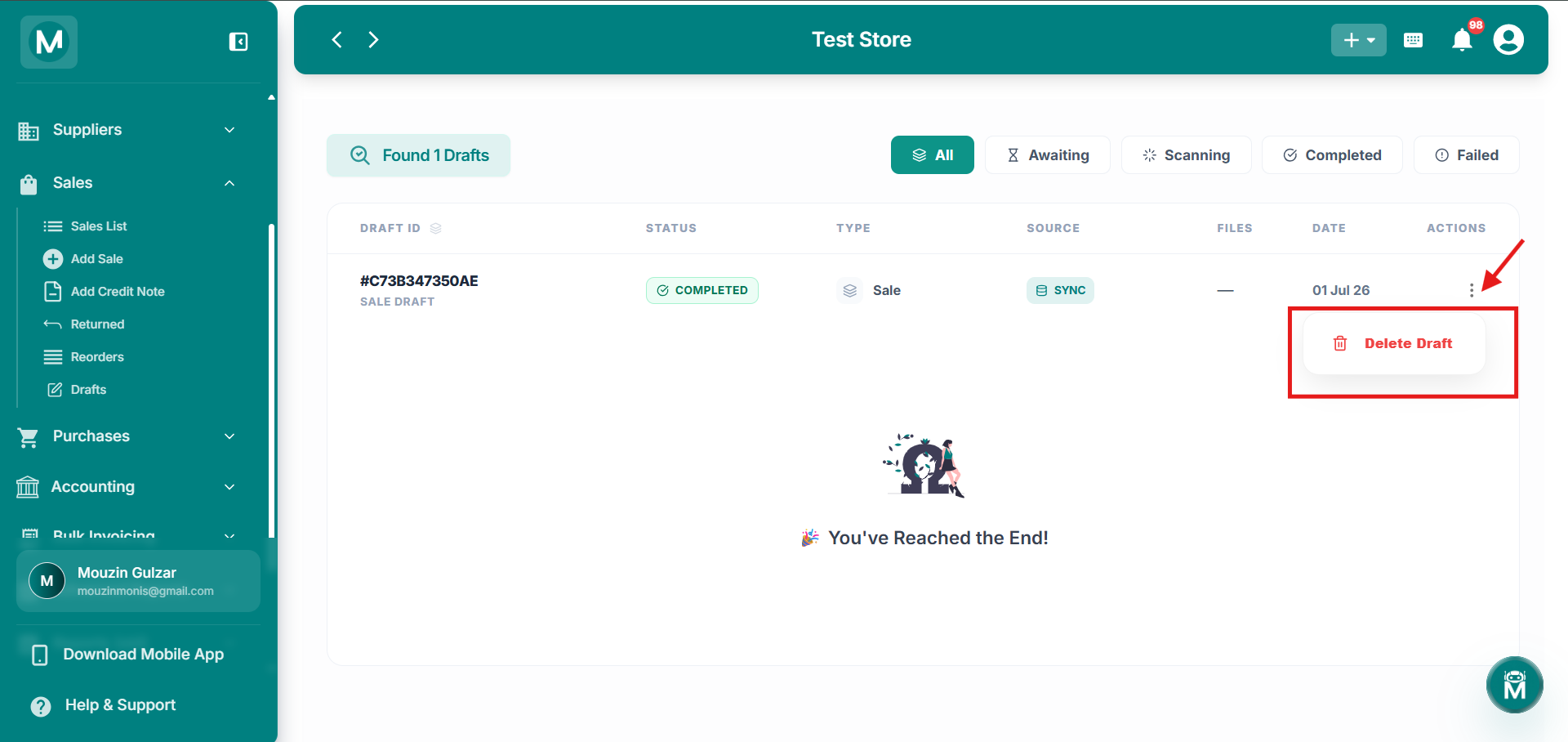
Delete draft
Three-dot menu showing the Delete Draft option.