
Supplier Profile
View a supplier's complete purchase history, outstanding balance, performance stats, and manage their details from one page.
Clicking on any supplier's name in the Supplier List opens their Supplier Profile, a dedicated page showing everything about that supplier in one place. From here you can view their purchase history, track outstanding dues, check margin performance, and take actions like editing details or recording a new purchase.
Profile Header
At the top of the page you'll see:
- The supplier's name in large text under the SUPPLIER label
- A small avatar icon with a dropdown arrow. Click this to switch to a different supplier without going back to the list
- Last edited timestamp showing when the supplier profile was last updated
- The supplier's phone number, address, license number, and GSTIN displayed on the right side of the header
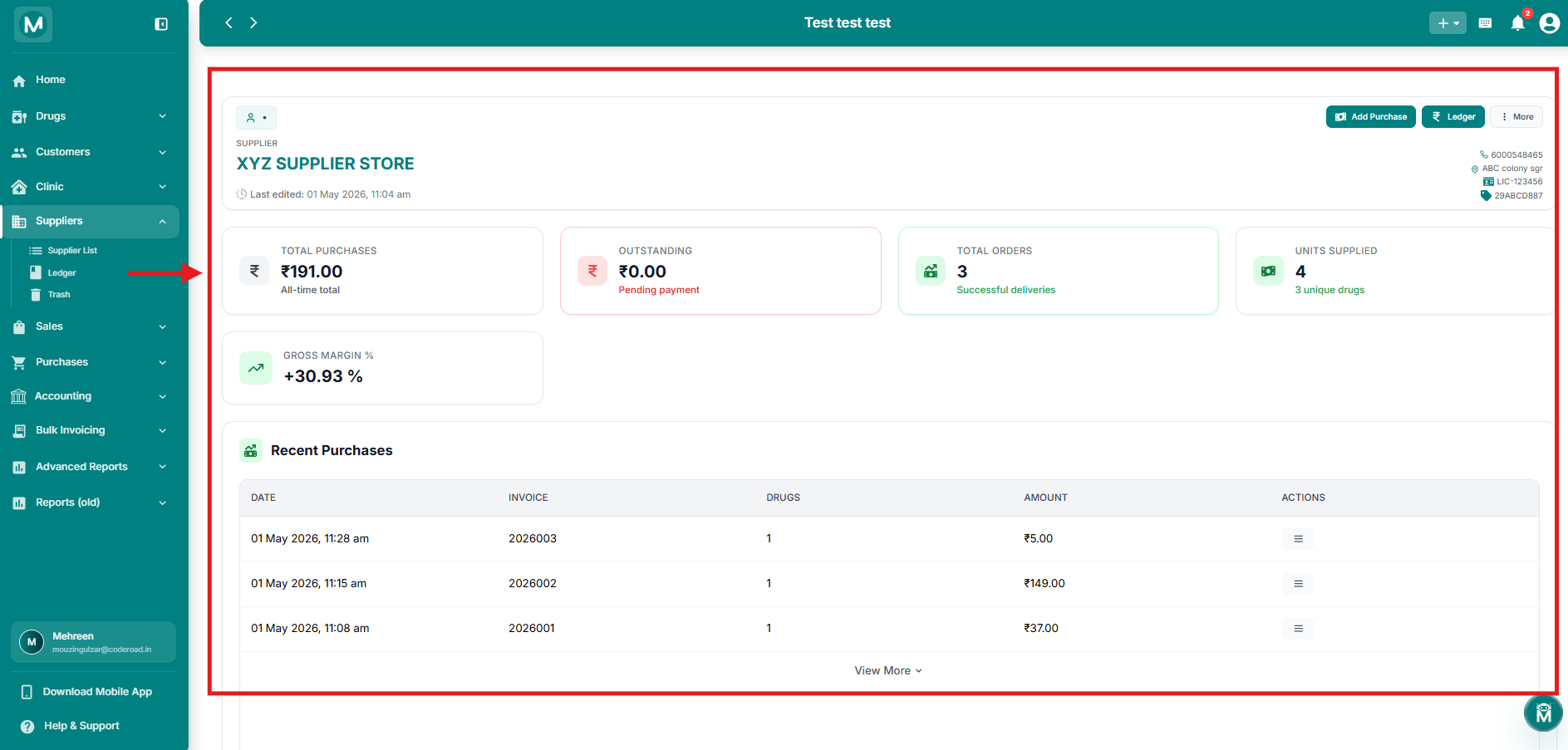
Profile header
Supplier name, avatar dropdown, contact details, and last edited timestamp.
Summary Cards
Five stat cards sit below the header giving you a quick performance snapshot of this supplier:
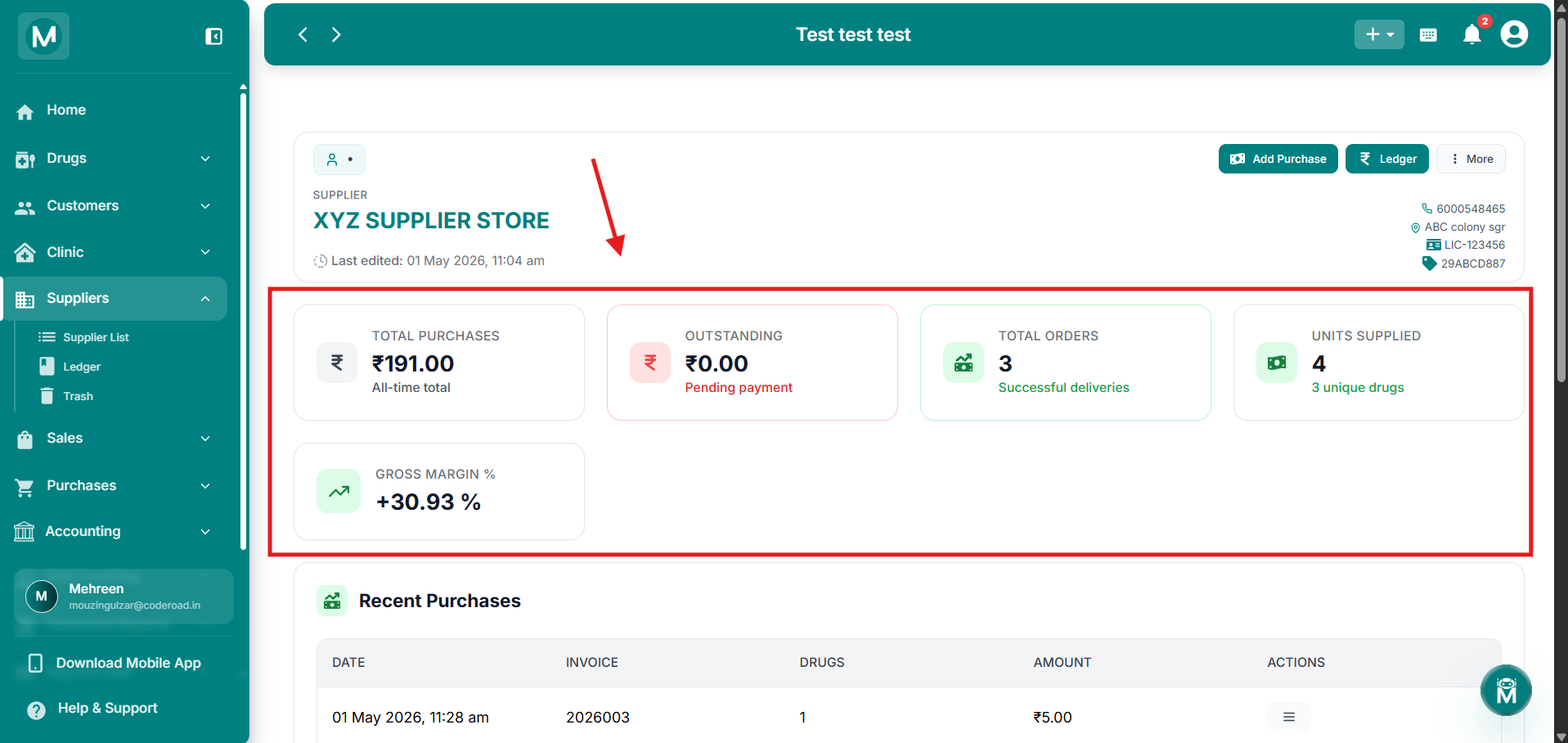
Summary cards
Five stat cards showing purchase history, outstanding, orders, units, and margin.
Page-Level Actions
Three buttons and a menu sit at the top-right of the supplier profile:
Add Purchase
Click Add Purchase to create a new purchase entry directly linked to this supplier, without having to search for or select the supplier again in the purchase form.
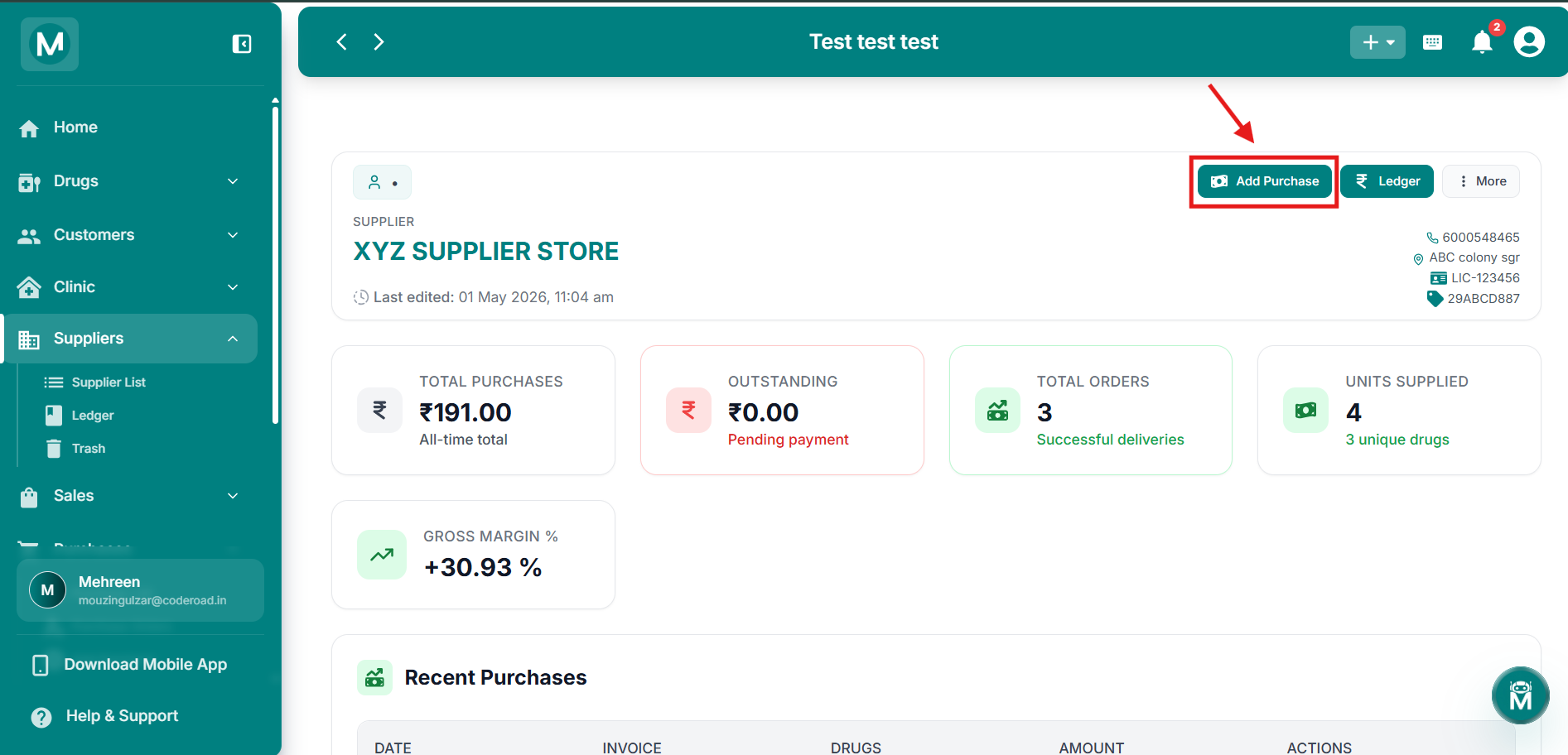
Add Purchase
Purchase form opened directly from the supplier profile.
Ledger
Click Ledger to jump straight to this supplier's individual ledger, showing their full transaction history, running balance, and options to add payments, credit notes, or adjustments.
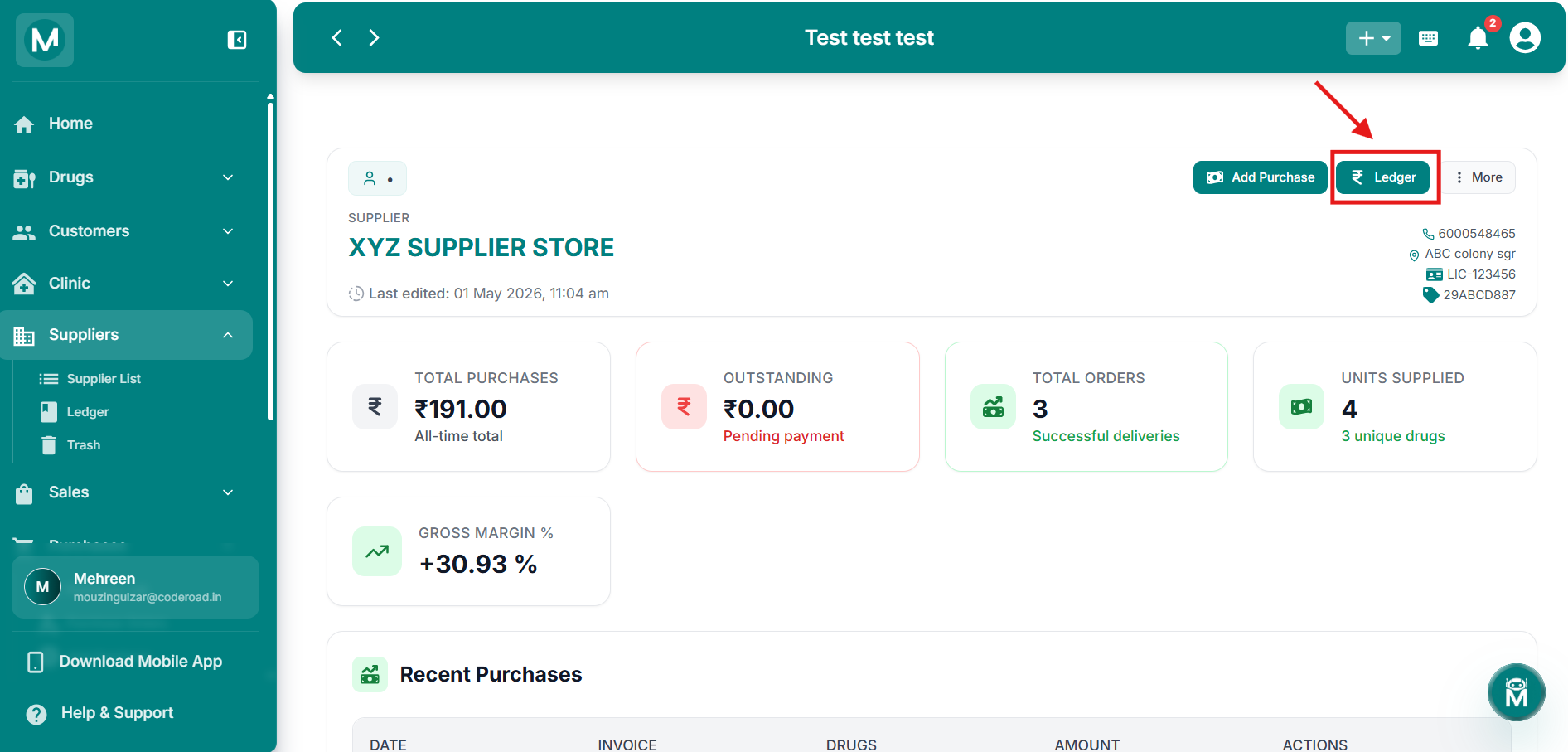
Ledger button
Quick access to the supplier's transaction ledger.
More Menu Options
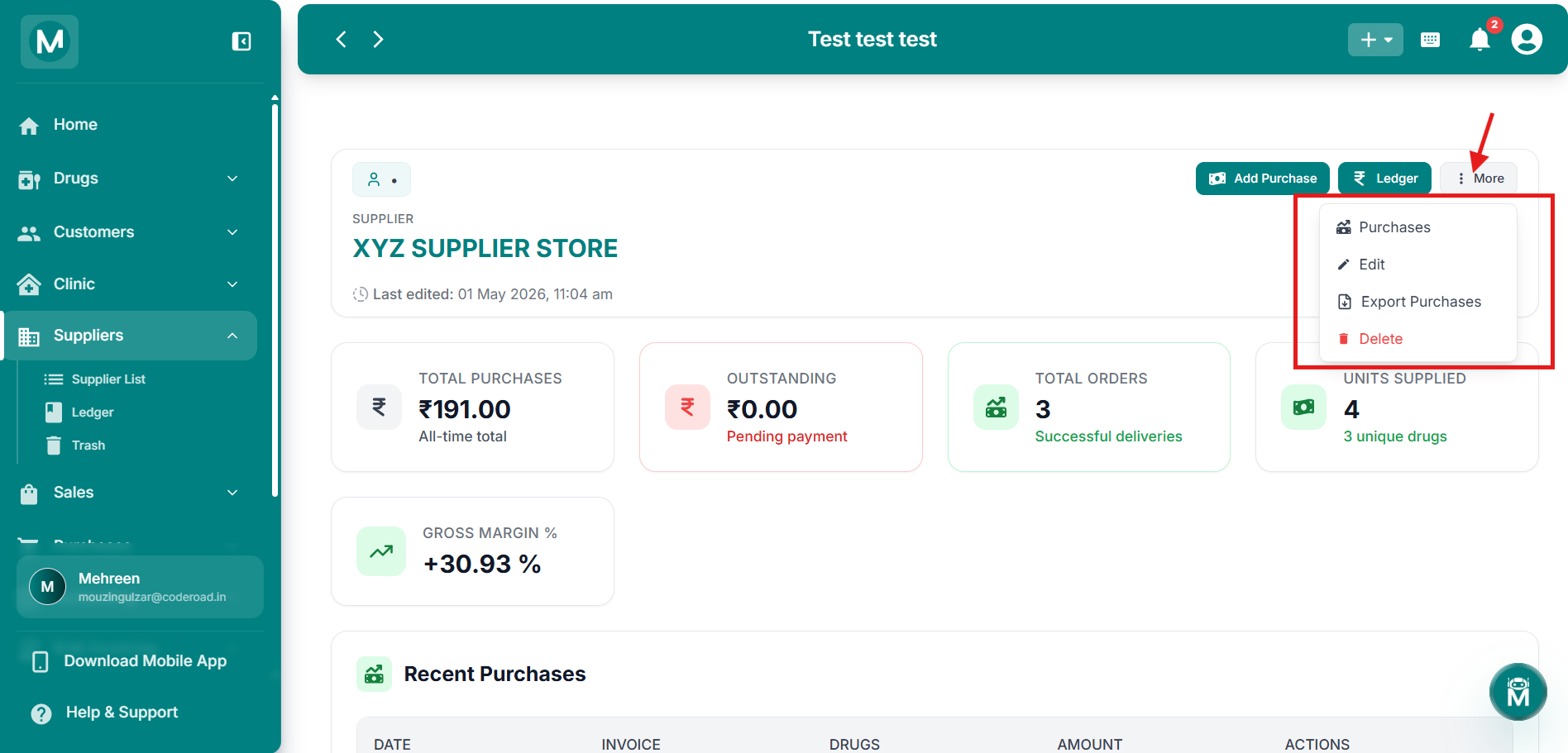
More menu
Additional actions available from the dropdown menu.
Editing A Supplier
Click Edit from the More menu to open the Update Supplier form. You can edit Store Name, License Number, GSTIN, Contact Person, Phone Number, Email Address, Website, Address, Notes, and Reliability Score.
The Opening Balance field cannot be edited from here. It is locked once the supplier is created. If you need to correct it, create an Adjustment entry from the supplier's Ledger instead.
Click Update Supplier to save your changes, or Cancel to discard them.
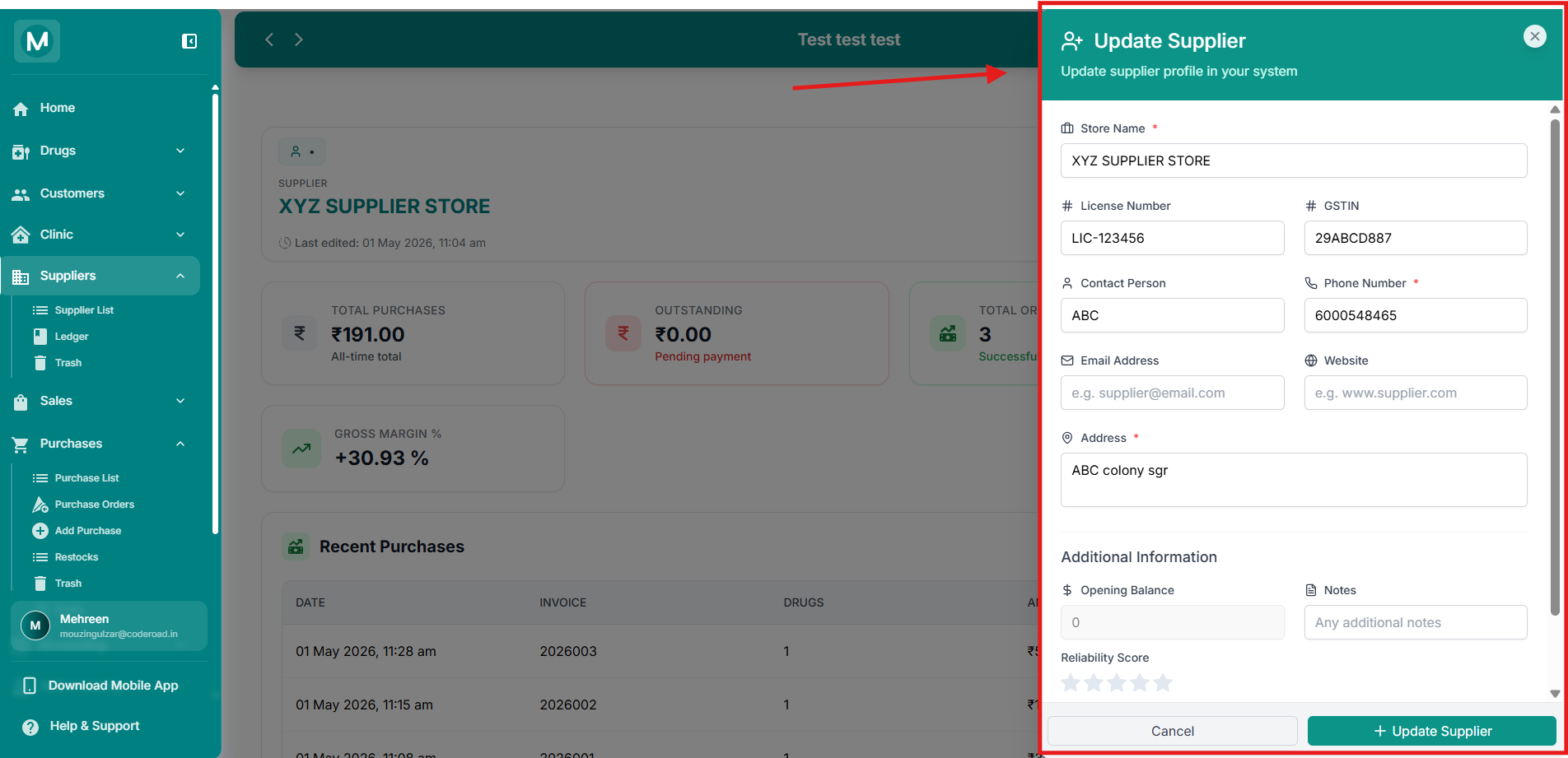
Update Supplier form
Edit supplier details. Opening Balance is disabled and cannot be changed.
Recent Purchases
Below the summary cards, the Recent Purchases table shows the latest purchase entries recorded against this supplier:
Click View More at the bottom of the table to load older purchase entries.
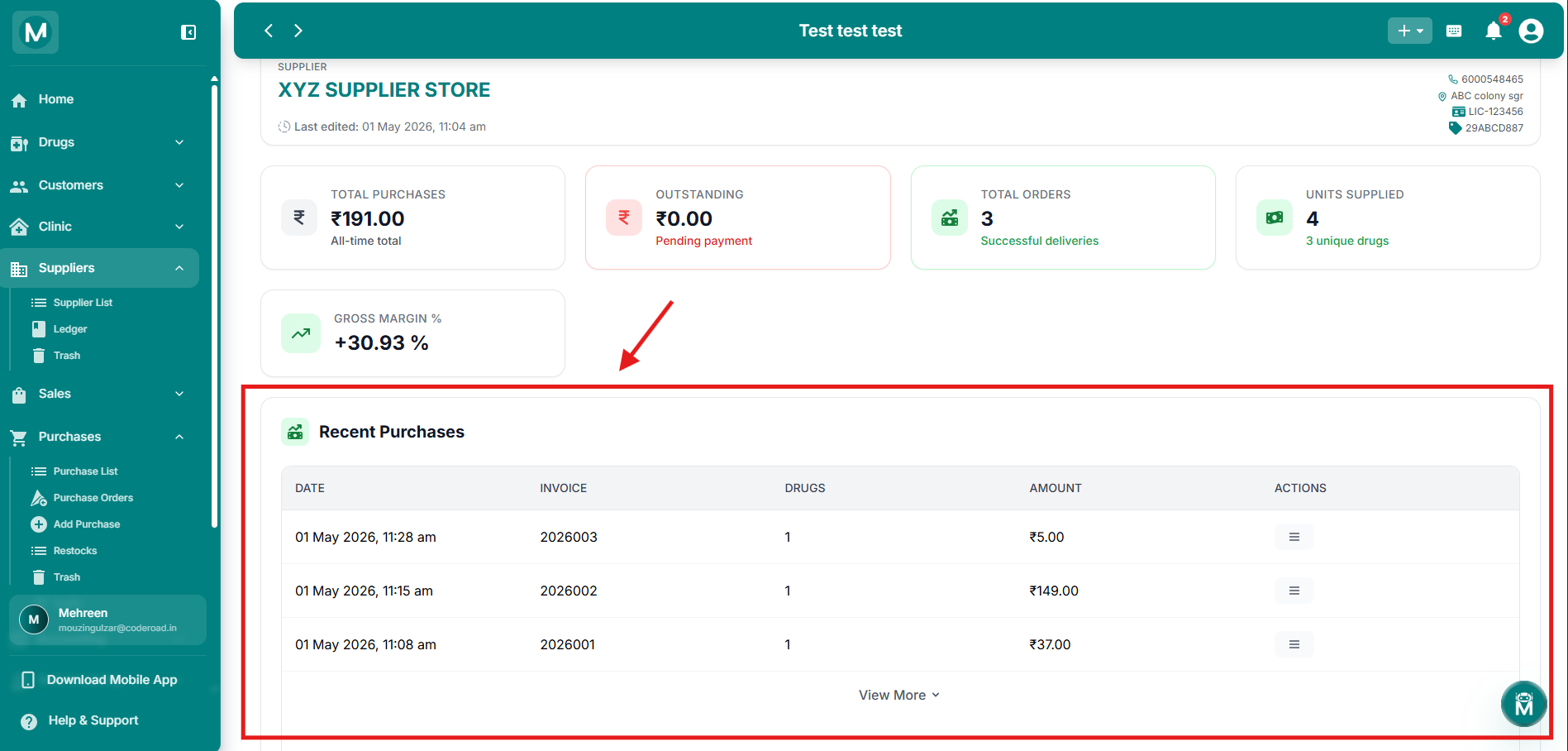
Recent Purchases table
Latest purchases with actions menu showing View, Invoice, and Edit options.
Notes
At the bottom of the profile, the Notes section displays any internal remarks entered when the supplier was first created. If no notes were added, it shows No remarks provided.
To update the notes, use the Edit option from the More menu.
Common Mistakes To Avoid
Trying to edit the Opening Balance from the supplier profile
The Opening Balance field is locked in the Edit form and cannot be changed here. If the original amount was wrong, add an Adjustment entry from the supplier's Ledger instead.
Deleting a supplier instead of editing them
If you only need to update a supplier's details, use Edit, not Delete. Deleting moves the supplier to Trash. Although purchase history is preserved, it removes them from your active Supplier List until restored.