
Catalog Share
Generate secure, time-limited links to share your product catalog with partners and customers.
Catalog Share lets you create a shareable link to your product catalog. This is useful when you want to send your stock and pricing to a partner or customer without giving them access to MediFlux itself. Each link can be time-limited and configured to show or hide MRP before it's shared.
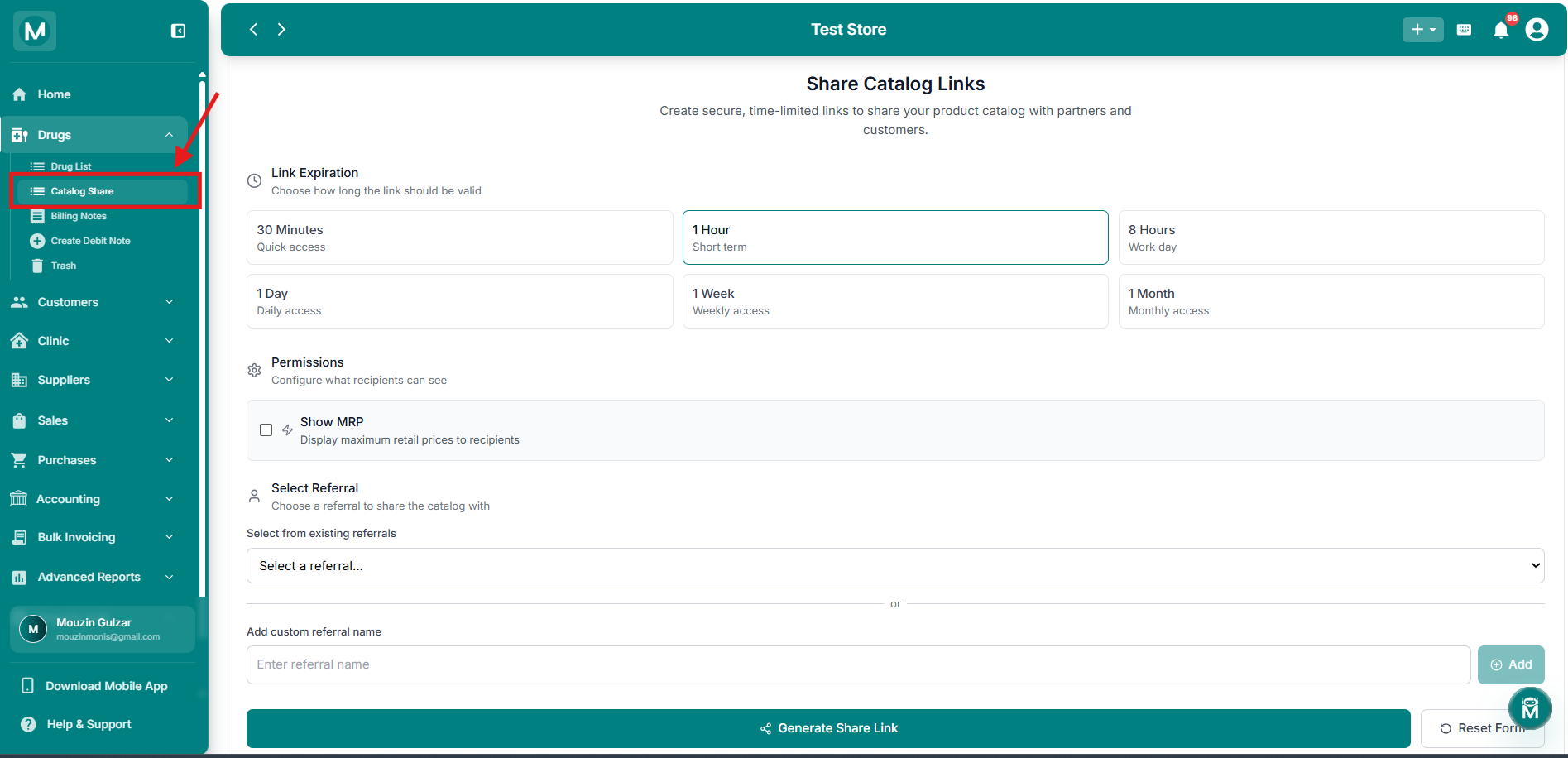
Catalog Share
Generate secure, time-limited links to share your product catalog.
Creating A Share Link
Link Expiration
Choose how long the link should stay valid:
Permissions
The Show MRP toggle controls whether recipients can see the maximum retail price of products in the catalog. Turn it off if you only want to share product availability without pricing.
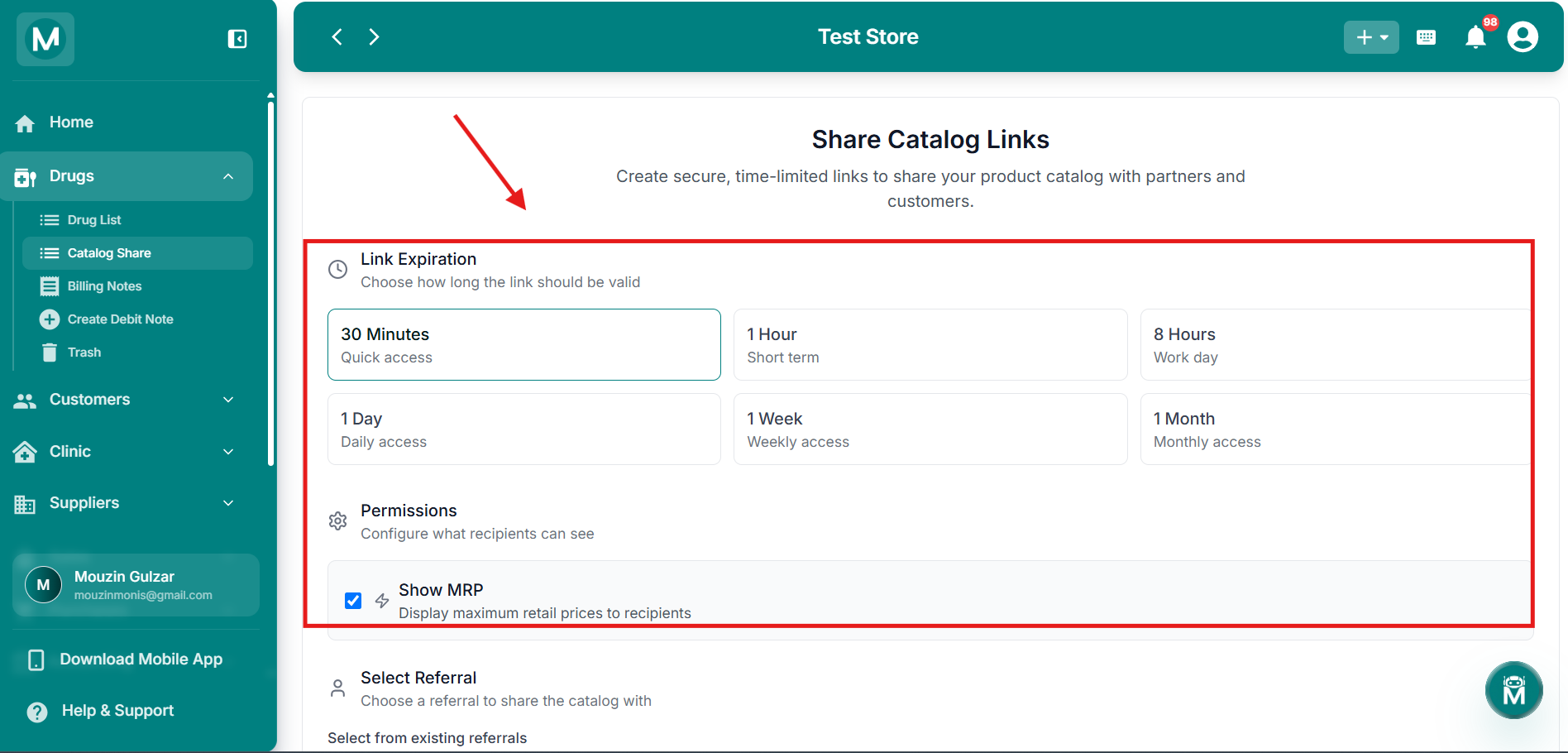
Permissions
Show MRP toggle and referral selection.
Select Referral
A Referral is a label used to identify who you're sharing the catalog with, for example, a partner or customer's name. You can either:
- Select an existing referral from the dropdown, or
- Add a new one by typing a name and clicking Add
Each referral gets a unique Referral ID, shown once selected.
Once you've configured these options, click Generate Share Link to create the link. Reset Form clears your selections and starts over.
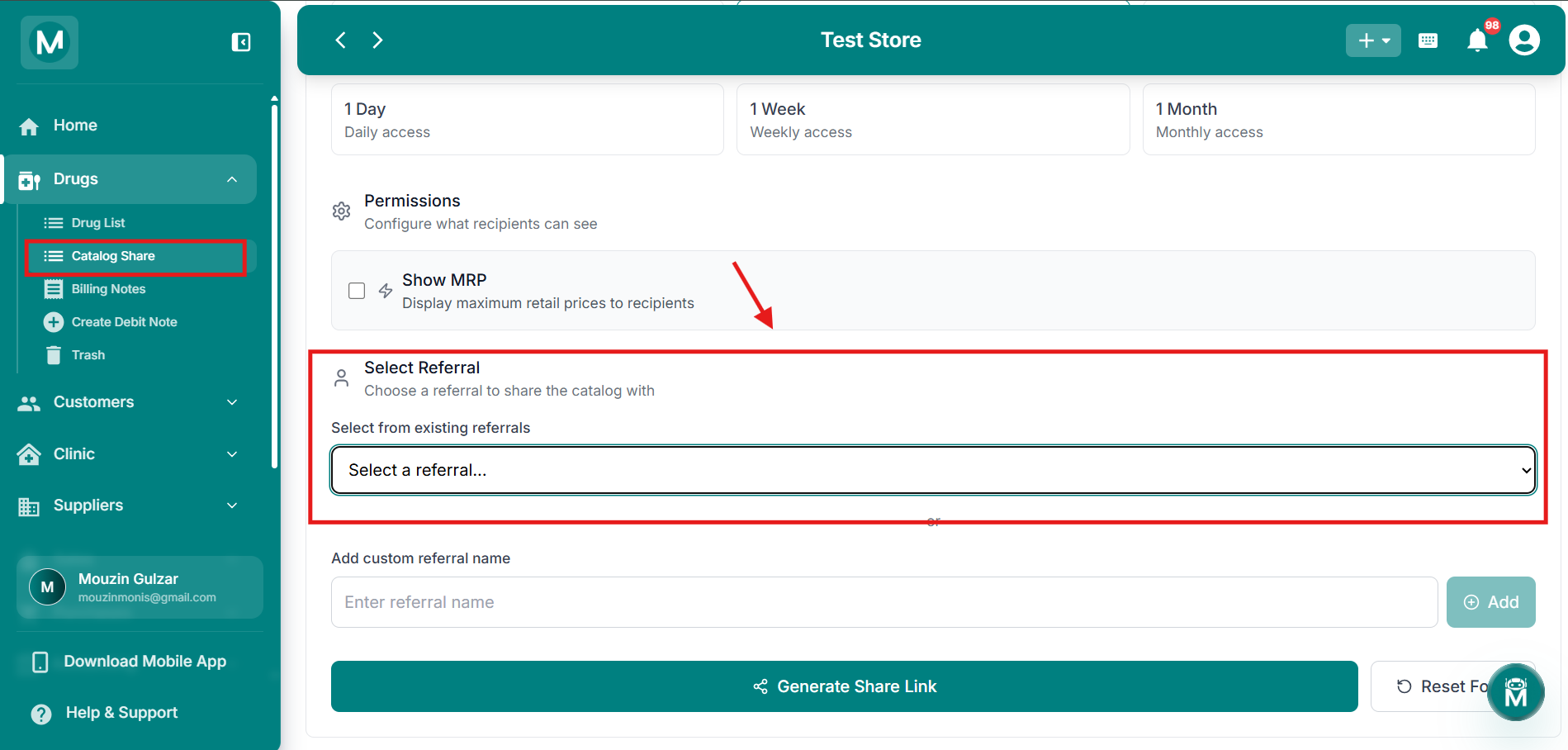
Share Catalog Links form
Configure expiration, permissions, and referral before generating the link.
Existing Links
Below the form, the Existing Links section lists every link you've generated, along with how many are currently active.
Each link has Copy and Delete actions. An expired link shows a note that it's no longer accessible and cannot be opened by recipients.
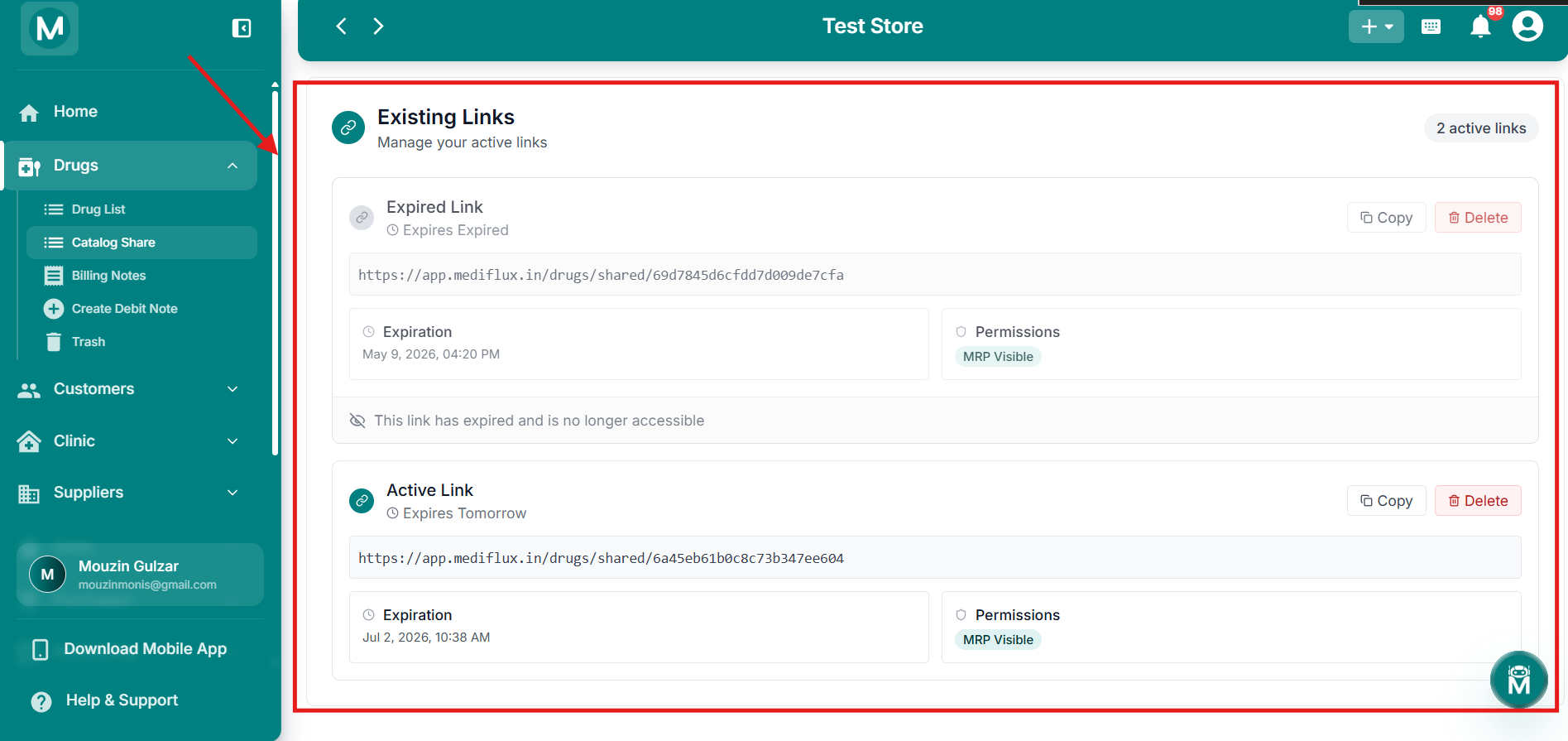
Existing Links
List of active and expired catalog share links.
What Recipients See
When someone opens a shared catalog link, they see a public storefront-style page with your store's name, address, and phone number, along with a search bar to browse your products.
Each product is listed with its Units/Pack, Approx Rate (shown only if Show MRP was enabled), and a quantity selector to add it to their cart. Recipients can adjust quantities and click Proceed to review and place their order.
Placing An Order
Clicking Proceed opens a Confirm Your Order form, where the recipient enters:
Below this, the Selected Products section lists everything added to the cart, with quantity controls and a Clear All option. The recipient can also set an Order Priority: Low, Medium, or High, before clicking Place Order to submit the order to your store.
The catalog link is public. Anyone with the link can view your catalog and place an order until it expires, so share it only with intended recipients.
Once placed, the order appears on your end under Sales → Orders, where you can review and accept or reject it.