
Drafts
Track the status of scanned purchase bills and clean up drafts you no longer need.
The Drafts page lists every purchase bill that has been scanned via the Add Purchase page, along with its processing status. Use this page to check whether a scanned bill has finished processing, and to delete drafts you no longer need.
Filtering By Status
Five tabs at the top let you filter drafts by their processing status:
A Found X Drafts count above the tabs shows how many drafts match the currently selected filter.
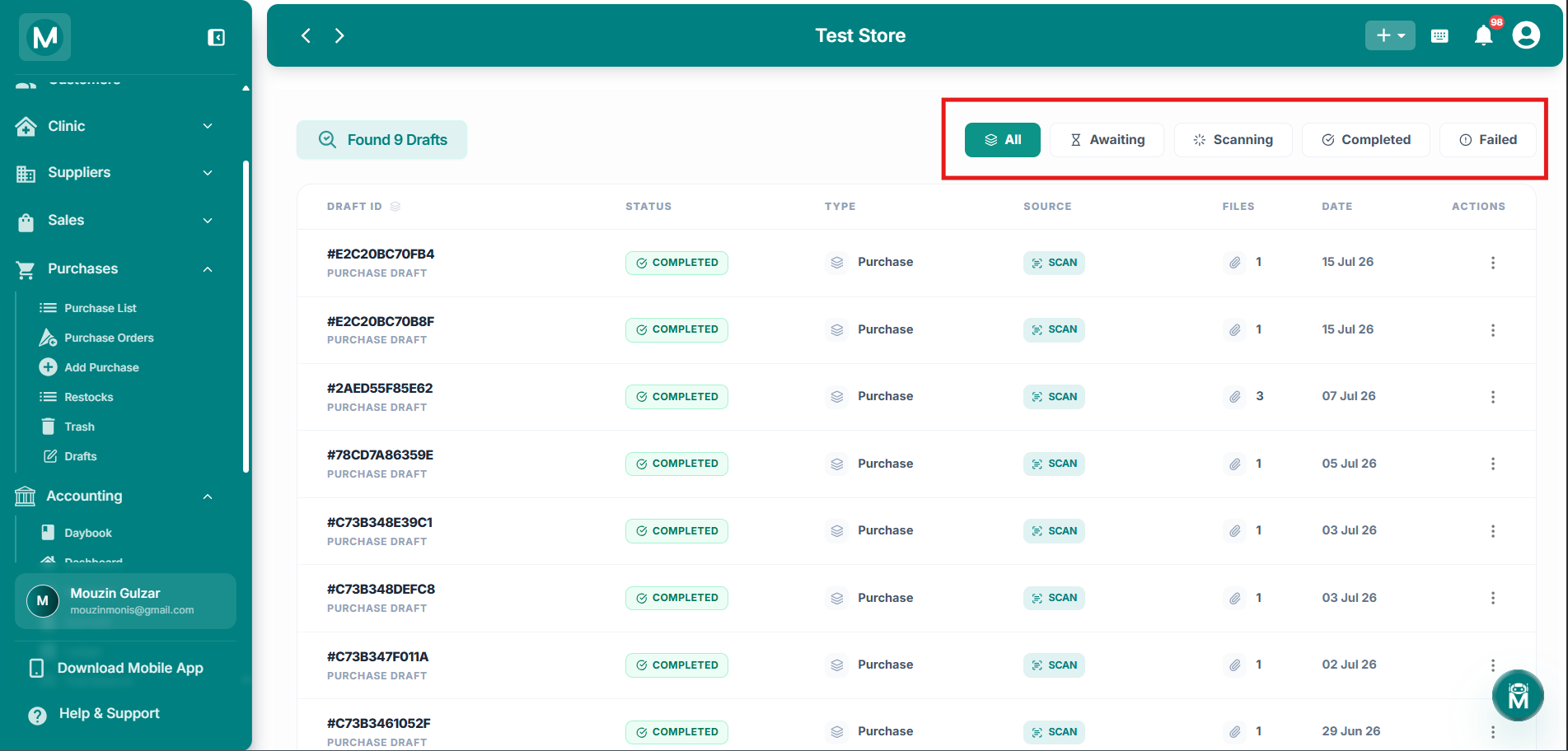
Draft Status Tabs
Filter drafts by All, Awaiting, Scanning, Completed, or Failed status.
The Drafts Table
Each row in the table represents one scanned purchase bill:
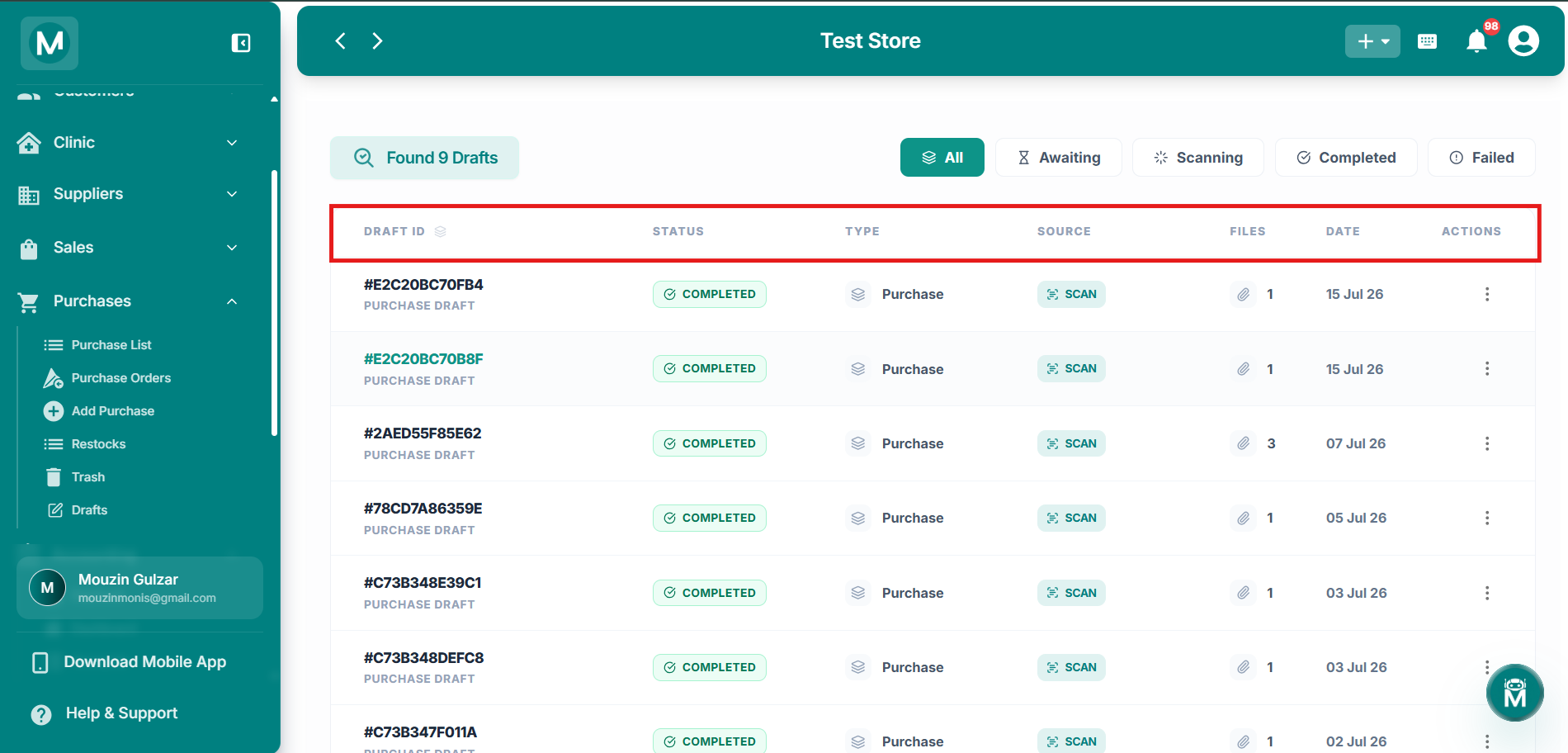
Drafts Table
List of scanned purchase drafts with ID, status, source, files, and date.
Row Actions
Clicking the three-dot menu (⋮) on any draft row opens a single option:
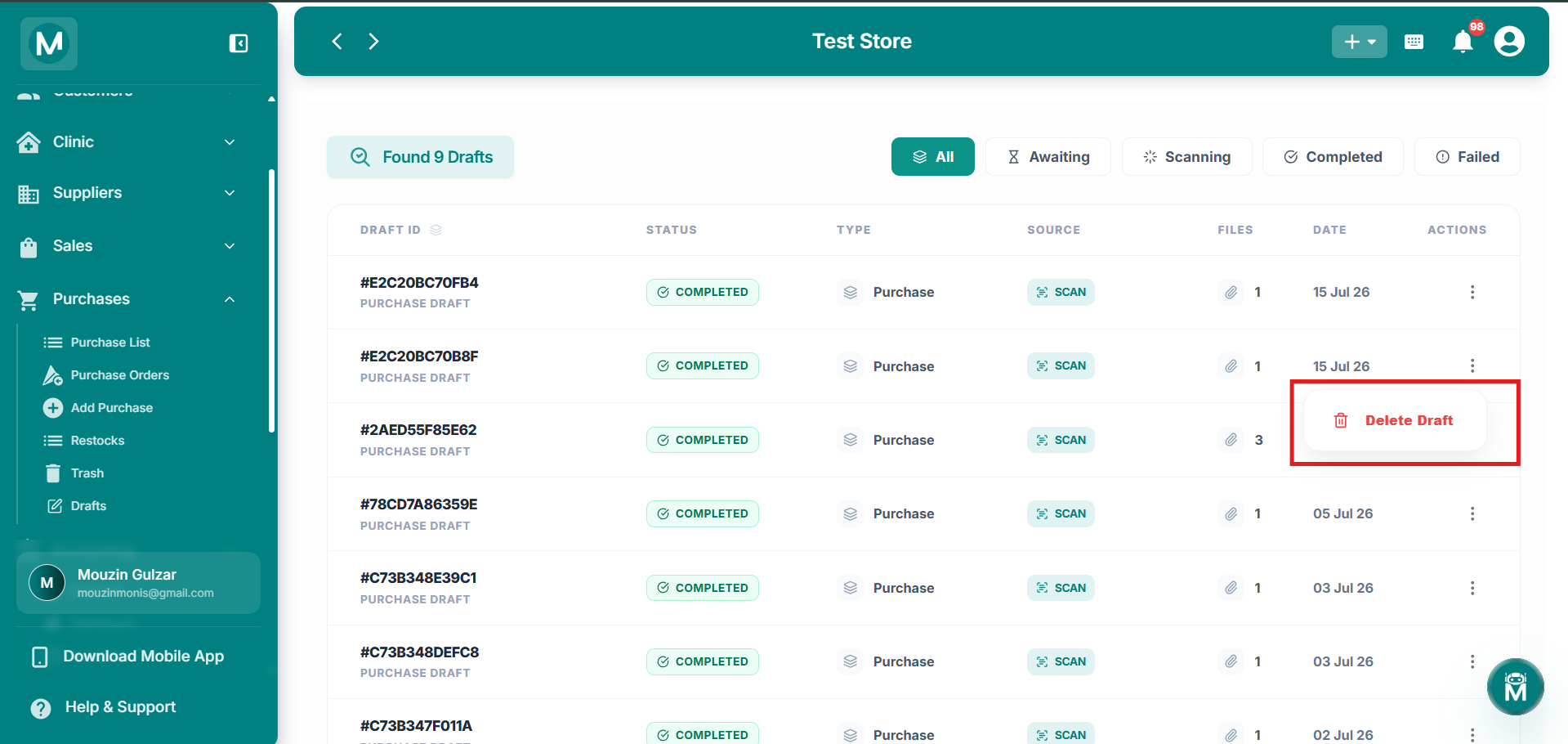
Draft Actions
Delete a draft permanently from the actions menu.
Where Drafts Come From
Drafts are created automatically when you use Scan on the Add Purchase page. To act on a draft, inserting or appending it into a purchase bill, go to Add Purchase and open the Drafts panel from there. See Add Purchase for details.
Clear The Queue
Checked your scanned bills? Here's where to go from here.