
Drug List
View and manage all the drugs in your inventory, switch between consolidated and separated views, filter by type or expiry, and import or export your stock data.
The Drug List is your main directory of every drug in your pharmacy's inventory. It gives you a real-time snapshot of stock levels, value, and expiry status, with the flexibility to view your inventory either grouped by drug or broken down batch-by-batch.
Summary Cards
At the top of the page, three summary cards give you an at-a-glance overview of your entire inventory:
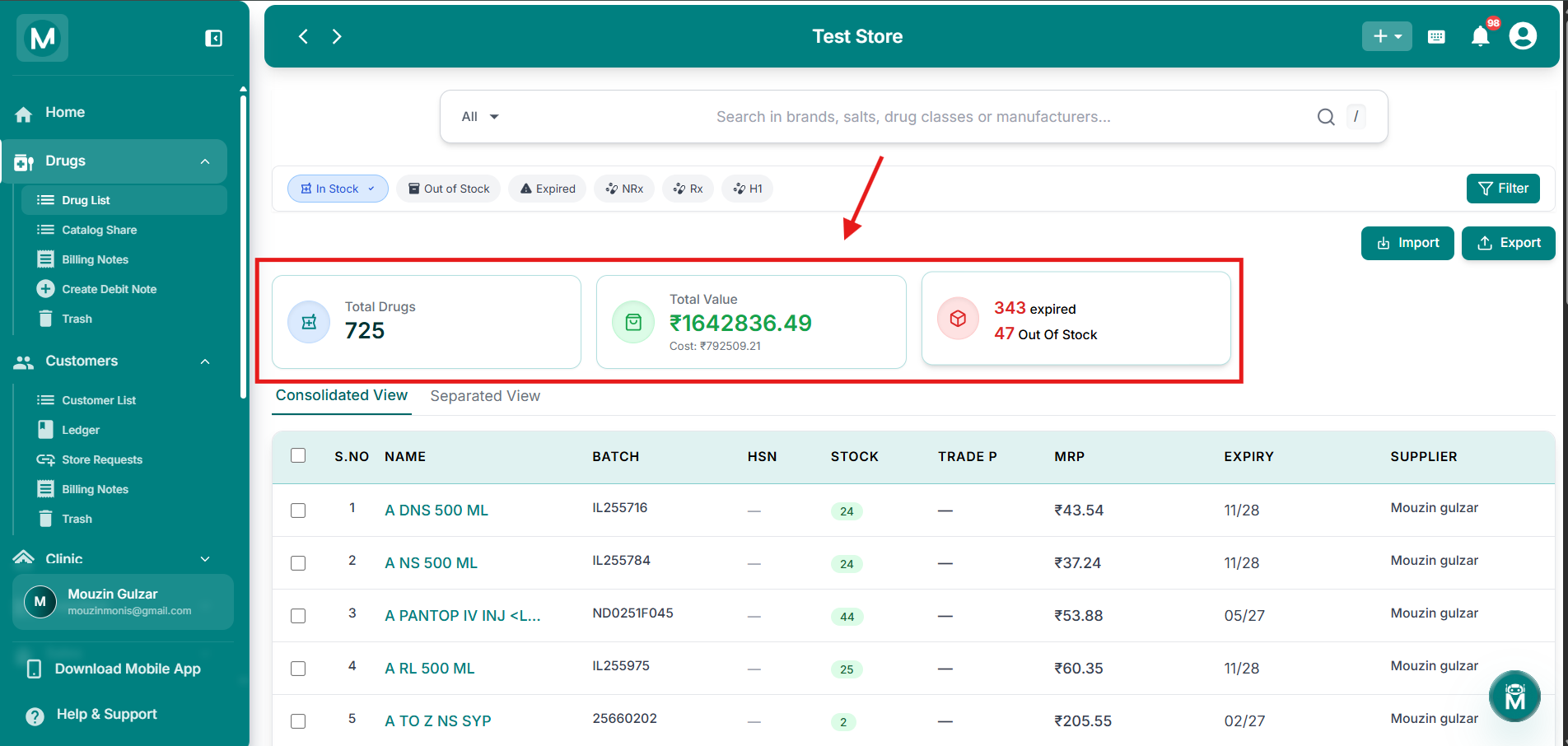
Summary cards
Three summary cards at the top of the Drug List page.
Searching Drugs
The search bar at the top lets you search across brands, salts, drug classes, or manufacturers. Just start typing and the list filters instantly.
To the left of the search bar is an All dropdown. Use it to narrow the search scope to a specific field:
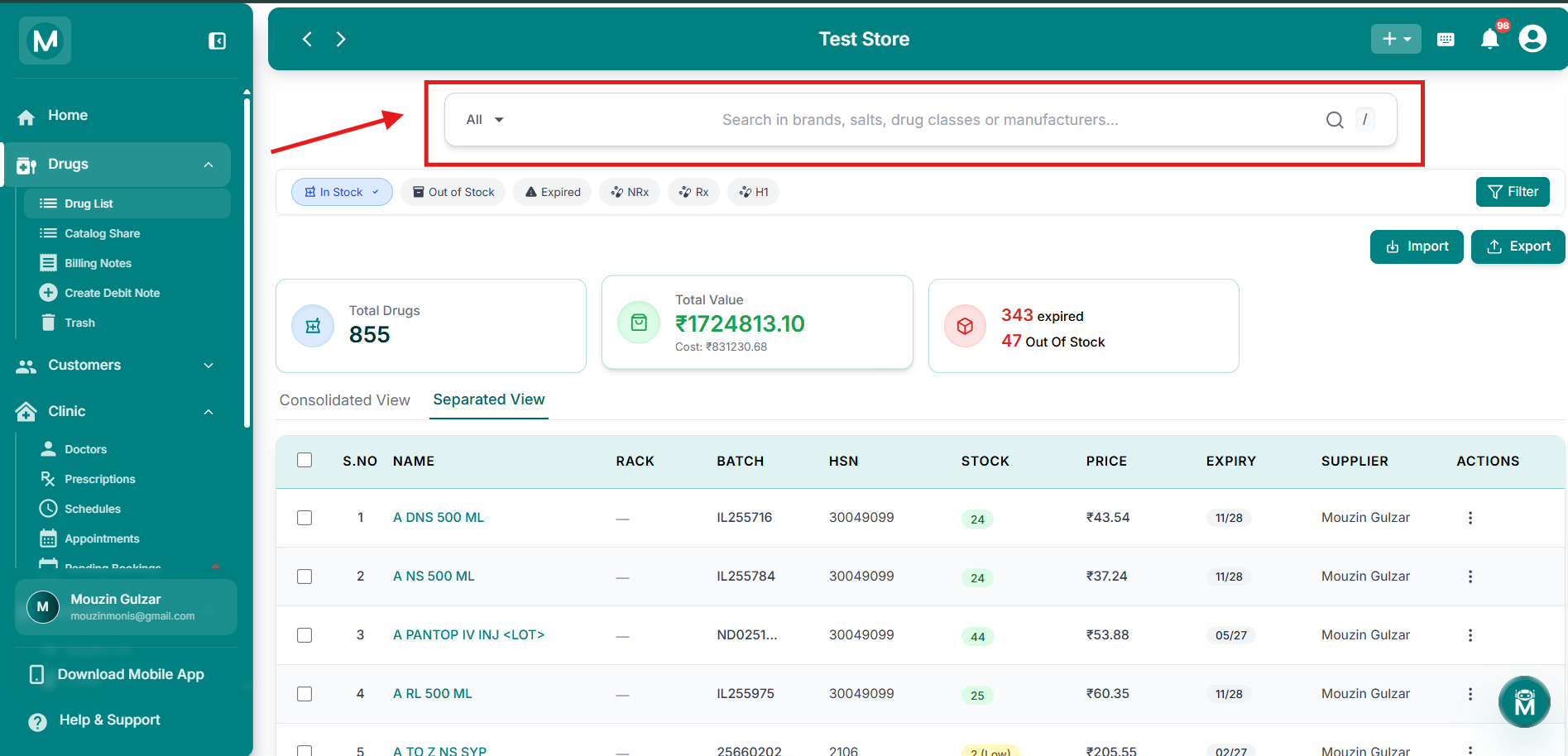
Drug Search bar
Search medicines by name, brands, or drug classs to quickly locate inventory items.
Filter Chips
Below the search bar, quick-filter chips let you slice the list instantly:
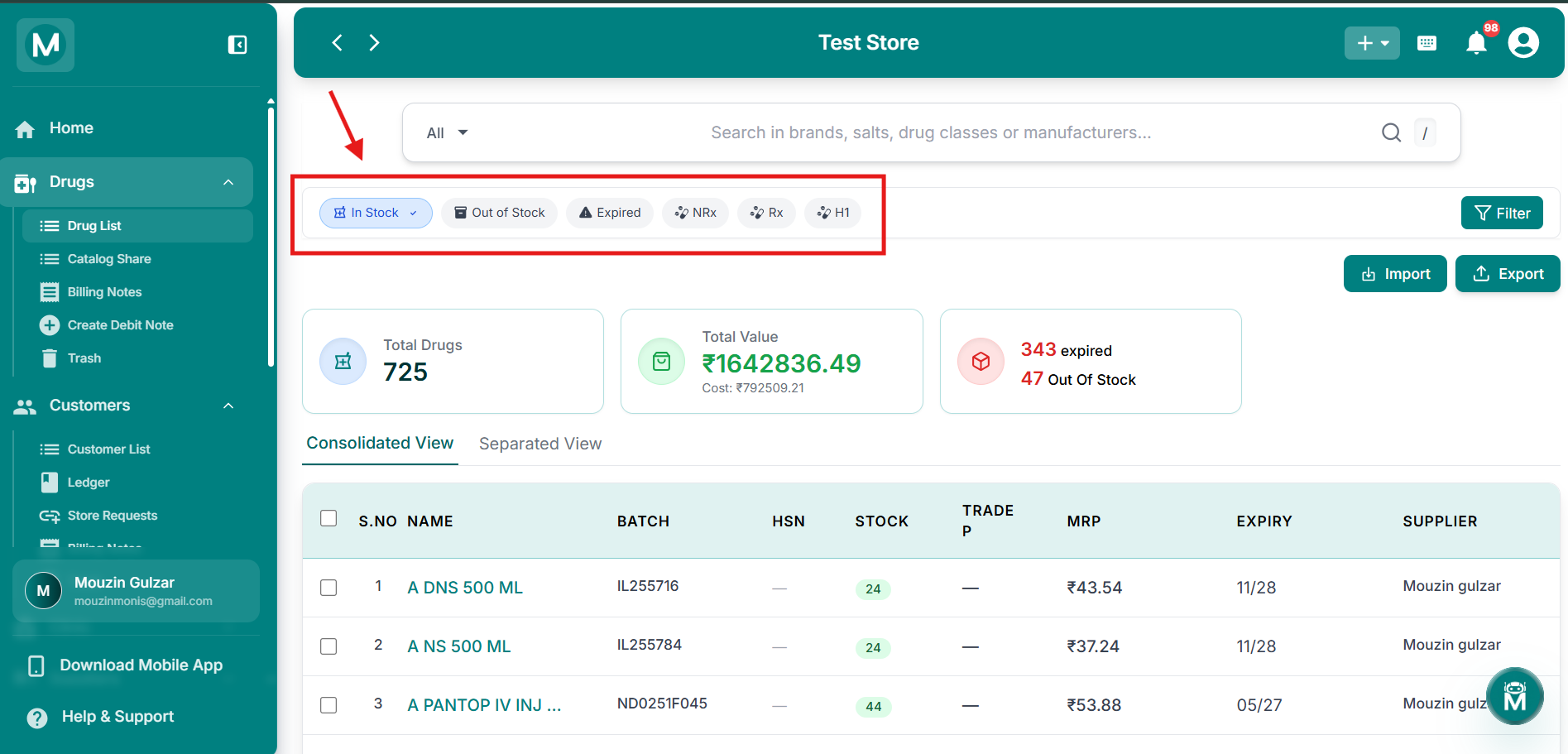
Filter chips
Quick-filter chips for stock status, expiry, and drug type.
Switching Between Consolidated And Separated View
Below the filter chips, two tabs let you switch how drugs are displayed:
- Consolidated View: groups every batch of the same drug into a single row, useful for a quick, uncluttered look at your inventory by drug name
- Separated View: lists every batch as its own row, with rack number and full row-level actions available
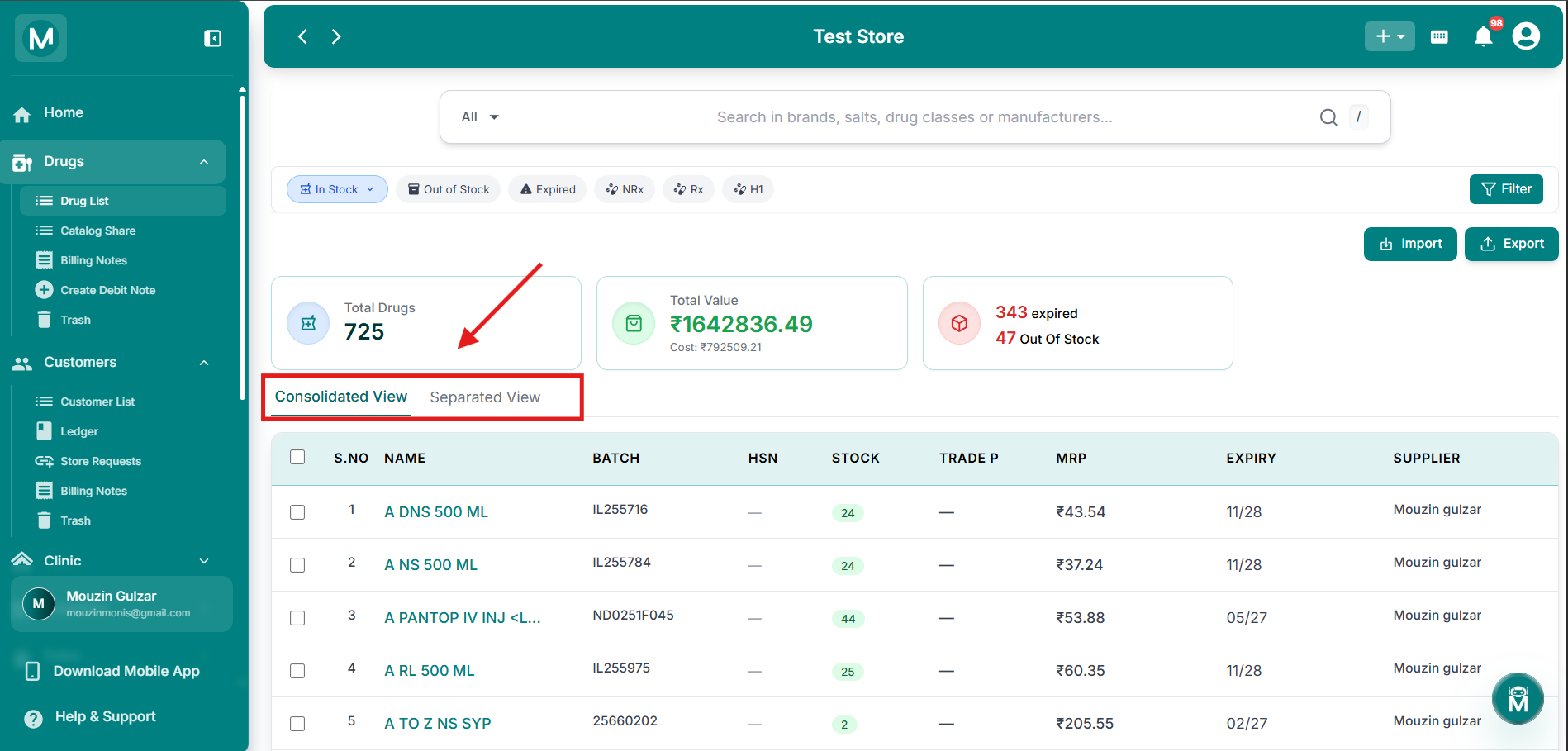
View tabs
Toggle between Consolidated and Separated View.
The Drug Table
Consolidated View Columns
Separated View Columns
Separated View shows the same information as Consolidated View, with two differences: a Rack column instead of grouping by drug, and an Actions column for row-level actions.
Selecting Drugs And Bulk Actions
Selecting one or more rows using the checkboxes brings up a toolbar with bulk actions. The options available depend on the view you're in:
Consolidated View only allows exporting activity for selected groups. Switch to Separated View to reorder, update, generate a debit note, or delete a specific batch.
Consolidated View
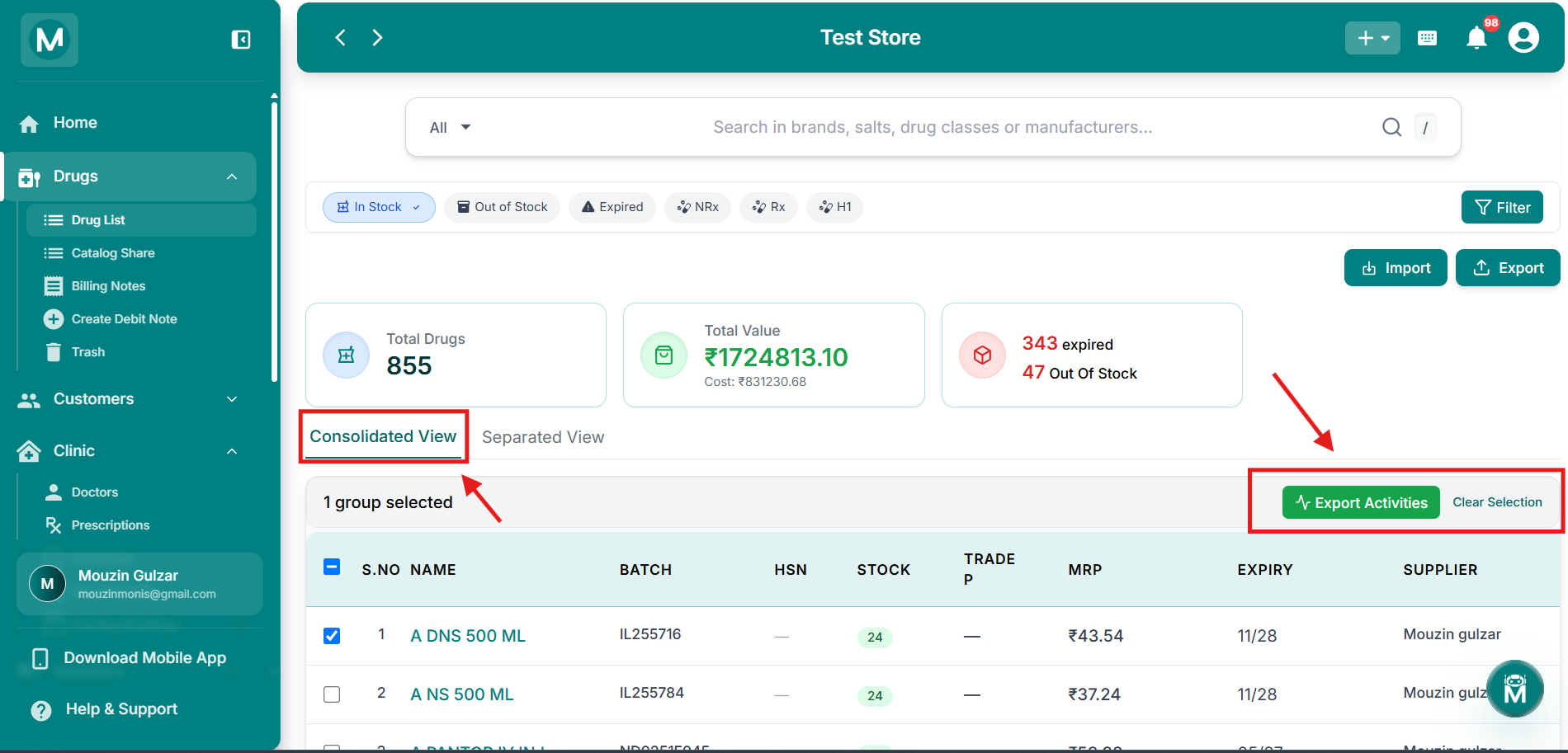
Bulk actions toolbar
Toolbar appearing when rows are selected in Consolidated View.
Separated View
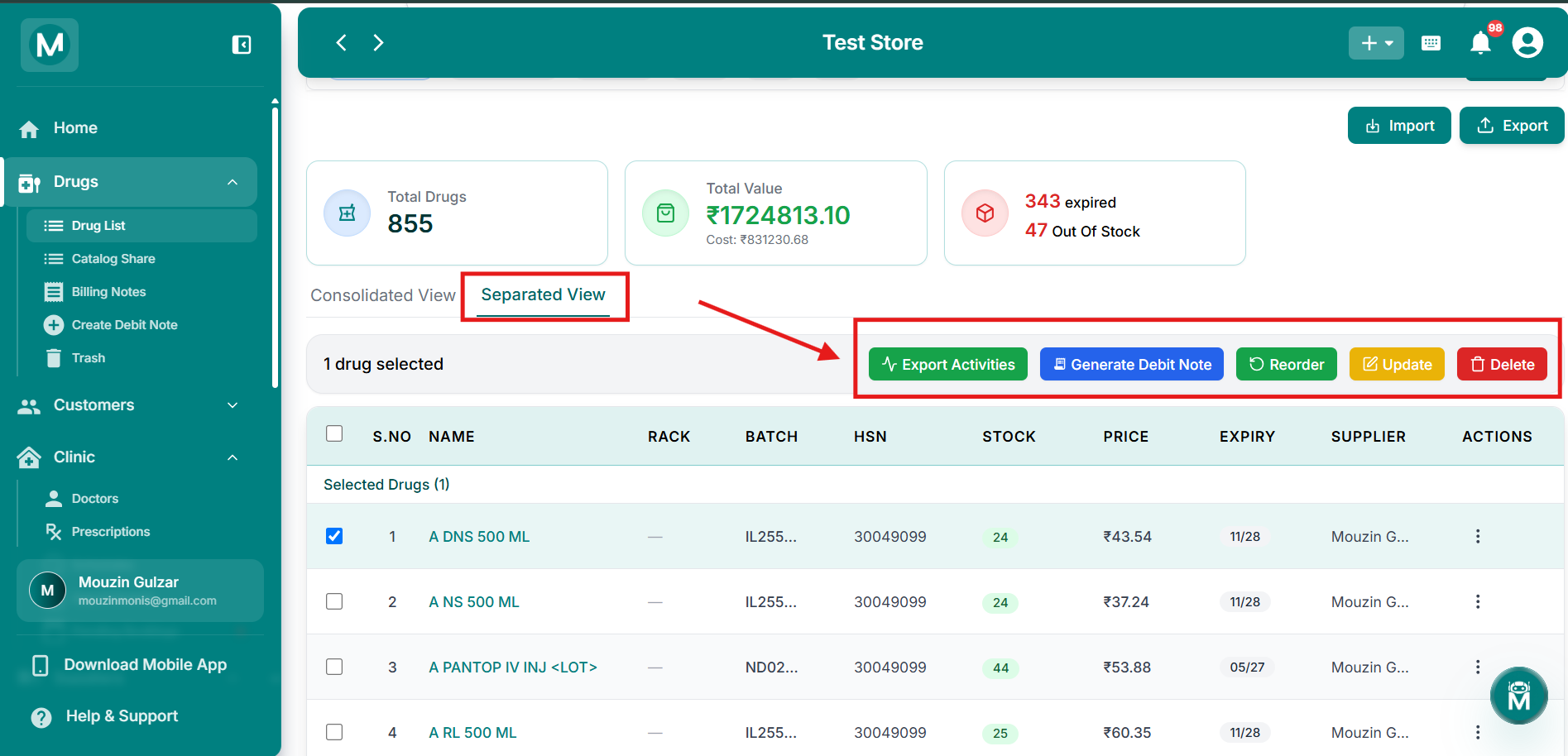
Bulk actions toolbar
Toolbar appearing when rows are selected in Separated View.
Add Deal
The Add Deal action (from the row's ⋮ menu in Separated View) lets you set up a purchase scheme for a drug, for example a "buy X get Y free" offer, by specifying a Buy Quantity, Free Quantity, a Start Date and End Date, and whether the deal is Active.
Viewing A Drug'S Full Details
Click on any drug name to open its Drug Profile, showing complete details like cost, trade price, margin, composition, tax rates, and recent activity.
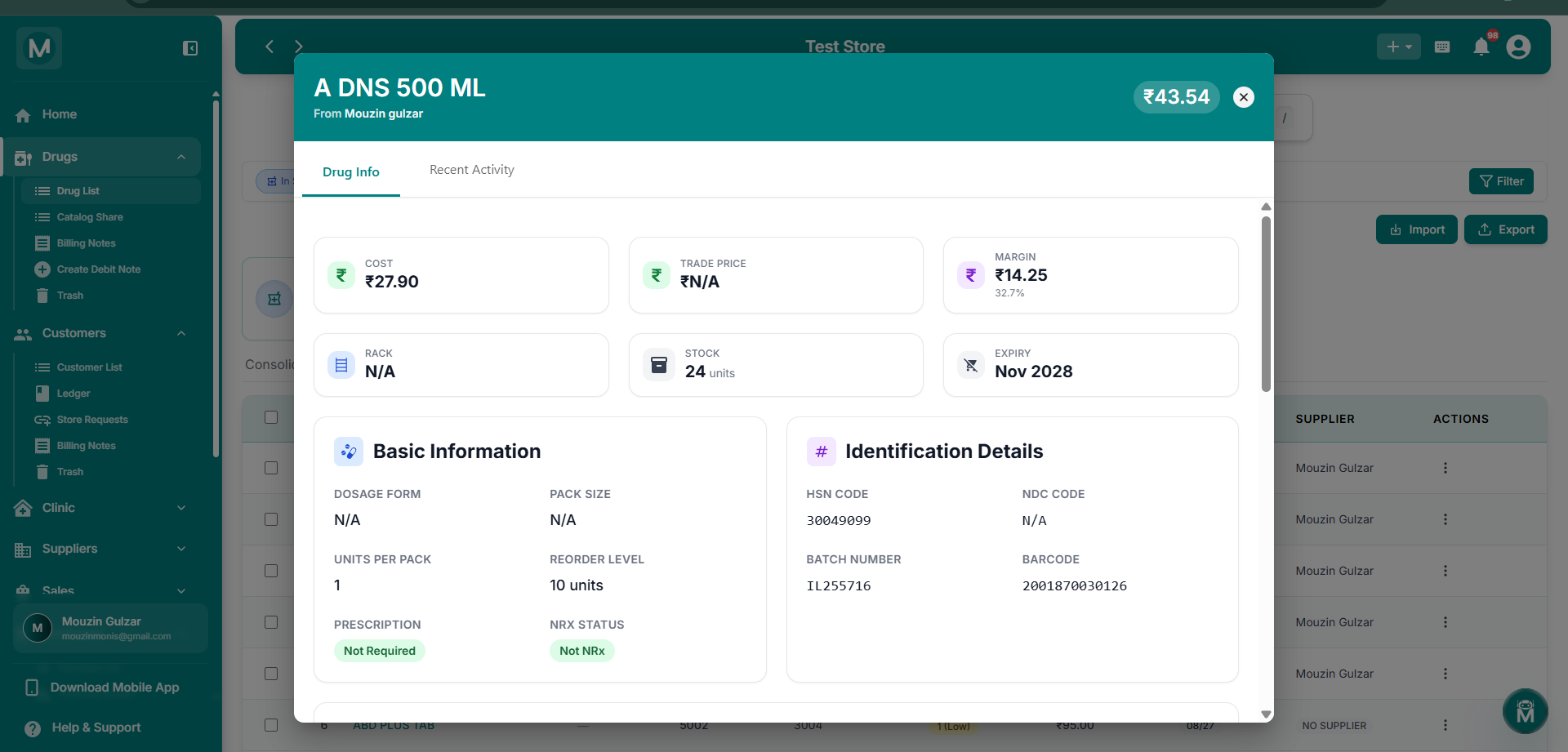
Drug Profile
Full drug details including cost, trade price, margin, and composition.
Filter & Sort Panel
Click the Filter button to open the Filter & Sort panel, with three tabs:
Filters
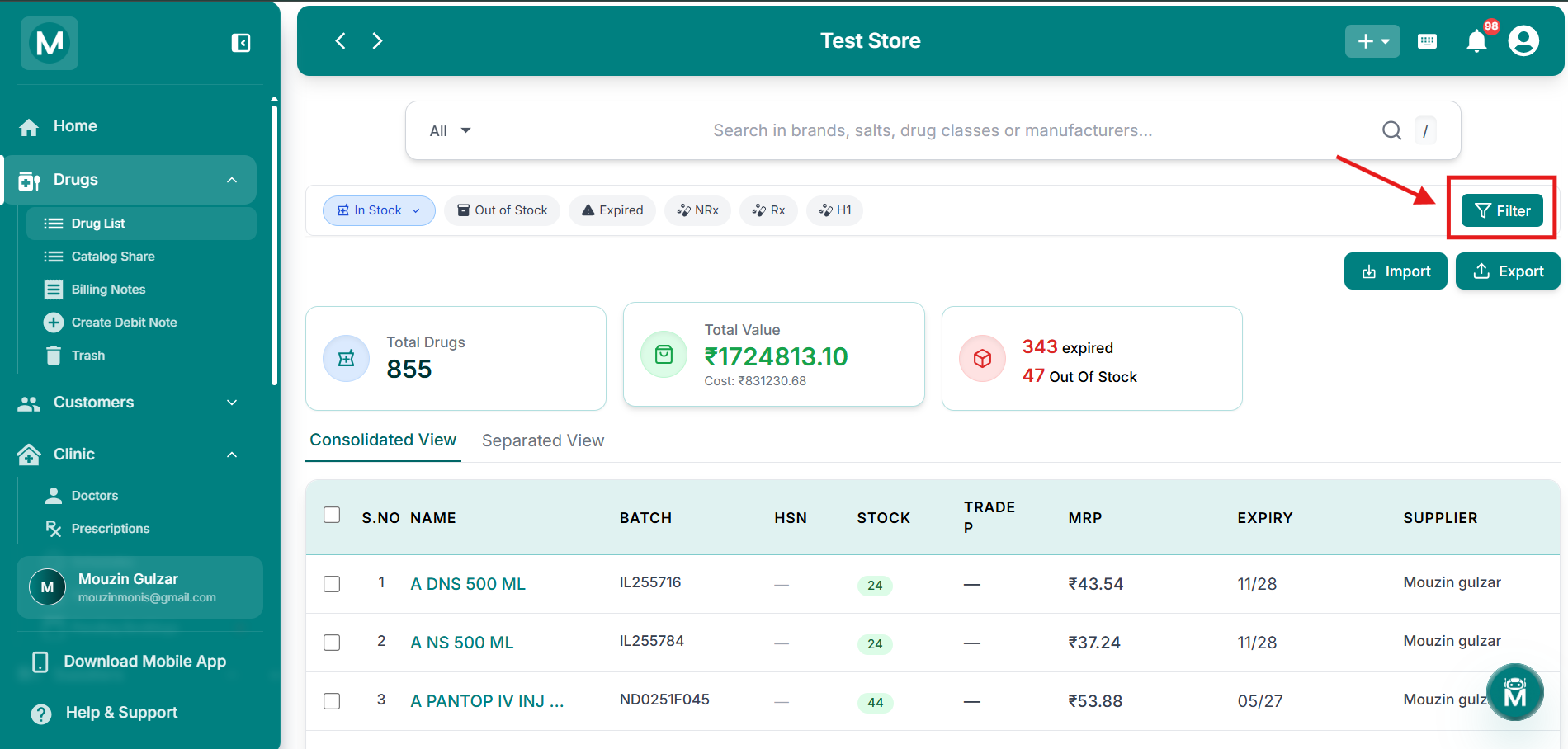
Drug Filter
Filter drugs by stock status, sort by Name, Stock, Expiry, or Date Added, and filter by drug type etc.
Saved
Save your current filter combination with a custom name for quick reuse later. Previously saved filters are listed here and can be deleted.
Insights
Shows filter statistics for your current view: Total Items, In Stock, Low Stock, Expiring Soon, Out of Stock, and a Stock Distribution bar.
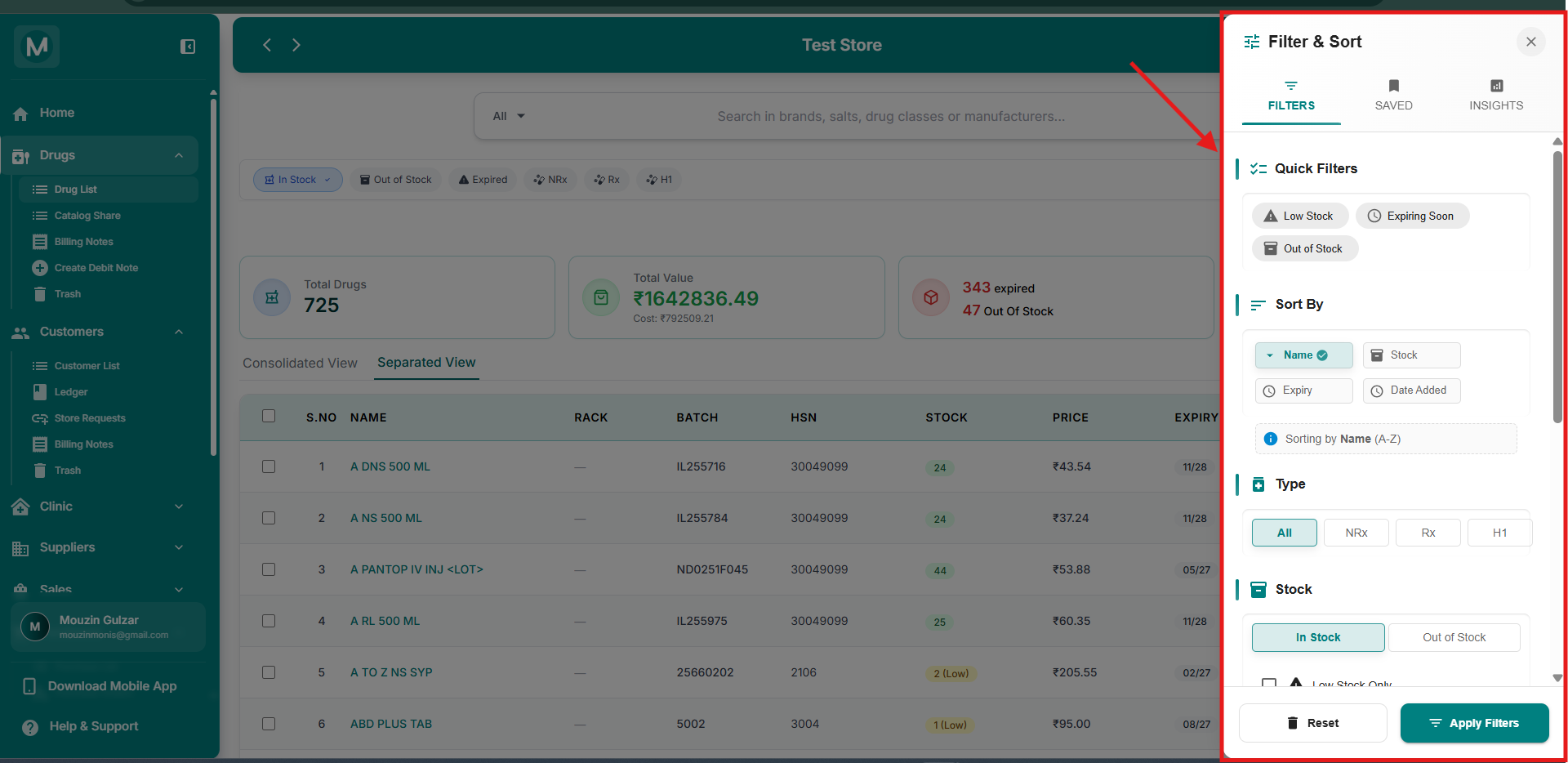
Filter & Sort panel
Filters, Saved filters, and Insights tabs.
Page-Level Buttons
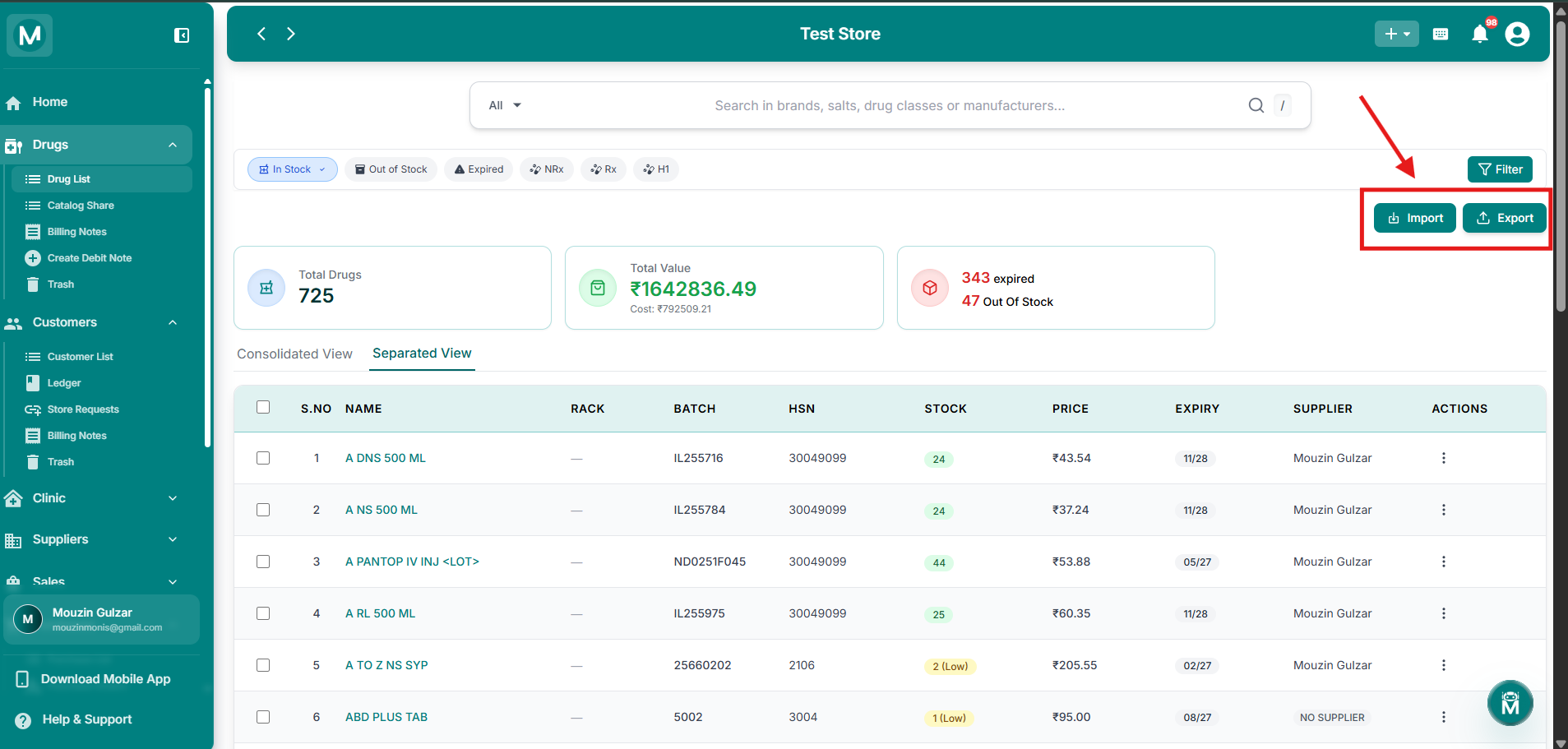
Page-level buttons
Import and Export buttons at the top of the Drug List.
Importing Your Inventory
If you're setting up MediFlux for the first time or need to add drugs in bulk, the Import button opens a step-by-step wizard:
- Upload: upload your inventory as a CSV or Excel file. You can also download a template to see the expected format
- Map Headers: match the columns in your file to MediFlux's drug fields
- Preview: review your data before confirming the import
- Complete: finishes the import and adds the drugs to your inventory
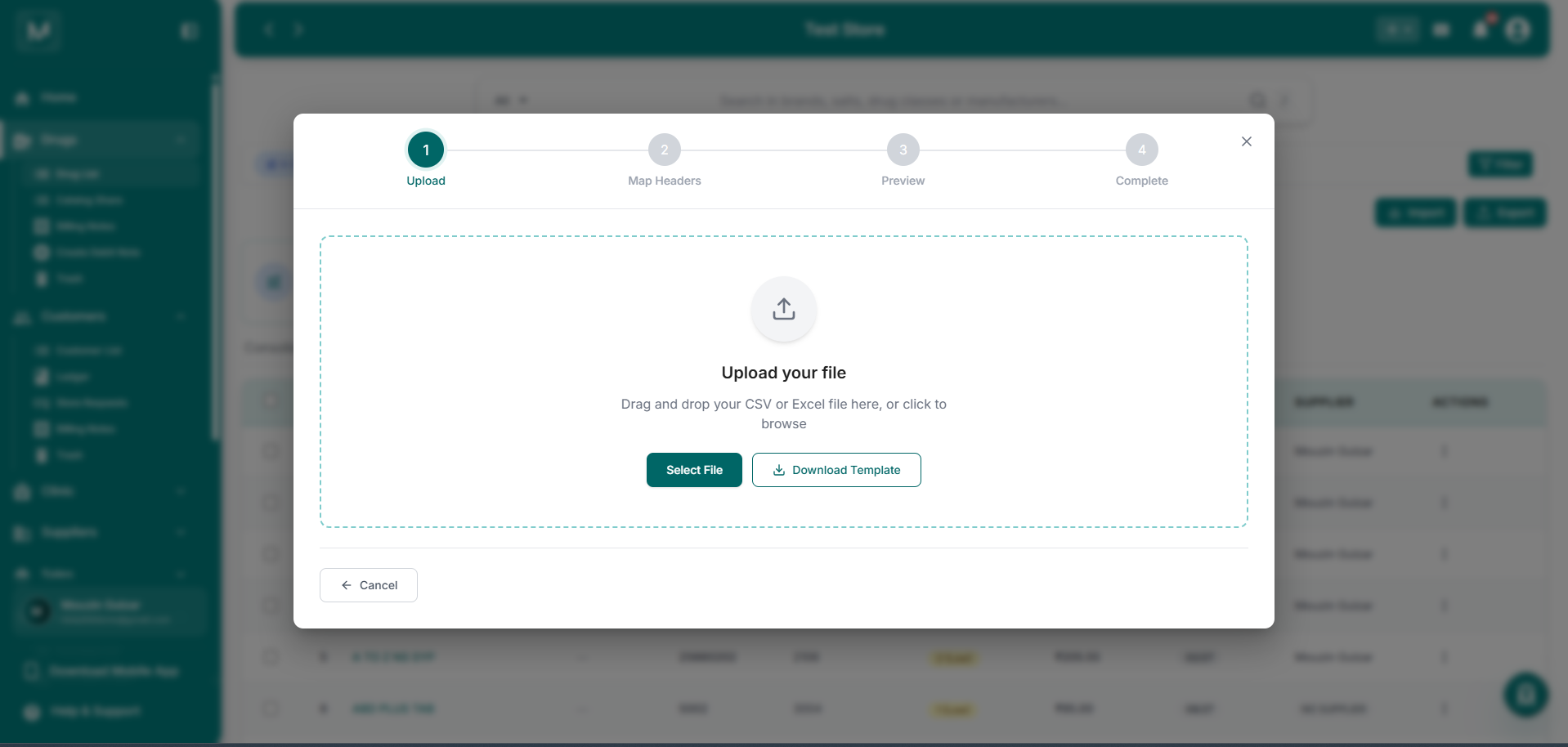
Import Drugs wizard
Step-by-step wizard for bulk importing drugs from a file.